Managing Gadget Data Queries
- Gadget data query
A custom query for retrieving specific gadget data records from the application database against defined criteria.
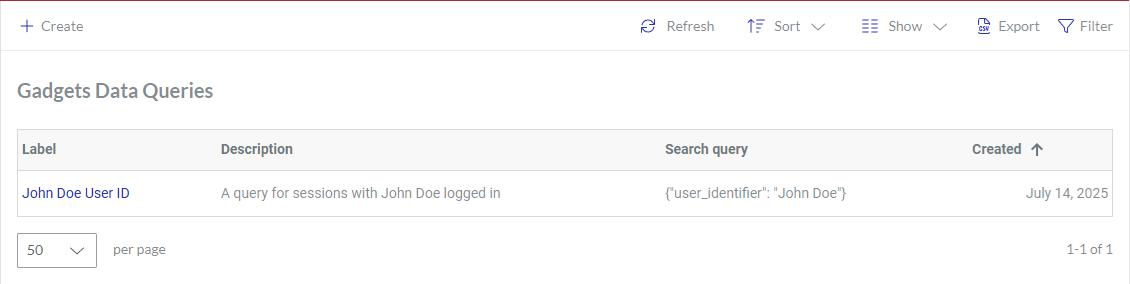
Gadgets Data Queries page
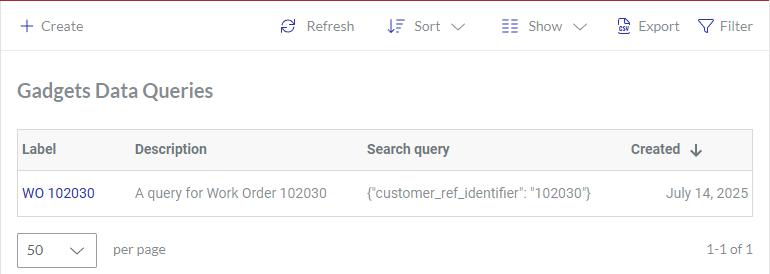
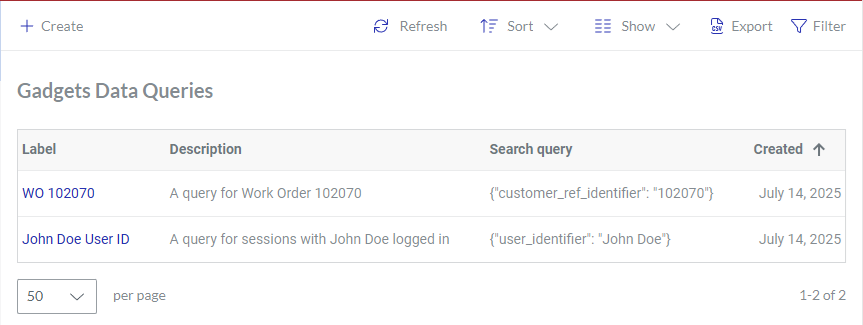
The Gadgets Data Queries page is a place in the Admin Area where you create and manage gadget data queries. The page displays gadget data queries in a content table, where they are rows, and their properties are columns. To manage, explore, and view gadget data queries, you can use the content table toolbar and action menu.
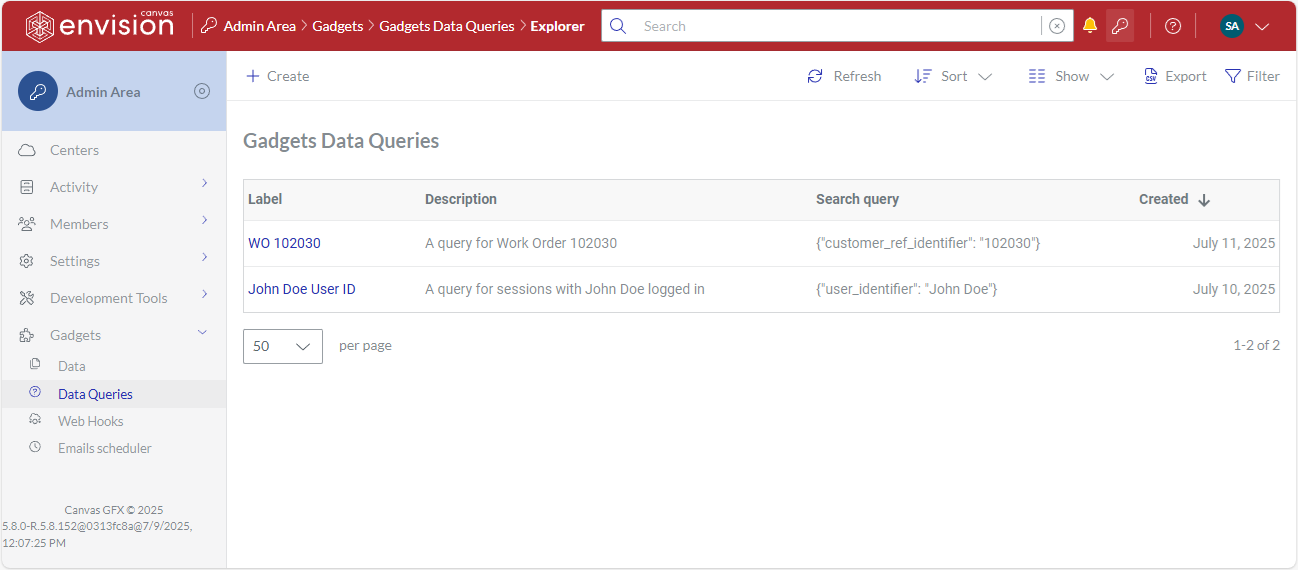
Accessing the Gadgets Data Queries page
To go to gadget data record queries:
Click the Admin area button on the Portal top bar.
In the Admin Area sidebar, click Gadgets > Data Queries.
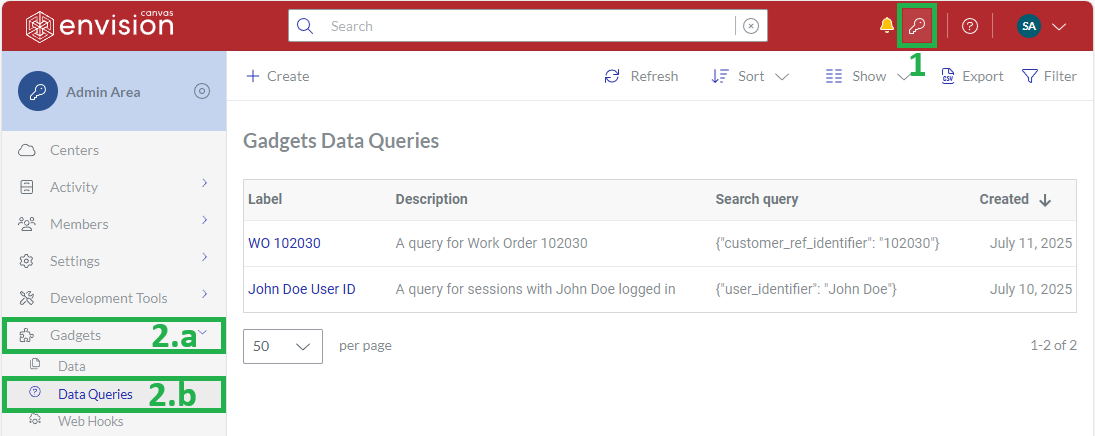
The system leads you to the Gadgets Data Queries page.
Gadgets Data Queries content table toolbar

The Gadgets Data Queries content table toolbar provides the following:
The Create button to create a new gadget data query.
The Refresh button to refresh the gadget data queries in the content table.
The Sort drop-down list to sort the gadget data queries in the content table by a given column in ascending or descending order.
The Show drop-down list to show and hide content table columns.
The Export button to download the gadget data queries included in the content table to your local drive as a comma-separated values (CSV) file.
The Filter button to filter the gadget data queries in the content table against your criteria.
Gadgets Data Queries content table columns
By default, the Gadgets Data Queries table displays only the following columns:
Label
Description
Search query
Created
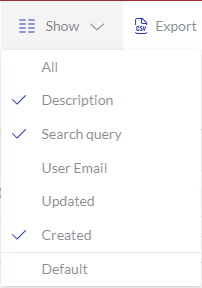 | With the Show drop-down list, you can hide and show the following columns as you wish:
|
|---|
The Label column cannot be hidden. It empowers you with the management features for the gadget data queries.
Gadget data query action menu
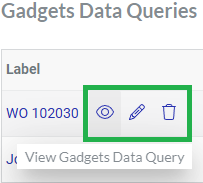
The Label column features the action menu with the following options for a gadget data query:
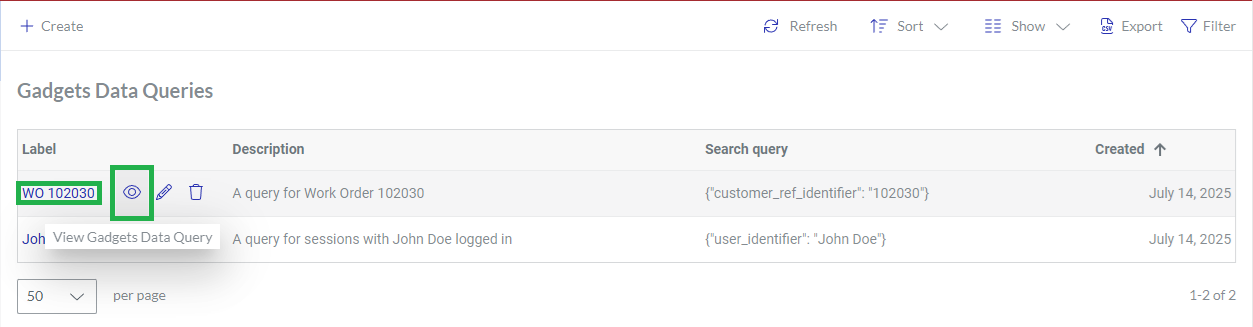
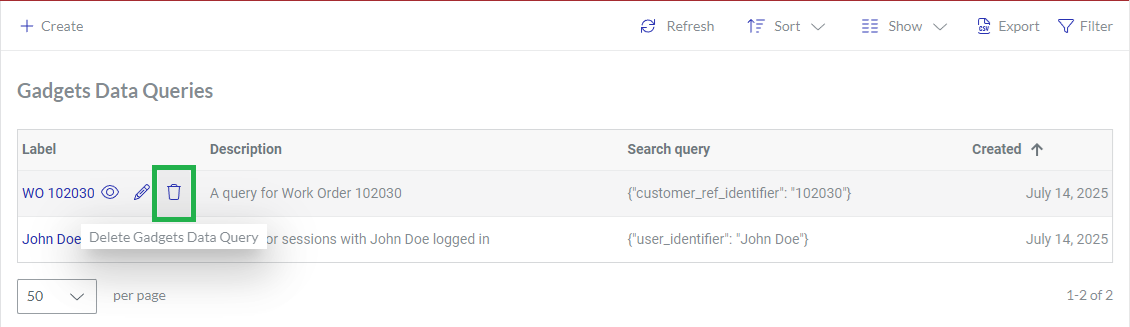
View Gadgets Data Query: to view the gadget data query properties on the Gadgets Data Query page.
Edit Gadgets Data Query: to edit the gadget data query properties on the Edit Gadgets Data Query page.
Delete Gadgets Data Query: to delete the gadget data query.
Gadgets Data Query page
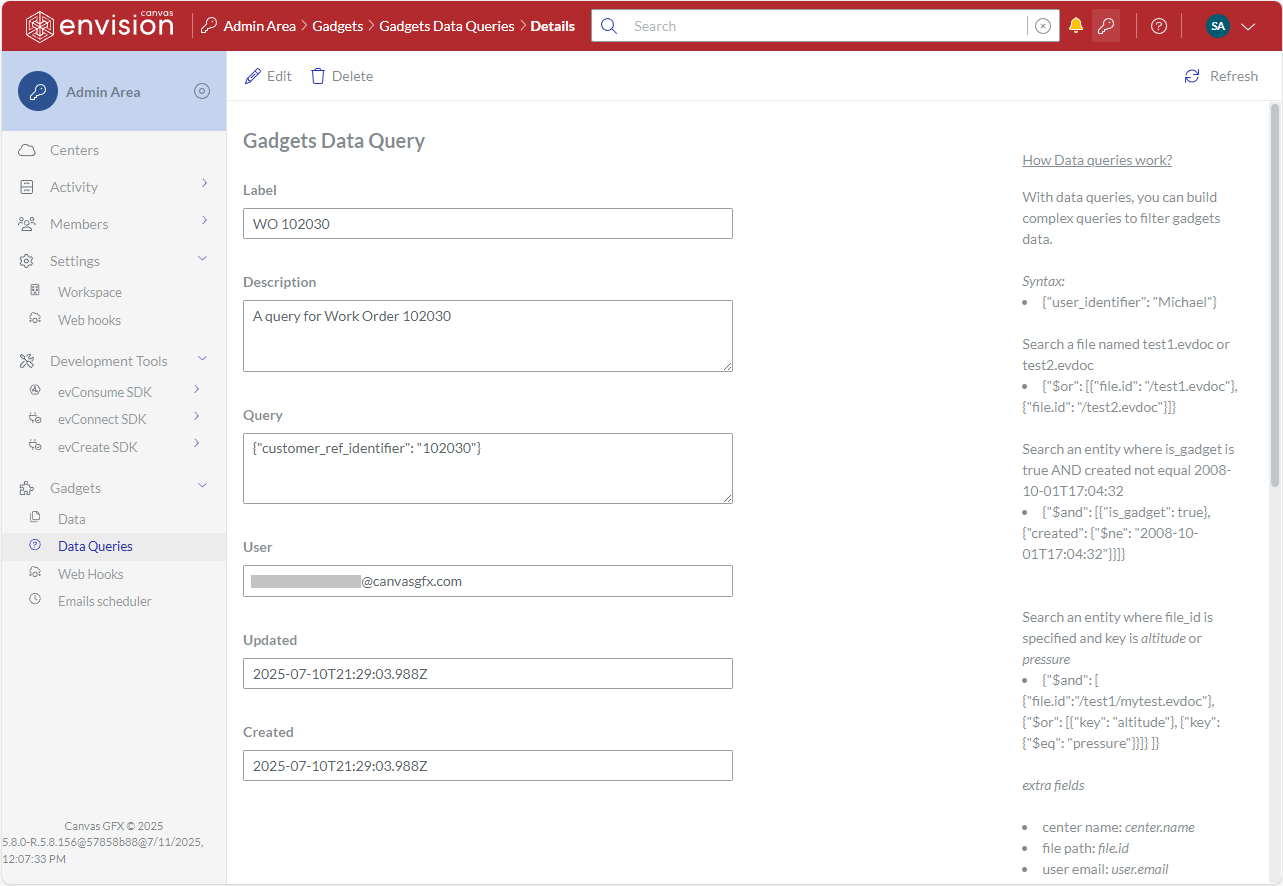
The Gadgets Data Query page is a place in the Admin Area where you can manage and view a gadget data query. It provides the toolbar to manage the gadget data query and displays the properties of the gadget data query in the corresponding fields. You can open the gadget data query in view or edit mode on this page.
Accessing the Gadgets Data Query page
To go to the properties of a gadget data query:
Gadgets Data Query page toolbar
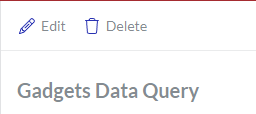
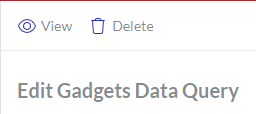
The Gadgets Data Query page toolbar has the following buttons:
Edit: to switch the page with a given gadget data query to edit mode. This button is visible only in view mode.
View: to switch the page with a given gadget data query to view mode. This button is visible only in edit mode.
Delete: to delete a given gadget data query.
Gadgets Data Query page fields and buttons
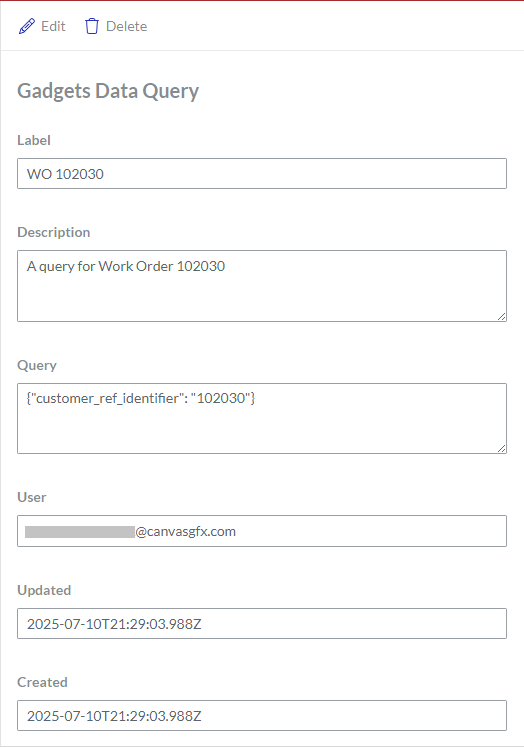
The Gadgets Data Query page provides the properties of a displayed gadget data query in the following fields:
Label: the name of the gadget data query.
Description: an optional brief explanation of the gadget data query.
Query: the criteria of the gadget data query against which gadget data records are filtered out. The criteria are composed according to the search condition JSON object syntax.
User: the email address of a user who created the gadget data query.
Updated: the date and time when the user last updated the gadget data query.
Created: the date and time when the user created the gadget data query.
Creating gadget data queries
To create a new gadget data query:
Go to the Gadgets Data Queries page.
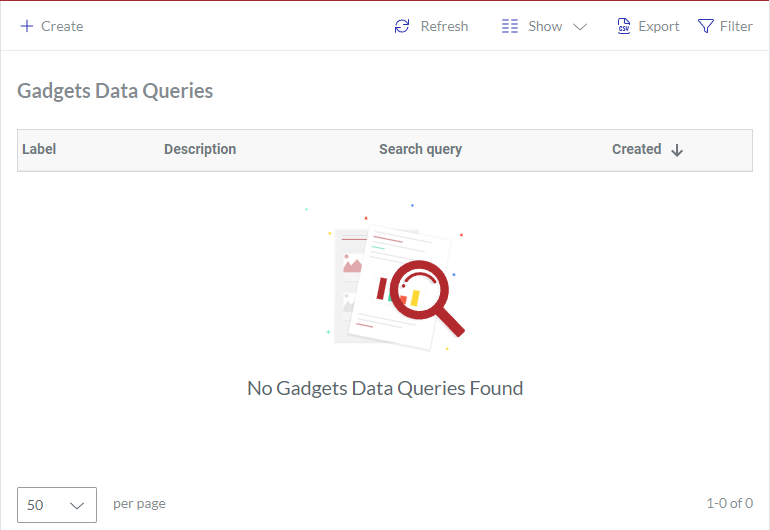
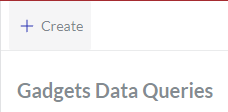
Click the Create button on the Gadgets Data Queries content table toolbar.
The Create Gadgets Data Query page appears with empty inactive fields.
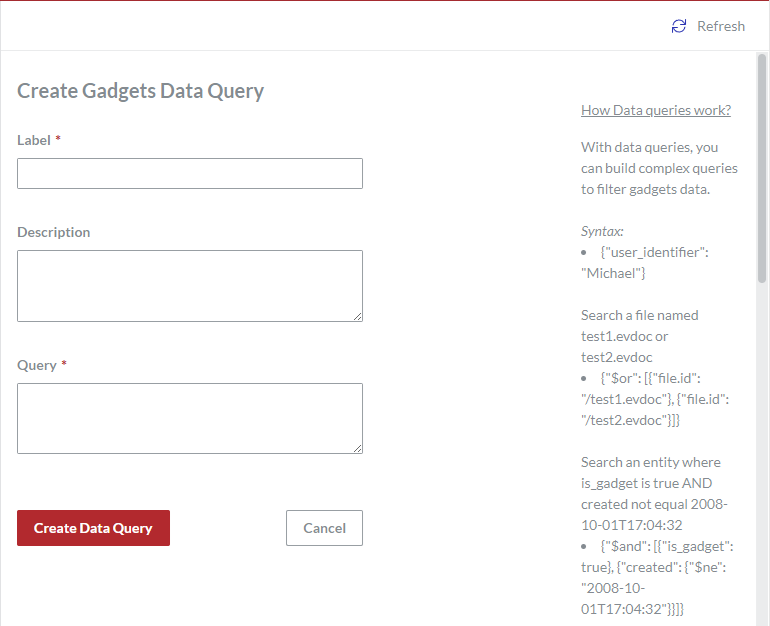
Enter the name of the new gadget data query in the Label field.
If necessary, eloquently describe or explain the new gadget data query in the Description field.
Construct the search criteria of the new gadget data query in the Query field according to the search condition JSON object syntax.
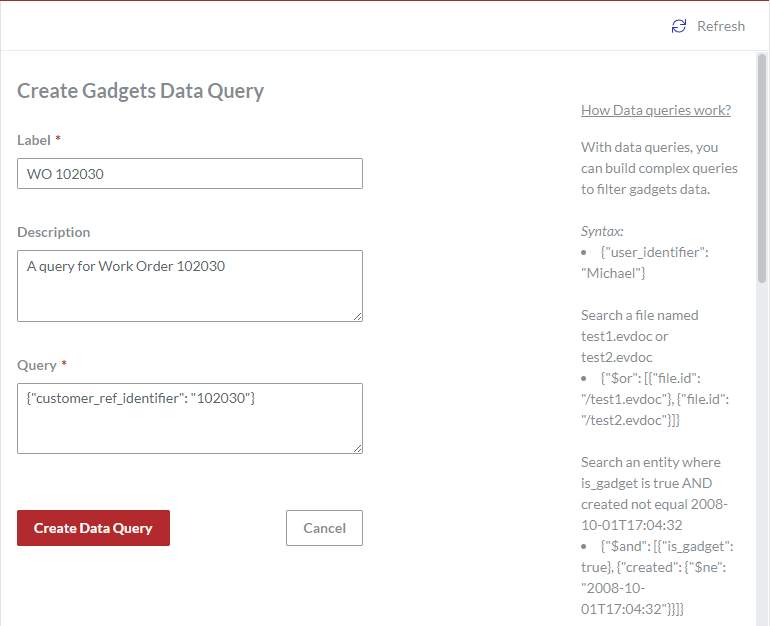
Click the Create Data Query button. The system creates the new data query and redirects you to the Gadgets Data Queries page.
Viewing gadget data queries
To view the properties of an existing gadget data query:
In the Gadgets Data Queries page content table, go to the gadget data query you want to view.
In the Label column, click either:
The name of the gadget data query.
The View Gadgets Data Query button.
The system displays the properties of the gadget data query in the inactive fields of the Gadgets Data Query page.
Updating gadget data queries
To update the properties of an existing gadget data query:
In the Gadgets Data Queries page content table, go to the gadget data query whose properties you want to update.
In the Label column, click the Edit Gadgets Data Query button.
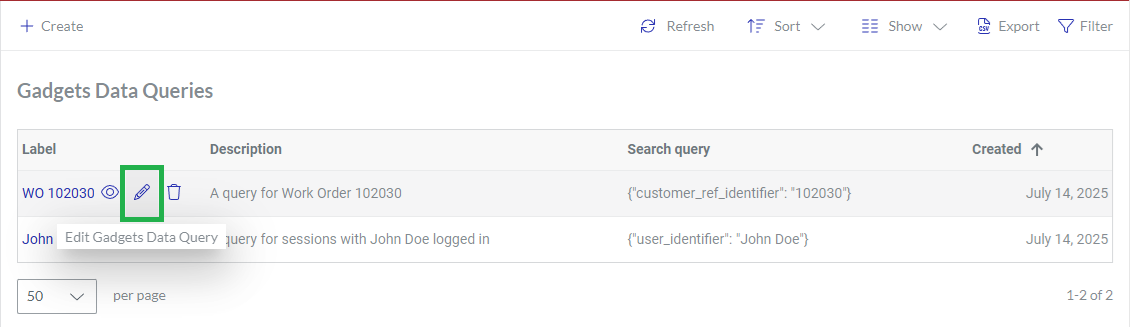
The system displays the properties of the gadget data query in the active fields of the Edit Gadgets Data Query page.
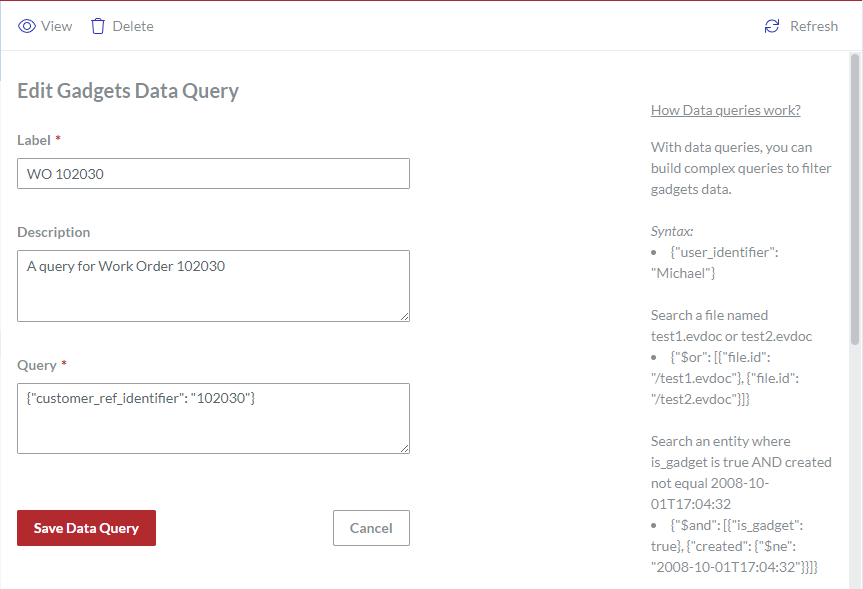
If necessary, rename the gadget data query in the Label field.
If necessary, update the description or explanation of the gadget data query in the Description field.
If necessary, change the search criteria of the gadget data query in the Query field according to the search condition JSON object syntax.
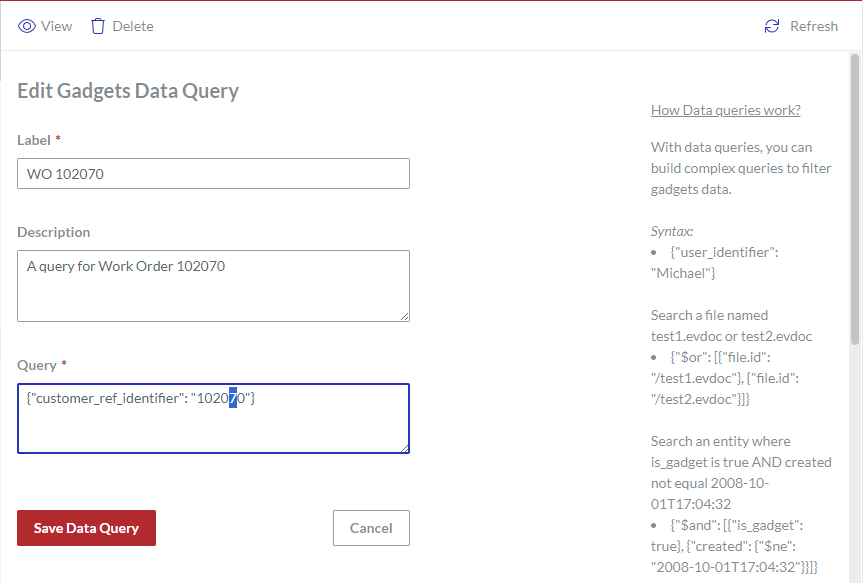
Click the Save Data Query button. The system saves your gadget data query property updates and redirects you to the Gadgets Data Queries page.
Deleting gadget data queries
To delete an existing gadget data query:
In the Gadgets Data Queries page content table, go to the gadget data query that you want to delete.
In the Label column, click the Delete Gadgets Data Query button.
The Delete? dialog pops up.
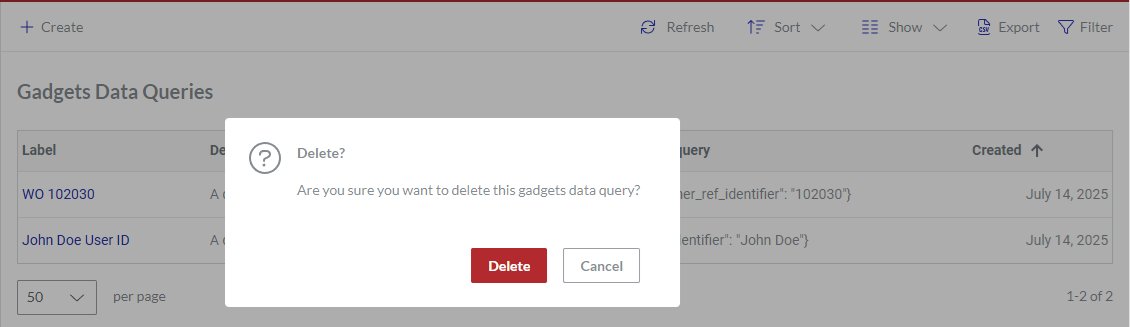
In the Delete? pop-up dialog, click the Delete button. The dialog disappears, and the system permanently deletes the gadget data query from the database. The Gadgets Data Queries page content table does not include the deleted gadget data query.
Using gadget data queries
You can use a gadget data query to retrieve gadget data records from the application database as follows: