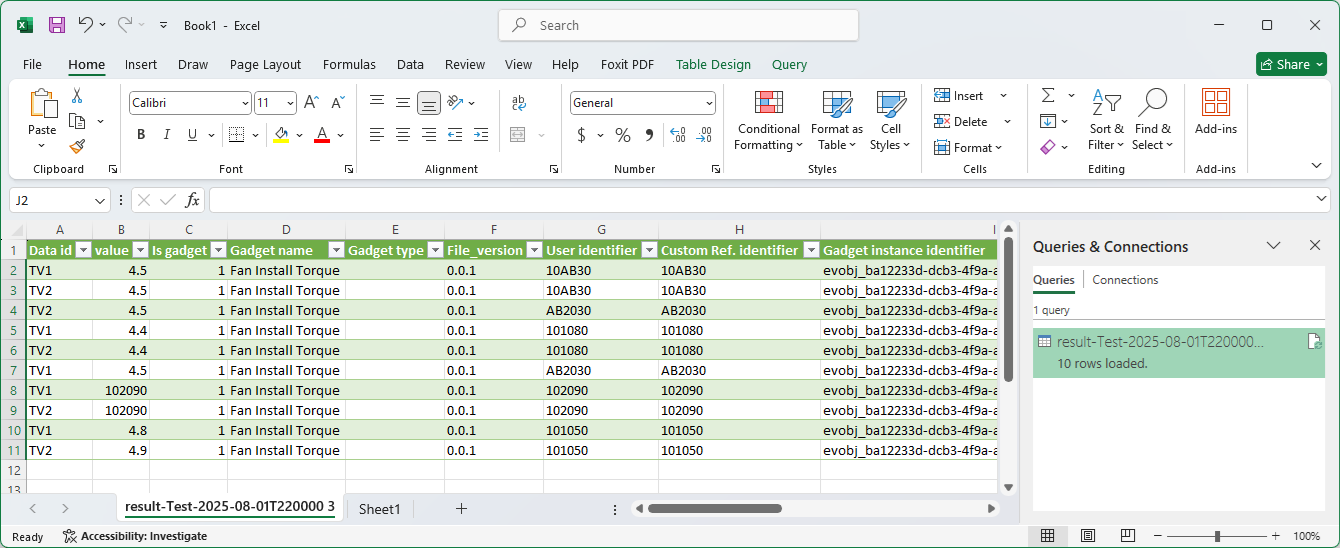
Managing Gadget Data Emails
- Gadget data email series
A Canvas Envision Portal service that automatically and periodically emails to a subscribed address a CSV file with gadget data records created or updated during a scheduled reported period and retrieved from the database (DB) against a specified gadget data query.
Understanding gadget data email series
Within a series of gadget data emails, the system automatically emails a CSV file with gadget data records created or updated during a scheduled reported period and filtered against a specified gadget data query.
You can configure the recipient, schedule, and gadget data record filter for the series.
You must provide one email address to which the system will send the emails within the series. Multiple email addresses are not supported currently.
You can configure how often the system will send emails within the series:
Hourly: at the beginning of every hour, with the gadget data records created or updated during the last hour; for example, from 5:00 PM to 6:00 PM today.
Daily: at a given hour of a day, with the gadget data records created or updated during the last 24 hours. For example, if you create a series at 5:12 PM, the system will email the notifications at the following hour— 6:00 PM—every day with the gadget data records created or updated during the last 24 hours, i.e., from 6:00 PM yesterday to 6:00 PM today.
Weekly: at a given hour of a given day of a week, with the gadget data records created or updated from the same hour on the same day of the last week. For example, if you create a series at 5:12 PM on Tuesday, the system will email the notifications at the following hour—6:00 PM—every Tuesday with the gadget data records created or updated during the period from 6:00 PM on the last Tuesday to 6:00 PM on the current Tuesday.
Monthly: at a given hour of a given day of a month, with the gadget data records created or updated from the same hour on the same day of the last month. For example, if you create a series at 5:12 PM on the 5-th day of the month, the system will email the notifications at the following hour—6:00 PM—on the 5-th day of every month with the gadget data records created or updated during the period from 6:00 PM on the 5-th day of the last month to 6:00 PM on the 5-th day of the current month, such as, from 6:00 PM on July 5 to 6:00 PM on August 5. If the series is created on the 31st day, and the current month has fewer days, the system will send the notification on the last day of the month; for example, from 6:00 PM on August 31 to 6:00 PM on September 30.
Updating the series does not change the time when the system sends emails.
You can specify a gadget data query against which the series will filter gadget data records created or updated during the scheduled reported period to include them in the email. If you do not specify the query, the email will contain every record from the period.
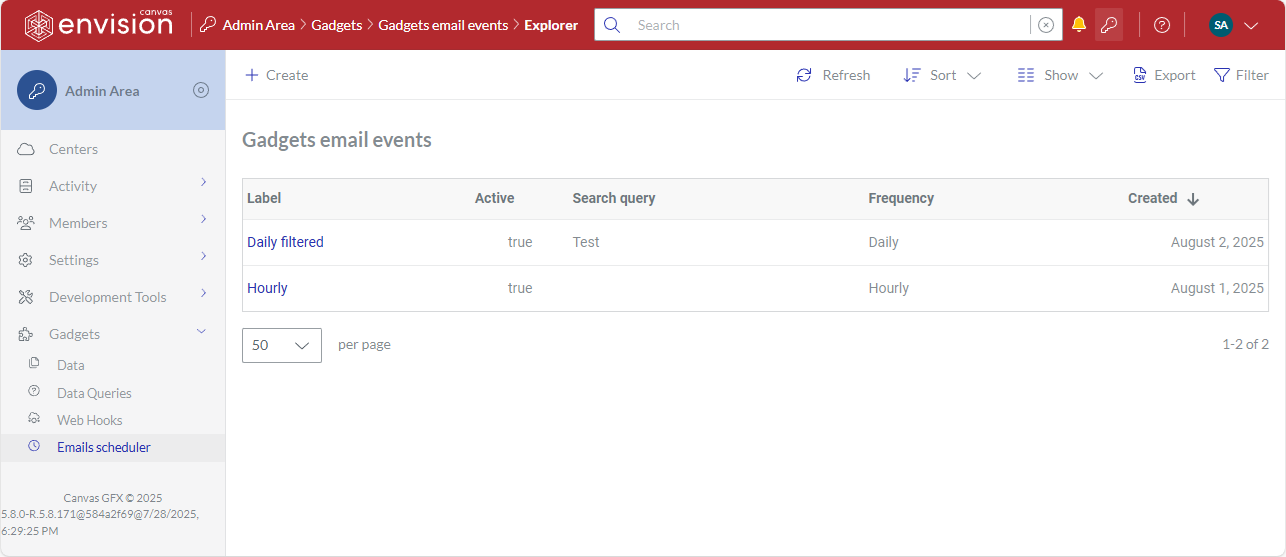
Gadgets email events page
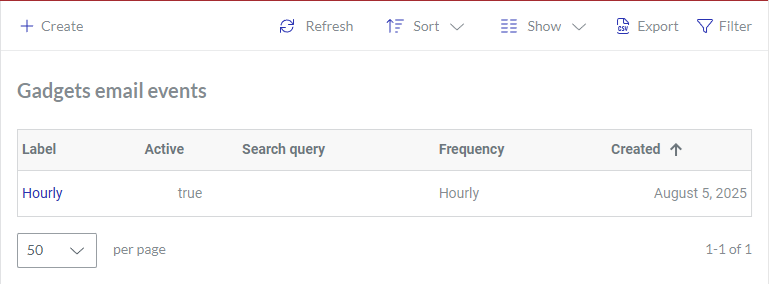
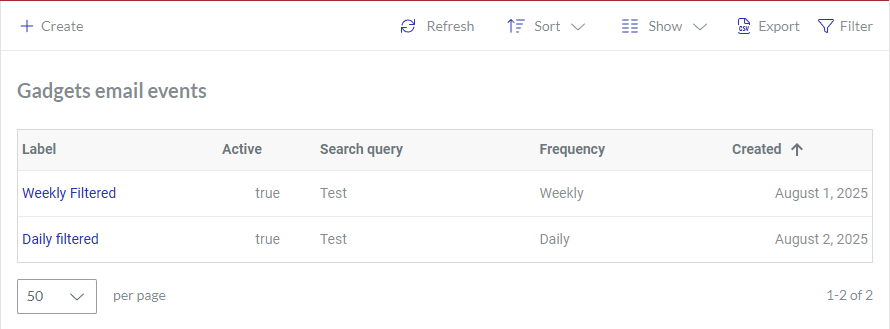
The Gadgets email events page is a place in the Admin Area where you create and manage gadget data email series. The page displays gadget data email series in a content table, where they are rows, and their properties are columns. To manage, explore, and view gadget data email series, you can use the content table toolbar and action menu.
Accessing the Gadgets email events page
To go to the gadget data email series:
Click the Admin area button on the Portal top bar.
In the Admin Area sidebar, click Gadgets > Email scheduler.
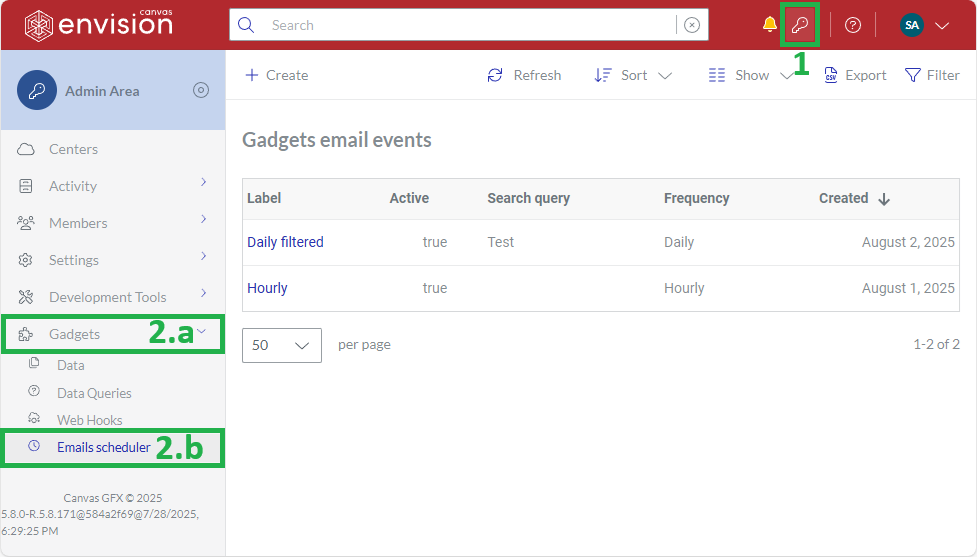
The system leads you to the Gadgets email events page.
Gadgets email events content table toolbar

The Gadgets email events content table toolbar provides the following:
The Create button to create a new gadget data email series.
The Refresh button to refresh the gadget data email series in the content table.
The Sort drop-down list to sort the gadget data email series in the content table by a given column in ascending or descending order.
The Show drop-down list to show and hide content table columns.
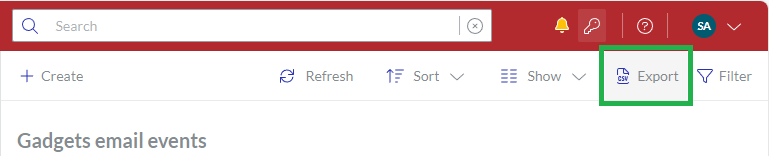
The Export button to download the gadget data email series included in the content table to your local drive as a comma-separated values (CSV) file.
The Filter button to filter the gadget data email series in the content table against your criteria.
Gadgets email events content table columns
By default, the Gadgets email events table displays only the following columns:
Label
Active
Search query
Frequency
Created
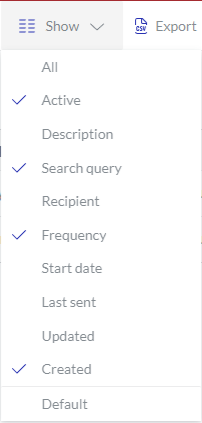 | With the Show drop-down list, you can hide and show the following columns as you wish:
|
|---|
The Label column cannot be hidden. It empowers you with the management features for the gadget data email series.
Gadget data email series action menu
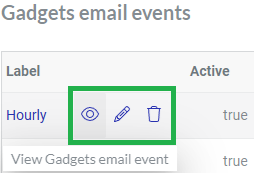
The Label column features the action menu with the following options for a gadget data email series:
View Gadgets email event: to view the gadget data email series properties on the Gadgets email event page.
Edit Gadgets email event: to edit the gadget data email series properties on the Edit Gadgets email event page.
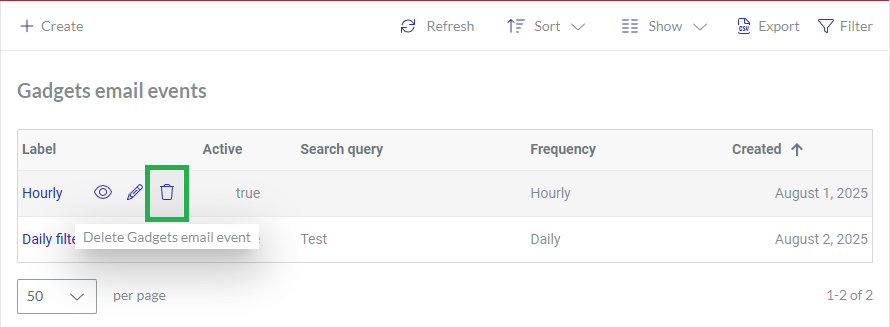
Delete Gadgets email event: to delete the gadget data email series.
Gadgets email event page
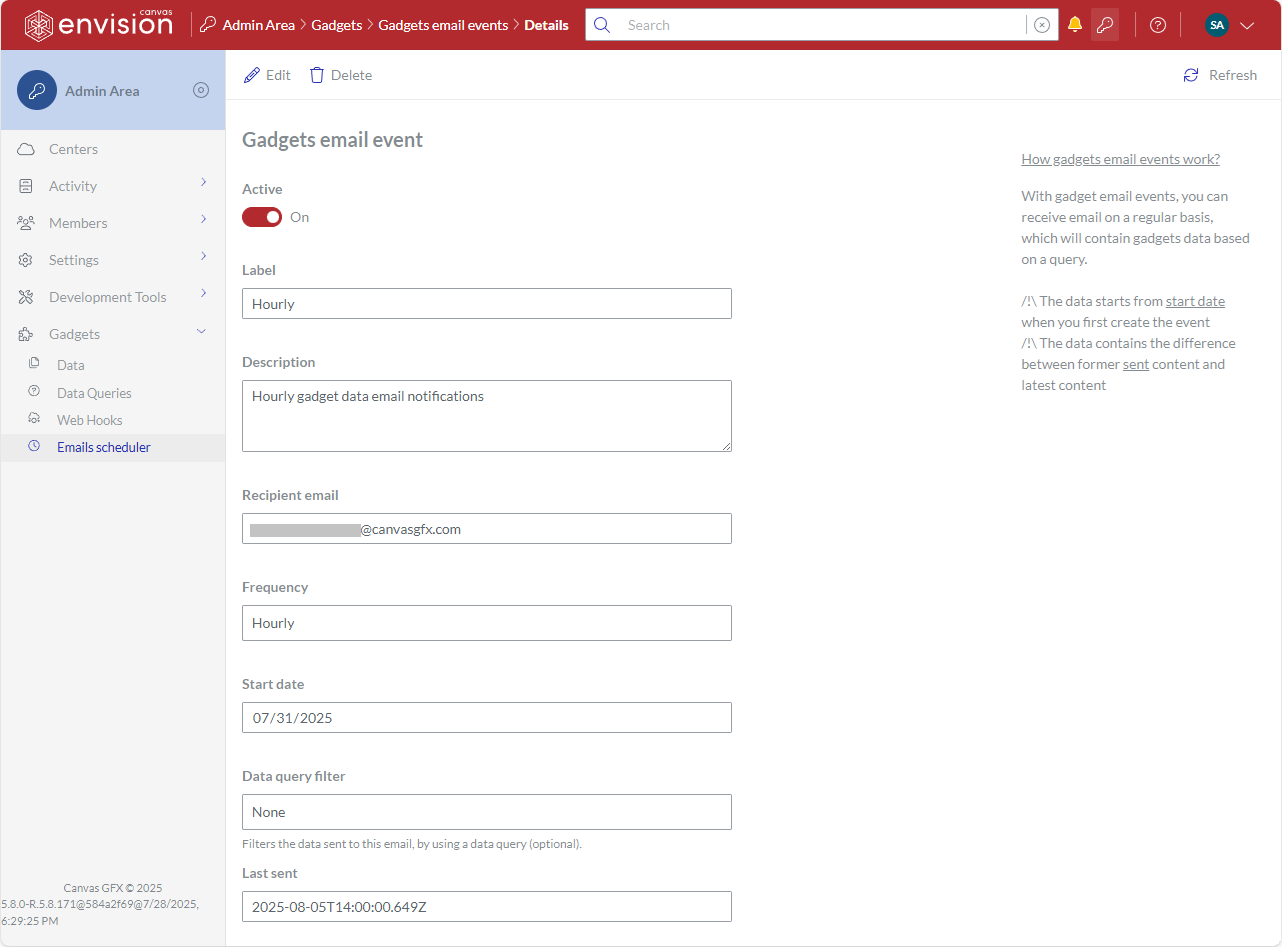
The Gadgets email event page is a place in the Admin Area where you can manage and view a gadget data email series. It provides the toolbar to manage the gadget data email series and displays the properties of the gadget data email series in the corresponding fields. You can open the gadget data email series in view or edit mode on this page.
Accessing the Gadgets email event page
To go to the properties of a gadget data email series:
Gadgets email event page toolbar
The Gadgets email event page toolbar has the following buttons:
Edit: to switch the page with a given gadget data email series to edit mode. This button is visible only in view mode.
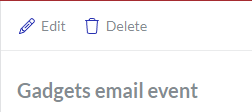
View: to switch the page with the given gadget data email series to view mode. This button is visible only in edit mode.

Delete: to delete the given gadget data email series.
Gadgets email event page fields and buttons
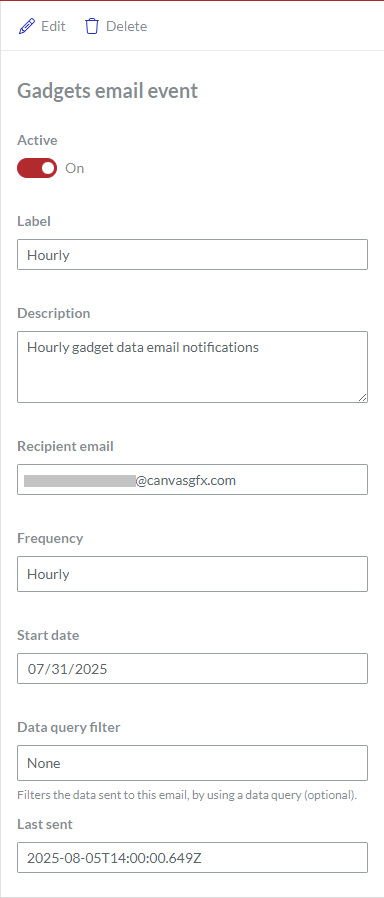
The Gadgets email event page provides the properties of a displayed gadget data email series in the following fields:
Active: a switch to turn off or on sending scheduled emails by the gadget data email series.
Label: the name of the gadget data email series.
Description: an optional brief explanation of the gadget data email series.
Recipient email: an email address to which the gadget data email series sends scheduled emails with gadget data records.
Frequency: the schedule of sending emails by the data email series:
Hourly: at the beginning of every hour, with the gadget data records created or updated during the last hour.
Daily: at a given hour of a day, with the gadget data records created or updated during the last 24 hours.
Weekly: at a given hour of a given day of a week, with the gadget data records created or updated from the same hour on the same day of the last week.
Monthly: at a given hour of a given day of a month, with the gadget data records created or updated from the same hour on the same day of the last month.
For details and examples, see Understanding gadget data email series.
Start date: the date when the system sent the first email in the series.
Data query filter: an optional gadget data query against which gadget data records are filtered for the series emails. If it is not set, the system will send every gadget data record created or updated during the scheduled reported period.
Last sent: the date when the system sent the last email in the series.
Creating gadget data email series
To create a new gadget data email series:
Go to the Gadgets email events page.

Click the Create button on the Gadgets email events content table toolbar.
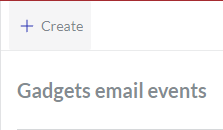
The Create Gadgets email event page appears with empty inactive fields.
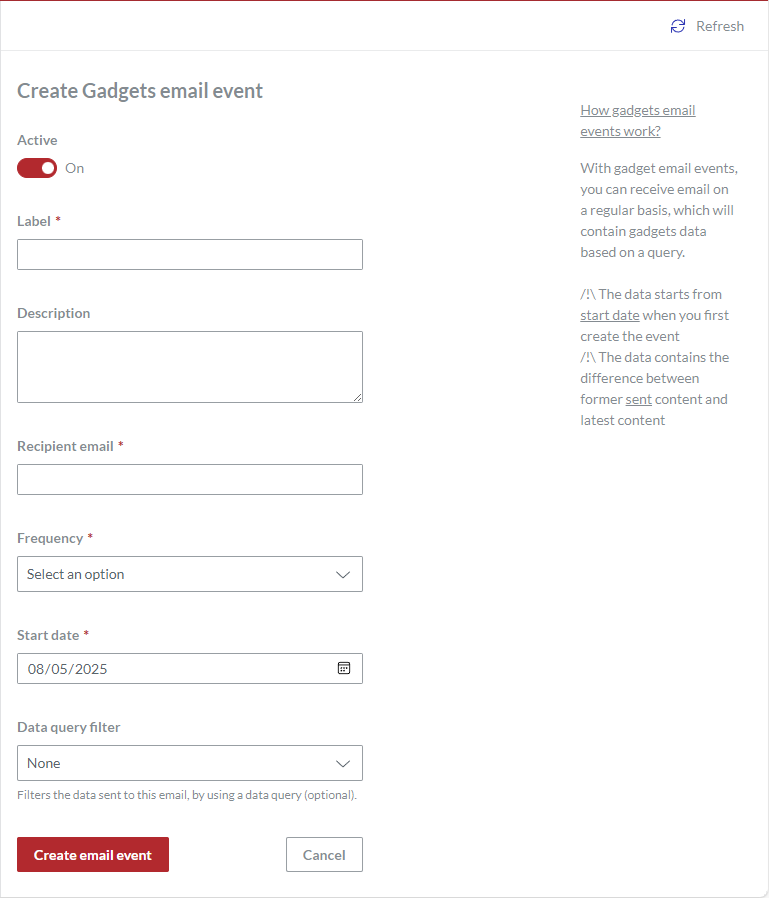
If it is necessary to deactivate sending emails by the new gadget data email series, turn off the Active switch.
In the Label field, enter the name of the new gadget data email series.
If it is necessary, eloquently describe or explain the new gadget data email series in the Description field.
In the Recipient email field, enter an email address to which the gadget data email series will send the emails.
From the Frequency drop-down list, select the schedule when the series will send the emails:
Hourly: at the beginning of every hour, with the gadget data records created or updated during the last hour.
Daily: at a given hour of a day, with the gadget data records created or updated during the last 24 hours.
Weekly: at a given hour of a given day of a week, with the gadget data records created or updated from the same hour on the same day of the last week.
Monthly: at a given hour of a given day of a month, with the gadget data records created or updated from the same hour on the same day of the last month.
For details and examples, see Understanding gadget data email series.
If it is necessary, change the date when the gadget data email series will begin sending the emails in the Start date field.
If it is necessary to send only specific gadget data records created or updated during the scheduled reported period, from the Data query filter drop-down list, select the gadget data query against which gadget data records will be filtered for the gadget data email series. If it is necessary to include every record created or updated during the reported period, keep None selected.
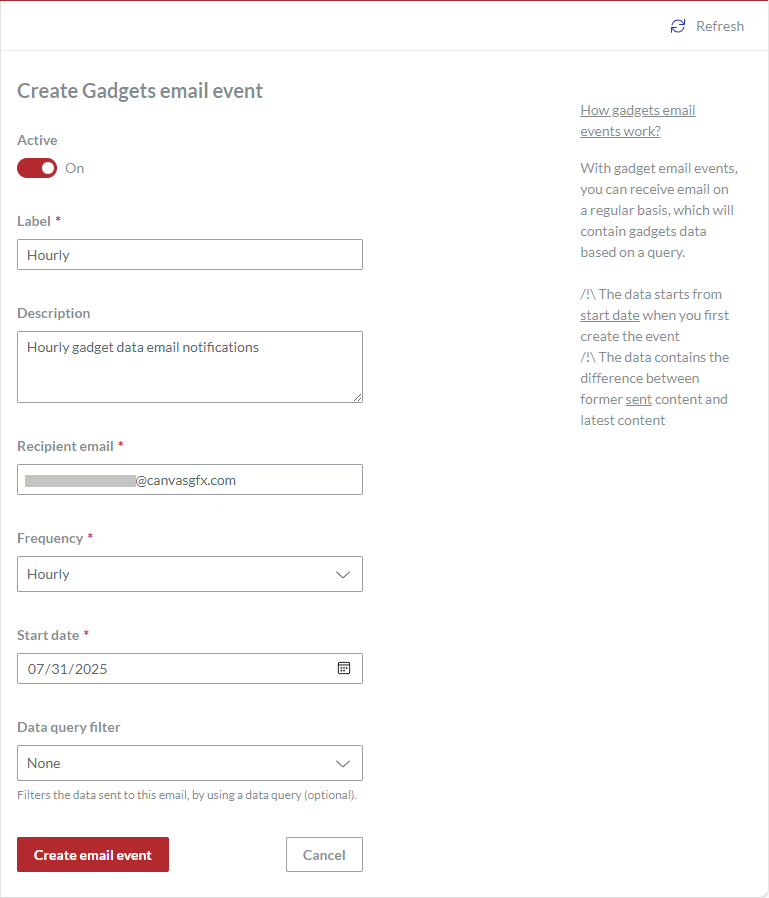
Click the Create email event button. The system creates the new gadget data email series and redirects you to the Gadgets email events page.
Viewing gadget data email series
To view the properties of an existing gadget data email series:
In the Gadgets email events page content table, go to the gadget data email series you want to view.
In the Label column, click either:
The name of the gadget data email series.
The View Gadgets email event button.
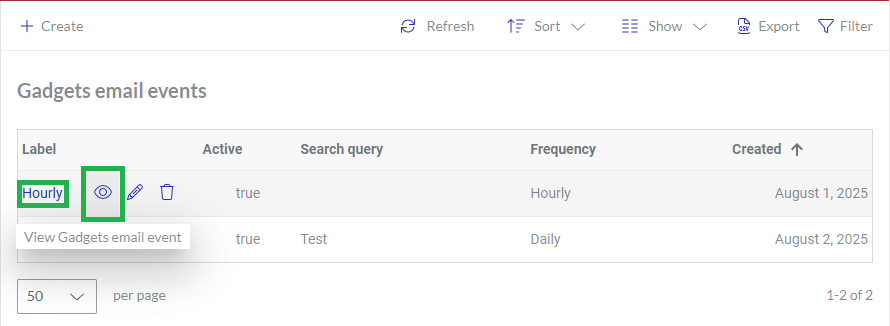
The system displays the properties of the gadget data email series in the inactive fields of the Gadgets email event page.
Updating gadget data email series
To update the properties of an existing gadget data email series:
In the Gadgets email events page content table, go to the gadget data email series whose properties you want to update.
In the Label column, click the Edit Gadgets email event button.
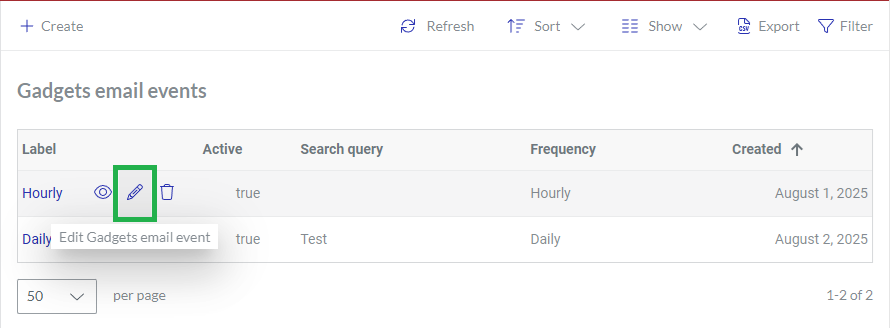
The system displays the properties of the gadget data email series in the active fields of the Edit Gadgets email event page.
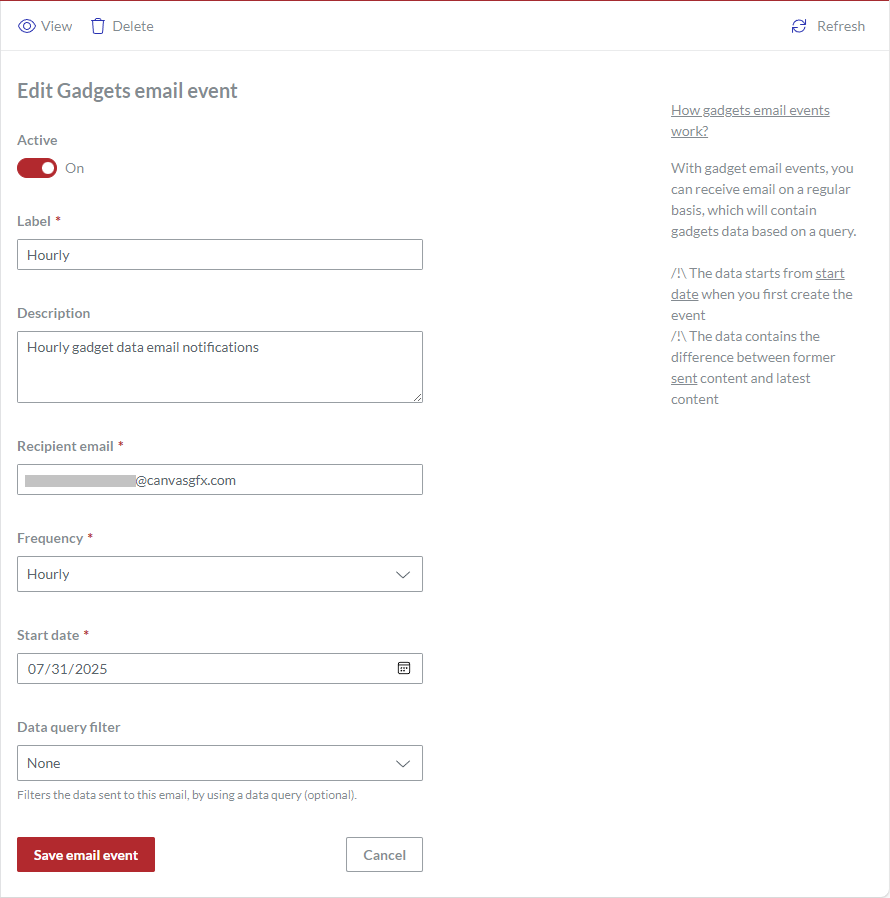
If it is necessary to deactivate or activate sending emails by the gadget data email series, turn off or on the Active switch.
If it is necessary to rename the gadget data email series, enter the new name in the Label field.
If it is necessary to update the description or explanation of the gadget data email series, enter the new text in the Description field.
If it is necessary to change the recipient of the emails sent by the gadget data email series, enter a new email address in the Recipient email field.
If it is necessary to reset the schedule when the series sends the emails, select the necessary option from the Frequency drop-down list:
Hourly: at the beginning of every hour, with the gadget data records created or updated during the last hour.
Daily: at a given hour of a day, with the gadget data records created or updated during the last 24 hours.
Weekly: at a given hour of a given day of a week, with the gadget data records created or updated from the same hour on the same day of the last week.
Monthly: at a given hour of a given day of a month, with the gadget data records created or updated from the same hour on the same day of the last month.
For details and examples, see Understanding gadget data email series.
If it is necessary to change the date when the gadget data email series should begin sending the emails, specify the necessary date in the Start date field.
If it is necessary to change the gadget data query against which gadget data records are filtered for the gadget data email series, select another gadget data query from the Data query filter drop-down list. If it is necessary to include every record created or updated during the reported period, select None.
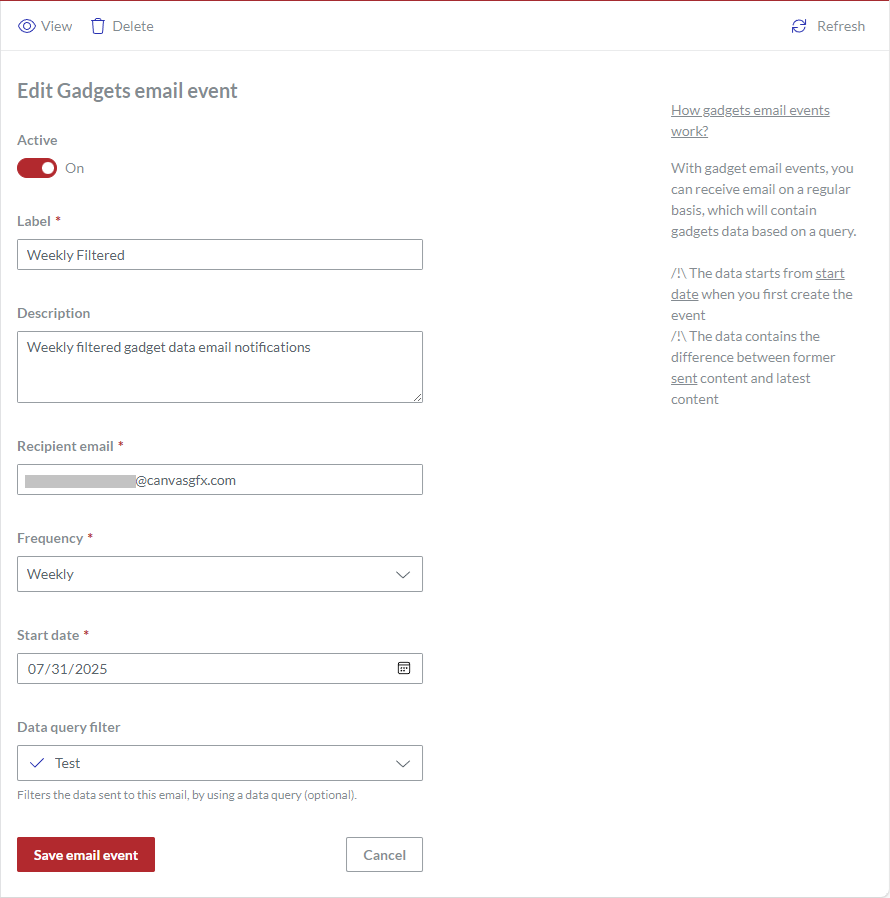
Click the Save email event button. The system saves your gadget data email series property updates and redirects you to the Gadgets email events page.
Deleting gadget data email series
To delete an existing gadget data email series:
In the Gadgets email events page content table, go to the gadget data email series that you want to delete.
In the Label column, click the Delete Gadgets email event button.
The Delete? dialog pops up.
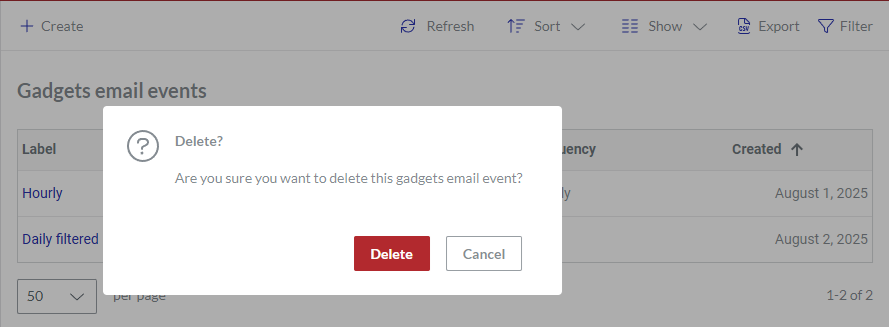
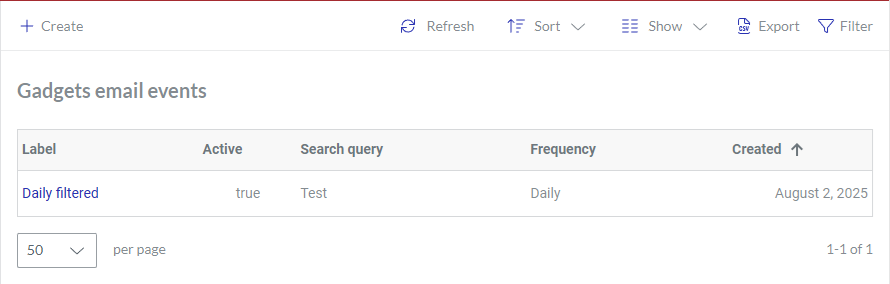
In the Delete? pop-up dialog, click the Delete button. The dialog disappears, and the system permanently deletes the gadget data email series from the database. The Gadgets email events page content table does not include the deleted gadget data email series.
Exporting gadget data email series
To download gadget data email series to your local drive in a CSV file:
Go to the Gadgets email events content table.
Filter and sort gadget data email series in the Gadgets email events content table as you need.
Click the Export button on the Gadgets email events content table toolbar.
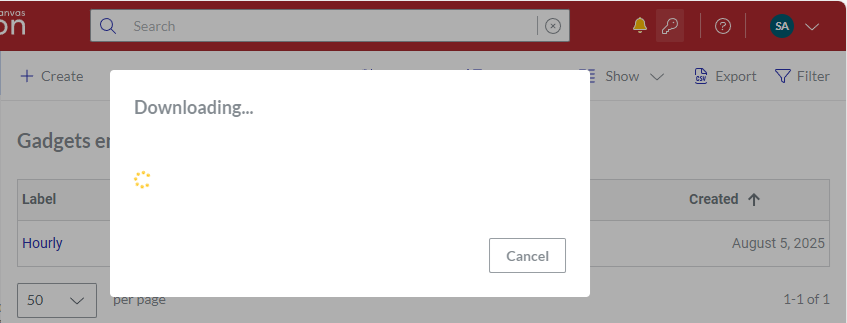
The Downloading dialog pops up with a running spinner.
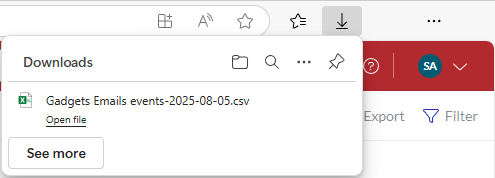
Once the downloading is completed, the Downloading dialog disappears, and the browser displays the CSV file with the exported gadget data email series on the list of downloads.
Go to the folder with the downloaded file on your machine.
If you want to work with the CSV file using the text or spreadsheet editor of your choice, you may need to import the file into the editor for the correct representation of the gadget data email series.
Viewing gadget data email messages
If you are a recipient of emails sent by a gadget data email series, you should regularly receive automatic system emails with attached CSV files that include gadget data records created or updated during the reported periods and filtered against specified gadget data queries.
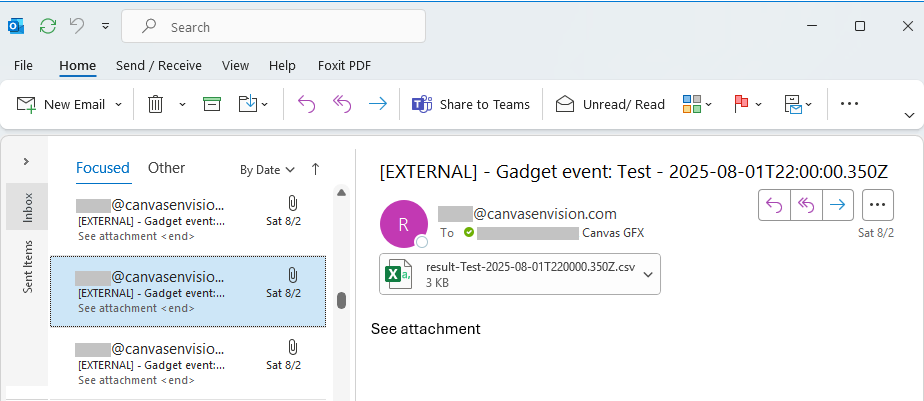
If you want to download, view, and work with the CSV files on your machine, you may need to import the files into the text or spreadsheet editor of your choice for the correct representation of the gadget data records.