Exploring and Viewing Gadget Data Records
- Gadget data record
A record in the database containing the following:
A piece of data that a document user entered in a data capture field of a data capture gadget when viewing an Envision document with this gadget in the Canvas Envision Web Viewer.
The related system, document, and user metadata.
Credentials that the user provided in a login gadget if it was in the document.
Gadgets Data Records page
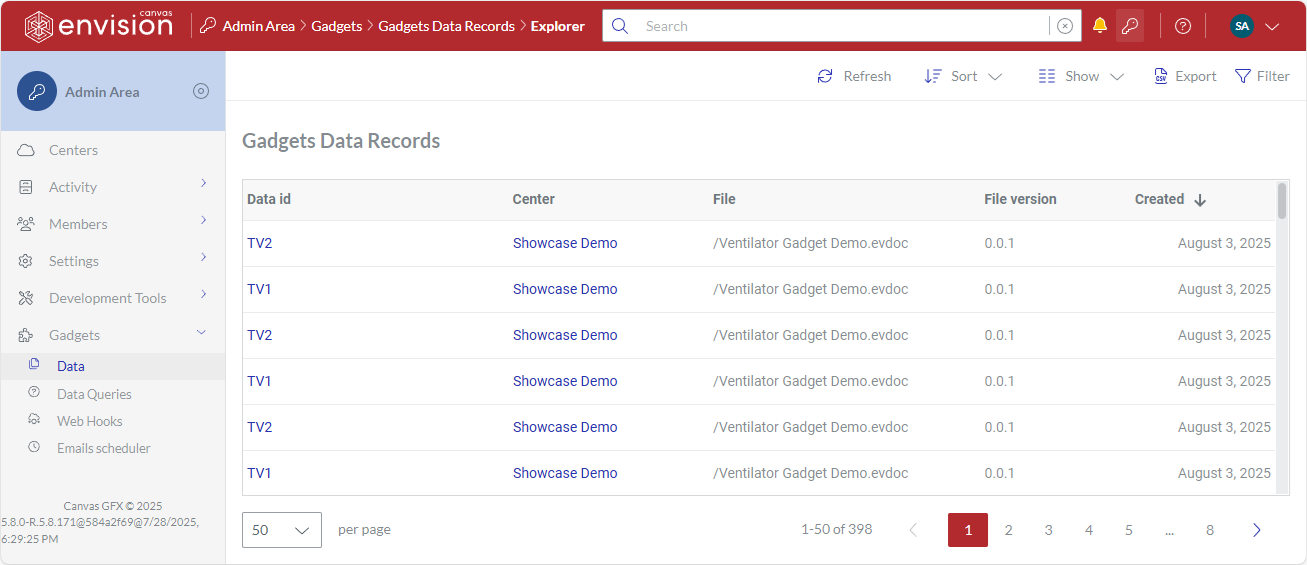
The Gadgets Data Records page is a place in the Admin Area where you explore all gadget data records stored in the database. The page displays gadget data records in a content table, where they are rows, and their properties are columns. To refresh, filter, sort, and export gadget data records, you can use the content table toolbar. To view a gadget data record, you can use the content table action menu.
Accessing the Gadgets Data Records page
To go to the page with gadget data records stored in the database:
Click the Admin area button on the Portal top bar.
In the Admin Area sidebar, click Gadgets > Data.
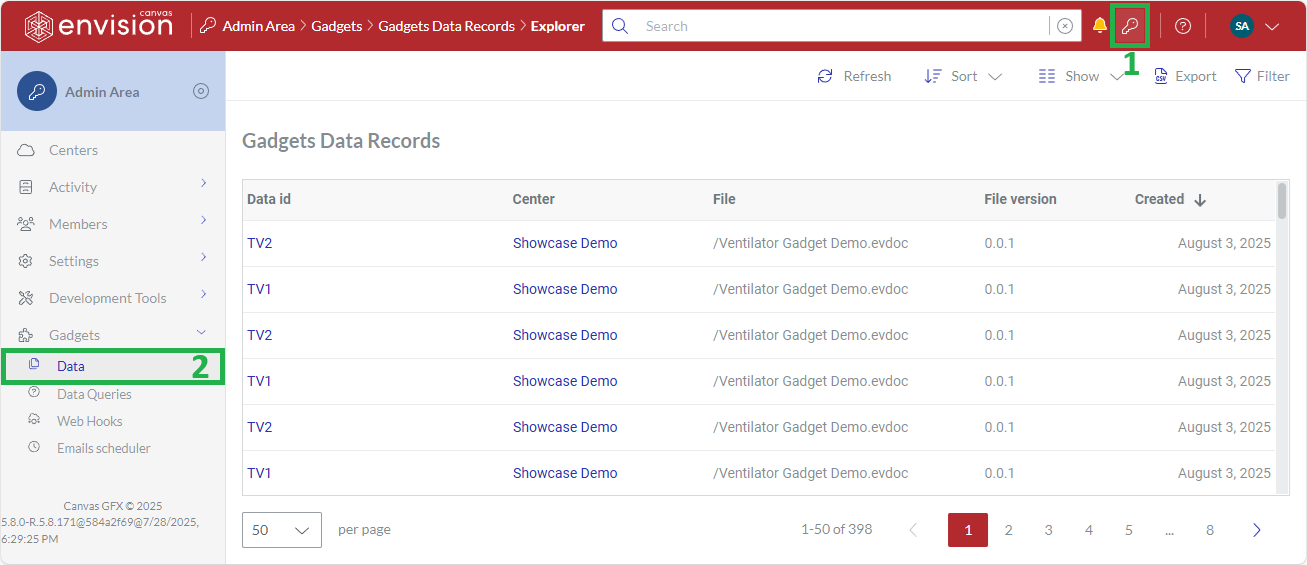
The system leads you to the Gadgets Data Records page.
Gadgets Data Records content table toolbar

The Gadgets Data Records content table toolbar provides the following:
The Refresh button to refresh the gadget data records in the content table.
The Sort drop-down list to sort the gadget data records in the content table by a given column in ascending or descending order.
The Show drop-down list to show and hide content table columns.
The Export button to download the gadget data records included in the content table to your local drive as a comma-separated values (CSV) file.
The Filter button to filter the gadget data records in the content table against your criteria.
Gadgets Data Records content table columns
By default, the Gadgets Data Records table displays only the following columns:
Data id
Center
File
File version
Created
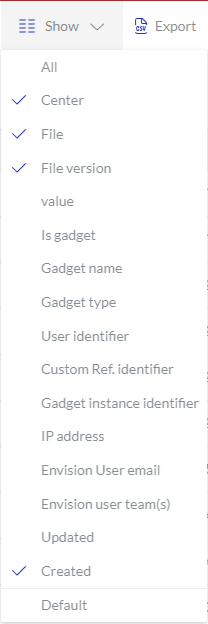 | With the Show drop-down list, you can hide and show the following columns as you wish:
|
|---|
The Data id column cannot be hidden. Clicking it on a gadget data record row leads you to the Gadgets Data Record page with the property details of this gadget data record.
Gadget data record action menu
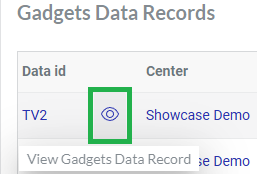
The Data id column features the action menu with the following options for a gadget data record:
View Gadgets Data Record: to view the gadget data record properties on the Gadgets Data Record page.
Gadgets Data Record page
The Gadgets Data Record page is a place in the Admin Area where you can view the properties of a gadget data record. The page is always in view mode. You cannot edit the gadget data record properties. The page toolbar includes only the Refresh button to update the properties with the latest values.
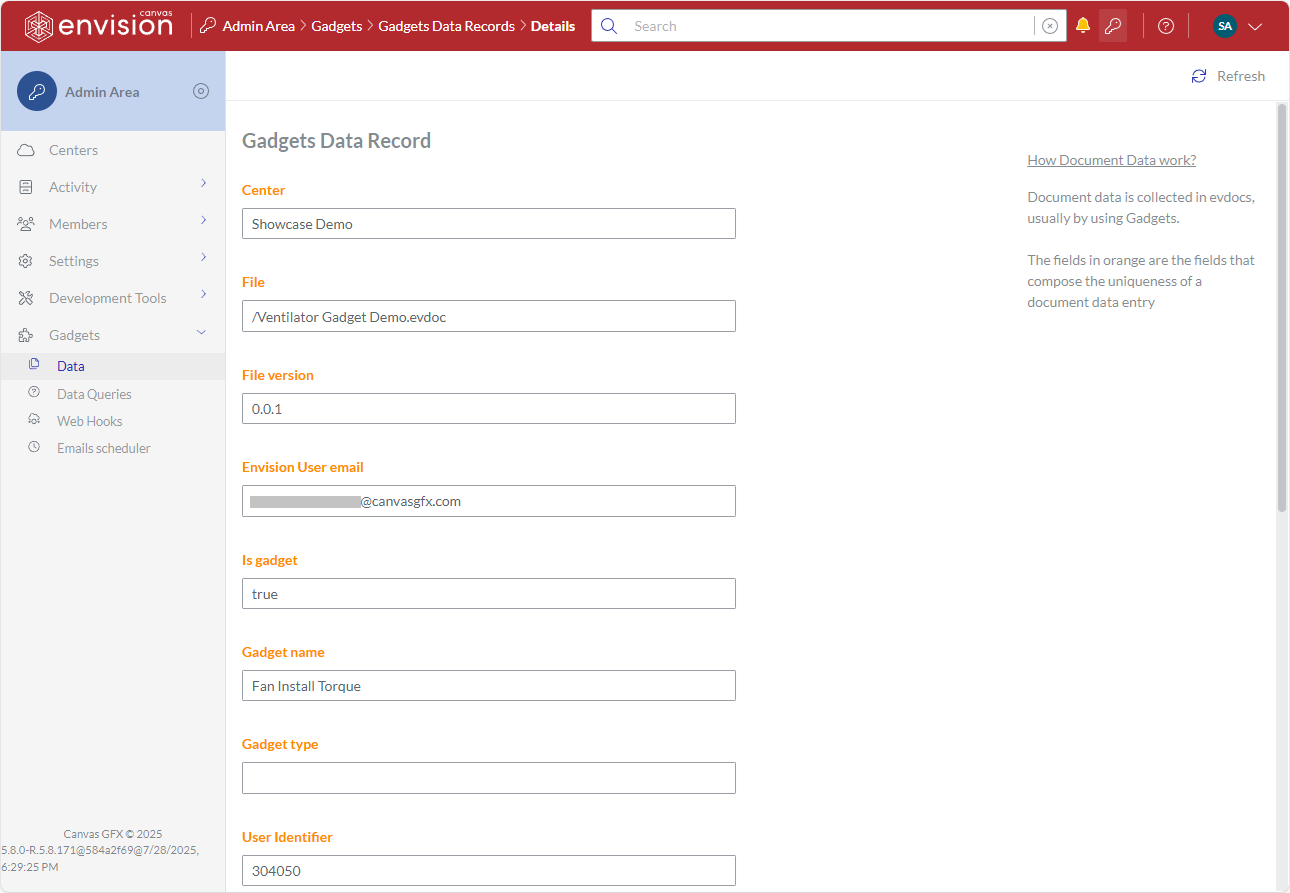
Accessing the Gadgets Data Record page
To go to the properties of a gadget data record:
Open the gadget data record from the Gadgets Data Records page content table for viewing.
Gadgets Data Record page toolbar
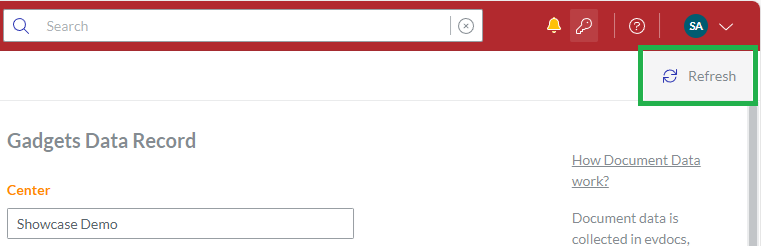
The Gadgets Data Record page toolbar has the following buttons:
Refresh: to refresh the properties of a gadget data record with the latest values.
Gadgets Data Record page fields
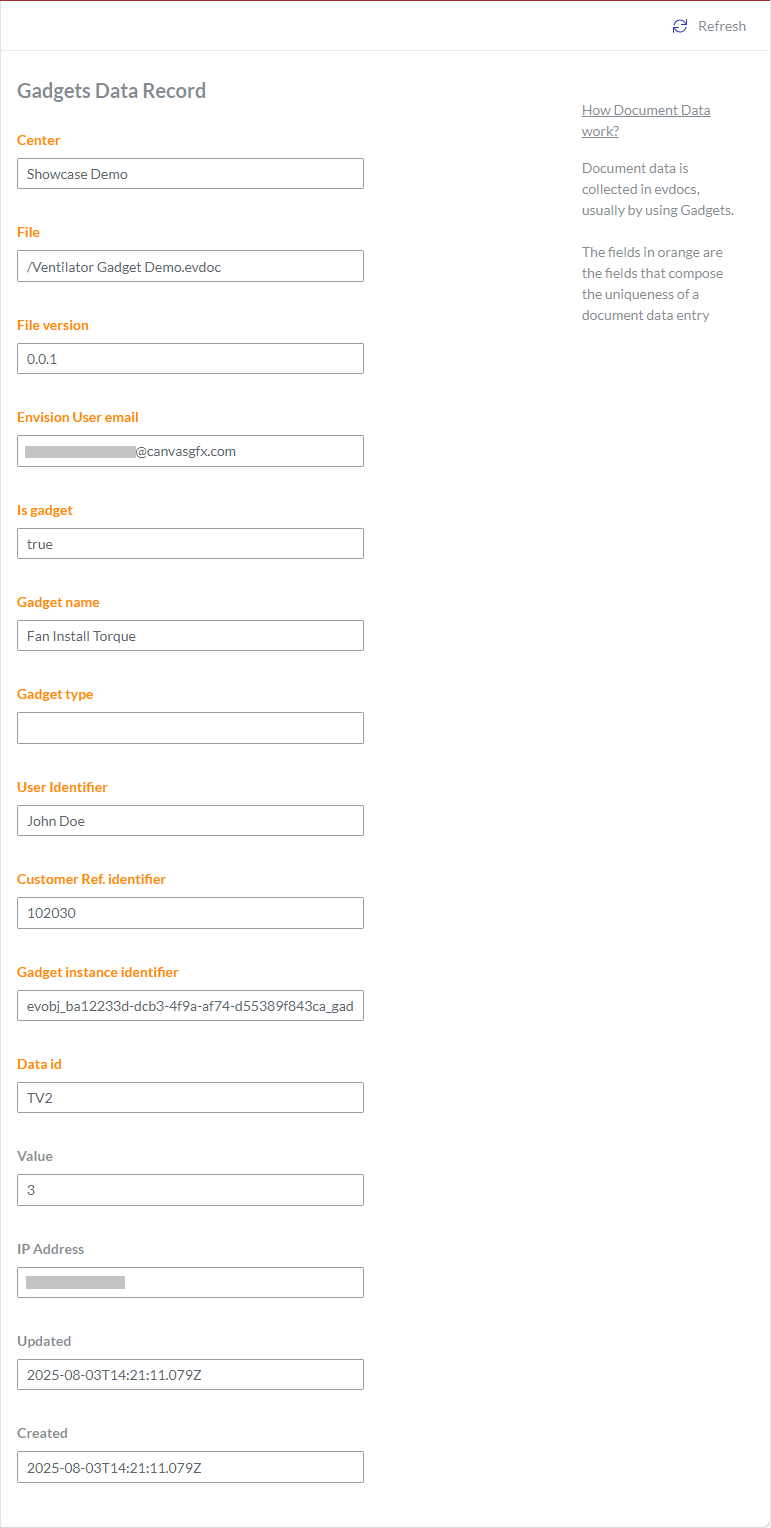
The Gadgets Data Record page displays the properties of a gadget data record in the following fields:
Center: a work center containing the document where a document user entered the data.
File: the path to the document where the user entered the data. It is relative to the work center.
File version: the Envision file version of the document where the user entered the data.
Envision User email: the email address of the user who entered the data.
Is gadget: a flag indicating whether the object where the user entered the data is a gadget (true) or not (false).
Gadget name: the database ID of the data capture gadget where the user entered the data. A gadget name is optional and is not unique—multiple data capture gadgets can have the same name. This property is set for the data capture gadget in the Gadget Name field of the Data Capture Gadget Configuration pop-up dialog.

Gadget type: the type of the gadget where the user entered the data.
User Identifier: a user ID, such as a name, email, personal number, etc., that the user entered in the User ID field of the login gadget if such a gadget existed in the document where the user entered the data. If the document has no login gadget, this field is empty.
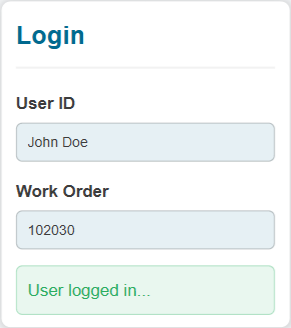
Customer Ref. identifier: an ID of the viewing session, such as a work order number, serial number of an asset, ticket number, etc., that the user entered in the Reference field of the login gadget if such a gadget existed in the document where the user entered the data. If the document has no login gadget, the system generates a session ID unique within the document.
Gadget instance identifier: the system-generated ID of the gadget object instance where the user entered the data. This ID is unique within the document.
Data id: the database ID of the data capture field where the user entered data. The data capture field ID is unique within the document. This property is set for the data capture field in the Data Id field of the Data Capture Gadget Configuration pop-up dialog.
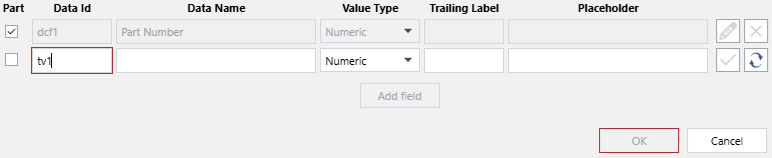
Value: a piece of actual data that the user entered in the specified data capture field of the specified gadget object instance during the identified document viewing session.
IP Address: the IP address of the user's device.
Updated: the date and time when the user last updated the actual data value.
Created: the date and time when the user first entered the actual data value.
A gadget data record is uniquely identified with a compound key of the following properties:
Center
File
File version
Envision User email
Is gadget
Gadget name
Gadget type
User Identifier
Customer Ref. identifier
Gadget instance identifier
Data id
Viewing gadget data record properties
To view the properties of a gadget data record:
In the Gadgets Data Records content table, go to the gadget data record you want to view.
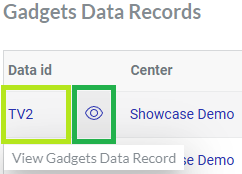
Click either:
The Data id cell of the gadget data record row.
The View Gadgets Data Record button from the gadget data record action menu.
The system displays the properties of the gadget data record on the Gadgets Data Record page.
Exporting gadget data records
To download gadget data records to your local drive in a CSV file:
Go to the Gadgets Data Records content table.
Filter and sort gadget data records in the Gadgets Data Records content table as you need.
Click the Export button on the Gadgets Data Records content table toolbar.

The Downloading dialog pops up with a running spinner.
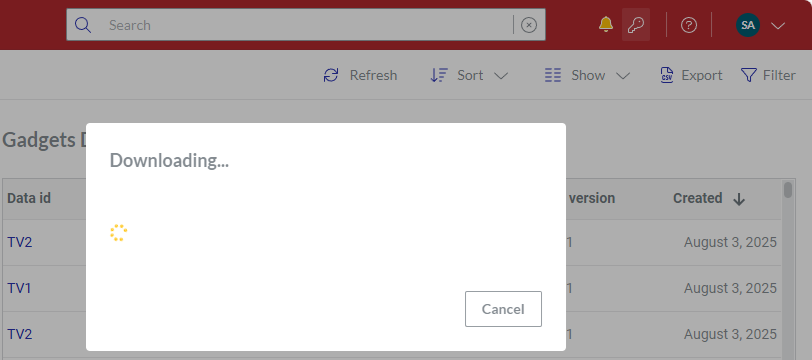
Once the downloading is completed, the Downloading dialog disappears, and the browser displays the CSV file with the exported gadget data records on the list of downloads.
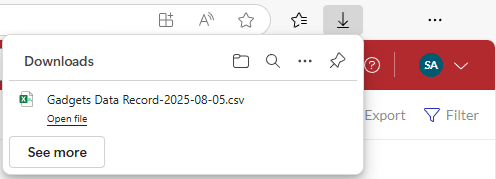
Go to the folder with the downloaded file on your machine.
Viewing gadget data records exported in CSV files
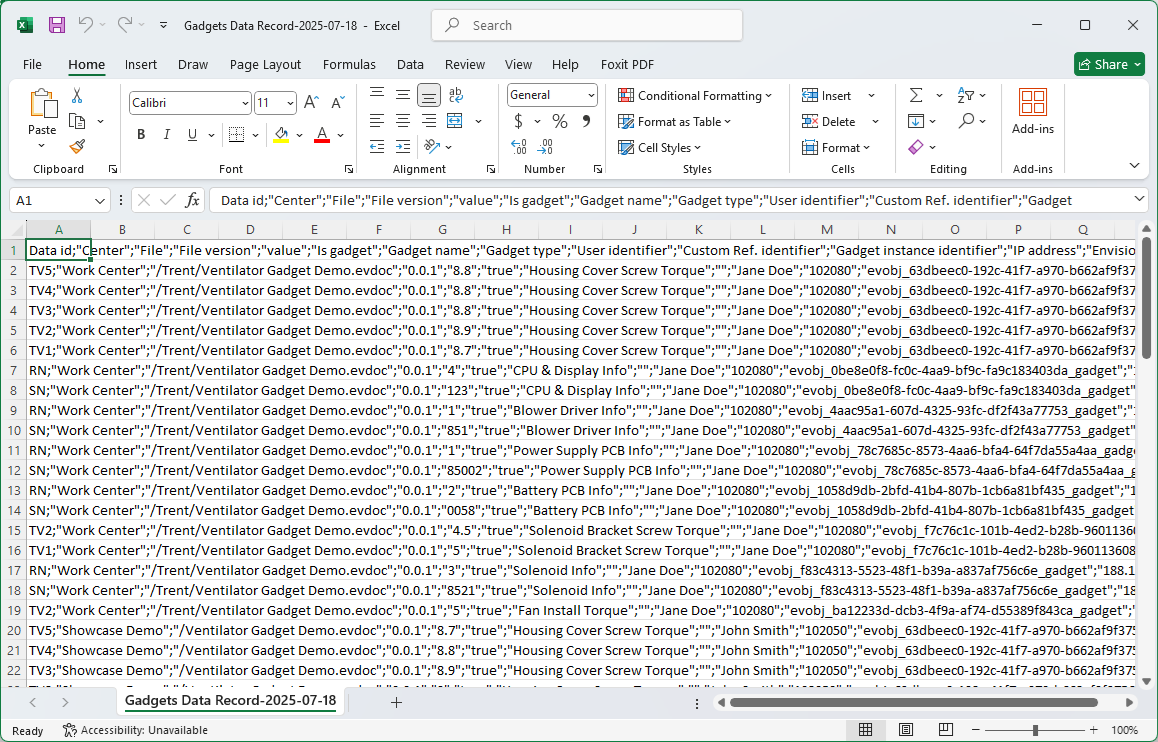
You can view and work with gadget data records exported in CSV files using text and spreadsheet editors of your choice. To present such gadget data records correctly and easily, you should not open CSV files directly in the editors but instead import them into the editors. For example, to import a CSV file into the Microsoft Excel table processor, you should do the following:
Launch the Microsoft Excel table processor.
Create or open a workbook.
Go to the Data ribbon tab.
Click the From Text/CSV button on the Get & Transform Data panel of the Data ribbon tab.
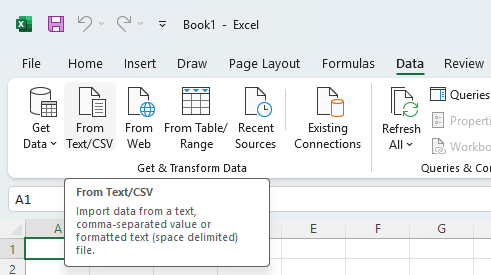
The Import Data dialog pops up.
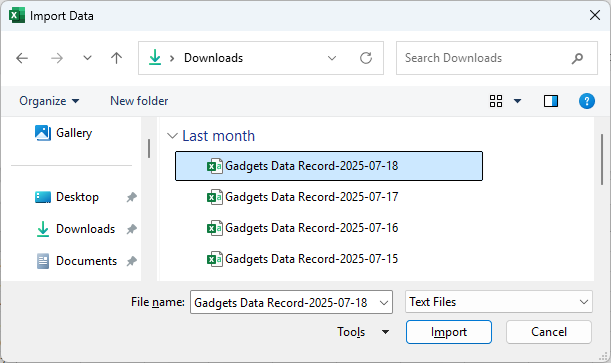
In the Import Data pop-up dialog, search for and select the CSV file you want to import and click the Import button. A dialog with the name of the CSV file pops up and displays the preview of the gadget data records.
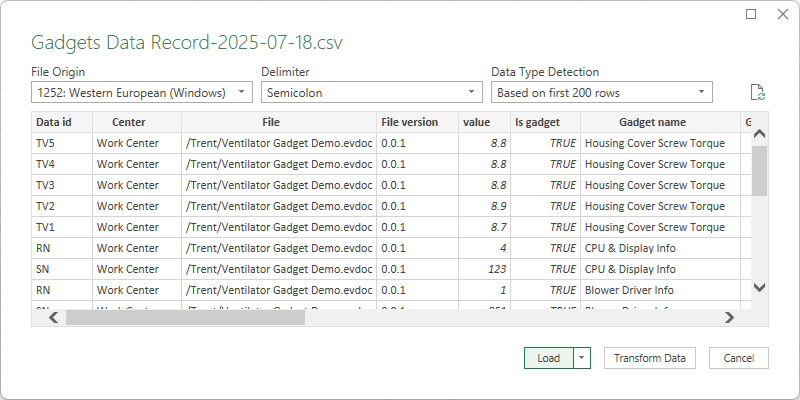
In the pop-up dialog with the name of the CSV file, click the Load button. The gadget data records are imported into the Excel workbook.
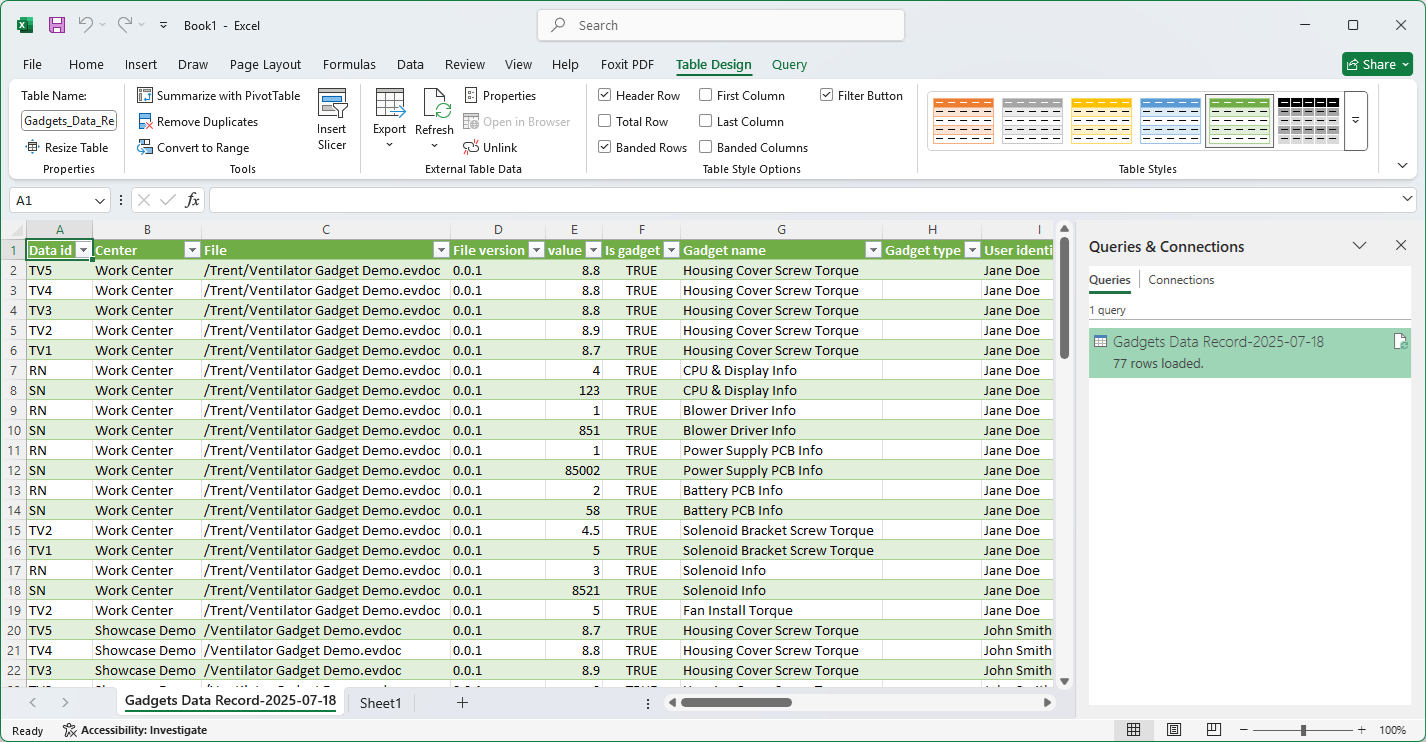
Opening a CSV file in Microsoft Excel directly will not display the gadget data records correctly.
Filtering gadget data records against gadget data queries
To filter gadget data records against an existing gadget data query:
Go to the Gadgets Data Records content table.
If the Filter pane is not visible on the right, click the Filter button on the Gadgets Data Records content table toolbar to show it.
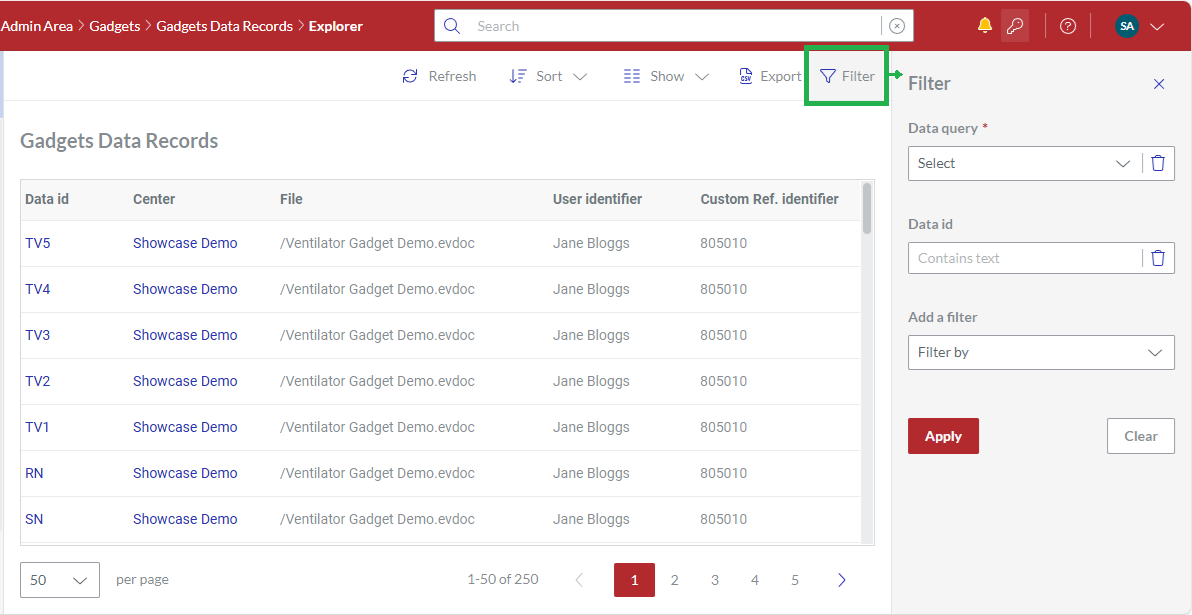
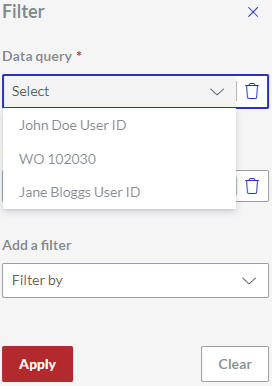
In the Filter pane, select the necessary gadget data query from the Data query drop-down list.
If necessary, specify additional filters as discussed in the Filtering section.
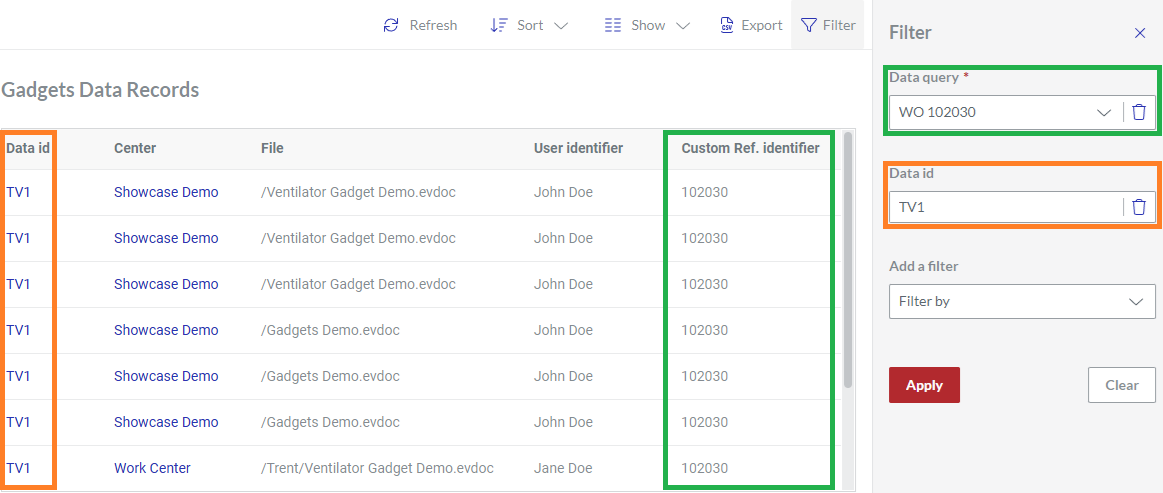
Click the Apply button. The Gadgets Data Records content table includes the gadget data records filtered out against the selected gadget data query and, if specified, additional filters.