Login Gadgets in Envision Viewer
- Login gadget
A form in an Envision document you can use to initiate an identified document viewing session to collect data for a particular case, asset, assignment, job, operation, etc., such as a work order, ticket, serial-number-controlled equipment, report, and so on.
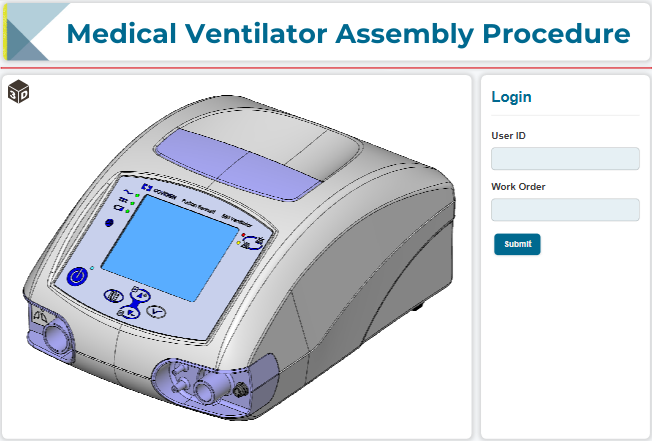
To work with login gadgets when viewing Envision documents, you should know the following about them:
Login gadget UI and behavior
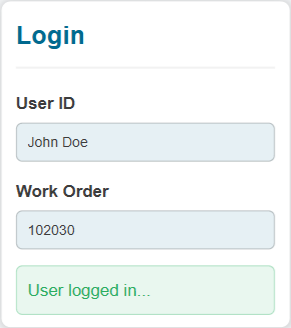
A login gadget consists of the following UI elements:
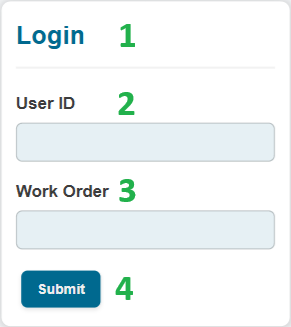
Title: a static label that displays the name of the login gadget.
User ID: a text field where you should enter your ID, such as the name, email, personal number, etc.
Reference: a text field where you should enter the ID of the viewing session, such as a work order number, serial number of an asset, ticket number, etc.
Submit: a button you should click to initiate a document viewing session identified with the IDs you have entered in the login gadget fields.
Both fields are required to initiate the identified document session.
A document author can rename the title, fields, and button to align with the document subject matter.
During the identified session, the system records the data you entered in data capture gadgets into the application database, along with the IDs you provided in the login gadget.
Initiating identified sessions with login gadgets
To start an identified session for viewing an Envision document with a login gadget:
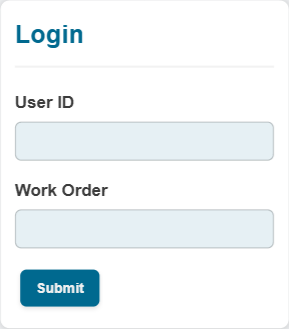
Enter your ID in the User ID field.
Enter the viewing session ID in the Reference field.
Click the Submit button.
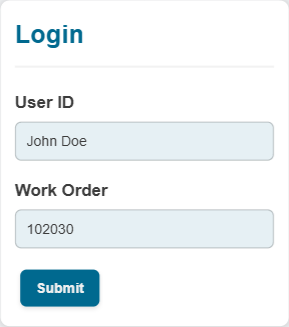
The system behaves as follows:
Starts the identified document viewing session.
Replaces the Submit button with the User logged in label.
Redirects you to the next page.
Records the data you enter in data capture gadgets into the database, associating it with the IDs you provided in the login gadget.
Quitting identified sessions
To terminate an identified viewing session initiated for an Envision document:
Reload the browser tab with the document.