Part List Gadgets in Envision Viewer
- Part list gadget
An interactive picture-illustrated catalog you can use to view, explore, and order parts included in an associated 3D model.
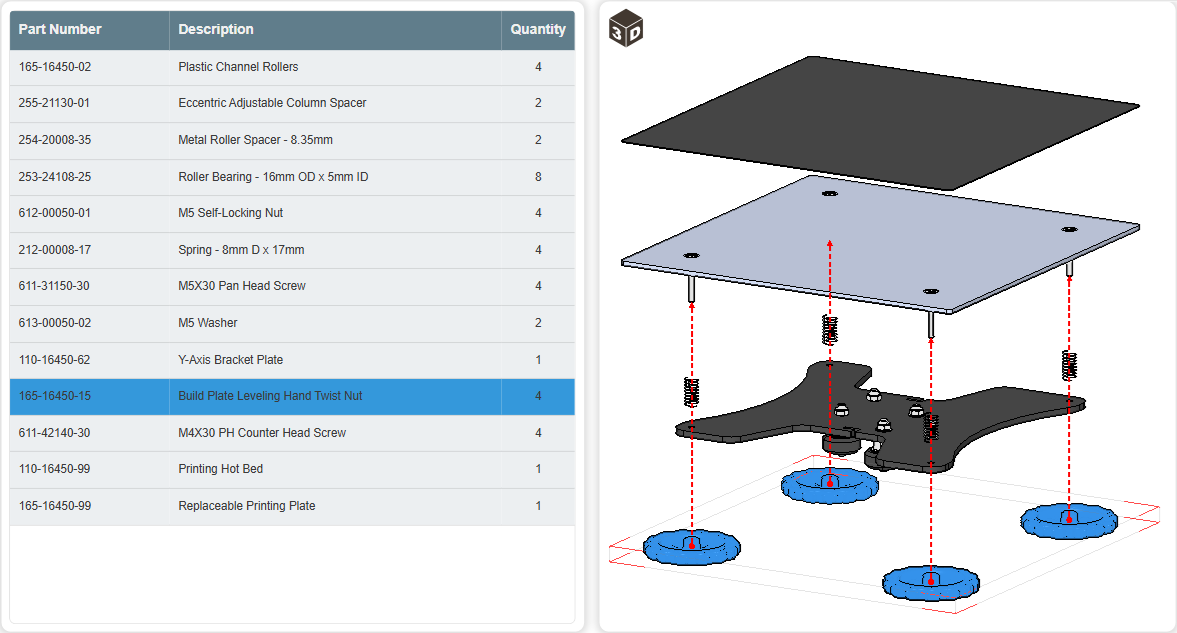
To interact with part list gadgets when viewing Envision documents, you should know the following about them:
Part list gadget UI and behavior
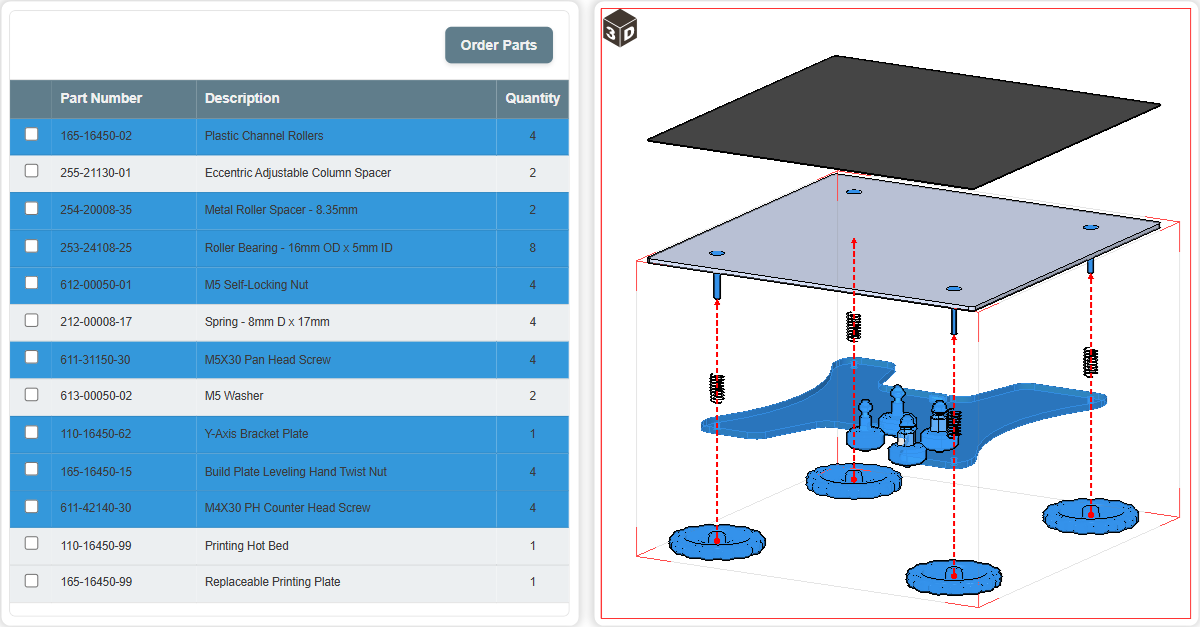
A part list gadget always accompanies a 3D model object on the same page, creating an interactive picture-illustrated catalog of parts from that model.
The part list gadget consists of the following UI elements:
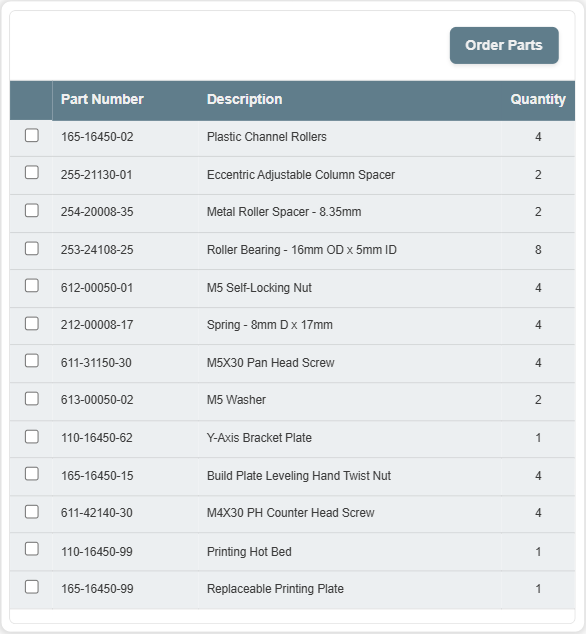
The Order Parts button that you should click to order the parts you have specified in the table of parts. This button is optional: a document author manages its visibility.
The table of parts included in the accompanied 3D model object. This table is always present in the gadget. It consists of rows and columns. A row is a part of the 3D model. A column is a meta property of the part sourced from the metadata of the 3D model.
The part list gadget usually contains only the parts fully visible in the accompanied 3D model view. The document author can configure it to include additionally the parts ghosted or hidden in the 3D model view.
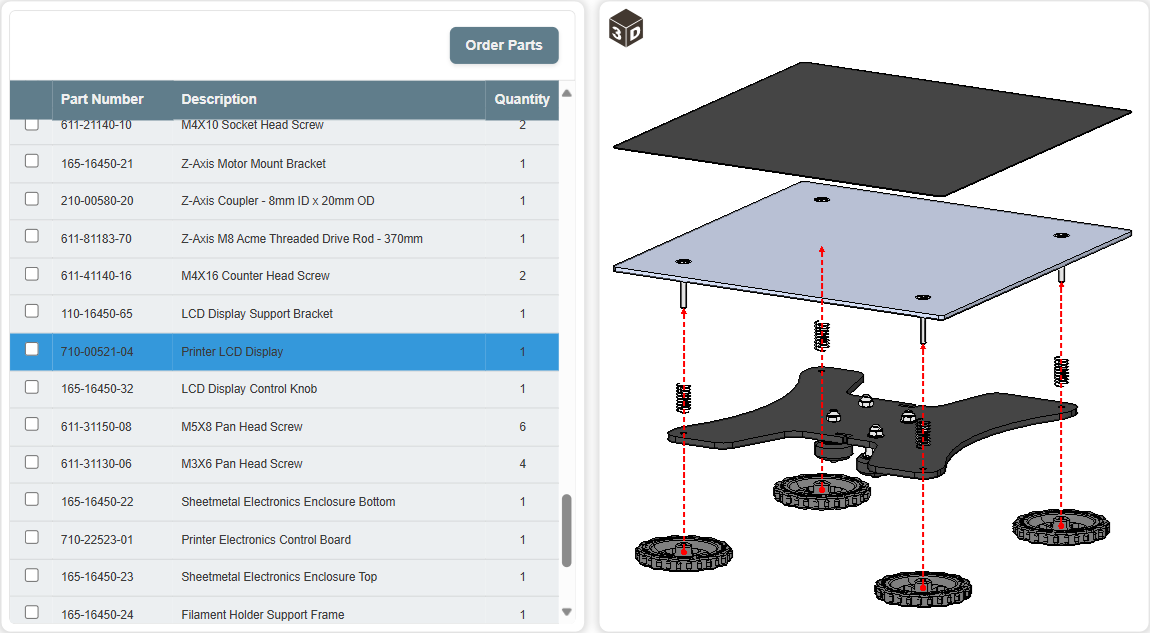
The columns of the table of parts are the following:
Checkboxes: a flag that you should select to specify a part for an order. This column is optional: the document author manages its visibility.
Part Number: the part number of the part. This column is always present in the table.
Description: the description of the part. This column is optional: the document author manages its visibility.
Quantity: the total quantity of the parts with the same part number in the 3D model view. This column is always present in the table.
The part list gadget and associated 3D model object are synchronized. When you select a part from the table in the part list gadget, the 3D viewing mode is automatically launched for the 3D model object, and all the visible instances of this part are selected in the 3D model view. And vice versa, when you select any instance of the part in the 3D model view, this part is automatically selected from the part list gadget table.
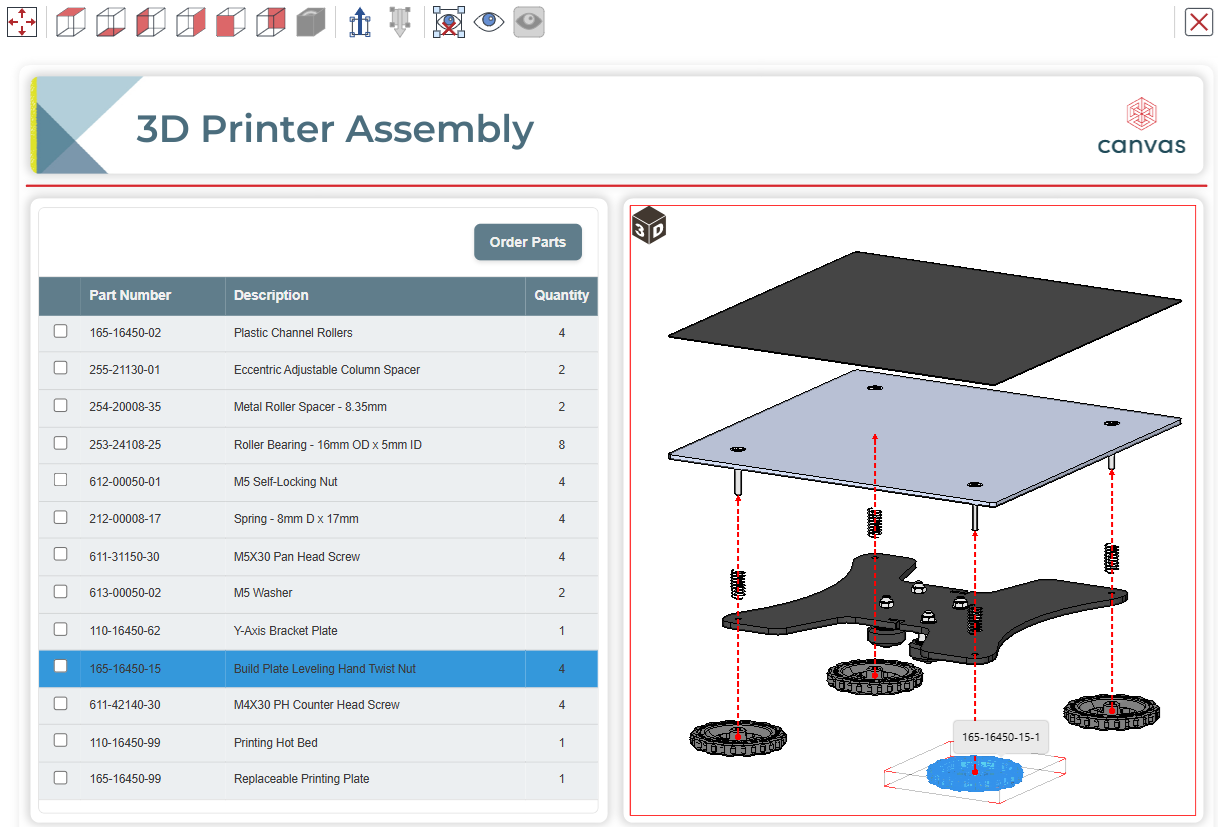
You can select multiple parts from the part list gadget table.
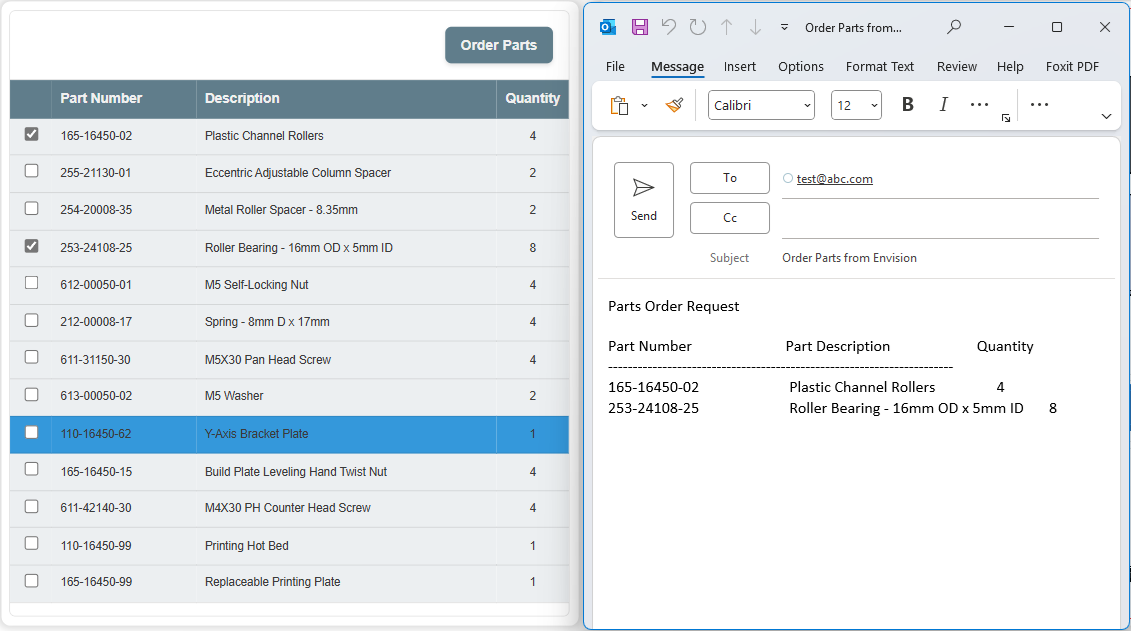
When you click the Order Parts button, an email is automatically generated to request the parts whose checkboxes you have selected in the part list gadget table. The email template is predefined. The document author can manage the email addresses of recipients.
Viewing and exploring parts with part list gadgets
To view and explore the parts of a 3D model with a part list gadget associated with this 3D model:
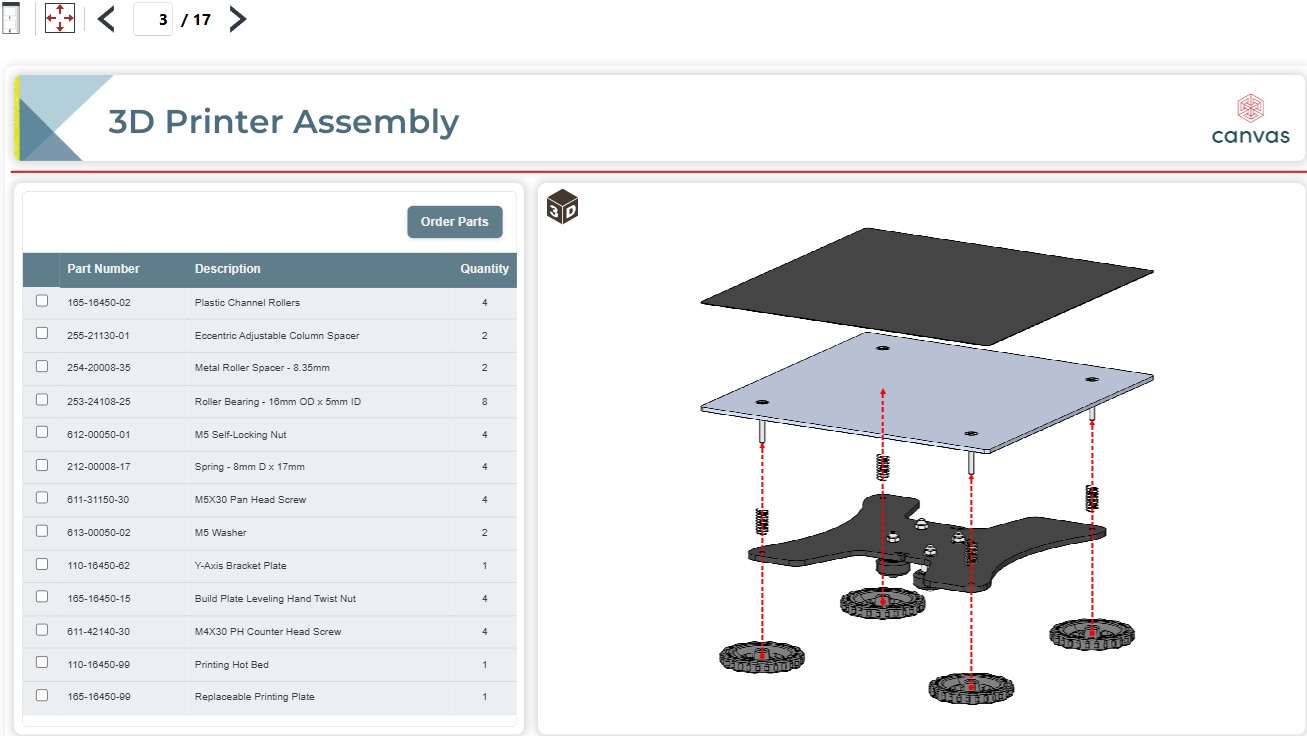
To select a part, click the row of this part in the part list gadget table. The system automatically loads 3D mode for the associated 3D model.
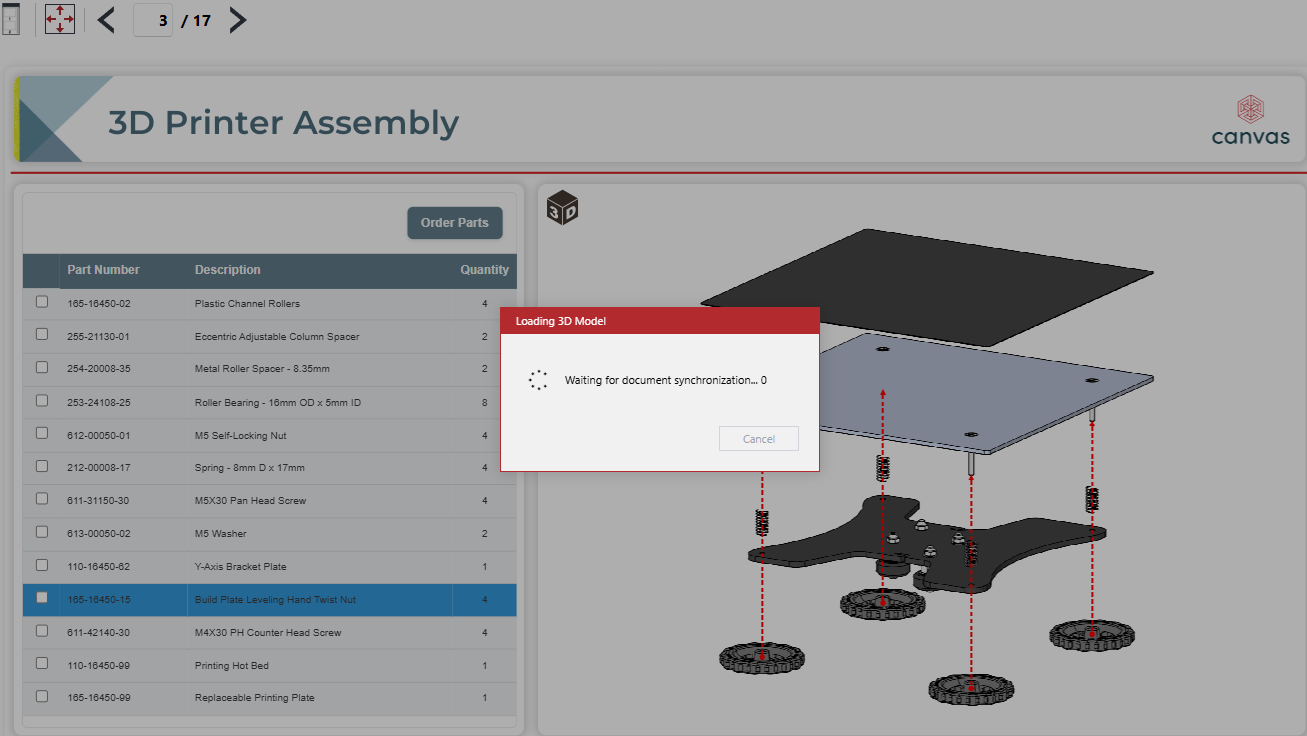
All the instances of the part selected from the part list gadget table are selected in the 3D model view.
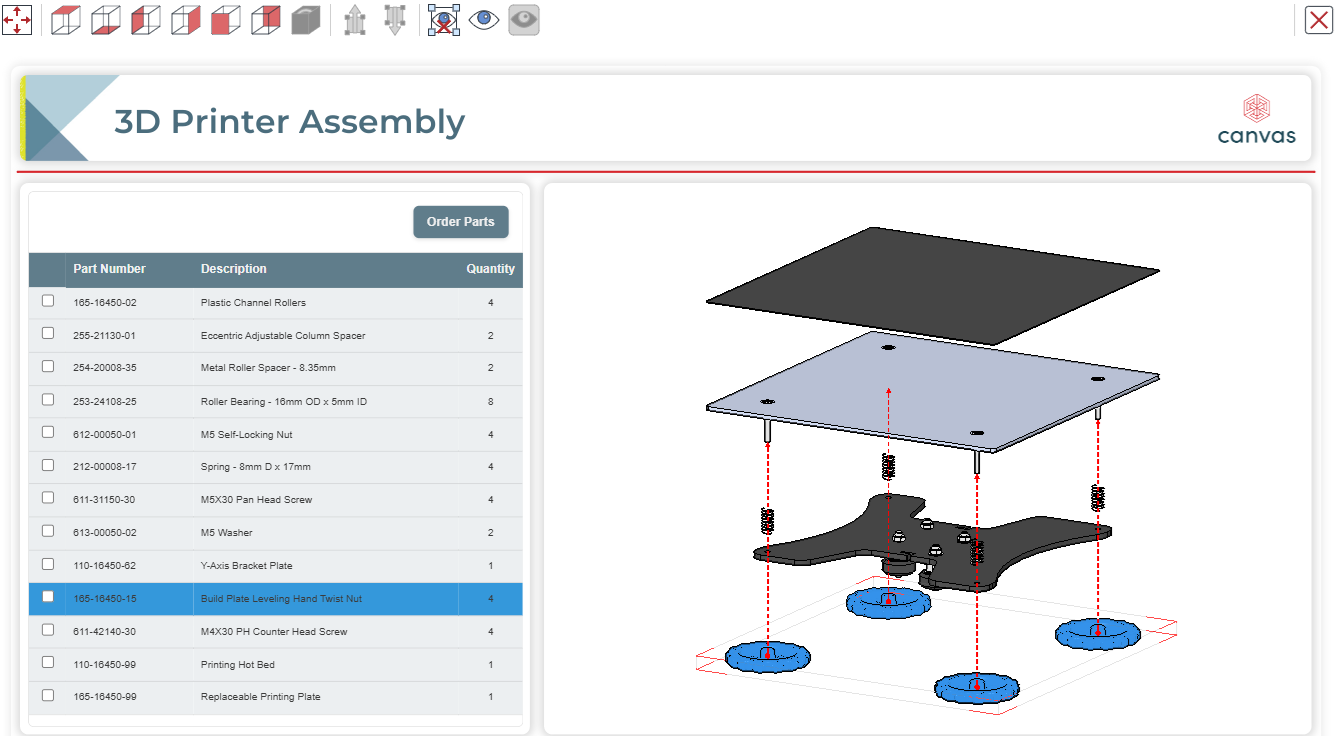
To select another part, click its row in the part list gadget table or its instance in the 3D model view. The previously selected part is deselected, and the new part is selected in the table and 3D view.
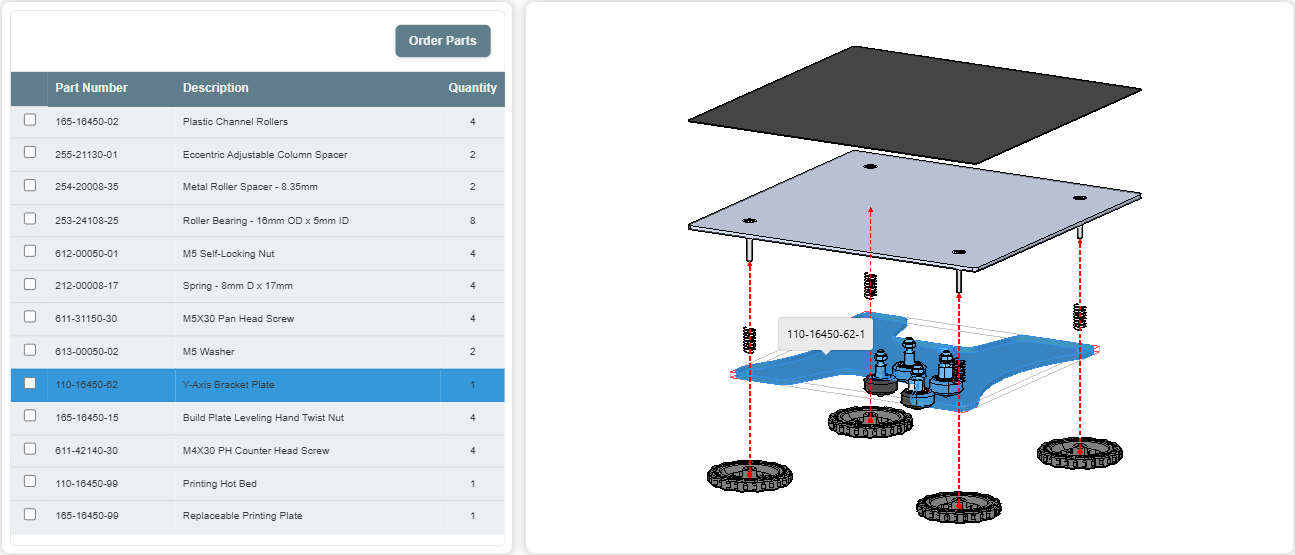
To select multiple parts, while pressing the Ctrl key, click their rows in the part list gadget table or their instances in the 3D model view.
To deselect all the selected parts, click anywhere outside the 3D model in the viewport.
Ordering parts with part list gadgets
To order one or more parts of a 3D model with a part list gadget associated with this 3D model:
In the part list gadget table, select the checkboxes of the parts you want to order.
Click the Order Parts button. An email is automatically generated to order the parts whose checkboxes you have selected in the part list gadget table.
If necessary, correct the email body, subject, and the addresses of the recipients.
Send the email.