Progress Bar Gadgets in Envision Viewer
- Progress bar gadget
An interactive 2D object that displays your page progress through a document and can provide you with navigation controls for moving to the previous or next page.
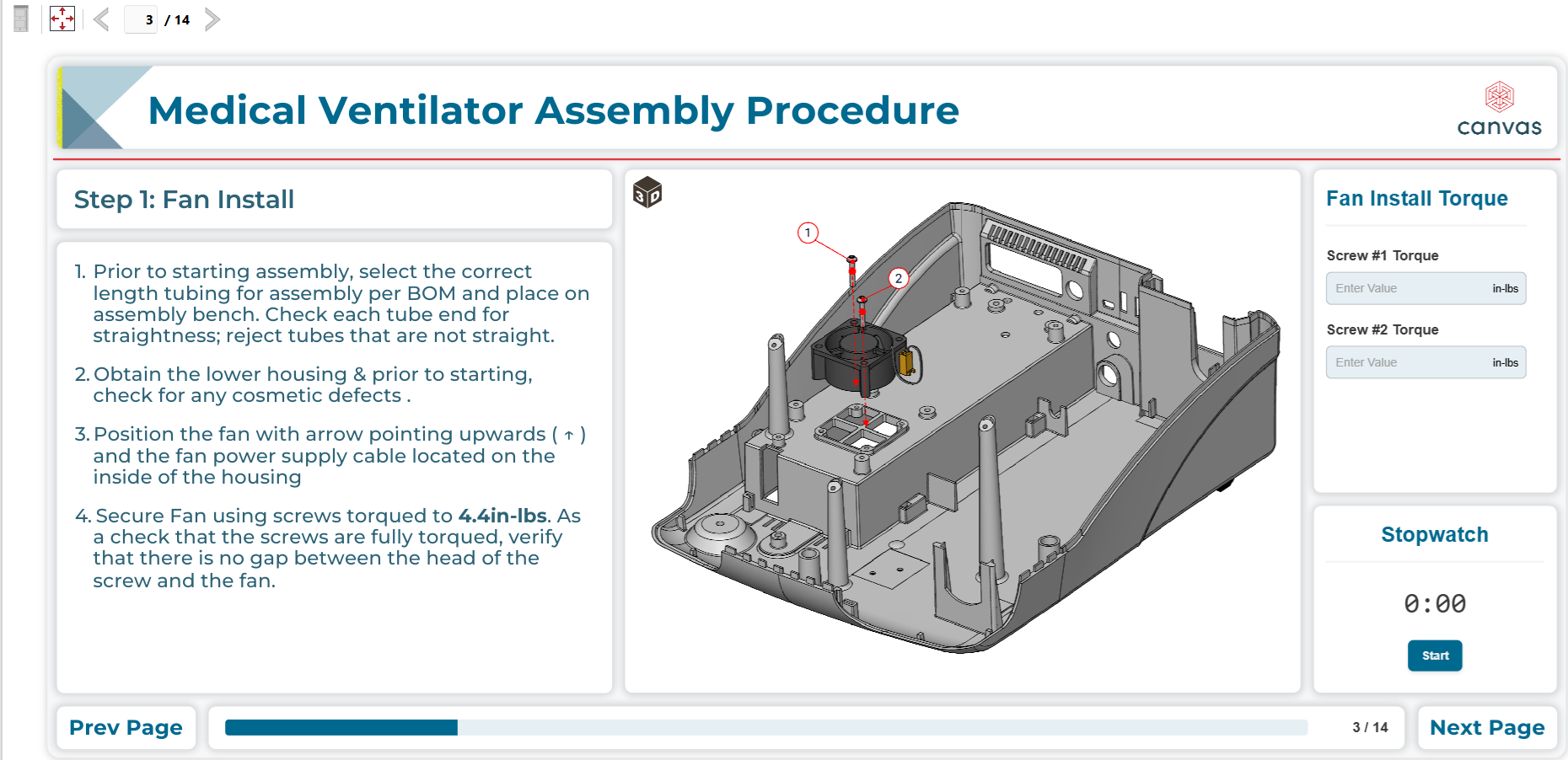
To interact with progress bar gadgets when viewing Envision documents, you should know the following about them:
Progress bar gadget UI and behavior
A progress bar gadget consists of the following interactive UI elements:

Previous: a navigation button that you should click to go to the previous page in a document. This element is optional: a document author manages its visibility.
Progress bar: a bar that displays how far you have gone in the document. This element is always visible.
Page indicator: a label that displays the number of the current page out of the total number of pages. This element is optional: the document author manages its visibility.
Next: a navigation button that you should click to go to the next page in the document. This element is optional: the document author manages its visibility.
The document can have one or more progress bar gadgets with different configurations depending on the page context. For example, the navigation buttons are absent in the progress bar gadgets on the pages that you are not allowed to leave without some validation. In such a case, an action button gadget or page action object is used.
Navigating pages with progress bar gadgets
To go to the previous or next page with a progress bar gadget:
Click the Previous or Next button in the progress bar gadget if these buttons are visible in the gadget. You are redirected to the designated page in the document.
