Action Button Gadgets
An action button gadget is an interactive object you can insert into Envision documents to prompt end users for job-related confirmations via a pop-up dialog, navigate them to another page, or do both.
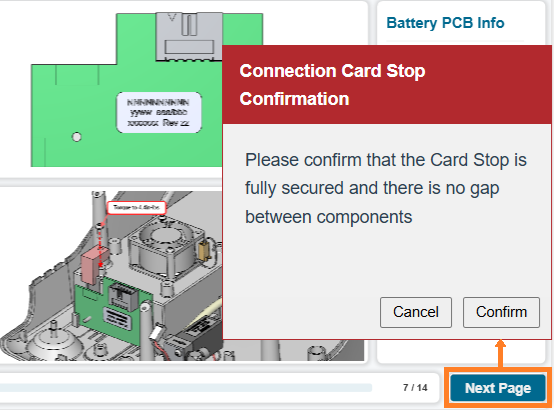
To work with action button gadgets, you should know:
Action button gadget UI and behavior
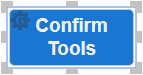
An action button gadget is a button with a title. When a document user clicks it in the Canvas Envision Viewer, the system performs a configured action, either:
Redirects the user to another page.
Raises a pop-up dialog prompting the user to confirm their job-related actions.
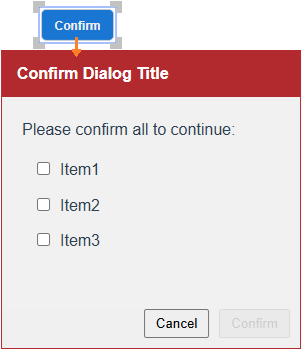
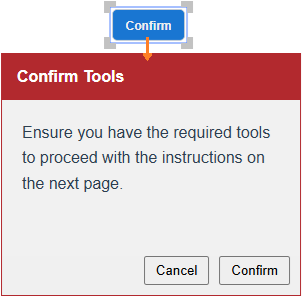
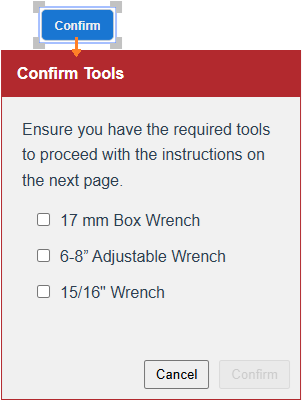
The pop-up confirmation dialog raised by the action button gadget can include the following UI elements:
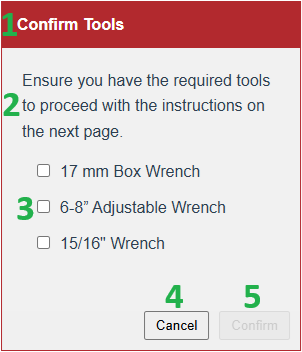
Title: the dialog name that briefly describes the dialog or message.
Message: a text label with a message, question, statement, or call to action that the pop-up confirmation dialog asks the document user to confirm or do.
Checklist: one or more checkboxes with text labels. Each is an item of the checklist that the pop-up confirmation dialog asks the document user to confirm. The user must select every checkbox to complete the confirmation process: the Confirm button is disabled until all the checkboxes are selected. The checklist is an optional element included by default. If it is not necessary, you should explicitly remove it from the dialog when configuring the action button gadget.
Cancel: a button to:
Decline the message statement and checklist.
Dismiss the pop-up confirmation dialog.
Confirm: a button to:
Confirm the message statement and checklist.
Dismiss the pop-up confirmation dialog.
Redirect the document user to another page. This action is optional. The default setting is the next page. You can reset it to any document page or no redirection.
Configuring action button gadgets
As a newly created action button gadget has the default behavior of raising a pop-up confirmation dialog with the filler content and default settings, you should customize the action button gadget behavior and confirmation dialog content with the Action Button Configuration pop-up dialog. If multiple action button gadgets are in the document, you should configure each separately. The dialog is for one action button gadget only.
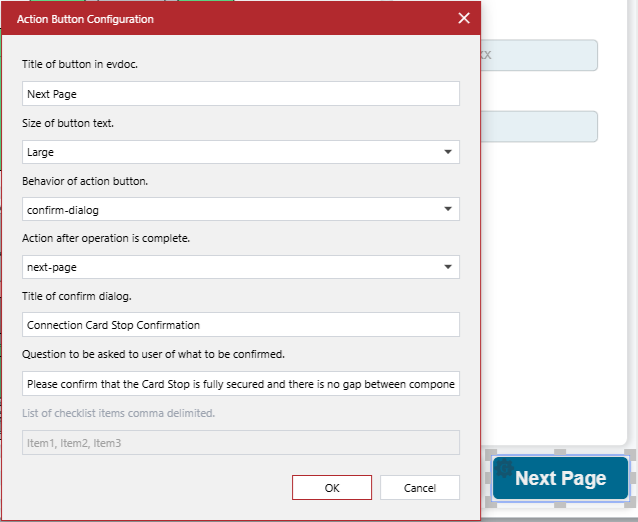
The action button gadget configuration workflow is the following:
Specify the system action when a document user clicks the action button gadget, either:
To raise a pop-up confirmation dialog.
To redirect the user to another page without raising the dialog.
If raising the confirmation dialog, provide its custom contents:
Title
Message
Checklist (optional)
If necessary, change the text and size of the action button gadget title.
This workflow is a recommendation: you can do only the configuration steps you need in any order.
The Action Button Configuration dialog
The Action Button Configuration pop-up dialog provides the following settings of an action button gadget selected in a document:
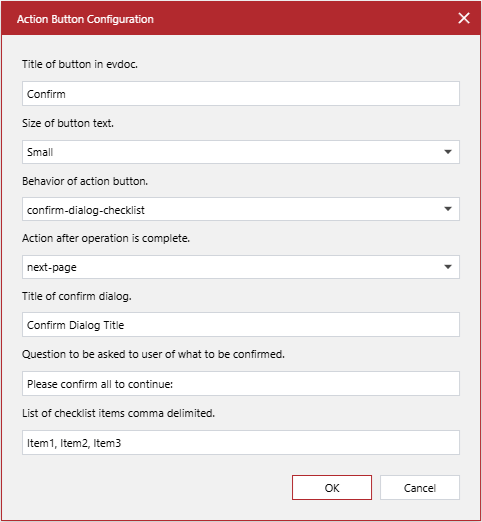
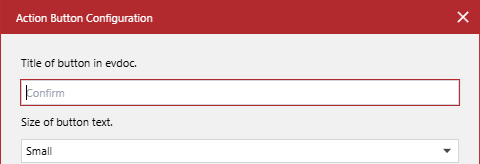
- Title of button in evdoc
A string field, the text label that the button displays. The default value is Confirm.
- Size of button text
A drop-down list, the size of the button text label, either:
Small (default value)
Medium
Large
- Behavior of action button
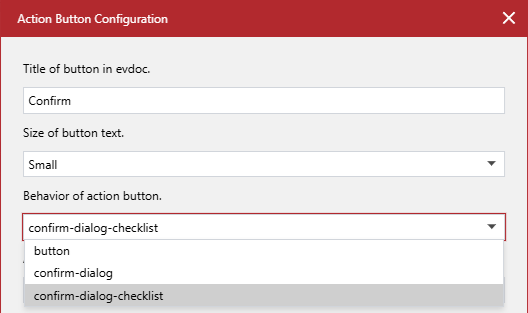
A drop-down list, the system behavior when a document user clicks the action button gadget, either:
button: redirects the document user to the page given in the following setting: Action after operation is complete.
confirm-dialog: raises a pop-up confirmation dialog with the following UI elements:
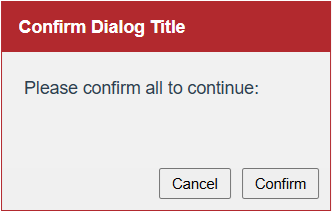
The title given in the following setting: Title of confirm dialog.
The message to the user given in the following setting: Question to be asked to user of what to be confirmed.
The Cancel button to decline the message statement and dismiss the pop-up confirmation dialog.
The Confirm button to confirm the message statement, dismiss the pop-up confirmation dialog, and redirect the user to the page given in the following setting: Action after operation is complete.
confirm-dialog-checklist: raises a pop-up confirmation dialog with the following UI elements:
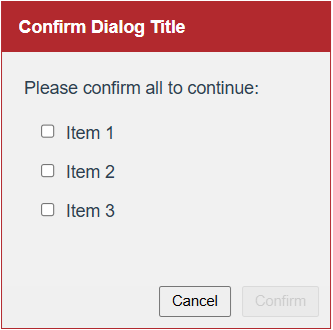
The title given in the following setting: Title of confirm dialog.
The message to the user given in the following setting: Question to be asked to user of what to be confirmed.
The checkboxes of the checklist items given in the following setting: List of checklist items comma delimited.
The Cancel button to decline the checklist and dismiss the pop-up confirmation dialog.
The Confirm button to confirm the checklist, dismiss the pop-up confirmation dialog, and redirect the user to the page given in the following setting: Action after operation is complete.
The default behavior of the action button gadget is confirm-dialog-checklist.
- Action after operation is complete
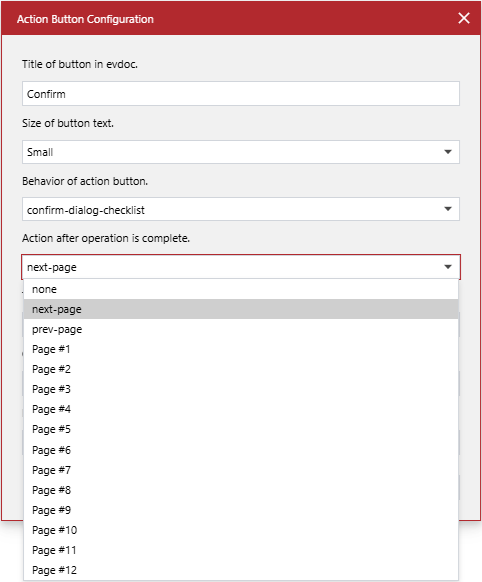
A drop-down list, a page in the document to which the document user will be automatically redirected when this user clicks the action button gadget or the Confirm button in the pop-up confirmation dialog, whichever is selected from the Behavior of action button drop-downlist.
- Title of confirm dialog
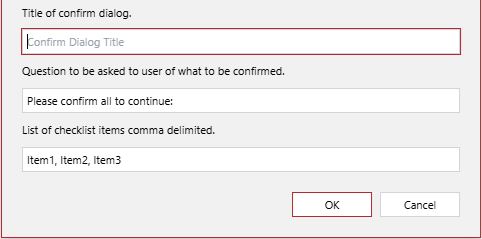
A string field, a piece of text that the pop-up confirmation dialog displays in the title bar. The default value is Confirm Dialog Title.
This setting is ignored if the Behavior of action button setting is set to button.
- Question to be asked to user of what to be confirmed
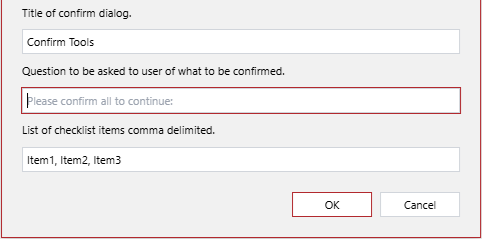
A string field, a message, question, statement, or call to action that the pop-up confirmation dialog asks the document user to confirm or do. The default value is Please confirm all to continue:.
This setting is ignored if the Behavior of action button setting is set to button.
- List of checklist items comma delimited
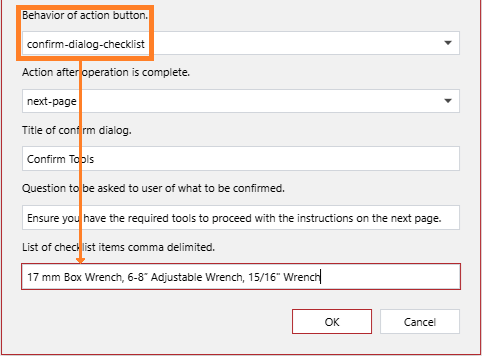
A string field, items of the checklist that the pop-up confirmation dialog asks the document user to confirm. The items are separated by commas. They can include spaces and special characters. The default value is Item1, Item2, Item3.
The pop-up confirmation dialog displays the checklist items as checkboxes. The document user must select every checkbox to complete the confirmation process: the Confirm button is disabled until all the checkboxes are selected.
This setting is applied if the Behavior of action button setting is set to confirm-dialog-checklist.
Defining action button gadget behavior
To specify the system behavior when a document user clicks an action button gadget:
Select the action button gadget.

Select the desired behavior from the Behavior of action button drop-down list in the Action Button Configuration dialog, either:
button: to redirect the document user to another page without raising a confirmation dialog.
confirm-dialog: to raise a dialog with a message that the document user should confirm.
confirm-dialog-checklist: to raise a dialog with a message and checklist that the document user should confirm.
If necessary, continue configuring the action button gadget as discussed in the following sections.
Once done with configuring, click the OK button to save the changes. The dialog disappears, and the action button will behave according to your settings of the Behavior of action button drop-down list.
Specifying the redirection target page
To specify the page to which a document user will be redirected when this user clicks an action button gadget or the Confirm button in the pop-up confirmation dialog raised by the action button gadget, whichever is selected from the Behavior of action button drop-downlist:
Select the action button gadget.
Select the page to which the document user will be redirected from the Action after operation is complete drop-down list in the Action Button Configuration dialog.
If necessary, continue configuring the action button gadget as discussed in other sections.
Once done with configuring, click the OK button to save the changes. The dialog disappears, and users will be redirected to the page you selected from the Action after operation is complete drop-down list.
Customizing the pop-up confirmation dialog
To provide custom content in a pop-up confirmation dialog raised by an action button gadget:
Select the action button gadget.
In the Title of confirm dialog field of the Action Button Configuration dialog, enter the title of the pop-up confirmation dialog.
In the Question to be asked to user of what to be confirmed field, enter a message, question, statement, or call to action that the pop-up confirmation dialog will ask a document user to confirm or do.
If the Behavior of action button setting is set to confirm-dialog-checklist, in the List of checklist items comma delimited field, enter items of the checklist that the pop-up confirmation dialog will ask the document user to confirm. Separate the items with commas. The items can include spaces and special characters.
If necessary, continue configuring the action button gadget as discussed in other sections.
Once done with configuring, click the OK button to save the changes. The dialog disappears, and the pop-up confirmation dialog will have the content that you provided following this procedure.
Configuring the action button gadget title
To change the text or size of the title of an action button gadget:
Select the action button gadget.
If necessary, in the Title of button in evdoc field of the Action Button Configuration dialog, enter the new title that the action button gadget will display in the document.
If necessary, select the new size of the title text from the Size of button text drop-down list, either:
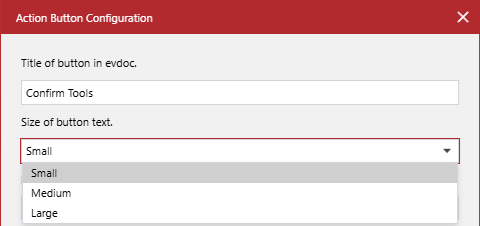
Small
Medium
Large
If necessary, continue configuring the action button gadget as discussed in the previous sections.
Once done with configuring, click the OK button to save the changes. The title of the action button gadget will have the text that you entered in the Title of button in evdoc field and the text size that you selected from the Size of button text drop-down list.

If necessary, resize the action button gadget to fit the new title text and size.
Testing action button gadgets
To verify action button gadgets as a document user:
Verify that the action button gadget title text and size are correct.
Click the action button gadget.
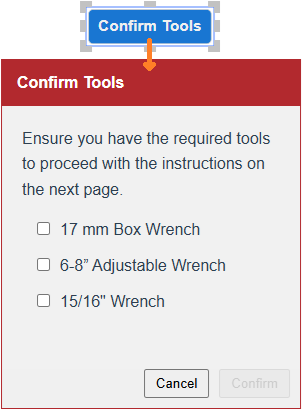
Verify that the action button gadget behaves as expected, either:
Redirects you to the necessary page.
Raises the confirmation pop-up dialog.
If the confirmation dialog pops up, verify that the dialog content is correct:
Title
Message
Checklist
If the confirmation dialog includes the checklist, ensure all its items are correct.
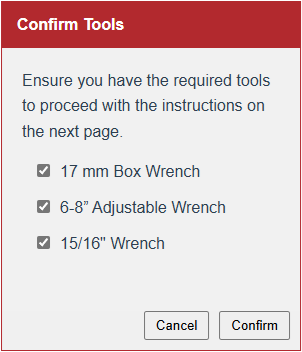
Ensure that the Confirm button behaves as expected:
Dismisses the confirmation pop-up dialog.
Redirects you to the necessary page.
Once done with testing, quit interactive viewing mode for gadgets.