Configuring Gadgets
The Gadget contextual ribbon tab is where you configure gadgets.
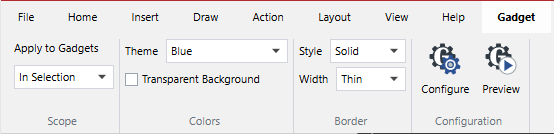
Some functionality for configuring gadgets is also available in the gadget context-sensitive menu.
You can configure only one gadget at the same time. If you need to configure multiple gadgets, you should select and configure each gadget separately. When multiple gadgets are selected, only the key (first-selected) gadget is configured.
In the gadget interactive viewing mode, you can interact with gadgets right in the Canvas Envision Creator as document users will do it in the Canvas Envision Viewer.
Gadget ribbon tab
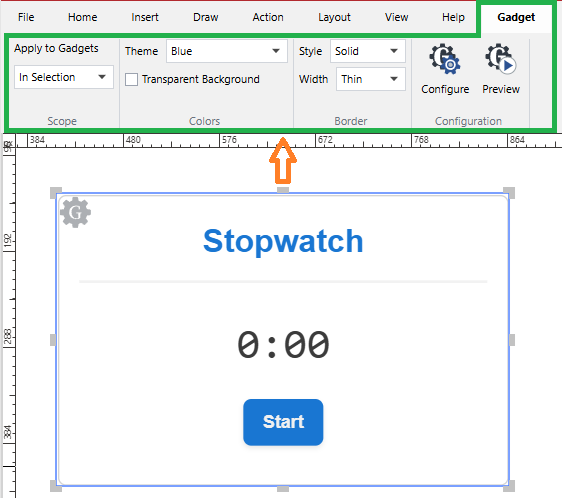
The Gadget contextual ribbon tab provides the tools for configuring a gadget currently selected in the document.
Gadget ribbon tab contents
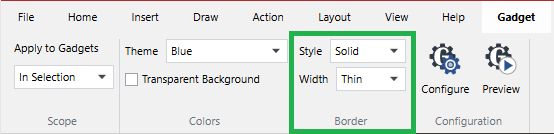
The Gadget contextual ribbon tab includes the following:
Scope: a panel of tools to specify to which gadgets the changes should be applied:
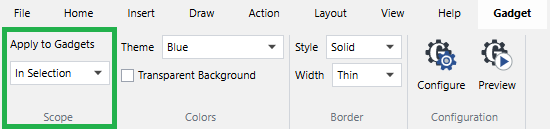
Apply to Gadgets: a drop-down list of which gadgets should be changed:
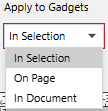
In Selection (default setting)
On Page
In Document
Colors: a panel of tools to control the gadget look:
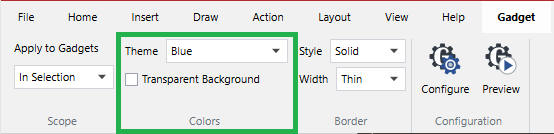
Theme: a drop-down list of gadget color themes:
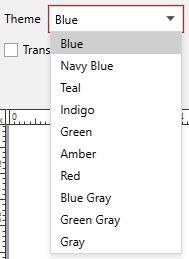
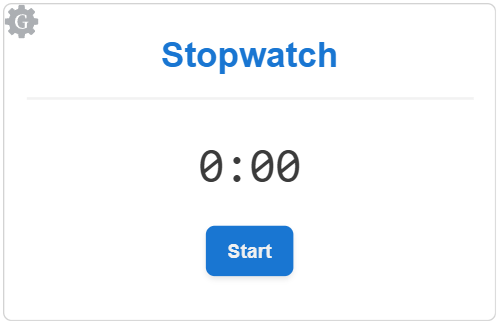
Blue (default color theme)
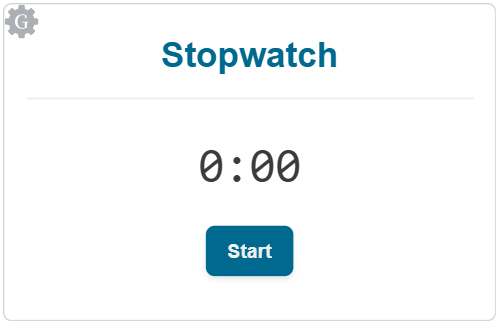
Navy Blue
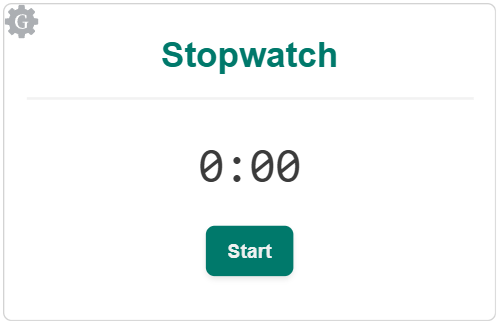
Teal
Indigo
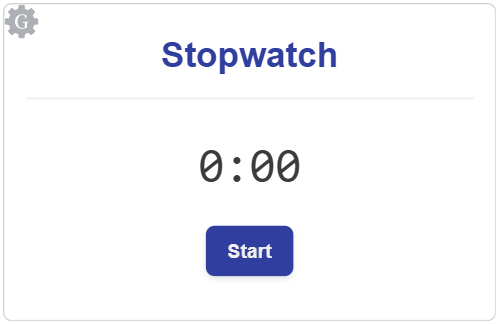
Green
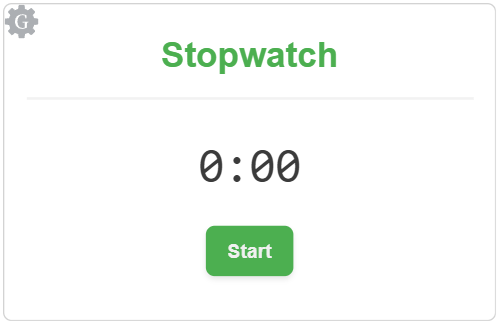
Amber
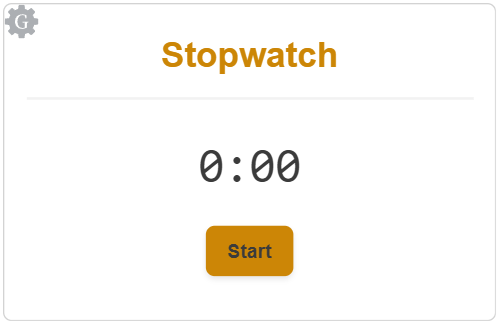
Red
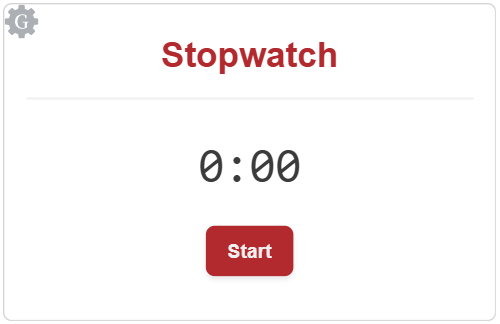
Blue Gray
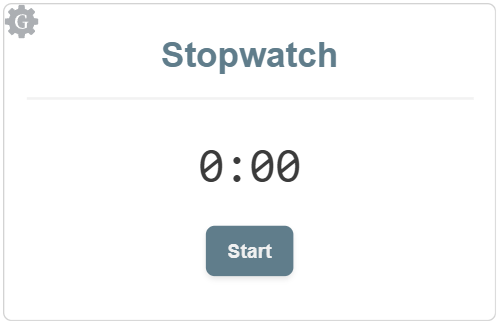
Green Gray
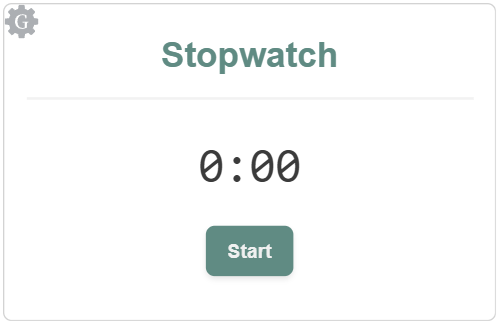
Gray
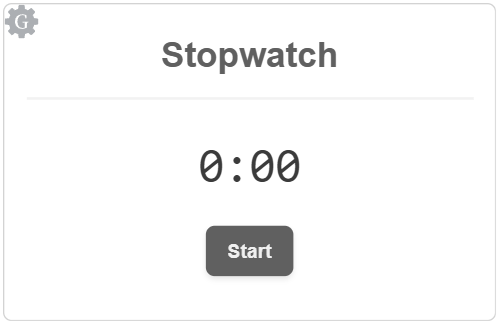
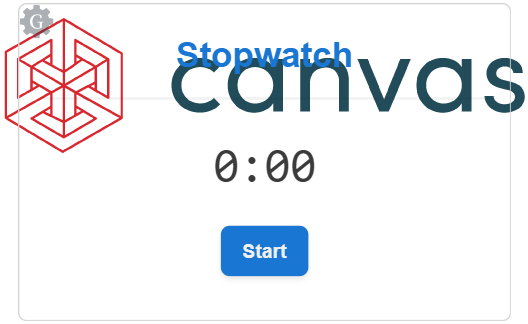
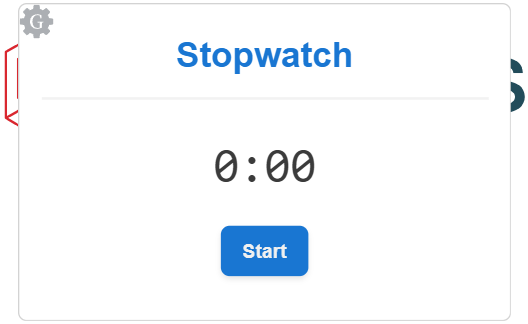
Transparent Background: a checkbox to control the transparency of the gadget background:
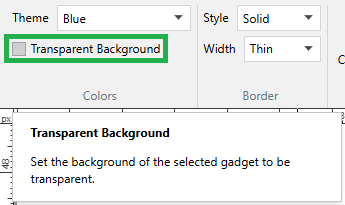
Selected: fully transparent.
Cleared: opaque white (default transparency).
Border: a panel of tools to control the gadget outline:
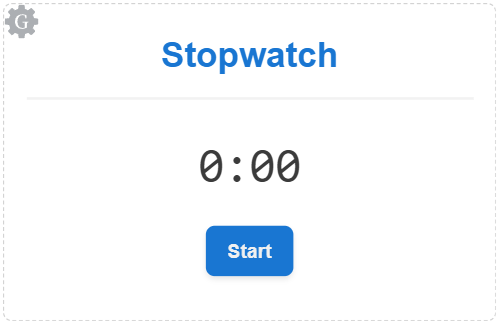
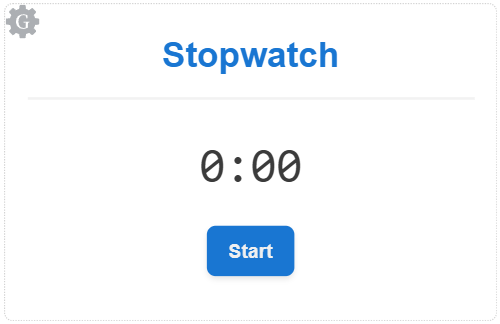
Style a drop-down list of gadget outline types:
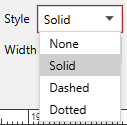
None
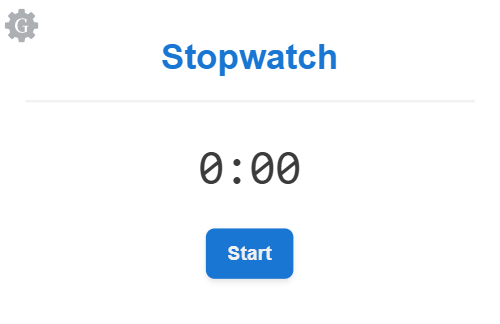
Solid (default border style)
Dashed
Dotted
Width: a drop-down list of gadget outline widths:
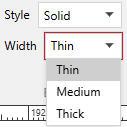
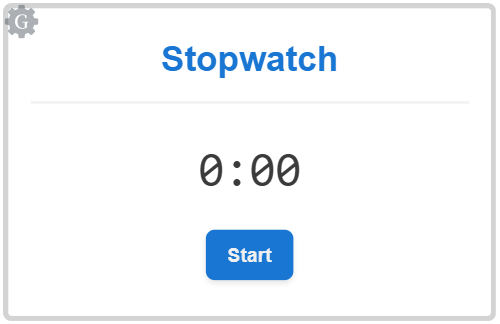
Thin (default border width)
Medium
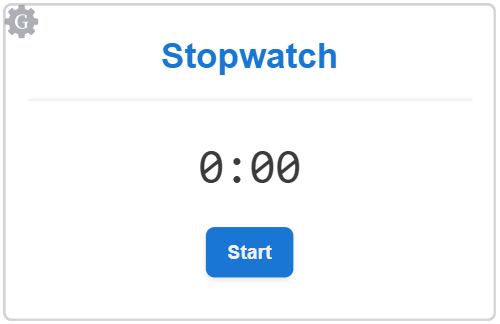
Thick
Configuration: a panel of tools to configure and test gadget settings:
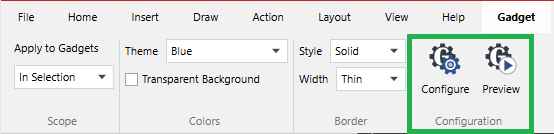
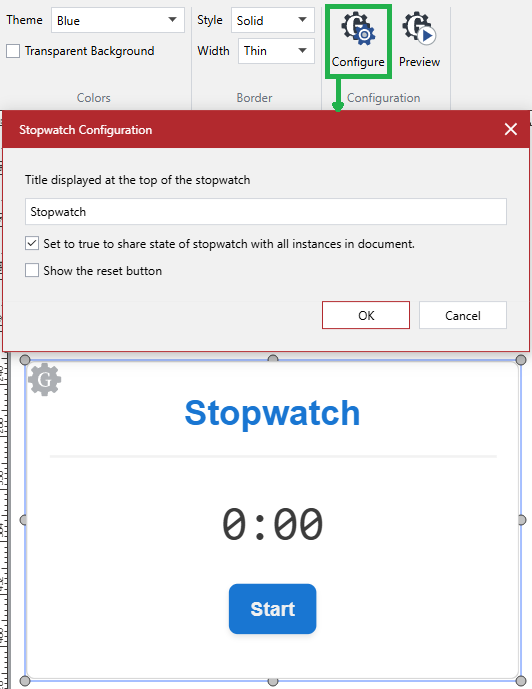
Configure: a button to show the Configuration pop-up dialog with settings and properties specific to a given gadget type. For the dialog details, see the corresponding gadget type sections.
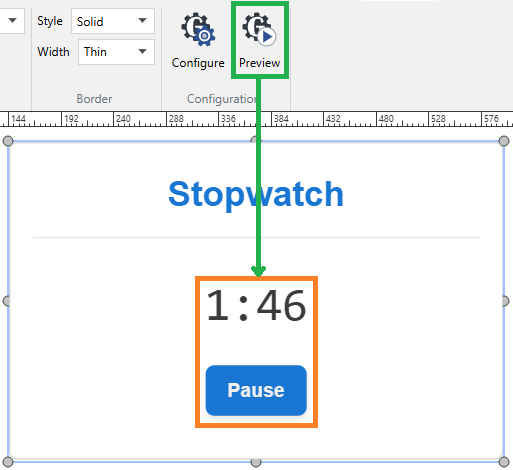
Preview: a button to activate the interactive viewing mode for gadgets. For gadget interaction details, see the corresponding gadget type sections.
Accessing the Gadget ribbon tab
To show the Gadget contextual ribbon tab for a gadget:
Select the gadget. The Gadget contextual tab appears on the ribbon.
Gadget context-sensitive menu
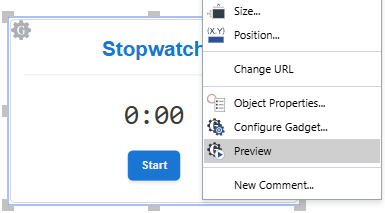
The gadget context-sensitive menu includes the following commands for a gadget:
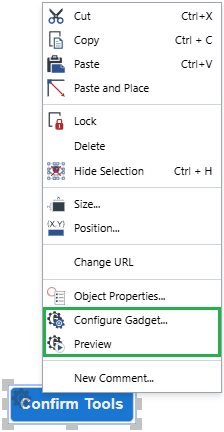
Configure Gadget: to show the Configuration pop-up dialog with settings and properties specific to a given gadget type. For the dialog details, see the corresponding gadget type sections.
Preview: to activate the interactive viewing mode for gadgets. For gadget interaction details, see the corresponding gadget type sections.
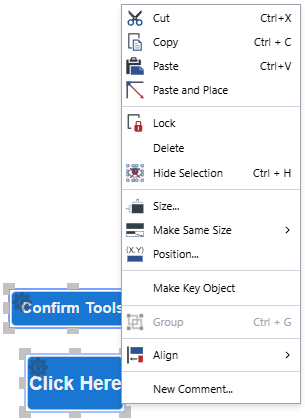
When multiple gadgets are selected, these commands are absent in the context-sensitive menu.
The gadget context-sensitive menu is not available in the gadget interactive viewing mode. The system displays the browser context menu in such a case.
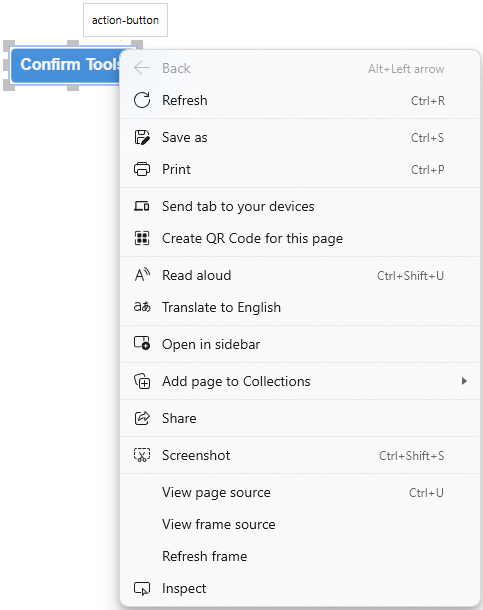
Configuring gadgets
You can do the following with a gadget:
Changing the gadget color theme
To change the color theme of a gadget:
Select the gadget.
In the Scope panel on the Gadgets contextual ribbon tab, select which gadgets will have the new color scheme from the Apply to Gadgets drop-down list.
In the Colors panel on the Gadgets contextual ribbon tab, select the new color scheme from the Theme drop-down list.
The gadget has the new color scheme.
Toggling the gadget background transparency
To make the background of a gadget transparent or opaque:
Select the gadget.
In the Scope panel on the Gadgets contextual ribbon tab, select which gadgets will have their background opacity toggled from the Apply to Gadgets drop-down list.
In the Colors panel on the Gadgets contextual ribbon tab, click the Transparent Background checkbox, either:
Select the checkbox for a fully transparent gadget background.
Clear the checkbox for a fully opaque white gadget background.
Changing the gadget border outline type
To change the outline type of the border of a gadget:
Select the gadget.
In the Scope panel on the Gadgets contextual ribbon tab, select which gadgets will have the new border outline type from the Apply to Gadgets drop-down list.
In the Border panel on the Gadgets contextual ribbon tab, select the new outline type from the Style drop-down list.
The gadget has the new border type.
Changing the gadget border outline width
To change the outline width of the border of a gadget:
Select the gadget.
In the Scope panel on the Gadgets contextual ribbon tab, select which gadgets will have the new border outline width from the Apply to Gadgets drop-down list.
In the Border panel on the Gadgets contextual ribbon tab, select the new outline width option from the Width drop-down list.
The outline of the gadget border has the new width.
Viewing and configuring gadget properties specific to the gadget type
The Configuration pop-up dialog provides the settings of a selected gadget specific to its gadget type.
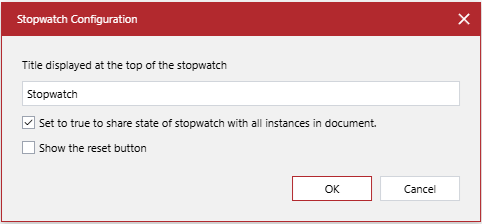
You can access the Configuration pop-up dialog with the Gadget contextual ribbon tab or gadget context-sensitive menu.
Accessing the Configuration dialog with the ribbon
To view and configure the properties specific to the type of a gadget in the Configuration pop-up dialog accessed with the Gadget contextual ribbon:
Select the gadget.
In the Configuration panel on the Gadgets contextual ribbon tab, click the Configure button. The Configuration dialog pops up with the gadget settings specific to the gadget type.
In the Configuration dialog, view and configure the gadget settings specific to the gadget type. For details, see the corresponding gadget type section.
Accessing the Configuration dialog with the context-sensitive menu
To view and configure the properties specific to the type of a gadget in the Configuration pop-up dialog accessed with the gadget context-sensitive menu:
Ensure the gadget interactive viewing mode is not active.
Right-click the gadget and click the Configure Gadget command from the context-sensitive menu. The Configuration dialog pops up with the gadget settings specific to the gadget type.
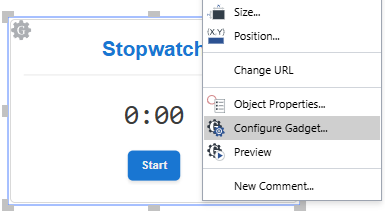
In the Configuration dialog, view and configure the gadget settings specific to the gadget type. For details, see the corresponding gadget type section.
Managing interactive gadget viewing
In the Canvas Envision Creator, you can work with gadgets in the following modes:
2D editing: to edit gadget properties and apply standard object procedures to gadgets, such as updating properties, moving, aligning, deleting gadgets, etc. In this mode, a gadget has a cogwheel icon with the letter G in the top left corner.
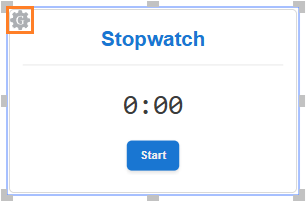
Interactive viewing: to interact with gadgets as document users will do in the Canvas Envision Viewer, such as clicking action buttons, starting and pausing stopwatches, etc. In this mode, a gadget has no cogwheel icon with the letter G in the top left corner.
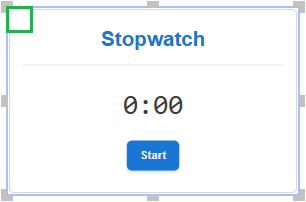
The modes are mutually exclusive. 2D gadget editing is on for gadgets by default. To test a gadget as a document user, you should activate gadget interactive viewing explicitly. Once activated for one gadget, interactive viewing is on for all gadgets in the document. Once you are done with testing, you should quit interactive gadget viewing.
Activating gadget interactive viewing for testing gadgets
You can activate the gadget interactive viewing mode with the Gadget contextual ribbon tab or gadget context-sensitive menu.
Activating the gadget interactive viewing mode with the ribbon
To activate interactive viewing with the Gadget contextual ribbon tab for testing gadgets as a document user:
Select a gadget.
In the Configuration panel on the Gadgets contextual ribbon tab, click the Preview button. The cogwheel icon with the letter G disappears from the top left corner of every gadget. The controls and fields inside each gadget become interactive.
Interact with the controls and fields inside the gadgets according to the gadget type. For details, see the corresponding gadget type section.
Activating the gadget interactive viewing mode with the context-sensitive menu
To activate interactive viewing with the gadget context-sensitive menu for testing gadgets as a document user:
Right-click the gadget and click the Preview command from the context-sensitive menu. The cogwheel icon with the letter G disappears from the top left corner of every gadget. The controls and fields inside each gadget become interactive.
Interact with the controls and fields inside the gadgets according to the gadget type. For details, see the corresponding gadget type section.
Quitting gadget interactive viewing
To quit interactive viewing for gadgets:
Click anywhere outside a gadget. The cogwheel icon with the letter G appears in the top left corner of every gadget. The controls and fields inside each gadget become frozen.