Countdown Timer Gadgets
A countdown timer gadget is an interactive object you can insert into Envision documents to countdown time for document users, events, operations, and so on.
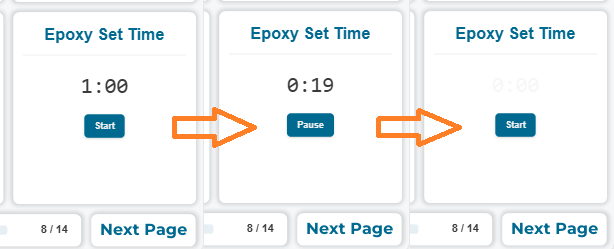
To work with countdown timer gadgets, you should know:
Countdown timer gadget UI and behavior
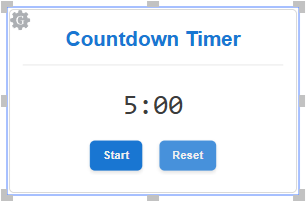
A countdown timer gadget consists of the following interactive UI elements:
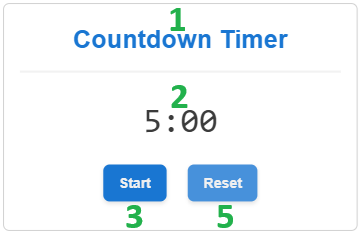
Title: a static label that displays the name of the countdown timer gadget.
Counter: a dynamic label that displays the time depending on the current state of the countdown:
The start time when a document user has not activated or has reset the countdown.
The running countdown time when the document user activated the countdown.
The paused countdown time when the document user paused the countdown.
Flashing zeros when the countdown expires.
Start: a button to activate the countdown from the time displayed in the counter to zero. When the user clicks this button:
The countdown is active and running.
The counter displays the running countdown time.
The Pause button replaces the Start button.
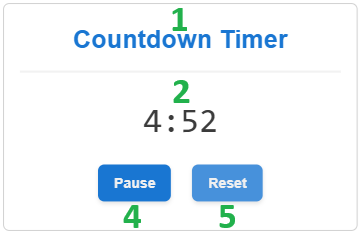
Pause: a button to pause the running countdown. When the user clicks this button:
The countdown pauses.
The counter displays the paused countdown time.
The Start button replaces the Pause button.
Reset: a button to stop the running or paused countdown and reset it to the start time. When the user clicks this button:
The countdown stops.
The counter displays the start time.
The Start button replaces the Pause button.
The Reset button is optional. It is visible by default, but you can hide it when users should not be allowed to reset the countdown.
Users should explicitly activate the countdown. They can pause or reset it if allowed.
When the countdown reaches zero:
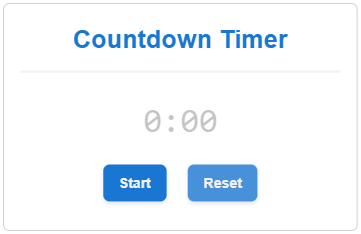
The countdown expires.
The counter displays flashing zeros.
The Start button replaces the Pause button.
The Start button is disabled. Clicking it does not restart the countdown.
By default, countdown timer gadgets are synchronous in a document. Activating, pausing, or resetting one of them activates, pauses, or resets all of them. All the synchronous countdown timer gadgets are in the same countdown state and display the same countdown time when active or paused. If necessary, you can explicitly turn off synchronization for one or more countdown timer gadgets so that they will count down time independently.
Configuring countdown timer gadgets
As a newly created countdown timer gadget has the default settings, you should specify the countdown duration, timer name, and other settings with the Countdown Timer Configuration pop-up dialog. If multiple countdown timer gadgets are in the document, you should configure each separately. The dialog is for one countdown timer gadget only.
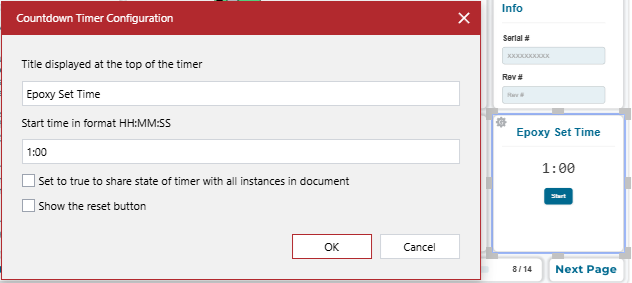
You can configure a countdown timer gadget as follows:
Once you are done with configuring the countdown timer gadget, you should test its behavior as an end user.
The Countdown Timer Configuration dialog
The Countdown Timer Configuration pop-up dialog provides the following settings of a countdown timer gadget selected in a document:
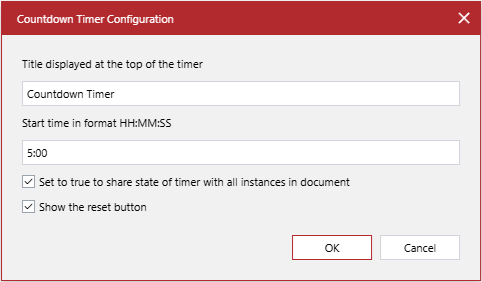
- Title displayed at the top of the timer
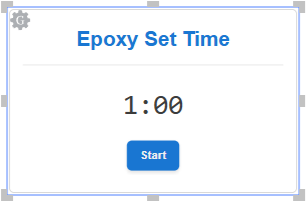
A string field, the text label that the countdown timer gadget displays. The default value is Countdown Timer.
- Start time in format HH:MM:SS
A string field, the number of hours, minutes, and seconds that the countdown timer gadget runs before reaching zero. The hours, minutes, and seconds are separated by colons (:). The default value is 5:00, which is five minutes.
- Set to true to share state of timer with all instances in document
A checkbox, a switch to turn on or off the synchronization of the countdown timer gadget with other ones in the document:
Selected: to synchronize the countdown of the countdown timer gadget with other countdown timer gadgets that have the same setting. This is the default value.
Cleared: to run the countdown of the countdown timer gadget separately from other countdown timer gadgets.
The countdown is synchronous with all countdown timer gadgets that have this checkbox selected, including newly created ones.
- Show the reset button
A checkbox, a switch to toggle the visibility of the Reset button inside the countdown timer gadget:
Selected: to show the Reset button. This is the default value.
Cleared: to hide the Reset button.
Clicking the Reset button resets the synchronous countdown timers to the start time.
Resetting countdown timers without the Reset button is not possible when viewing the document in the Canvas Envision Viewer. However, reloading the document resets all the countdown timer gadgets in the document.
Changing the countdown timer gadget title
To change the title of a countdown timer gadget:
Select the countdown timer gadget.
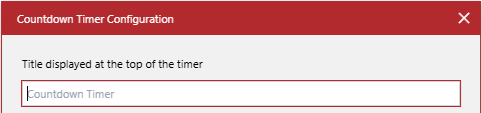
In the Title displayed at the top of the timer field of the Countdown Timer Configuration dialog, enter the new title that the countdown timer gadget will display in the document.
If necessary, continue configuring the countdown timer gadget as discussed in the following sections.
Once done with configuring, click the OK button to save the changes. The dialog disappears, and the countdown timer gadget has the title you entered in the Title displayed at the top of the timer field.
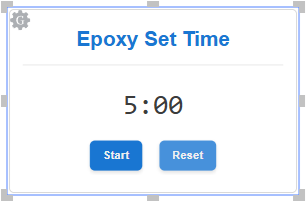
Specifying the countdown duration
To specify the time from which a countdown timer gadget will run to zero:
Select the countdown timer gadget.
In the Start time in format HH:MM:SS field of the Countdown Timer Configuration dialog, enter the number of hours, minutes, and seconds that the countdown timer gadget runs before reaching zero. Separate the hours, minutes, and seconds with colons (:).
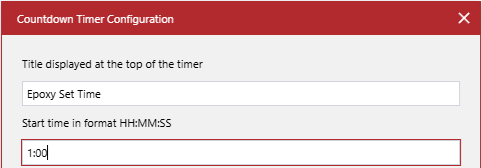
If necessary, continue configuring the countdown timer gadget as discussed in other sections.
Once done with configuring, click the OK button to save the changes. The dialog disappears, and the countdown timer gadget has the duration you entered in the Start time in format HH:MM:SS field.
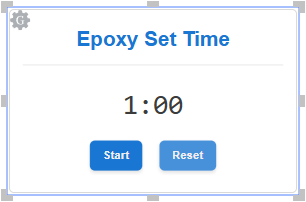
Turning on or off countdown synchronization
To turn on or off the countdown synchronization of a countdown timer gadget with other countdown timer gadgets in the document:
Select the countdown timer gadget.
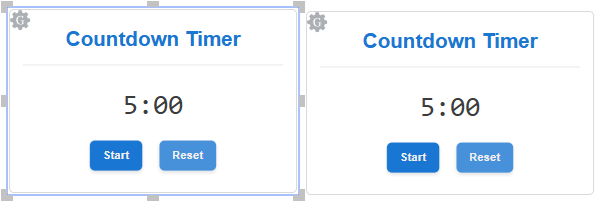
In the Countdown Timer Configuration dialog, click the Set to true to share state of timer with all instances in document checkbox, either:
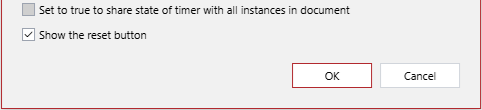
Select the checkbox to synchronize the countdown of the countdown timer gadget with other countdown timer gadgets that have the same setting.
Clear the checkbox to run the countdown of the countdown timer gadget separately from other countdown timer gadgets.
If necessary, continue configuring the countdown timer gadget as discussed in other sections.
Once done with configuring, click the OK button to save the changes. The dialog disappears, and the countdown timer gadget has the synchronization on or off according to your settings of the Set to true to share state of timer with all instances in document checkbox.
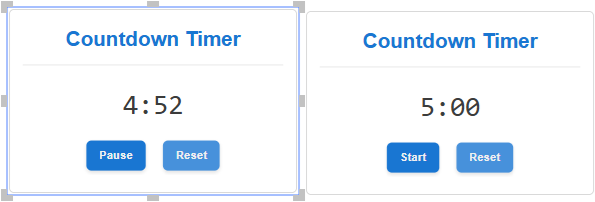
Showing or hiding the Reset button
To hide or show the Reset button inside a countdown timer gadget:
Select the countdown timer gadget.
In the Countdown Timer Configuration dialog, click the Show the reset button checkbox, either:

Select the checkbox to show the Reset button inside the countdown timer gadget.
Clear the checkbox to hide the Reset button inside the countdown timer gadget.
If necessary, continue configuring the countdown timer gadget as discussed in the previous sections.
Once done with configuring, click the OK button to save the changes. The dialog disappears, and the countdown timer gadget includes or excludes the Reset button according to your settings of the Show the reset button checkbox.
Testing countdown timer gadgets
To verify countdown timer gadgets as an end-user:
Verify that the countdown timer gadget title and start time are correct.
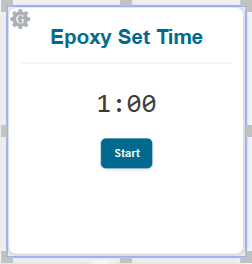
Depending on whether users are allowed to reset the countdown, verify the presence of the Reset button:
Not allowed: the button should be absent.
Allowed: the button should be present.
If multiple countdown timer gadgets are synchronous in the document, verify that they all have the same settings.
Click the Start button.
Verify that the countdown is running and correct in each synchronous countdown timer gadget.
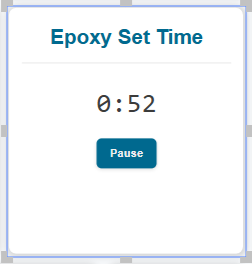
Click the Pause button.
Verify that the countdown pauses and the remaining time is the same in each synchronous countdown timer gadget.
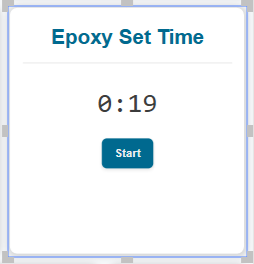
If the countdown timer gadget has the Reset button, click it.
Verify that the countdown stops and the remaining time is reset to the start time in each synchronous countdown timer gadget.
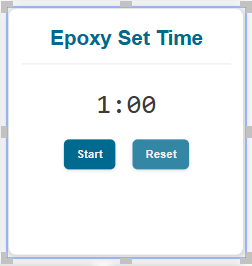
Click the Start button and wait for the countdown to reach zero.
Verify that the countdown expires in each synchronous countdown timer gadget.
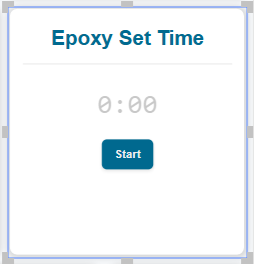
Once done with testing, quit interactive viewing mode for gadgets.