Data Capture Gadgets
A data capture gadget is an interactive object you can insert into Envision documents for document users to record numeric and textual data obtained from their job activities, such as part numbers, serial numbers, actual dimensions, metrics, etc.
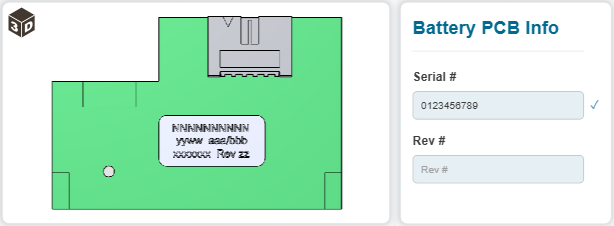
To work with data capture gadgets, you should know:
Data capture gadget UI and behavior
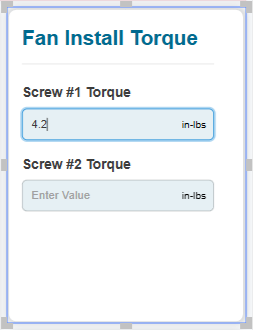
A data capture gadget consists of the following UI elements:
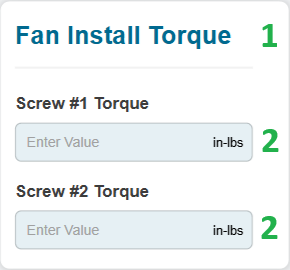
Title: a static label that displays the title of the data capture gadget to document users.
Data capture field: an interactive input UI element where document users should enter numeric or textual data.
The data capture gadget can include one or more data capture fields.
A data capture field in the data capture gadget consists of the following elements:
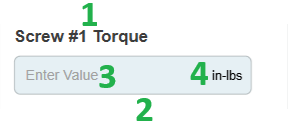
Name: a static label that displays the name of the data capture gadget field.
Box: an interactive rectangular area where a document user should enter numeric or textual data.
Placeholder: a static label inside the field box that displays a brief prompt to the document user on what data they should enter. The placeholder aligns with the left box border and is visible only in a blank box; it disappears when the document user starts typing in the box. This element is optional. A placeholder is not a default value. Its purpose is illustrative; it is not passed to the database when the document user has not entered data in the data capture field. In such a case, the field will be empty in the database.
Trailing label: a static label inside the field box that displays supplementary or auxiliary information about the data, such as the unit of measure. The trailing label aligns with the right box border and is always visible. This element is optional. Its purpose is illustrative; it is not appended to the data entered by the document user.
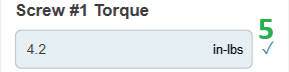
Save indicator: a checkbox that appears when the data entered by the user has been saved to the database.
There are two types of data capture fields:
Alphanumeric (text)
Numeric
In a data capture field, the document user can enter only the data of the type of this field and no longer than 1000 characters. Other than those, there are no additional data validations.
All data capture fields are optional. The document user can skip any data capture field.
To submit some data to the database, the document user should enter it in the data capture field and press Enter. When the save indicator appears, the data is saved to the database.
To change or correct the data submitted to the database, the document user should enter the new data or correct the submitted data in the data capture field and press Enter. When updating the submitted data in the data capture field, the save indicator disappears. It appears again when the new data is saved to the database after pressing Enter.
To delete the submitted data from the database, the document user should delete the submitted data from the data capture field and press Enter. The save indicator does not appear when the submitted data is deleted from the database.
By default, the database keeps the data from data capture gadget fields across document users by dates. If the user enters new data in the data capture field during the day, it will overwrite the old data entered by this user in this field earlier that day. If the document user should enter the data for different cases or assets during the day or it is necessary to track for which exact case or asset the data is provided regardless of the day, you should use data capture gadgets with a login gadget that will identify document sessions. For details, see Login Gadgets.
Configuring data capture gadgets and fields
As a newly created data capture gadget has the default title and no data capture fields, you should update the title and configure the data capture fields with the Data Capture Gadget Configuration pop-up dialog. If multiple data capture gadgets are in the document, you should configure each separately. The dialog is for one data capture gadget only.
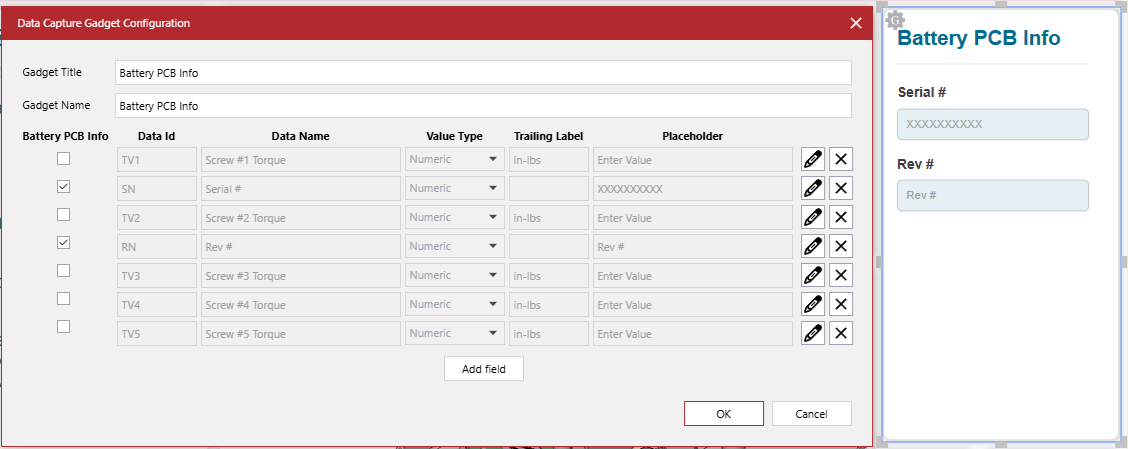
With the Data Capture Gadget Configuration dialog, you can do the following:
If necessary, you can undo the changes made in this dialog.
Once you are done with configuring the data capture gadget, you should test its behavior as an end user.
The Data Capture Gadget Configuration dialog
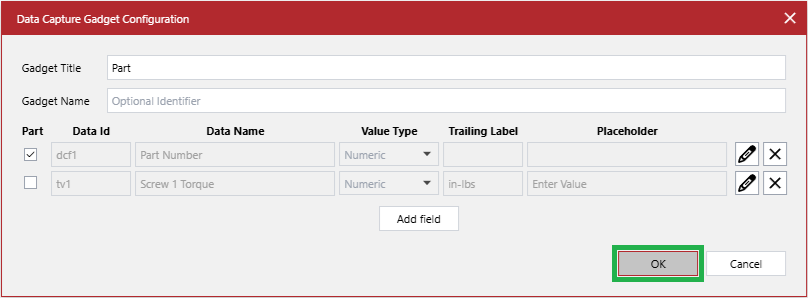
The Data Capture Gadget Configuration pop-up dialog provides the following controls to configure a data capture gadget selected in a document and manage all the data capture gadget fields in the document:
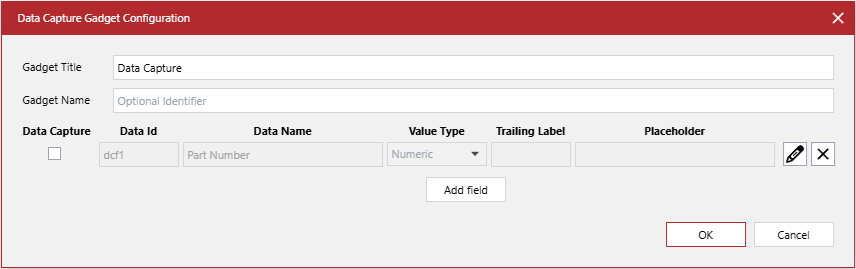
- Gadget Title
A string field, the text label that the selected data capture gadget displays to users in the document. This setting is required. There is no requirement for the gadget title to be unique: multiple data capture gadgets can have the same title. The default value is Data Capture. The title can be up to 128 characters long.
- Gadget Name
A string field, the ID of the data capture gadget in the application database. This setting is optional. There is no requirement for the gadget name to be unique: multiple data capture gadgets can have the same name. This setting is blank by default. The gadget name can be up to 128 characters long.
When multiple data capture gadgets in the document have the same title, you can use the gadget name to identify them in the application database.
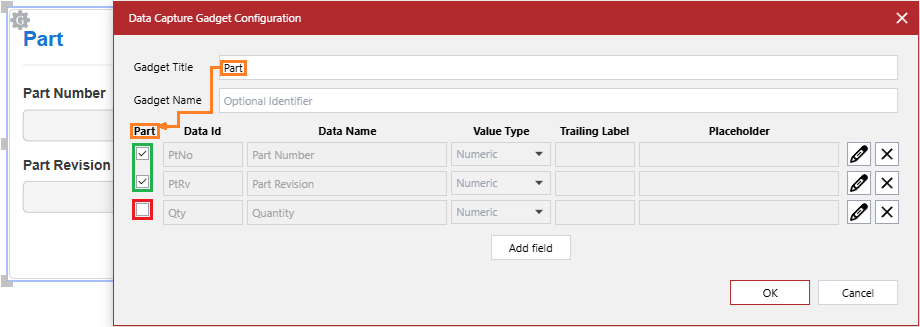
- Checkbox
A checkbox, a switch to include (selected) or do not include (cleared) a given data capture field in the selected data capture gadget. The default value is do not include (cleared).
The checkbox column name is sourced from the Gadget Title setting.
- Data Id
A string field, the ID of the data capture gadget field in the document and application database. This setting is required. The value must be unique in the document. The default value is dcf#, where # is a number incremented for each new data capture gadget field. The field ID can be up to 128 characters long.
- Data Name
A string field, the name of the data capture gadget field that is always displayed above the field inside the data capture gadget. This setting is required. There is no requirement for the field name to be unique: multiple data capture gadget fields can have the same name. This setting is blank by default. The field name can be up to 128 characters long.
- Value Type
A drop-down list, the type of data that the data capture gadget field allows, either:
Numeric
Alphanumeric
The default value is Numeric.
- Trailing Label
A string field, a text that is always displayed inside the field and aligns with the right border. This setting is optional and blank by default. The trailing label can be up to 128 characters long.
The purpose of the trailing label is illustrative. Its value is not appended to the data entered by the document user.
- Placeholder
A string field, the text that is displayed inside the empty field and aligns with the left border. This setting is optional and blank by default. The placeholder can be up to 128 characters long.
A placeholder is not a default value. Its purpose is illustrative. Its value is not passed to the database when the document user has not entered data in the data capture field. In such a case, the field will be empty in the database.
- Edit field
A button to enter editing the settings of the data capture gadget field.

On clicking this button, the following occurs on the row with it:
The Save field changes button replaces it.
The Revert field changes button replaces the Delete field button.
The fields become active.
- Save field changes
A button to:
Quit editing the settings of the data capture gadget field.
Confirm the changes done to the settings during the editing session.

On clicking this button, the following occurs on the row with it:
The Edit field button replaces it.
The Delete field button replaces the Revert field changes button.
The fields become inactive and display the new values given during the editing session.
- Revert field changes
A button to:
Quit editing the settings of the data capture gadget field.
Discard the changes done to the settings during the editing session.
Restore the old values that existed before the editing session.

On clicking this button, the following occurs on the row with it:
The Delete field button replaces it.
The Edit field button replaces the Save field changes button.
The fields become inactive and display the old values that existed before the editing session.
- Delete field
A button to delete the data capture gadget field from the document and all the data capture gadgets where it is used.

- Add field
A button to add a new data capture gadget field to the document.
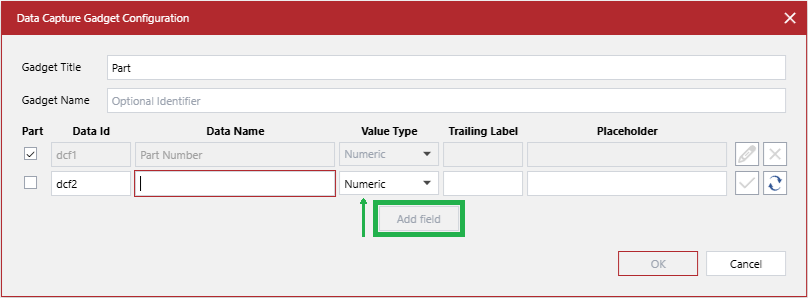
On clicking this button, the following occurs:
It and the OK button become inactive.
A new row of active fields appears below the last existing row.
The Save field changes button replaces the Delete field button on the new row.
The Revert field changes button replaces the Edit field button on the new row.
- OK
A button to close the dialog and save the changes to the settings of the selected data capture gadget and data capture gadget fields done during the current dialog session.
- Cancel
A button to close the dialog without saving the changes to the settings of the selected data capture gadget and data capture gadget fields done during the current dialog session.
Configuring data capture gadgets
You can configure a data capture gadget as follows:
Changing the data capture gadget title displayed in the UI
To change the title of a data capture gadget:
Select the data capture gadget.
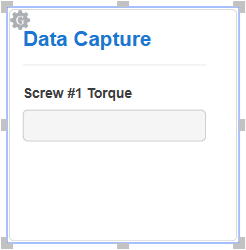
In the Gadget Title field of the Data Capture Gadget Configuration dialog, enter the new title that the data capture gadget will display in the document.

If necessary, continue configuring the data capture gadget as discussed in the following sections.
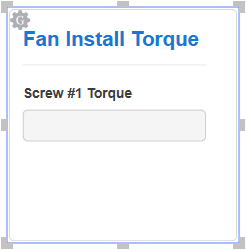
Once done with configuring, click the OK button to save the changes. The dialog disappears, and the data capture gadget has the title you entered in the Gadget Title field.
Changing the data capture gadget name in the database
To change the name of a data capture gadget in the application database:
Select the data capture gadget.
In the Gadget Name field of the Data Capture Gadget Configuration dialog, enter the new name that the data capture gadget will have in the application database.

If necessary, continue configuring the data capture gadget as discussed in other sections.
Once done with configuring, click the OK button to save the changes. The dialog disappears, and the data capture gadget will be referenced in the database by the name you entered in the Gadget Name field.
Managing the inclusion of data capture fields in a data capture gadget
To include or exclude one or more data capture fields in a data capture gadget:
Select the data capture gadget.
In the Data Capture Gadget Configuration dialog, click the checkboxes, either:
Select the checkbox of a data capture field to include this field in the data capture gadget.
Clear the checkbox of a data capture field to exclude this field from the data capture gadget.
If necessary, continue configuring the data capture gadget as discussed in other sections.
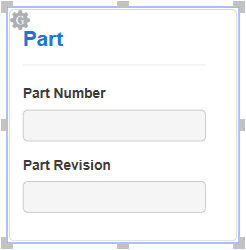
Once done with configuring, click the OK button to save the changes. The dialog disappears, and the data capture gadget includes the data capture fields whose checkboxes you have selected in the dialog.
Managing data capture gadget fields in the entire document
You can manage data capture gadget fields in the entire document as follows:
Creating new data capture gadget fields
To create one or more new data capture fields in a document:
Select a data capture gadget.
In the Data Capture Gadget Configuration dialog, click the Add field button. A new row of data capture field settings appears in the dialog.
If the new data capture field should be included in the selected data capture gadget, select the checkbox on the new row.
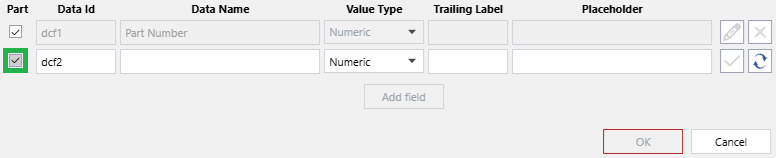
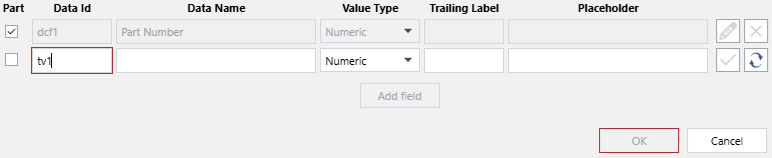
If the new data capture field should have a custom ID in the database, replace the default ID with the custom one in the Data Id field.
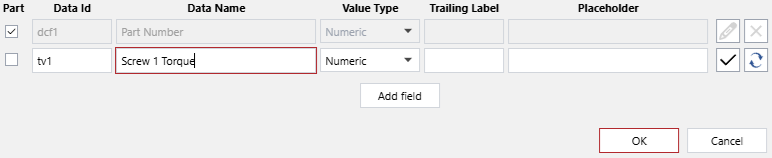
Enter the name of the new data capture field in the Data Name field. The Save field changes and OK buttons become active.
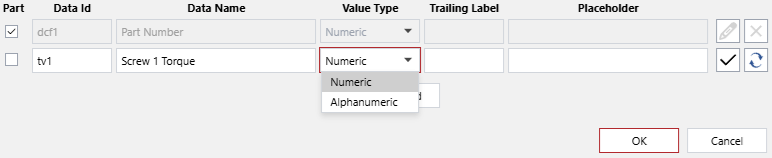
If the new data capture field should allow text, select the Alphanumeric option from the Value Type drop-down list.
If the new data capture field should have a trailing label, enter it in the Trailing Label field.
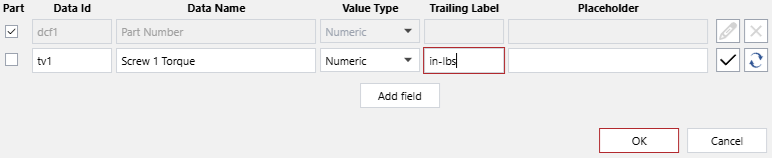
If the new data capture field should have a placeholder, enter it in the Placeholder field.
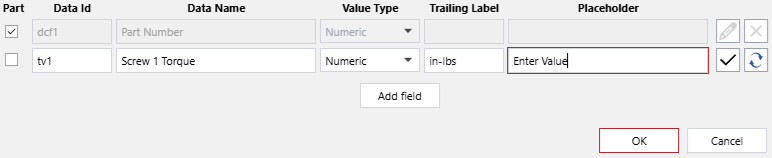
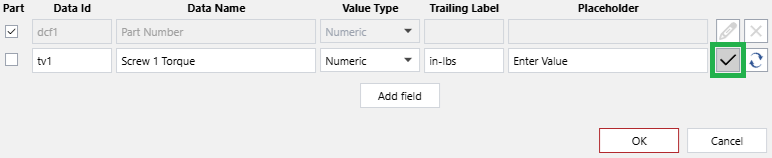
Click the Save field changes button. The fields on the new data capture field row become inactive.
If necessary to create more new data capture fields, take steps from 3 to 10.
If necessary to reconfigure the selected data capture gadget or one or more existing data capture fields or delete them, follow the instructions in other sections.
Once done with creating and configuring, click the OK button to save the changes.
Reconfiguring existing data capture gadget fields
To change one or more settings of one or more data capture fields existing in a document:
Select a data capture gadget.
In the Data Capture Gadget Configuration dialog, click the Edit field button on the row of the data capture field whose settings you want to change.
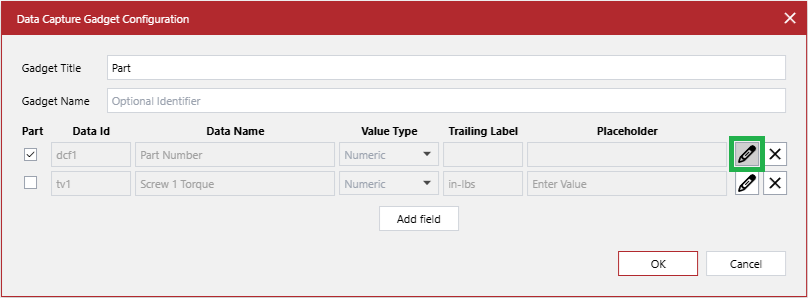
On this row:
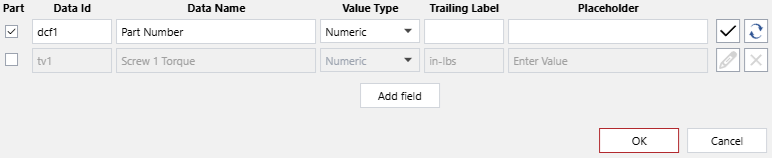
The fields become active.
The Save field changes button replaces the Edit field button.
The Revert field changes button replaces the Delete field button.
On other rows:
The fields continue to be inactive.
The Edit field and Delete field buttons become inactive.
Update the settings of the data capture field in the active fields as you need.
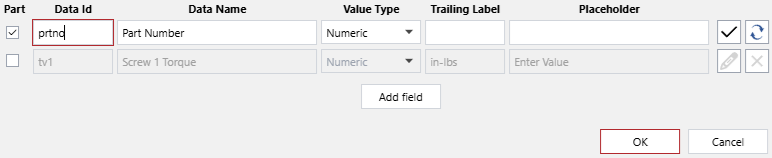
Click the Save field changes button.
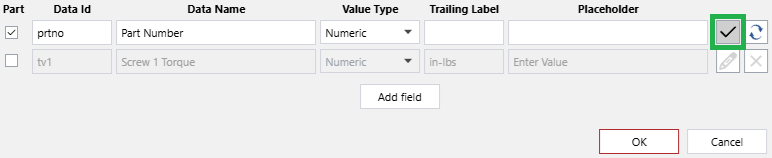
On this row:
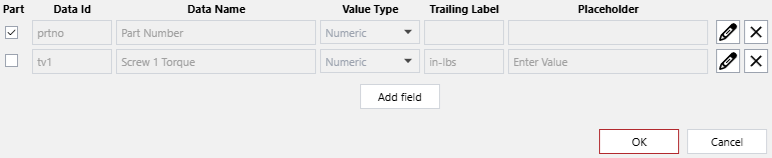
The fields keep the new values and become inactive.
The Edit field button replaces the Save field changes button.
The Delete field button replaces the Revert field changes button.
On other rows:
The Edit field and Delete field buttons become active.
If necessary to reconfigure another data capture field, take steps 3 and 5 for that field.
If necessary to reconfigure the selected data capture gadget, add one or more new data capture fields, or delete one or more existing ones, follow the instructions in other sections.
Once done with configuring, click the OK button to save the changes.
Deleting data capture gadget fields from the document
To delete one or more data capture fields from a document:
Select a data capture gadget.
In the Data Capture Gadget Configuration dialog, click the Delete field button on the row of the data capture field that you want to delete.
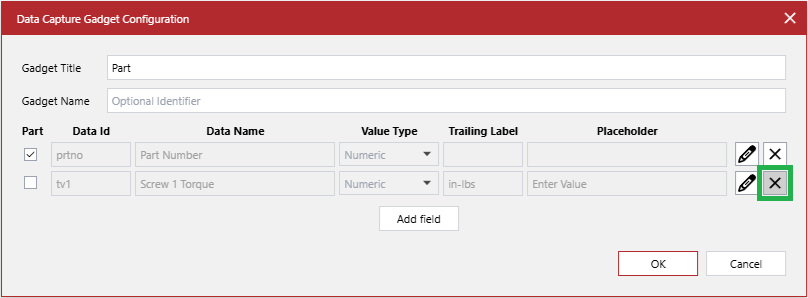
The Delete field dialog pops up.
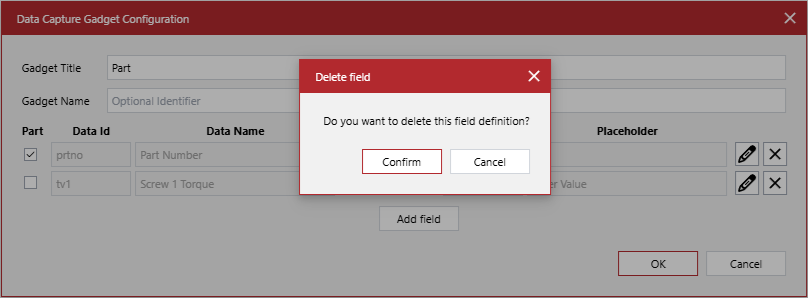
In the Delete field dialog, click the Confirm button. The Delete field dialog disappears, and the row of the data capture field that you want to delete is removed from the Data Capture Gadget Configuration dialog.
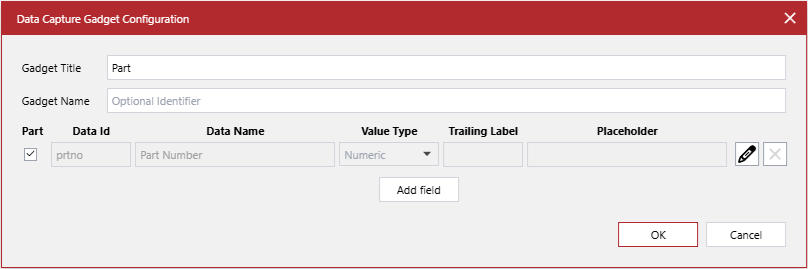
If necessary to delete another data capture field, take steps 3 and 4 for that field.
If necessary to reconfigure the selected data capture gadget, one or more data capture fields, or add one or more new data capture fields, follow the instructions in other sections.
Once done with deleting and configuring, click the OK button to save the changes.
Undoing changes made in the Data Capture Gadget Configuration dialog
In the Data Capture Gadget Configuration dialog, you can undo the changes you have made in the current editing session of:
Undoing changes made to an edited data capture field
To undo all the changes you have made in the current editing session of a data capture field and restore the old values of the data capture field settings:
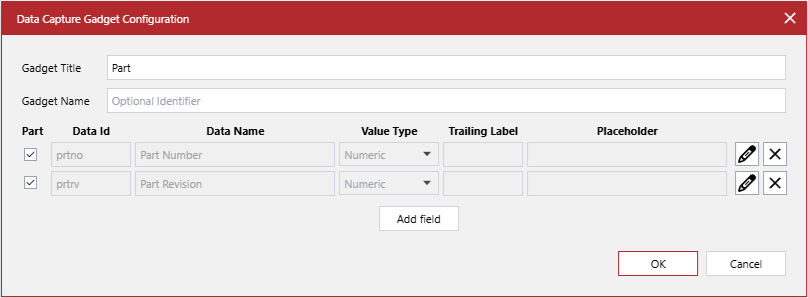
While editing the data capture field settings in the Data Capture Gadget Configuration dialog, click the Revert field changes button.
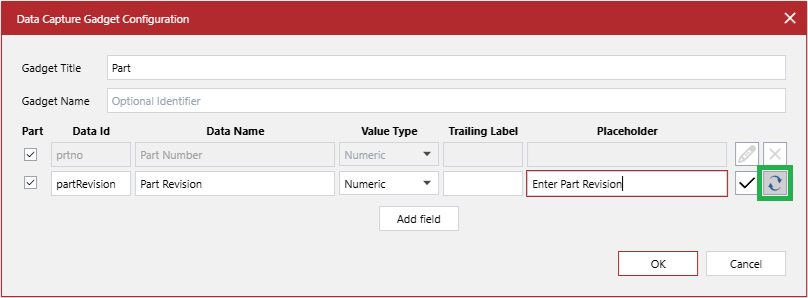
All the new values entered during the canceled editing session of the data capture field settings are dismissed and will not be saved. The old values of the data capture field settings are restored. The fields become inactive. The Edit field button replaces the Save field changes button. The Delete field button replaces the Revert field changes button.
Undoing all the changes made in the Data Capture Gadget Configuration dialog
To undo changes you have made to a selected data capture gadget and data capture fields in the current session of the Data Capture Gadget Configuration dialog, including creating and deleting data capture fields:
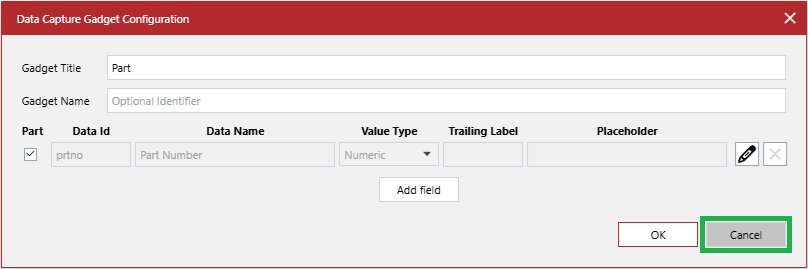
In the Data Capture Gadget Configuration dialog, click the Cancel button. All the changes done in the dialog are dismissed and will not be saved.
Testing data capture gadgets
To verify data capture gadgets as an end-user:
Verify that the data capture gadget title is correct.
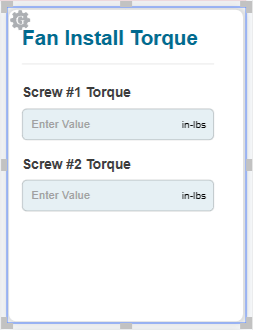
Verify that the following elements of each field are correct:
Name
Placeholder
Trailing label
Type in each field to verify that it allows only the data of the correct type.
Once done with testing, quit interactive viewing mode for gadgets.