Login Gadgets
A login gadget is an interactive object you can insert into Envision documents for document users to initiate identified document viewing sessions where it is necessary to collect data within a separate session for a particular case, asset, assignment, job, etc., such as a work order, ticket, serial-number-controlled equipment, report, and so on.
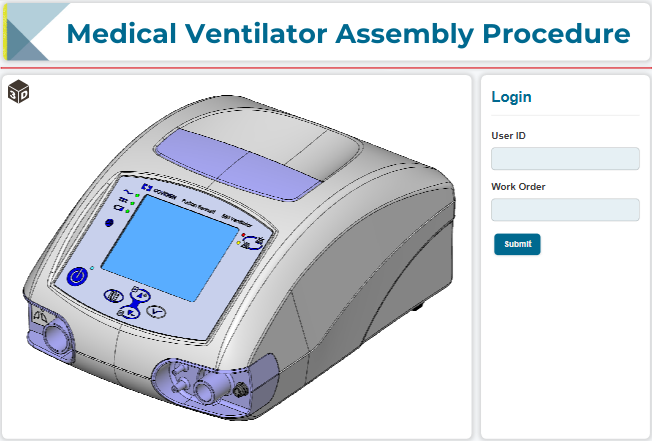
To work with login gadgets, you should know:
Login gadget UI and behavior
A login gadget consists of the following UI elements:
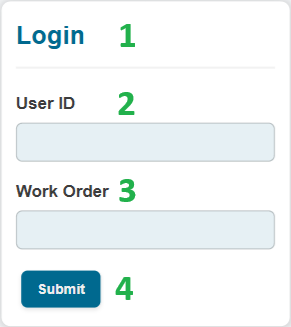
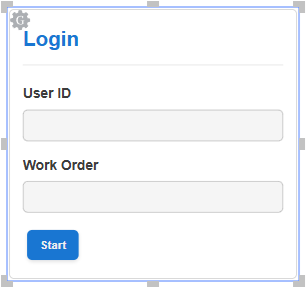
Title: a static label that displays the name of the login gadget.
User ID: a text field where a document user should enter their ID, such as the name, email, personal number, etc.
Reference: a text field where the document user should enter the ID of the viewing session, such as a work order number, serial number, ticket number, etc.
Submit: a button to initiate a document viewing session for the given user and operation reference.
There are no validations for the data entered by the document user in the login gadget.
Both fields are required in the document. The document user cannot skip any field to initiate the identified document session. If the document user must authenticate the session to proceed, the page with the login gadget should have no other objects that redirect the document user to the next page.
To initiate an identified document viewing session, the document user should do the following:
Populate the fields.
Click the Submit button or press the Enter key.
Once the session is initiated, the system behaves as follows:
Replaces the Submit button with the User logged in label in the login gadget.
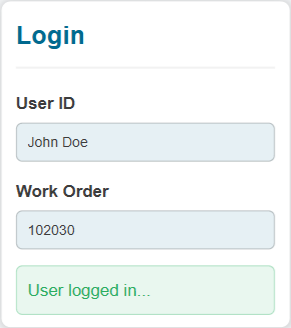
Redirects the document user to the next page.
During the identified session, the system records the data entered by the document user in the data capture gadgets to the application database along with the IDs of the user and session provided in the login gadget. You can query data for a particular user, session, or both from the database using the Canvas Envision Portal tools, your solution, or third-party tools.
To quit the identified session, the document user should do the following:
Reload the browser tab with the document.
The login gadget does not support authentication with the Canvas Envision web apps or third-party apps. The document users should already be logged in to the required systems.
A document should have one login gadget on the first page.
Configuring login gadgets
As a newly created login gadget has the default settings, you should configure the gadget properties with the Login Gadget Configuration pop-up dialog.
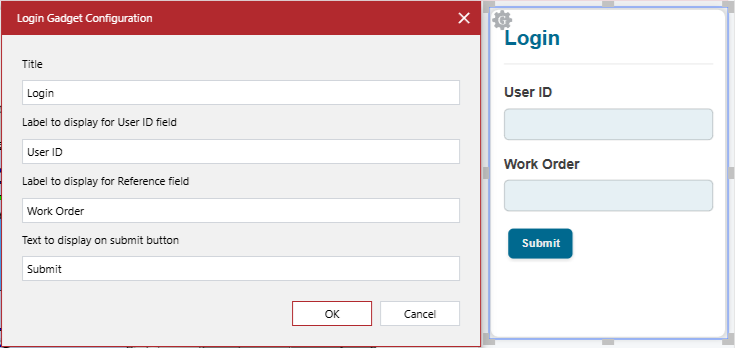
You can configure a login gadget by changing the text labels of its UI elements:
Once you are done with configuring the login gadget, you should test its behavior as an end user.
The Login Gadget Configuration dialog
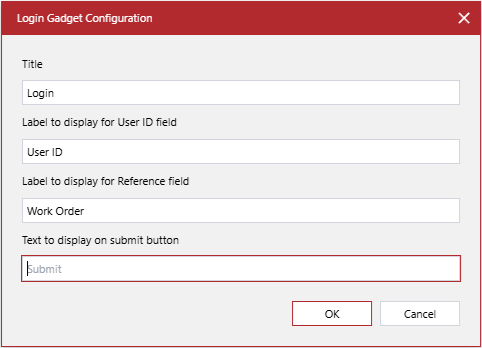
The Login Gadget Configuration pop-up dialog provides the following controls to configure a login gadget selected in a document:
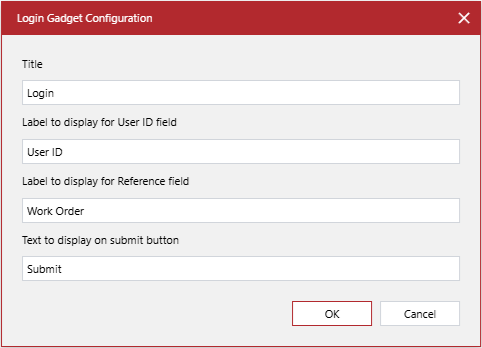
- Title
A string field, the text label that the login gadget displays in the document. This setting is required. If no value is given, the default value is used, which is Login.
- Label to display for User ID field
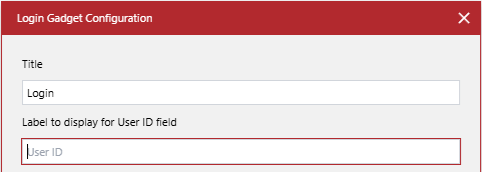
A string field, the text label of the User ID field where a document user should enter their ID, such as the name, email, personal number, etc. This setting is required. If no value is given, the default value is used, which is User ID. This label is displayed in the document but is not saved to the database.
- Label to display for Reference field
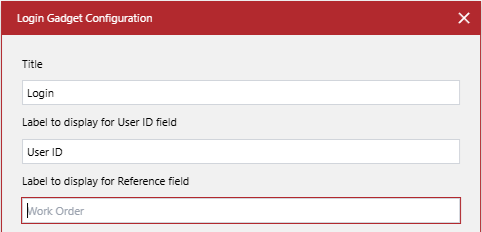
A string field, the text label of the Reference field where a document user should enter the ID of a viewing session, such as a work order number, serial number, ticket number, etc. This setting is required. If no value is given, the default value is used, which is Work Order. This label is displayed in the document but is not saved to the database.
- Text to display on submit button
A string field, the text label that the Submit button displays. The default value is Submit.
Changing the login gadget title
To change the title of a login gadget:
Select the login gadget.
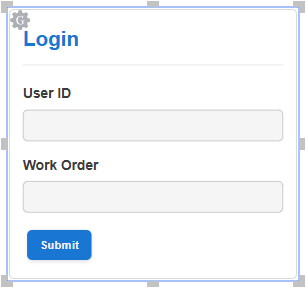
In the Title field of the Login Gadget Configuration dialog, enter the new title that the login gadget will display in the document.
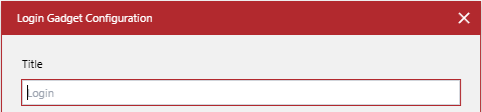
If necessary, continue configuring the login gadget as discussed in the following sections.
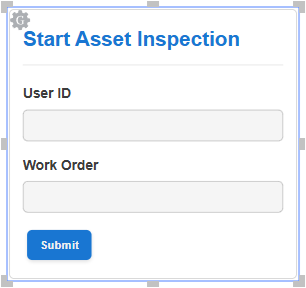
Once done with configuring, click the OK button to save the changes. The dialog disappears, and the login gadget has the title you entered in the Title field.
Changing the User ID field label
To change the label of the User ID field of a login gadget:
Select the login gadget.
In the Label to display for User ID field field of the Login Gadget Configuration dialog, enter the new label that the User ID field will display in the login gadget.
If necessary, continue configuring the login gadget as discussed in other sections.
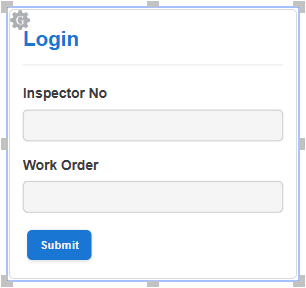
Once done with configuring, click the OK button to save the changes. The dialog disappears, and the User ID field of the login gadget has the label you entered in the Label to display for User ID field field.
Changing the Reference field label
To change the label of the Reference field of a login gadget:
Select the login gadget.
In the Label to display for Reference field field of the Login Gadget Configuration dialog, enter the new label that the Reference field will display in the login gadget.
If necessary, continue configuring the login gadget as discussed in other sections.
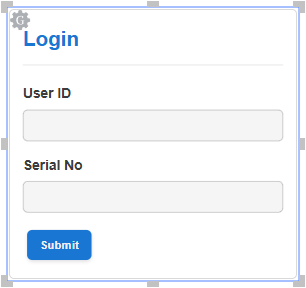
Once done with configuring, click the OK button to save the changes. The dialog disappears, and the Reference field of the login gadget has the label you entered in the Label to display for Reference field field.
Changing the Submit button label
To change the label of the Submit button of a login gadget:
Select the login gadget.
In the Text to display on submit button field of the Login Gadget Configuration dialog, enter the new label that the Submit button will display in the login gadget.
If necessary, continue configuring the login gadget as discussed in other sections.
Once done with configuring, click the OK button to save the changes. The dialog disappears, and the Submit button of the login gadget has the label you entered in the Text to display on submit button field.
Testing login gadgets
To verify a login gadget as an end-user:
Verify that the text labels of the login gadget elements are correct:
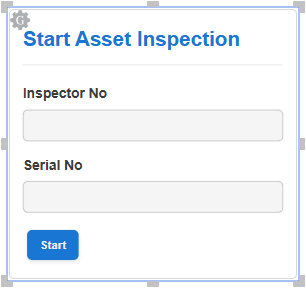
The gadget title
The User ID field
The Reference field
The Submit button