Part List Gadgets
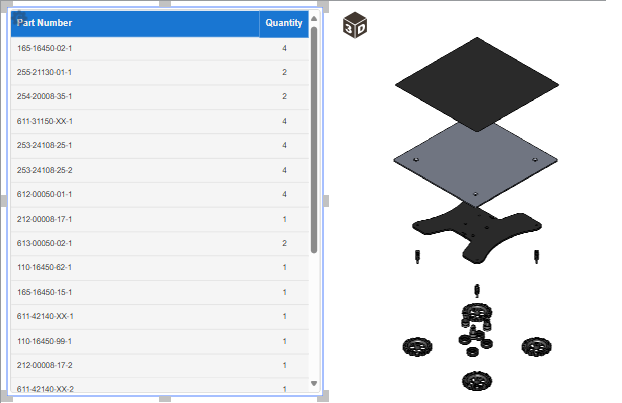
A part list gadget is an interactive object you can insert into Envision documents along with a 3D model object to create an interactive picture-illustrated catalog, where document users can view, explore, and order parts included in the 3D model.
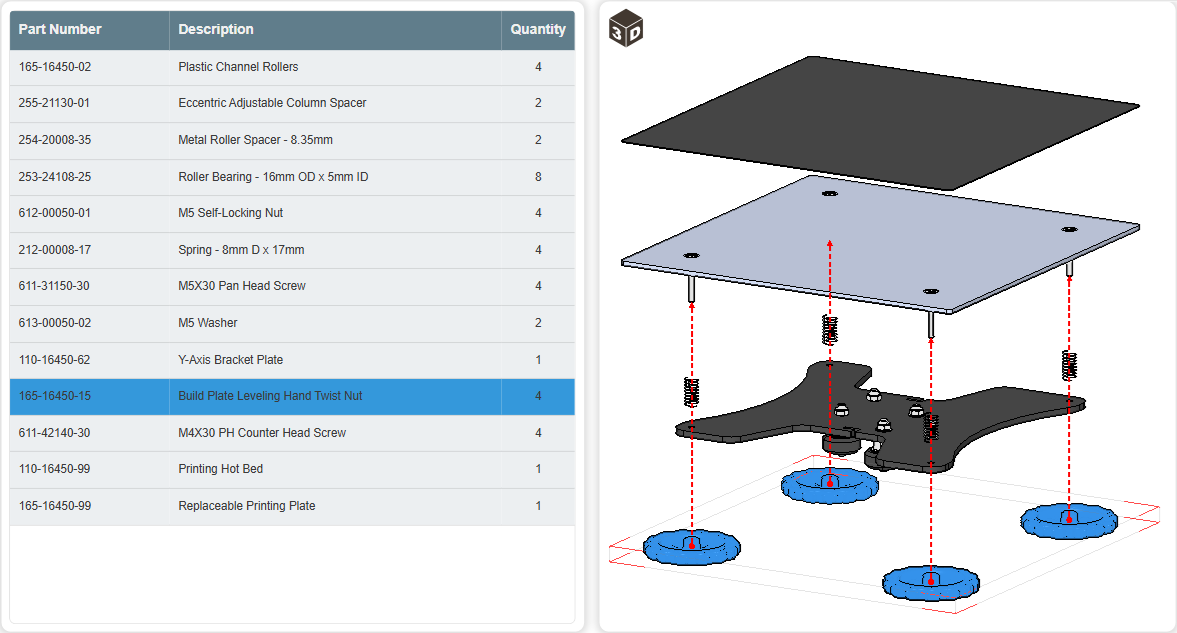
To work with part list gadgets, you should know:
Part list gadget UI and behavior
A part list gadget always accompanies a 3D model object. Both must be on the same page.
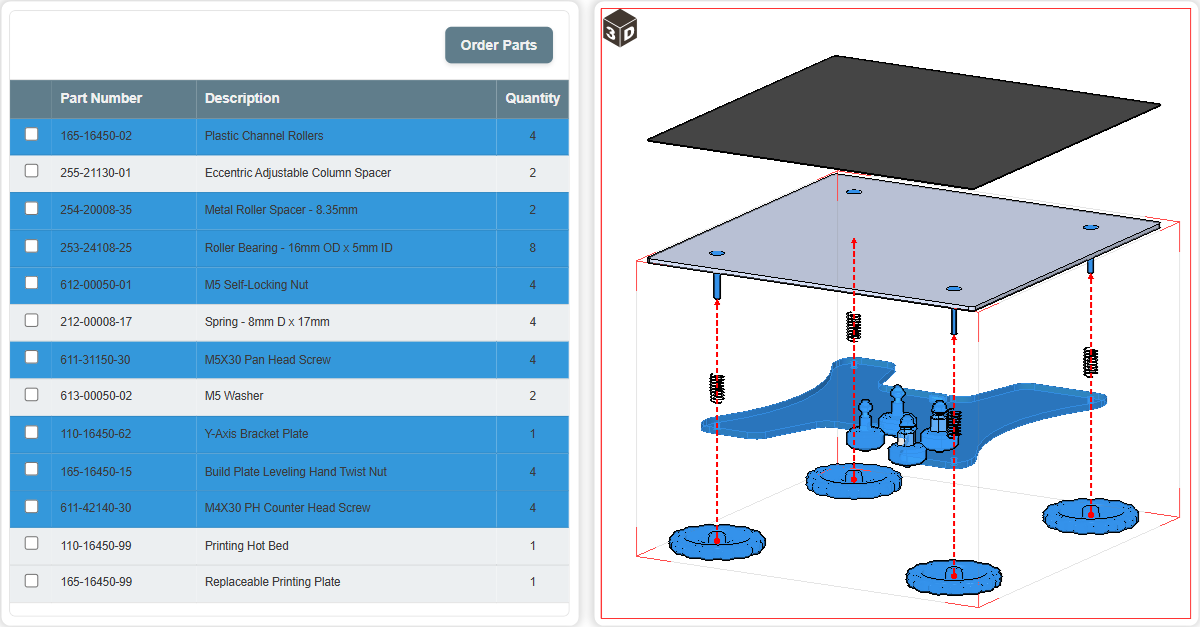
The part list gadget consists of the following UI elements:
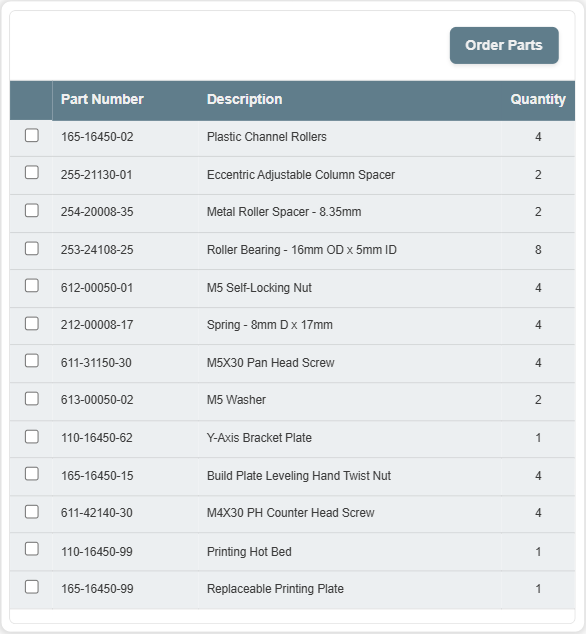
The Order Parts button to order parts specified in the table of parts. This button is optional.
The table of parts included in the accompanied 3D model object. This table is always present in the gadget. It consists of rows and columns. A row is a part of the 3D model. A column is a meta property of the part sourced from the metadata of the 3D model.
By default, the part list gadget contains only the parts fully visible in the accompanied 3D model view. If necessary, you can configure the part list gadget to include additionally the parts ghosted or hidden in the 3D model view.
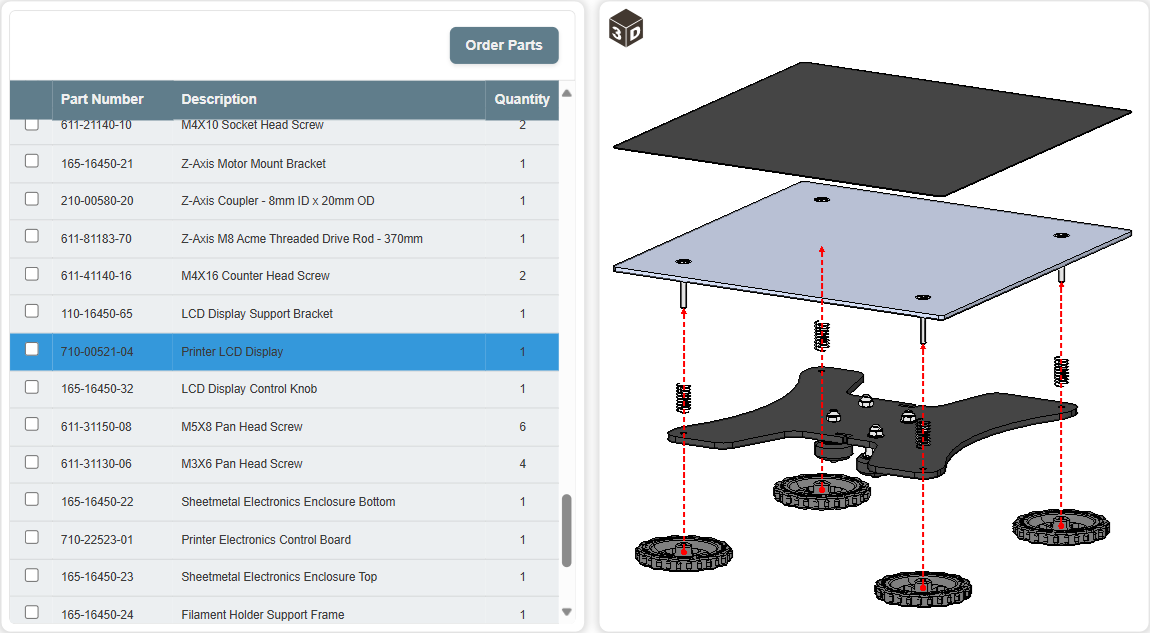
The columns of the table of parts are the following:
Checkboxes: a flag to specify a part for an order. This column is optional.
Part Number: the part number of the part. This column is always present in the table.
Description: the description of the part. This column is optional.
Quantity: the total quantity of the parts with the same part number in the 3D model view. This column is always present in the table.
The part list gadget and associated 3D model object are synchronized in the Canvas Envision Viewer. Selecting a part from the table in the part list gadget automatically launches the 3D viewing mode for the 3D model object and selects all the instances of this part visible in the 3D model view. And vice versa, selecting any instance of the part in the 3D model selects this part in the part list gadget table.
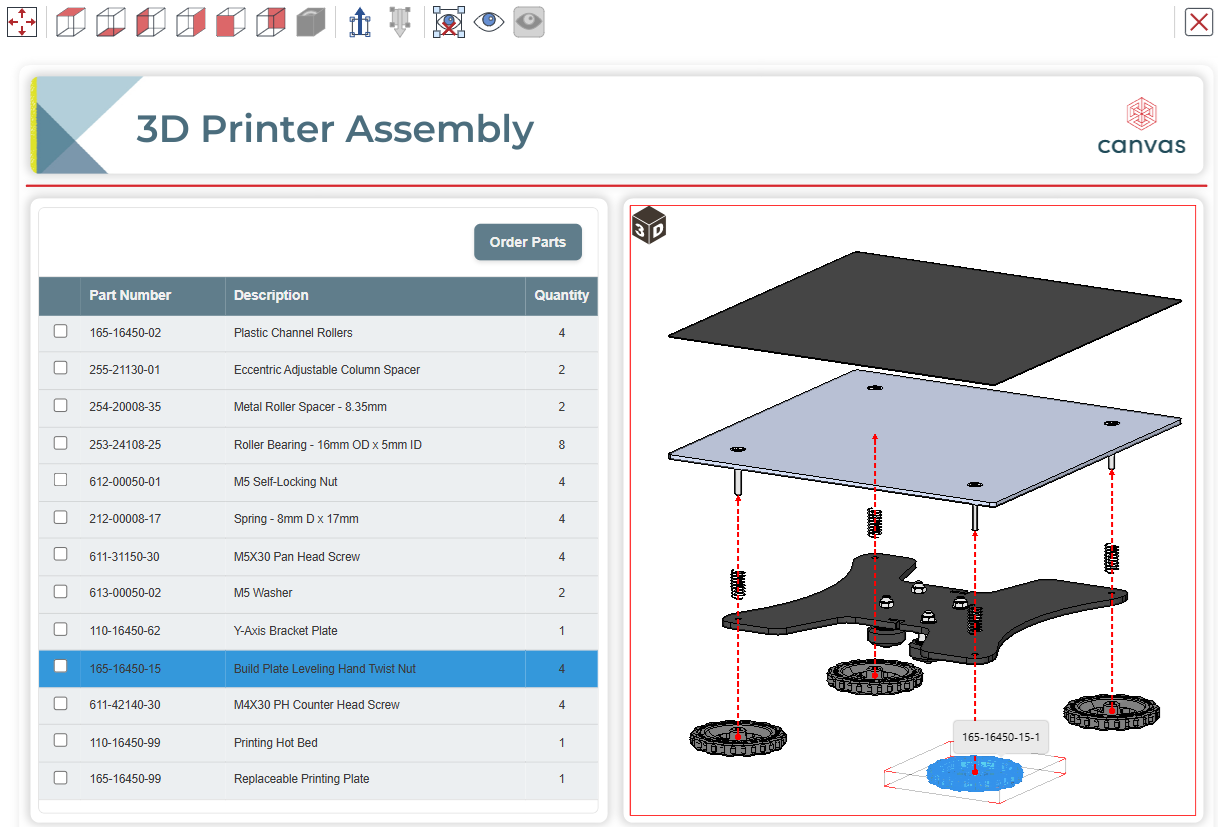
The part list gadget table supports the selection of multiple parts.
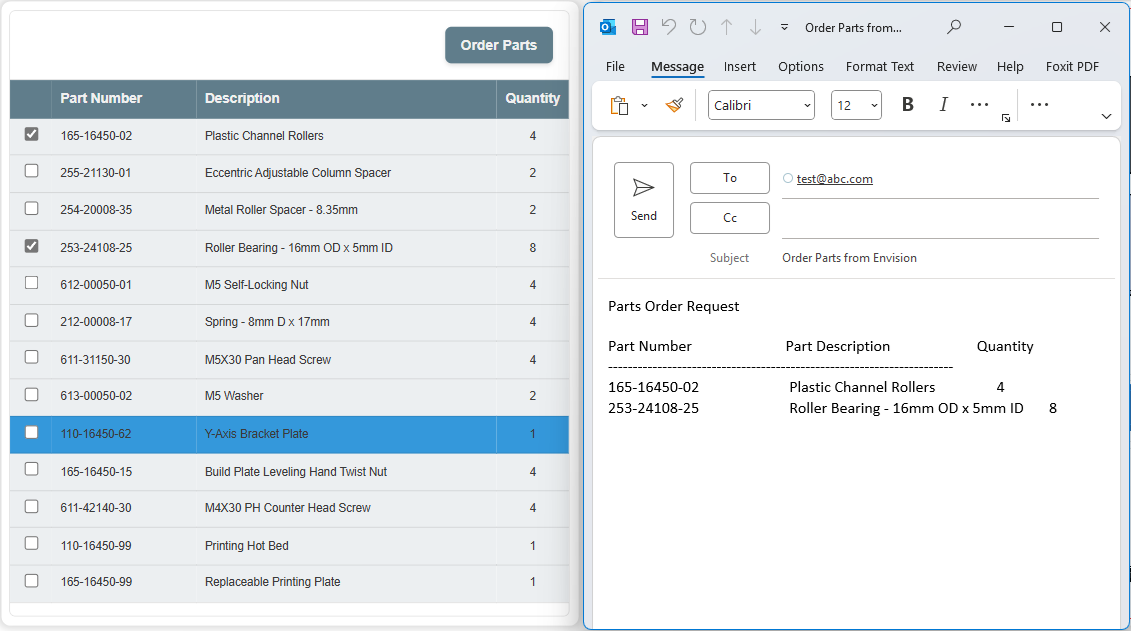
The Order Parts button generates an email requesting the parts whose checkboxes are selected in the part list gadget table.
Creating part list gadgets
Unlike other gadgets, creating a part list gadget requires additional steps. Following the standard gadget creation procedure without these extra steps will insert a blank part list gadget.
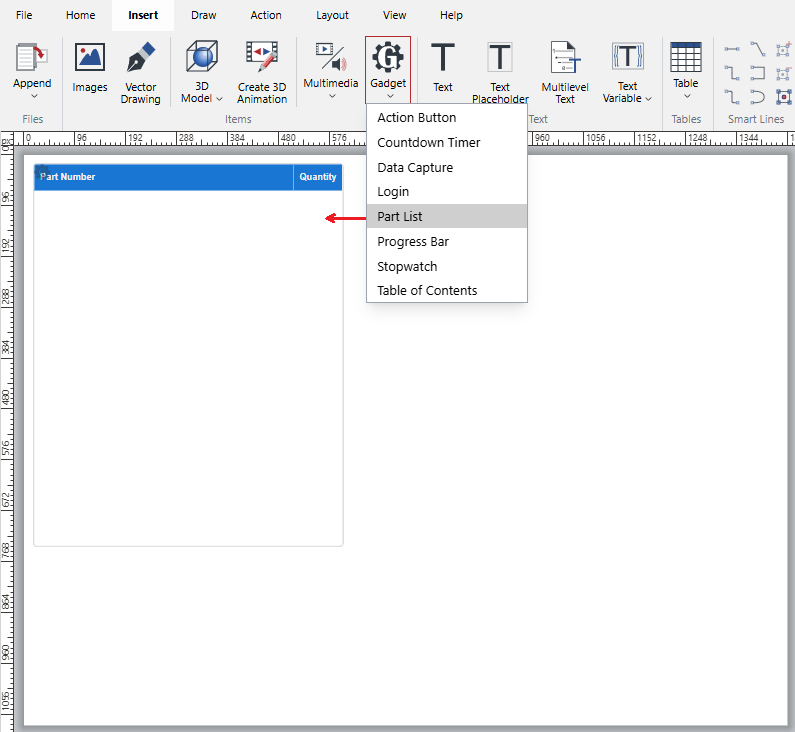
As populating the part list gadget requires a 3D model object on the same page, there are two ways of creating part list gadgets:
Recommended: insert the 3D model and then the part list gadget.
Optional: insert the part list gadget and then the 3D model.
Recommended part list gadget creation
To create a new part list gadget following the recommended way:
Insert a 3D model on the page where you want to insert the new part list gadget.
Edit the 3D model view as you need.
Insert a part list gadget on the page with the edited 3D model view.
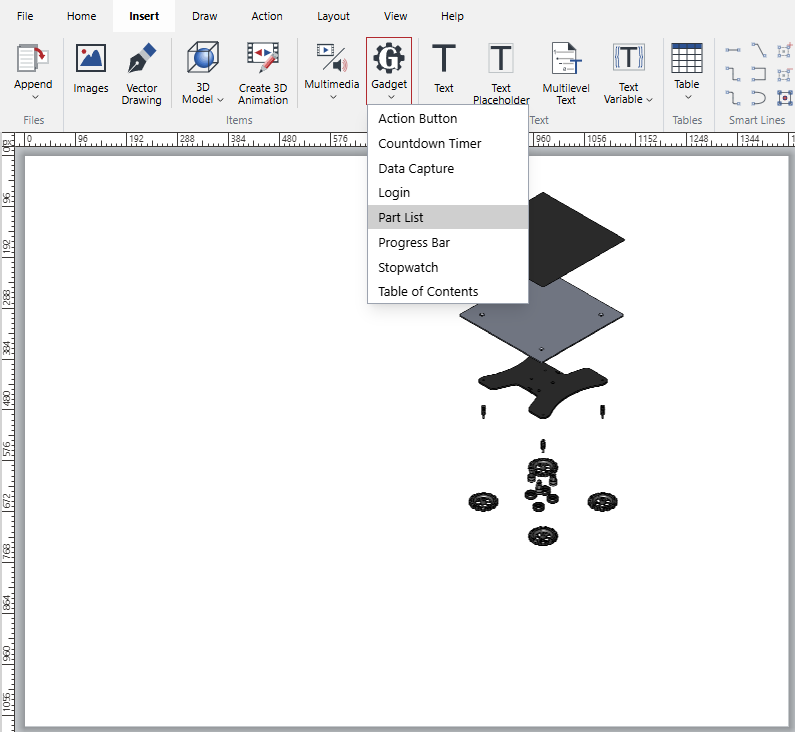
The system automatically populates the part list gadget using the meta properties from the edited 3D model view.
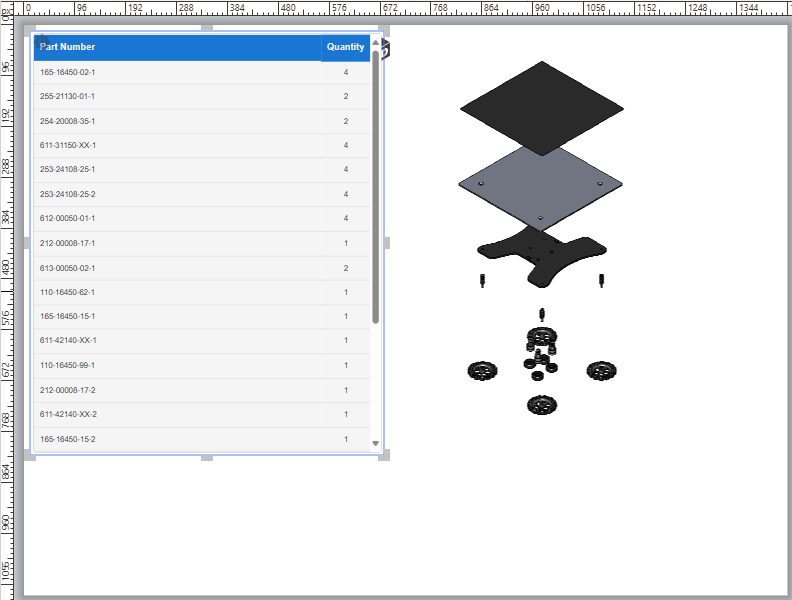
If necessary, configure the part list gadget.
Optional part list gadget creation
To create a new part list gadget following the optional way:
Insert a part list gadget on the page without a 3D model object. The part list gadget is blank.
Insert a 3D model on the page with the new part list gadget. The part list gadget remains blank.
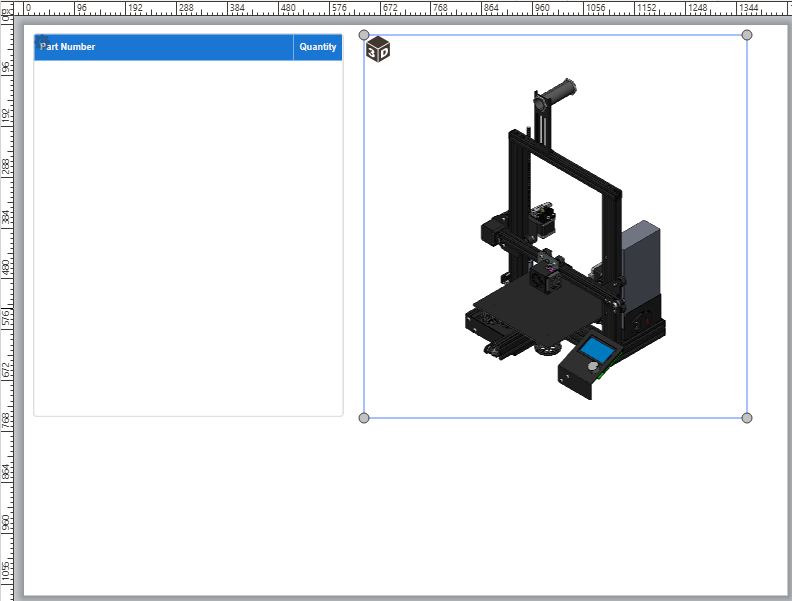
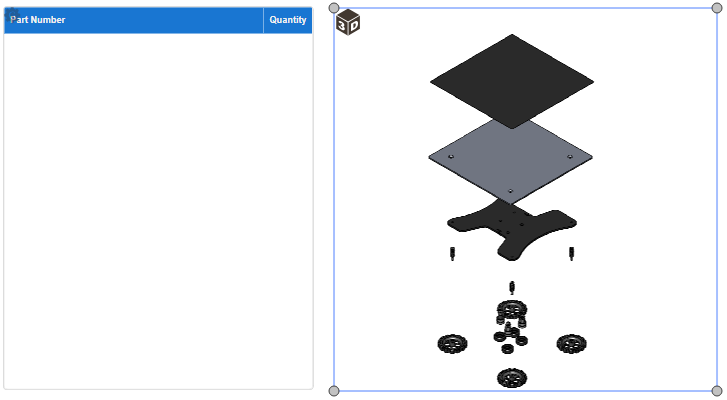
Edit the 3D model view as you need.
Open the 3D Part List Configuration pop-up dialog.
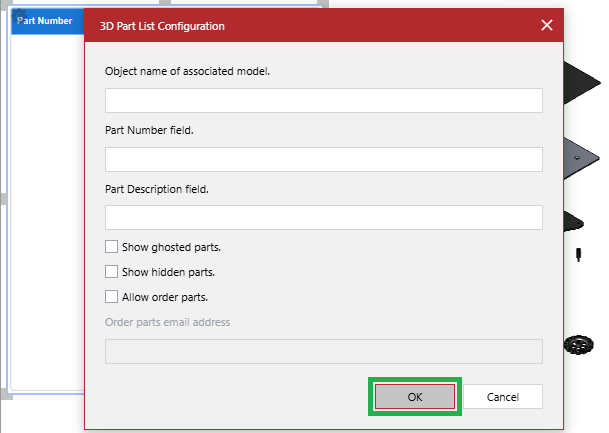
In the 3D Part List Configuration pop-up dialog, click the OK button. The system automatically populates the part list gadget using the meta properties from the edited 3D model.
If necessary, configure the part list gadget.
Configuring part list gadgets
As a newly created part list gadget is automatically populated by the system, you may need to configure it with the 3D Part List Configuration pop-up dialog.
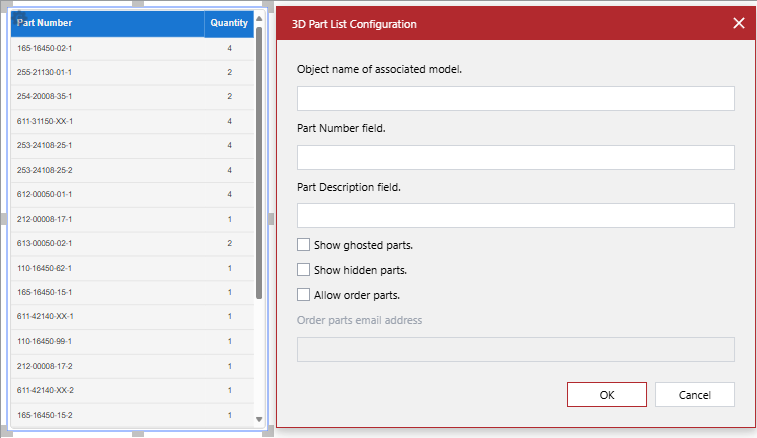
You can configure a part list gadget as follows:
Remap the Part Number column to another sourcing meta property of the 3D model.
Synchronize its contents with the edits of the associated 3D model object.
The 3D Part List Configuration dialog
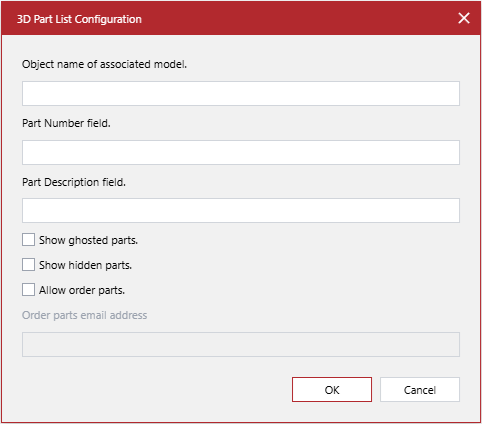
The 3D Part List Configuration pop-up dialog provides the following controls to configure a part list gadget selected in a document:
- Object name of associated model
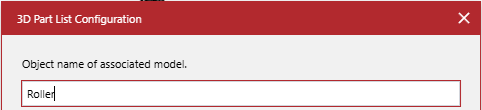
A string field, the name of a 3D model object associated with the part list gadget. By default, this field is blank because the system implicitly and automatically associates the part list gadget with the first 3D model object it finds on the same page. The gadget is seamlessly connected to the only 3D model object on the page. If the page has multiple 3D model objects, the automatically associated 3D model object may not be the one you need. In such a case, you need to explicitly enter the name of the correct 3D model object in this field.
This field is not available in the Canvas Envision Creator 5.7.
- Part Number field
A string field, the name of a meta property from the associated 3D model object that sources the Part Number column in the part list gadget table. By default, this field is blank because the system implicitly and automatically maps the discussed column to the Instance Name meta property, which is created during 3D model import and often reflects the part number. If the part number should be sourced from another meta property, you need to explicitly enter the name of that meta property in this field.
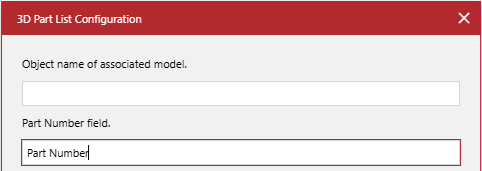
- Part Description field
A string field, the name of a meta property from the associated 3D model object that sources the Description column in the part list gadget table. By default, this field is blank because the discussed column is optional. If the table should include it, you need to explicitly enter the name of the sourcing meta property in this field. If the table should not include it, the field should be empty.
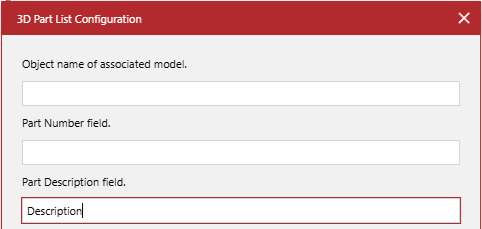
- Show ghosted parts
A checkbox to control whether the part list gadget table will include (selected) or exclude (cleared) parts ghosted in the view of the associated 3D model object. The default value is cleared—it will not include such parts.
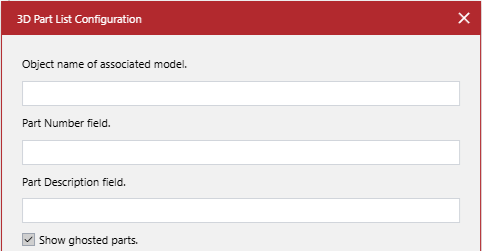
- Show hidden parts
A checkbox to control whether the part list gadget table will include (selected) or exclude (cleared) parts hidden in the view of the associated 3D model object. The default value is cleared—it will not include such parts.
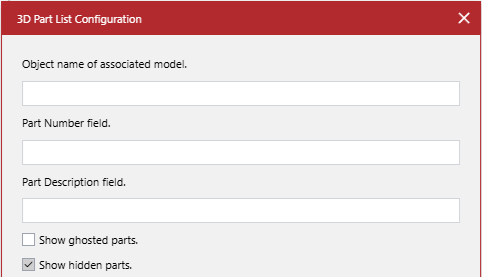
- Allow order parts
A checkbox to control whether the part list gadget will provide (selected) or will not provide (cleared) document users with the tools to order parts. The default value is cleared—it will not provide such tools.
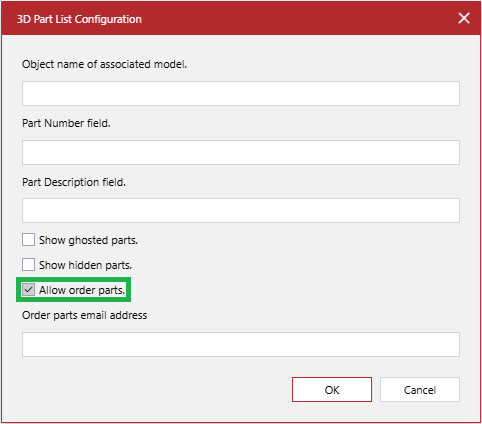
When this checkbox is selected:
The Order parts email address field becomes active in the 3D Part List Configuration dialog.
The part list gadget table will have the checkbox column.
The part list gadget will have the Order Parts button above the table that will automatically generate an email to the addresses given in the Order parts email address field for ordering parts whose checkboxes are selected in the checkbox column.
- Order parts email address
A string field, one or more recipient email addresses for autogenerated part order emails. This field is optional. By default, it is blank and disabled. It becomes enabled when the Allow order parts checkbox is selected. If it is not populated while the checkbox is selected, the To field in autogenerated emails will be empty: document users will have to enter the recipient email addresses.
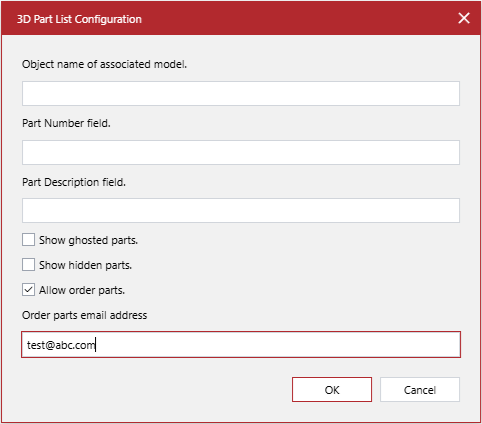
Associating a part list gadget with another 3D model object on the page
To associate a part list gadget with another 3D model object on the same page:
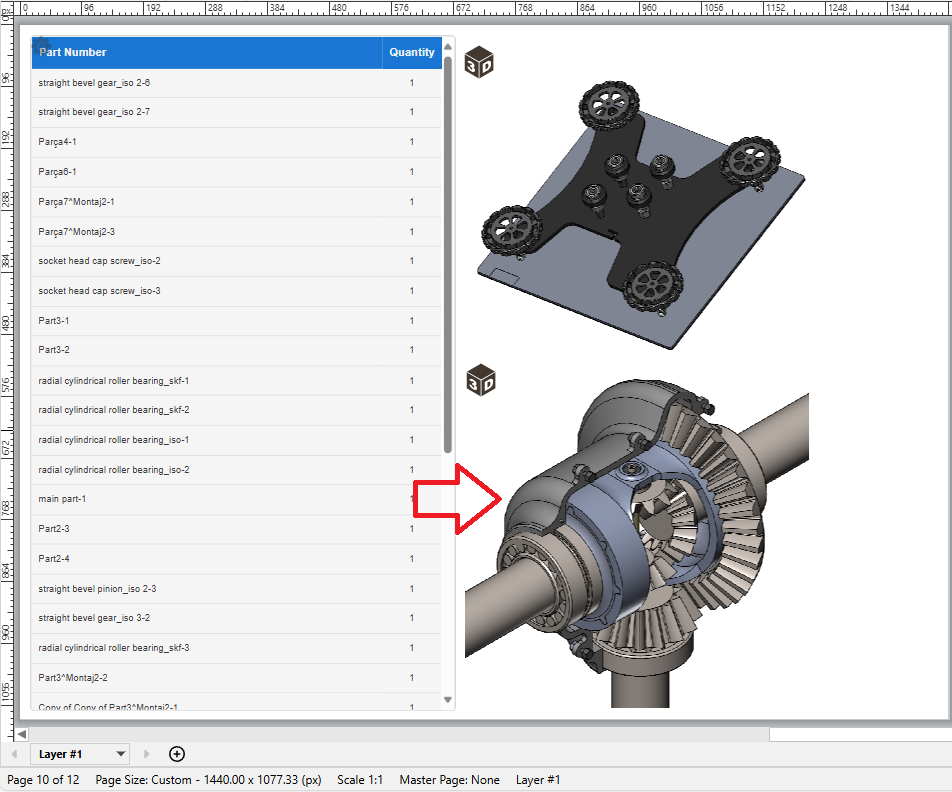
Select the 3D model object to which you want to associate the part list gadget.
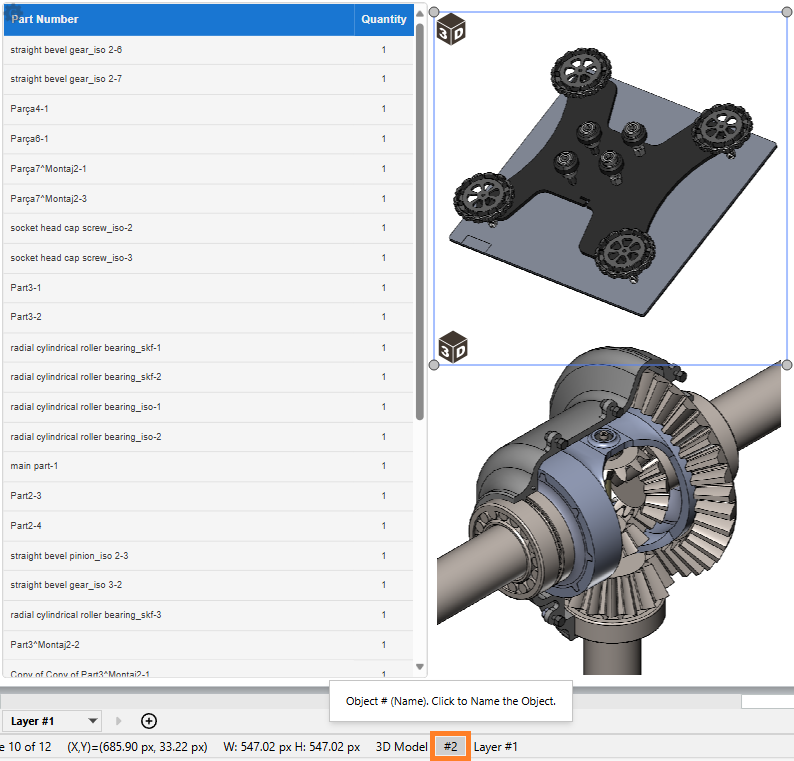
Click the # button on the Status bar. The Name Object dialog pops up.
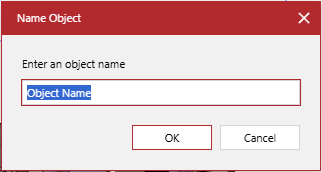
In the Name Object dialog, enter the name of the 3D model object and click OK. The dialog disappears, and the # button on the Status bar displays the entered name.
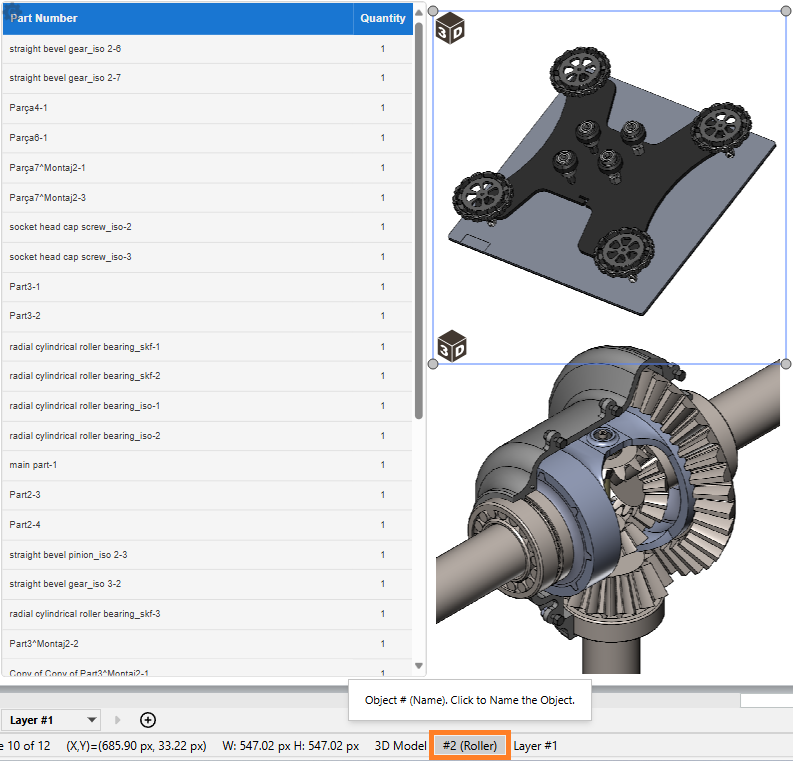
Select the part list gadget.
In the Object name of associated model field of the 3D Part List Configuration dialog, enter the name of the 3D model object to which you want to associate the part list gadget.
If necessary, continue configuring the part list gadget as discussed in the following sections.
Once done with configuring, click the OK button to save the changes. The dialog disappears, and the part list gadget table displays the parts from the 3D model object whose object name is given in the Object name of associated model field of the 3D Part List Configuration dialog.
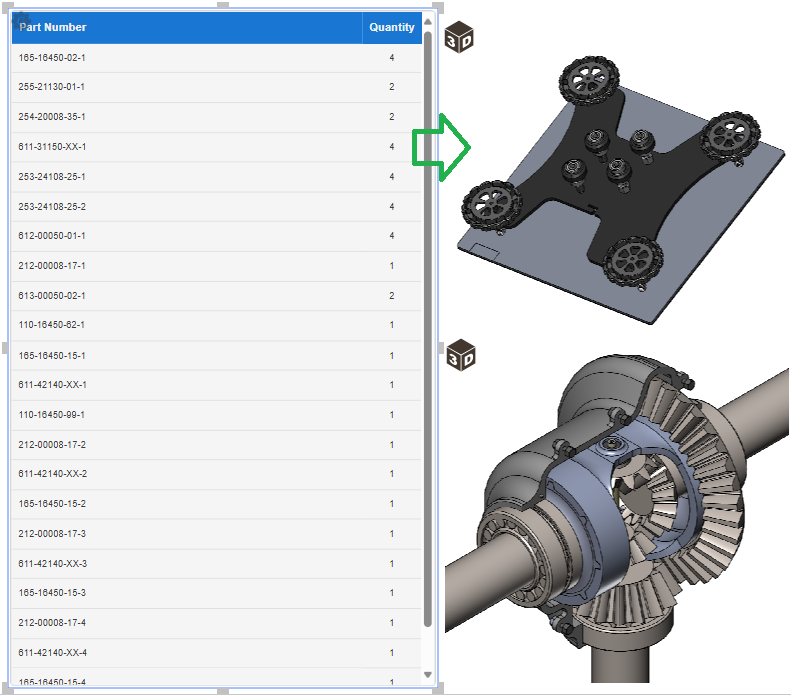
Changing the sourcing meta property for the Part Number column
To remap the Part Number column of a part list gadget to another sourcing meta property of the 3D model:
Enter 3D edit mode for the 3D model object associated with the part list gadget.
In the Meta Properties pane, find out and remember the name of the meta property of the 3D model that contains the part numbers.
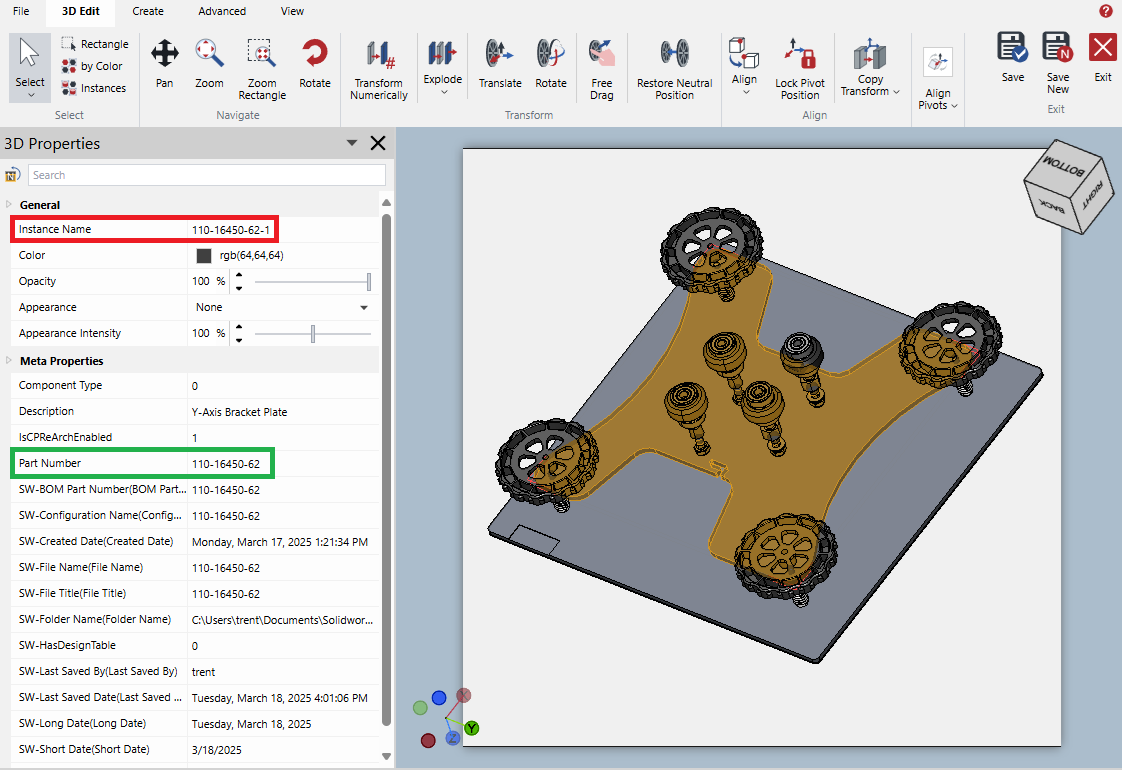
Quit 3D edit mode for the associated 3D model object.
Select the part list gadget.
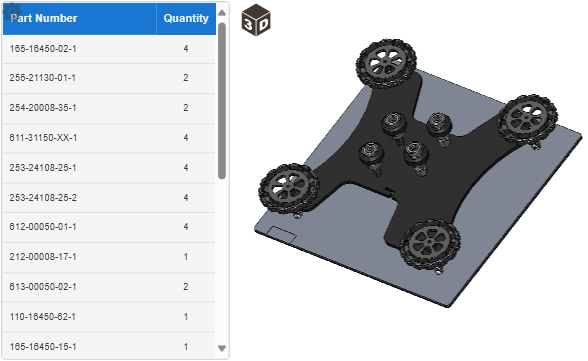
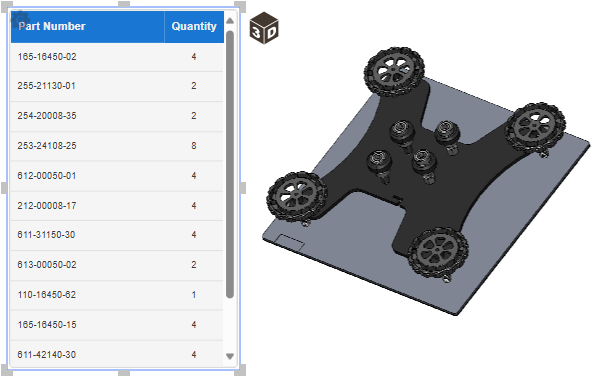
In the Part Number field field of the 3D Part List Configuration dialog, enter the name of the 3D model meta property that contains the part numbers.
If necessary, continue configuring the part list gadget as discussed in other sections.
Once done with configuring, click the OK button to save the changes. The dialog disappears, and the Part Number column of the part list gadget table displays the data from the meta property specified in the Part Number field field of the 3D Part List Configuration dialog.
Managing the Description column
You can manage the Description column of a part list gadget as follows:
Adding the Description column to the part list gadget table
To add the Description column to the table of a part list gadget:
Enter 3D edit mode for the 3D model object associated with the part list gadget.
In the Meta Properties pane, find out and remember the name of the meta property of the 3D model that contains the part descriptions.
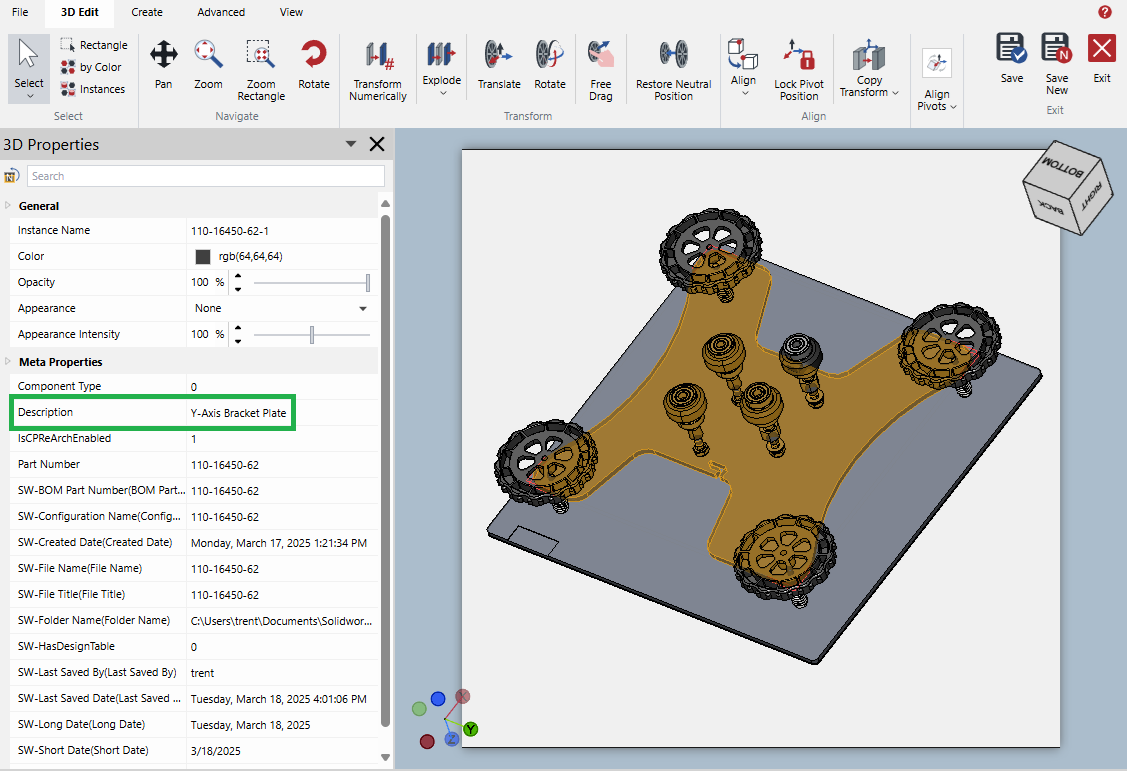
Quit 3D edit mode for the associated 3D model object.
Select the part list gadget.
In the Part Description field field of the 3D Part List Configuration dialog, enter the name of the 3D model meta property that contains the part descriptions.
If necessary, continue configuring the part list gadget as discussed in other sections.
Once done with configuring, click the OK button to save the changes. The dialog disappears, and the Description column appears in the part list gadget table and displays the data from the meta property specified in the Part Description field field of the 3D Part List Configuration dialog.
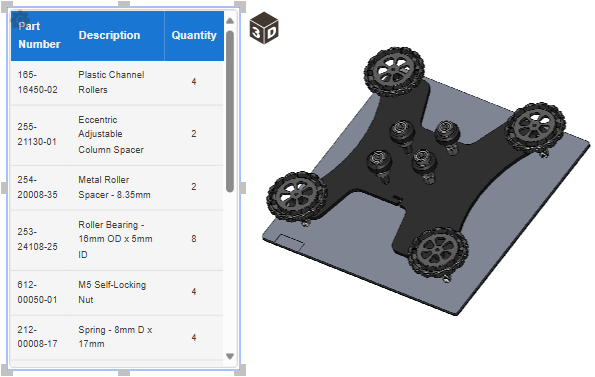
If necessary, resize the part list gadget to fit the contents of the Description and Part Number columns.
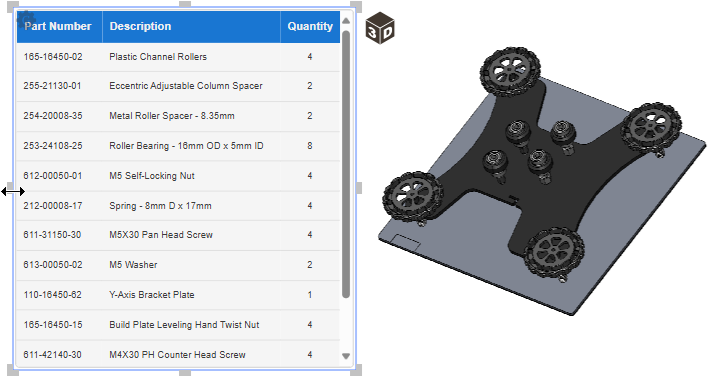
Changing the sourcing meta property for the Description column
To remap the Description column of a part list gadget to another sourcing meta property of the 3D model:
Enter 3D edit mode for the 3D model object associated with the part list gadget.
In the Meta Properties pane, find out and remember the name of the meta property of the 3D model to which you want to remap the Description column.
Quit 3D edit mode for the associated 3D model object.
Select the part list gadget.
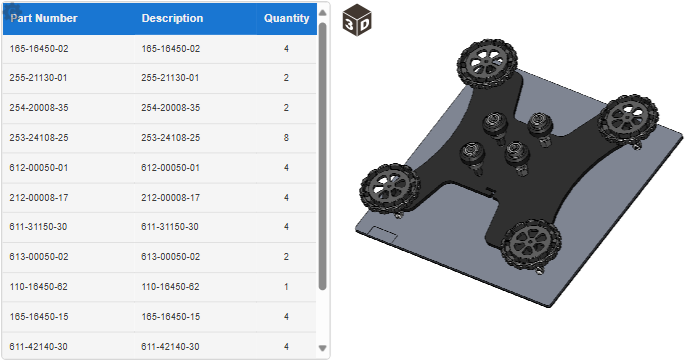
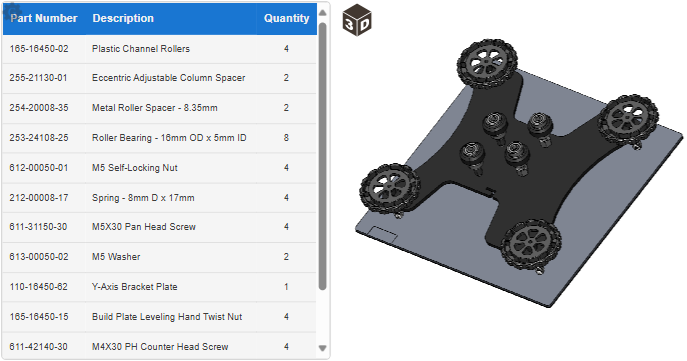
In the Part Description field field of the 3D Part List Configuration dialog, enter the name of the 3D model meta property to which you want to remap the Description column.
If necessary, continue configuring the part list gadget as discussed in other sections.
Once done with configuring, click the OK button to save the changes. The dialog disappears, and the Description column of the part list gadget table displays the data from the meta property specified in the Part Description field field of the 3D Part List Configuration dialog.
If necessary, resize the part list gadget to fit the contents of the Description and Part Number columns.
Removing the Description column from the part list gadget table
To remove the Description column from the table of a part list gadget:
Select the part list gadget.
Clear the Part Description field field of the 3D Part List Configuration dialog.
If necessary, continue configuring the part list gadget as discussed in other sections.
Once done with configuring, click the OK button to save the changes. The dialog disappears, and the part list gadget table does not have the Description column.
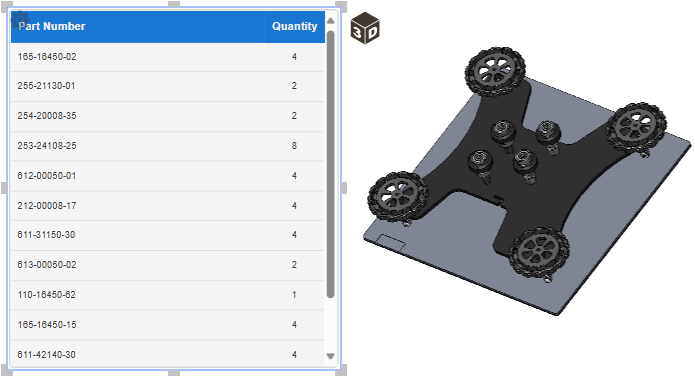
If necessary, resize the part list gadget to fit the contents of the Part Number column.
Managing the inclusion of ghosted and hidden parts
To include or exclude parts ghosted or hidden in the view of the associated 3D model object in a part list gadget:
Select the part list gadget.
If it is necessary to manage the inclusion of ghosted parts, click the Show ghosted parts checkbox, either:
Select the checkbox to include the ghosted parts in the part list gadget table.
Clear the checkbox to exclude the ghosted parts from the part list gadget table.
If it is necessary to manage the inclusion of hidden parts, click the Show hidden parts checkbox, either:
Select the checkbox to include the hidden parts in the part list gadget table.
Clear the checkbox to exclude the hidden parts from the part list gadget table.
If necessary, continue configuring the part list gadget as discussed in other sections.
Once done with configuring, click the OK button to save the changes. The dialog disappears, and the part list gadget table includes or excludes the parts ghosted and hidden in the associated 3D model view according to your settings of the Show ghosted parts and Show hidden parts checkboxes.
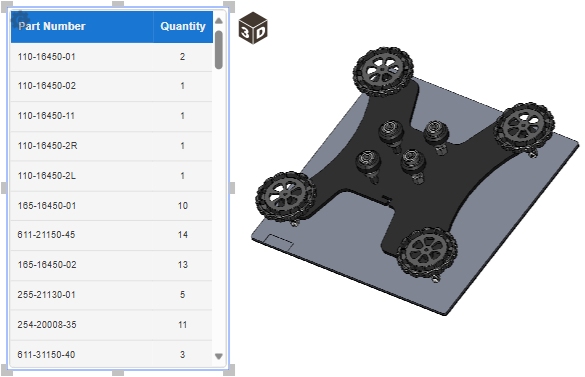
If necessary, resize the part list gadget to fit the contents of the part list gadget table.
Managing part ordering with part list gadgets
You can manage part ordering with a part list gadget as follows:
Adding the part-ordering tools to part list gadgets
To add the part-ordering tools to a part list gadget:
Select the part list gadget.
In the 3D Part List Configuration dialog, select the Allow order parts checkbox. The Order parts email address field becomes active.
If necessary, enter the email addresses of one or more recipients of autogenerated part-ordering emails in the Order parts email address field.
If necessary, continue configuring the part list gadget as discussed in other sections.
Once done with configuring, click the OK button to save the changes. The dialog disappears, and the Order Parts button and the checkbox column appear in the part list gadget.
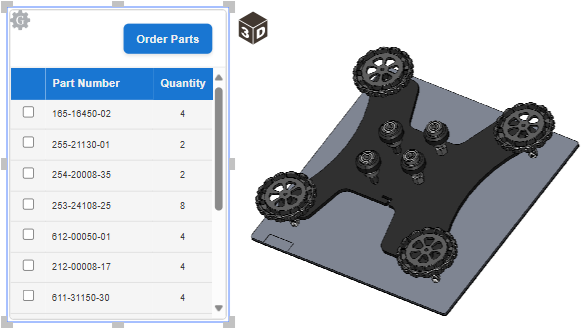
If necessary, resize the part list gadget to fit the contents of the Part Number and Description columns.
Updating the recipients of part-ordering emails
To update the recipients of part-ordering emails generated using a part list gadget:
Select the part list gadget.
In the Order parts email address field of the 3D Part List Configuration dialog, update the email addresses of one or more recipients of autogenerated part-ordering emails.
If necessary, continue configuring the part list gadget as discussed in other sections.
Once done with configuring, click the OK button to save the changes.
Removing the part-ordering tools from part list gadgets
To remove the part-ordering tools from a part list gadget:
Select the part list gadget.
If necessary, clear the Order parts email address field in the 3D Part List Configuration dialog.
Clear the Allow order parts checkbox. The Order parts email address field becomes disabled.
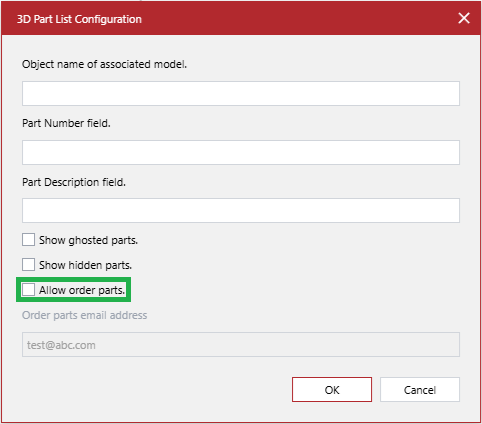
If necessary, continue configuring the part list gadget as discussed in other sections.
Once done with configuring, click the OK button to save the changes. The dialog disappears, and the Order Parts button and the checkbox column disappear from the part list gadget.
If necessary, resize the part list gadget to fit the contents of the Description and Part Number columns.
Updating part list gadget contents to reflect the edits of the associated 3D model object
To update the parts included in a part list gadget to synchronize the edits done to the 3D model object associated with this gadget:
Select the part list gadget.
Open the 3D Part List Configuration pop-up dialog.
In the 3D Part List Configuration pop-up dialog, click the OK button. The system automatically updates the parts on the part list gadget table to match the edits of the associated 3D model object.
Testing part list gadgets
To verify part list gadgets as an end-user:
If the part list gadget should include the Description column, ensure that it is displayed in the part list gadget table.
Verify that the Part Number and Description columns show the correct data as expected.
If the part list gadget should include the part-ordering tools, ensure that they are displayed:
The Order Parts button above the part list gadget table.
The checkbox column in the part list gadget table.
Scroll the table rows to verify that the part list gadget table includes:
Parts matching the latest edits of the associated 3D model object.
The ghosted and hidden parts as expected per your settings.
If the part list gadget includes the part-ordering tools, do the following:
Select one or more checkboxes in the part list gadget table.
Click the Order Parts button.
Ensure that the recipient email addresses are correct in the autogenerated part-ordering email.