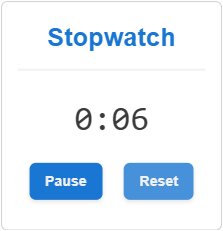
Stopwatch Gadgets in Envision Viewer
- Stopwatch gadget
An interactive object you can use in Envision documents to measure and view time that you have spent on events, operations, tasks, and so on.
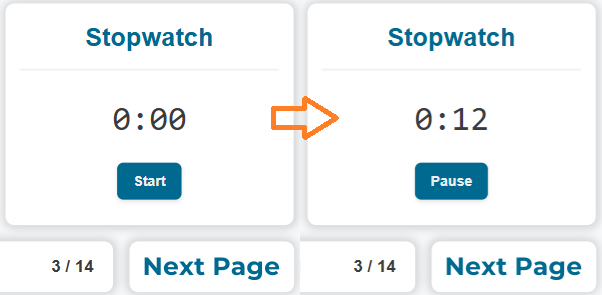
To interact with stopwatch gadgets when viewing Envision documents, you should know the following about them:
Stopwatch gadget UI and behavior
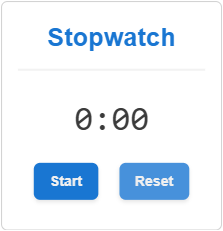
A stopwatch gadget consists of the following interactive UI elements:
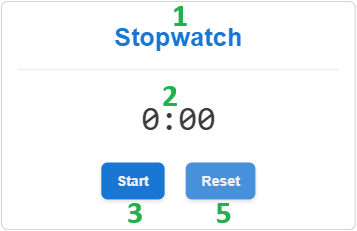
Title: a static label that displays the name of the stopwatch gadget.
Counter: a dynamic label that displays the time depending on the current state of the time count:
0:00 when you have not activated or have reset the stopwatch.
The running elapsed time when you activated the stopwatch.
The paused elapsed time when you paused the stopwatch.
Start: a button you should click to activate the time count from the time displayed on the counter. When you click this button:
The count of elapsed time is activated and running.
The counter displays the running elapsed time.
The Pause button replaces the Start button.
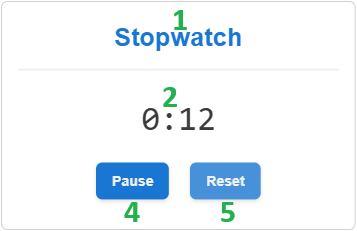
Pause: a button you should click to pause the running time count. When you click this button:
The count of elapsed time pauses.
The counter displays the paused elapsed time.
The Start button replaces the Pause button.
Reset: a button you should click to stop the running or paused time count and reset it to 0:00. When you click this button:
The count of elapsed time stops.
The counter displays 0:00.
The Start button replaces the Pause button.
The Reset button is optional. It is absent in the stopwatch gadgets where you are not allowed to reset the measured elapsed time. However, you can pause any stopwatch gadget with the Pause button.
You should explicitly activate and stop the time count. Stopwatch gadgets do not start or stop automatically.
A document can include synchronous and independent stopwatch gadgets. Multiple stopwatch gadgets can be synchronous in the document. When you activate, pause, or reset one of them, you activate, pause, or reset all of them. All the synchronous stopwatch gadgets are in the same state and display the same elapsed time when active or paused. On the other hand, one or more stopwatch gadgets in the document can measure the elapsed time independently.
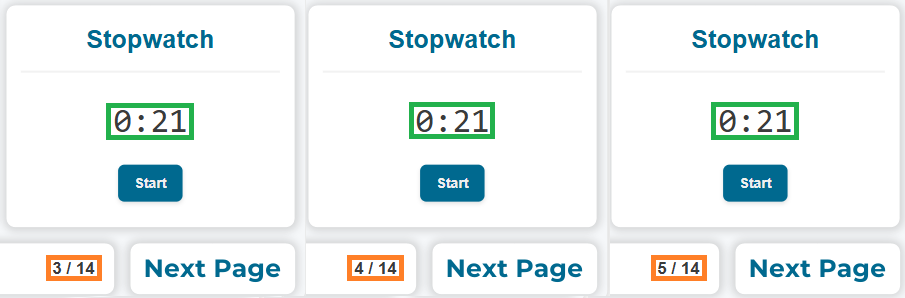
A document author can rename the stopwatch gadget, hide the Reset button, and manage the synchronization.
Stopwatch gadget interaction workflow
To use a stopwatch gadget in the Canvas Envision Viewer:
Click the Start button.
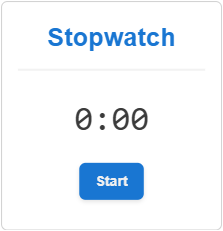
The time count is running. The Pause button replaces the Start button.
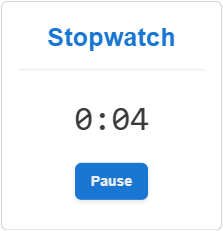
If you need to pause the stopwatch, click the Pause button. The time count pauses. The Start button replaces the Pause button.
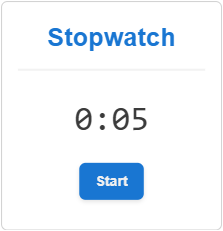
If the stopwatch gadget has the Reset button and you need to reset the measured elapsed time, click this button. The time count stops. The measured elapsed time is reset to 0:00. The Start button replaces the Pause button.
If you need to restart a paused or reset stopwatch, click the Start button. The time count is running. The Pause button replaces the Start button.