Data Capture Gadgets in Envision Viewer
- Data capture gadget
An interactive form you can use in Envision documents to record numeric and textual data from your job activities, such as part numbers, serial numbers, actual dimensions, metrics, etc., into the database.
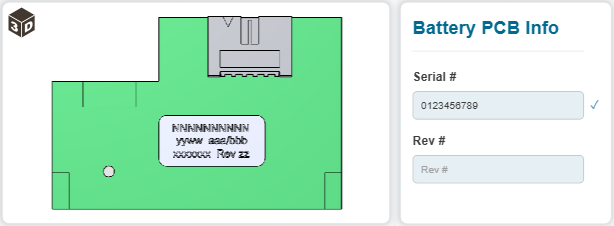
To interact with data capture gadgets when viewing Envision documents, you should know the following about them:
Data capture gadget UI and behavior
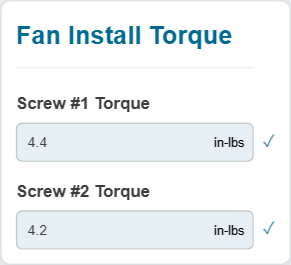
A data capture gadget consists of the following UI elements:
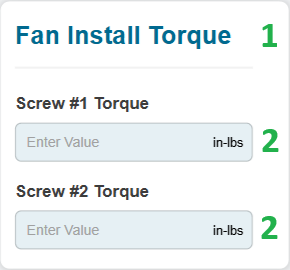
Title: a static label that displays the title of the data capture gadget.
Data capture field: an interactive input UI element where you should enter numeric or textual data.
The data capture gadget can include one or more data capture fields.
A data capture field in the data capture gadget consists of the following elements:
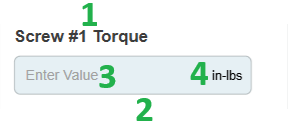
Name: a static label that displays the name of the data capture gadget field.
Box: an interactive rectangular area where you should enter numeric or textual data.
Placeholder: a static label inside the field box that displays a brief prompt on what data you should enter. The placeholder aligns with the left box border and is visible only in a blank box; it disappears when you start typing in the box. This element is optional. A placeholder is not a default value. Its purpose is illustrative; it is not passed to the database when you have not entered data in the data capture field. In such a case, the field will be empty in the database.
Trailing label: a static label inside the field box that displays supplementary or auxiliary information about the data, such as the unit of measure. The trailing label aligns with the right box border and is always visible. This element is optional. Its purpose is illustrative; it is not appended to the data entered by you.
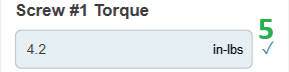
Save indicator: a checkbox that appears when the data you entered has been saved to the database.
There are two types of data capture fields:
Alphanumeric (text)
Numeric
In a data capture field, you can enter only the data of the type of this field and no longer than 1000 characters.
The document author configures the data capture gadget and data capture fields to align with the subject matter.
Submitting data with data capture gadgets
To submit some data to the database with a data capture gadget:
In a field of the data capture gadget, type the data and press Enter.
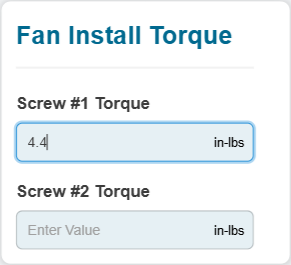
When the save indicator appears, the data is saved to the database.
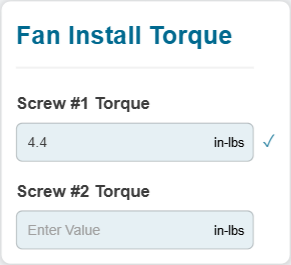
If necessary, repeat the previous step for other fields of the data capture gadget.
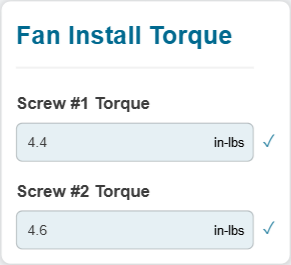
Correcting submitted data with data capture gadgets
To change or correct the data submitted to the database with a data capture gadget during the document viewing session:
In a field of the data capture gadget with the submitted data, type the new data or correct the submitted data and press Enter.
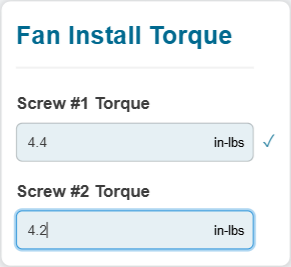
When you are updating the submitted data in the data capture field, the save indicator disappears. It appears again when the new data is saved to the database after you have pressed Enter.
If necessary, repeat the previous step for other fields of the data capture gadget.
Deleting submitted data with data capture gadgets
To delete the submitted data from the database with a data capture gadget during the document viewing session:
In a field of the data capture gadget with the submitted data, delete the submitted data and press Enter.
The save indicator does not appear when the submitted data is deleted from the database.
If necessary, repeat the previous step for other fields of the data capture gadget.