Managing Gadget Data Webhooks
- Gadget data webhook
A Canvas Envision Portal service that automatically sends a POST HTTP message with a gadget data record retrieved from the database (DB) against a specific gadget data query to a given web application when a document Consumer creates or updates this record in a data capture gadget in an Envision Document.
Understanding gadget data webhooks
A gadget data webhook sends a POST HTTP message with the properties of a gadget data record that is filtered against a specific gadget data query to a given system when a subscribed event occurs for this gadget data record.
You can configure which gadget data record to which web app and on which event the webhook will send.
You can specify a gadget data query against which the webhook will filter out a gadget data record when a subscribed event occurs for this record. If you do not specify the query, the webhook will send every record on the event.
You must provide a link to the web server, service, or application to which the webhook will send the messages.
You can subscribe the webhook to one or both of the following events:
Created: when a document Consumer enters some data (a value) in a data capture field of a data capture gadget for the first time during a viewing session of an Envision document in the Canvas Envision Viewer, the application creates a new gadget data record in the application DB. If the webhook is configured for the Created event, and the new gadget data record passes the gadget data query filter, the webhook will send this new gadget data record to the subscribed system.
Updated: when the document Consumer updates a value previously entered in a data capture field of a data capture gadget and saved in the DB during a viewing session of an Envision document in the Canvas Envision Viewer, the application records the new value into the Value property of the existing gadget data record. If the document Consumer deletes the value from the field, the application records an empty string ("") as a new value but does not delete the existing gadget data record. If the webhook is configured for the Updated event, and the existing gadget data record passes the gadget data query filter, the webhook will send this existing gadget data record with the new value to the subscribed system.
As the document Consumer is not allowed to delete gadget data records from the DB, a Deleted event should not occur.
When the document Consumer enters values in multiple data capture fields, the webhook will send a message for each field—gadget data record.
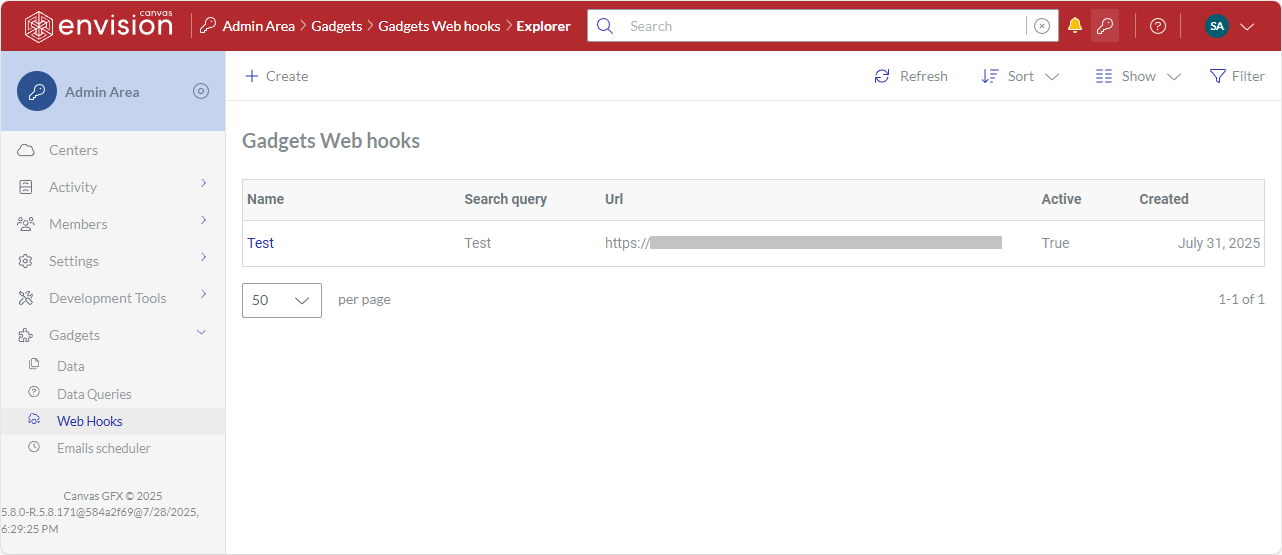
Gadgets Web hooks page
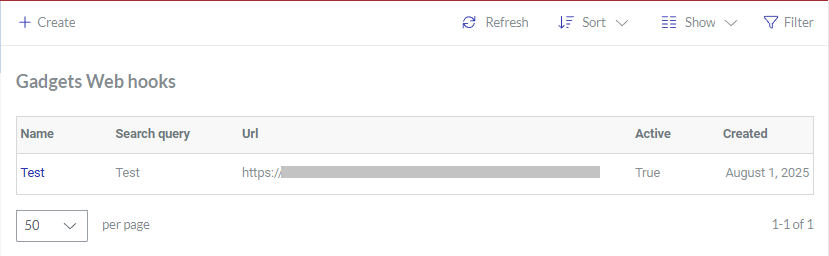
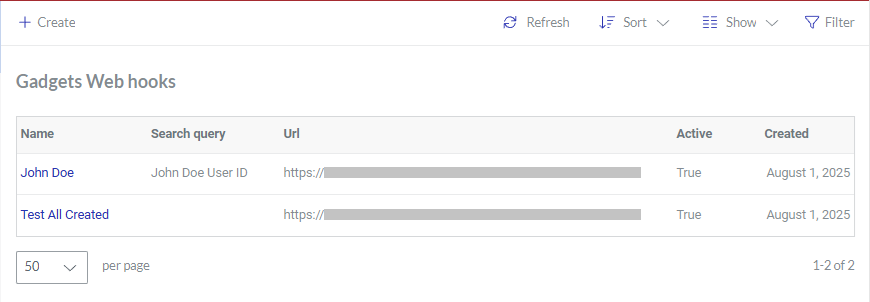
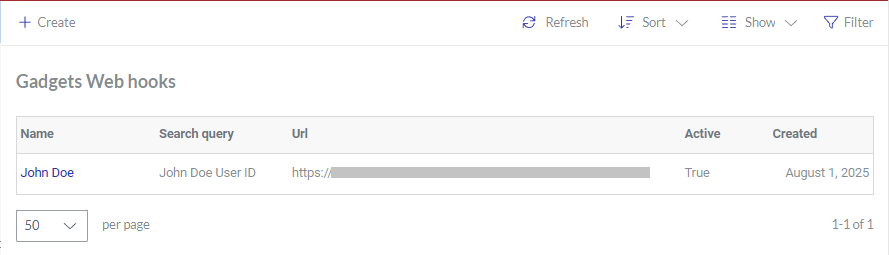
The Gadgets Web hooks page is a place in the Admin Area where you create and manage gadget data webhooks. The page displays gadget data webhooks in a content table, where they are rows, and their properties are columns. To manage, explore, and view gadget data webhooks, you can use the content table toolbar and action menu.
Accessing the Gadgets Web hooks page
To go to the gadget data webhooks:
Click the Admin area button on the Portal top bar.
In the Admin Area sidebar, click Gadgets > Web Hooks.
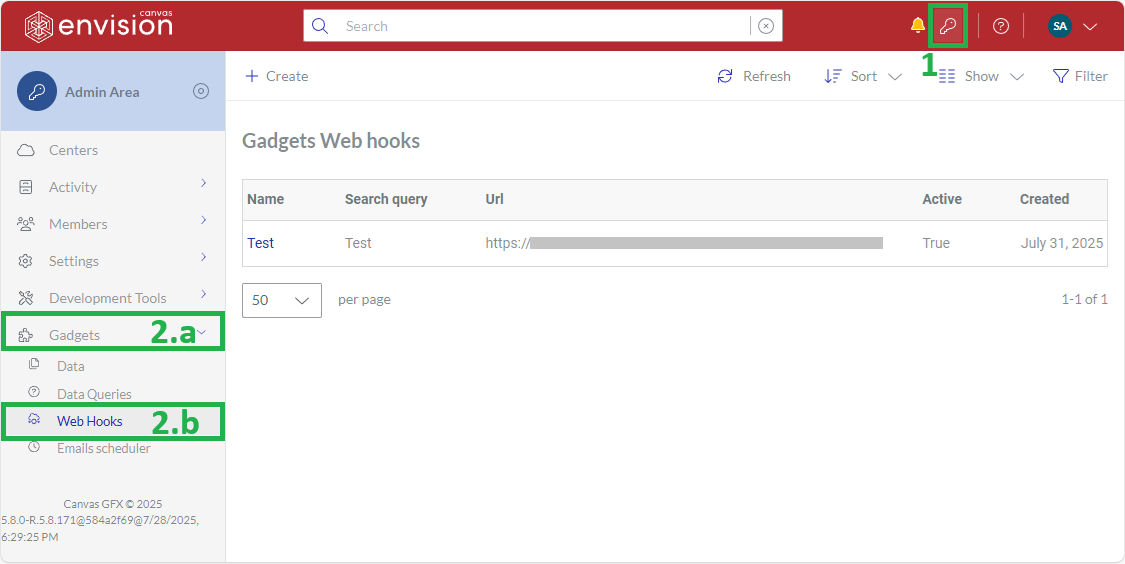
The system leads you to the Gadgets Web hooks page.
Gadgets Web hooks content table toolbar

The Gadgets Web hooks content table toolbar provides the following:
The Create button to create a new gadget data webhook.
The Refresh button to refresh the gadget data webhooks in the content table.
The Sort drop-down list to sort the gadget data webhooks in the content table by a given column in ascending or descending order.
The Show drop-down list to show and hide content table columns.
The Filter button to filter the gadget data webhooks in the content table against your criteria.
Gadgets Web hooks content table columns
By default, the Gadgets Web hooks table displays only the following columns:
Name
Search query
Url
Active
Created
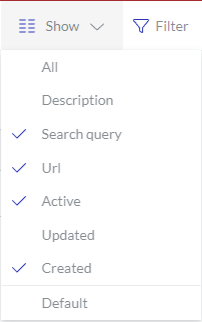 | With the Show drop-down list, you can hide and show the following columns as you wish:
|
|---|
The Name column cannot be hidden. It empowers you with the management features for the gadget data webhooks.
Gadget data webhook action menu
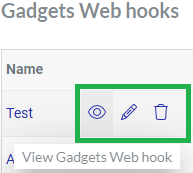
The Name column features the action menu with the following options for a gadget data webhook:
View Gadgets Web hook: to view the gadget data webhook properties on the Gadgets Web hook page.
Edit Gadgets Web hook: to edit the gadget data webhook properties on the Edit Gadgets Web hook page.
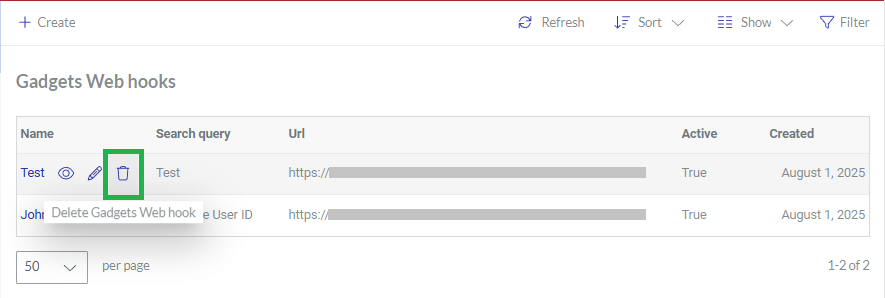
Delete Gadgets Web hook: to delete the gadget data webhook.
Gadgets Web hook page
The Gadgets Web hook page is a place in the Admin Area where you can manage and view a gadget data webhook. It provides the toolbar to manage the gadget data webhook and displays the properties of the gadget data webhook in the corresponding fields. You can open the gadget data webhook in view or edit mode on this page.
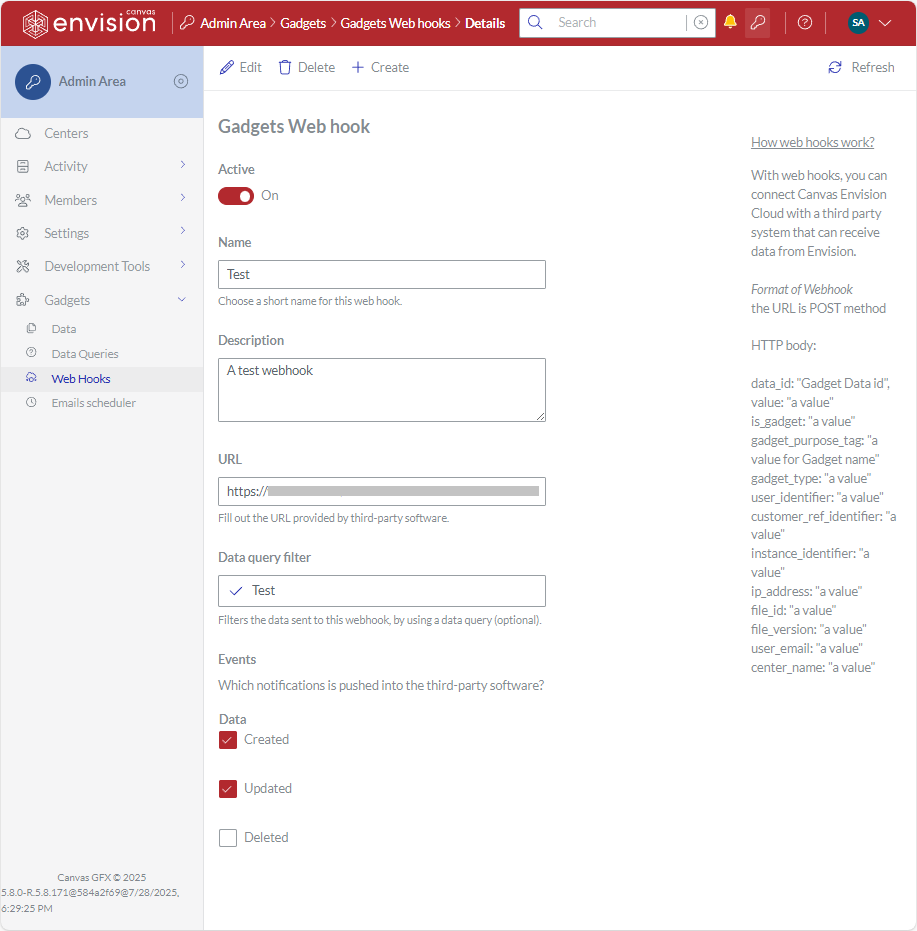
Accessing the Gadgets Web hook page
To go to the properties of a gadget data webhook:
Gadgets Web hook page toolbar
The Gadgets Web hook page toolbar has the following buttons:
Edit: to switch the page with a given gadget data webhook to edit mode. This button is visible only in view mode.
View: to switch the page with the given gadget data webhook to view mode. This button is visible only in edit mode.
Delete: to delete the given gadget data webhook.
Create: to create a new gadget data webhook. This button is visible only in view mode.
Gadgets Web hook page fields and buttons
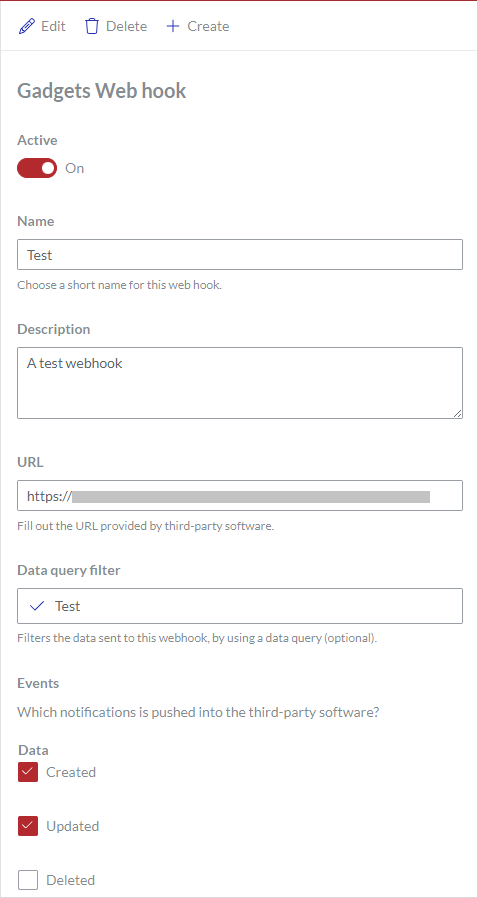
The Gadgets Web hook page provides the properties of a displayed gadget data webhook in the following fields:
Active: a switch to turn off or on sending the POST HTTP messages by the gadget data webhook.
Name: the name of the gadget data webhook.
Description: an optional brief explanation of the gadget data webhook.
URL: a URL to the webhook endpoint at a web service, server, or app to which the Canvas Envision Platform will send POST HTTP messages with gadget data records.
Data query filter: an optional gadget data query against which gadget data records are filtered for webhook messages. If it is not set, the system will send every gadget data record for which the specified event occurs.
Events: the switches to specify one or more events when the system will send a gadget data record filtered against the given gadget data query to the specified web service, server, or app:
Created: when the gadget data record is created: a document Consumer enters some data in a data capture field of a data capture gadget for the first time during a document-viewing session.
Updated: when the Value property of the gadget data record is updated: a document Consumer replaces or erases some data previously entered in a data capture field of a data capture gadget during a document-viewing session.
Deleted: when the gadget data record is deleted.
Creating gadget data webhooks
To create a new gadget data webhook:
Go to the Gadgets Web hooks page.
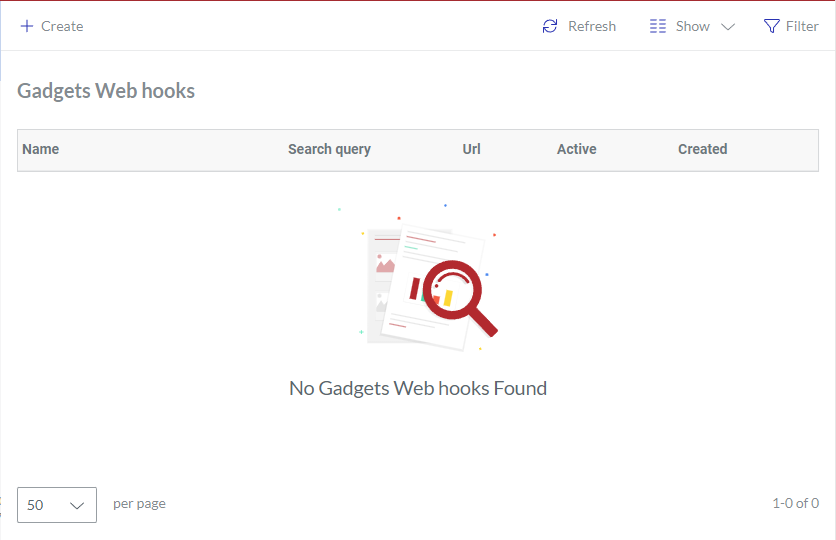
Click the Create button on the Gadgets Web hooks content table toolbar.
The Create Gadgets Web hook page appears with empty inactive fields.
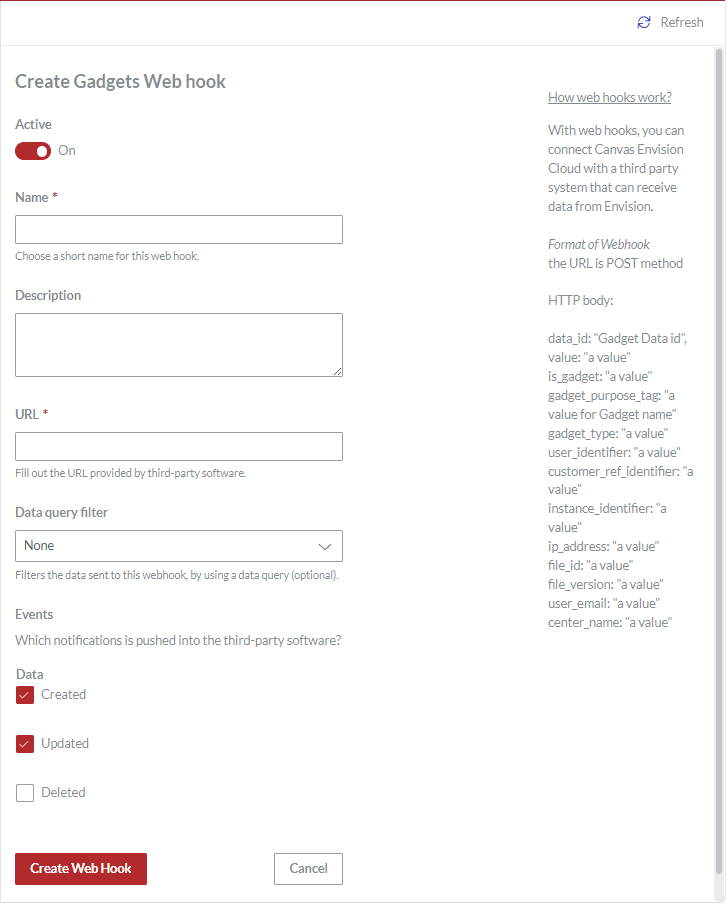
If it is necessary to deactivate sending POST HTTP messages by the new gadget data webhook, turn off the Active switch.
In the Name field, enter the name of the new gadget data webhook.
If it is necessary, eloquently describe or explain the new gadget data webhook in the Description field.
In the URL field, enter a URL to the webhook endpoint at the web service, server, or app to which the Canvas Envision Platform will send POST HTTP messages with gadget data records.
If it is necessary to send only specific gadget data records, from the Data query filter drop-down list, select the gadget data query against which a gadget data record will be filtered when a specified event occurs for this gadget data record. If it is necessary to send every record for which the specified event occurs, keep None selected.
Under Events, select one or more events when the webhook will send a gadget data record filtered against the specified gadget data query:
Created: a document Consumer enters some data in a data capture field of a data capture gadget for the first time during a document-viewing session.
Updated: a document Consumer replaces or erases some data previously entered in a data capture field of a data capture gadget during a document-viewing session.
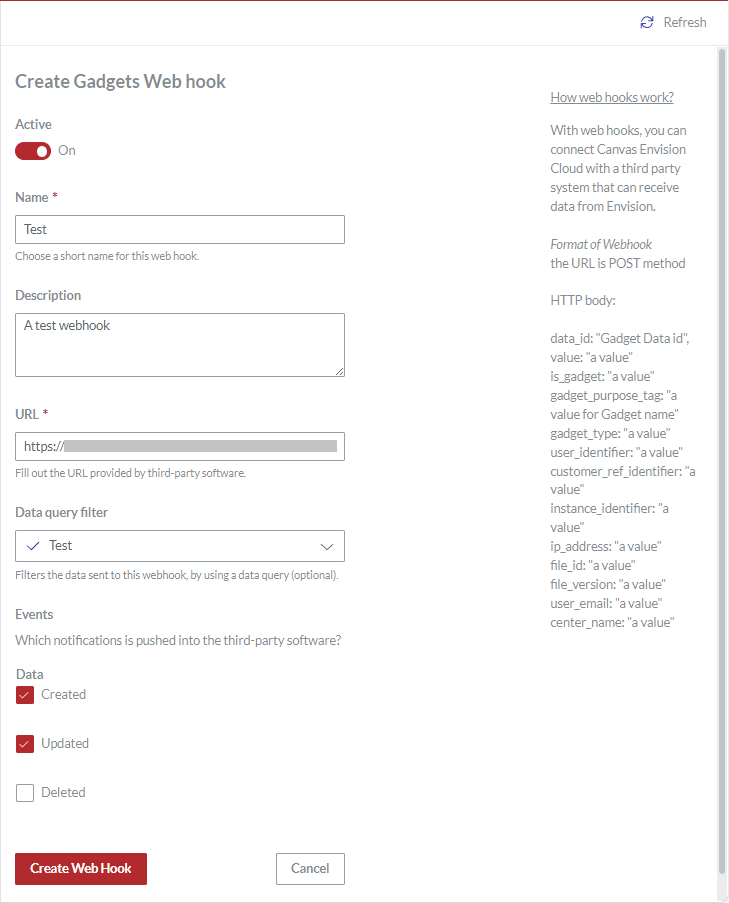
Click the Create Web Hook button. The system creates the new gadget data webhook and redirects you to the Gadgets Data Web hooks page.
Viewing gadget data webhooks
To view the properties of an existing gadget data webhook:
In the Gadgets Web hooks page content table, go to the gadget data webhook you want to view.
In the Name column, click either:
The name of the gadget data webhook.
The View Gadgets Web hook button.
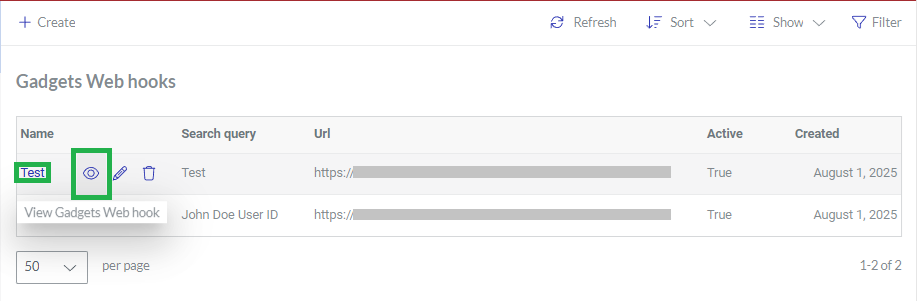
The system displays the properties of the gadget data webhook in the inactive fields of the Gadgets Web hook page.
Updating gadget data webhooks
To update the properties of an existing gadget data webhook:
In the Gadgets Web hooks page content table, go to the gadget data webhook whose properties you want to update.
In the Name column, click the Edit Gadgets Web hook button.
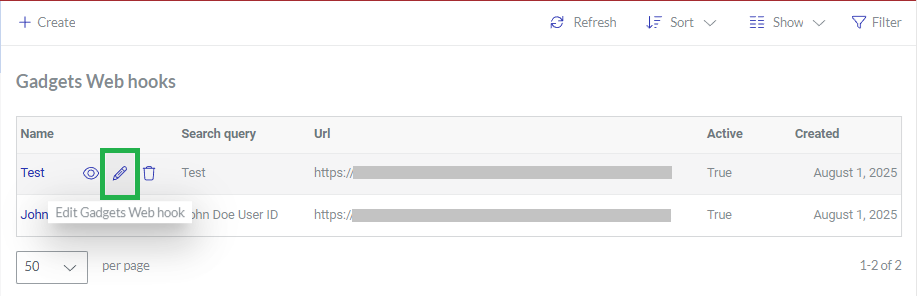
The system displays the properties of the gadget data webhook in the active fields of the Edit Gadgets Web hook page.
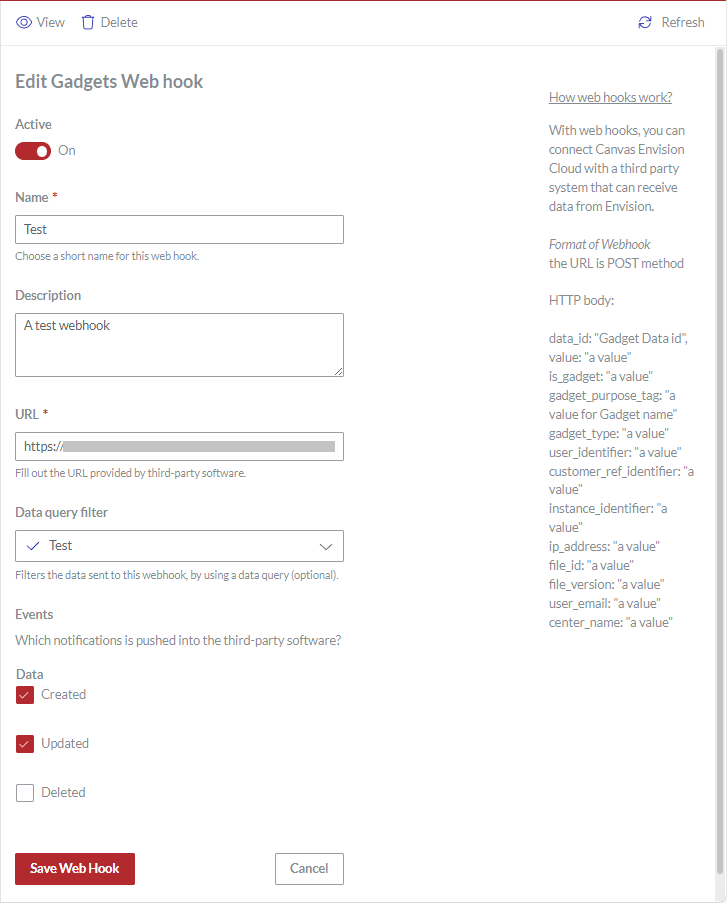
If it is necessary to deactivate or activate sending POST HTTP messages by the gadget data webhook, turn off or on the Active switch.
If it is necessary to rename the gadget data webhook, enter the new name in the Name field.
If it is necessary to update the description or explanation of the gadget data webhook, enter the new text in the Description field.
If it is necessary to reconnect the gadget data webhook to a new endpoint at the same or another web app, enter a URL to the new endpoint in the URL field.
If it is necessary to change the gadget data query against which gadget data records are filtered for the gadget data webhook, select another gadget data query from the Data query filter drop-down list. If it is necessary to send every record for which a specified event occurs, select None.
If it is necessary to reset when the webhook sends a gadget data record filtered against the specified gadget data query, select the checkbox for the necessary event and clear it for the unnecessary one under Events:
Created: a document Consumer enters some data in a data capture field of a data capture gadget for the first time during a document-viewing session.
Updated: a document Consumer replaces or erases some data previously entered in a data capture field of a data capture gadget during a document-viewing session.
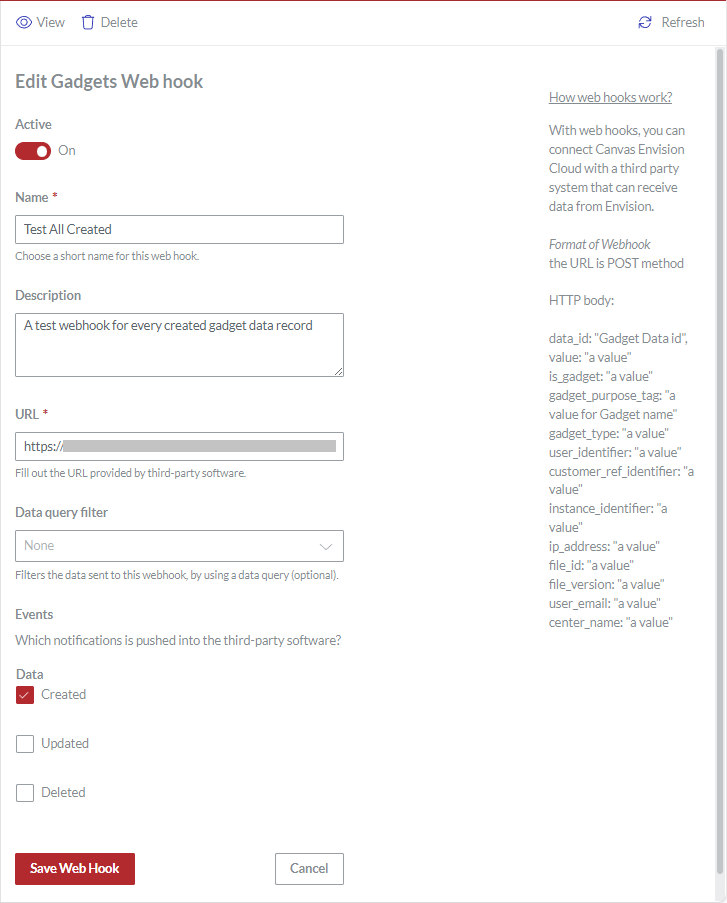
Click the Save Web Hook button. The system saves your gadget data webhook property updates and redirects you to the Gadgets Web hooks page.
Deleting gadget data webhooks
To delete an existing gadget data webhook:
In the Gadgets Web hooks page content table, go to the gadget data webhook that you want to delete.
In the Name column, click the Delete Gadgets Web hook button.
The Delete? dialog pops up.
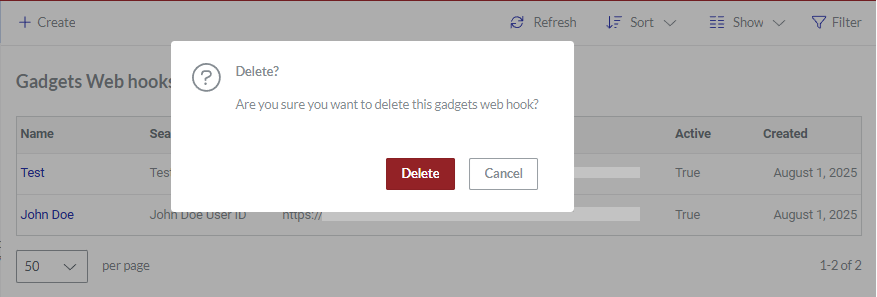
In the Delete? pop-up dialog, click the Delete button. The dialog disappears, and the system permanently deletes the gadget data webhook from the database. The Gadgets Web hooks page content table does not include the deleted gadget data webhook.
Understanding webhook HTTP messages
A gadget data webhook sends a POST HTTP message to a subscribed web app when a specified event occurs for a given gadget data record. The body of such a message includes a JSON object that describes the properties of this gadget data record according to the following schema:
For example:
For the gadget data record property mapping, data types, and description, see Gadget Data Record Property Mapping.