Signing Into Workspaces
You can sign into the workspace on different browser tabs.
Signing in
To sign into a workspace on a browser tab:
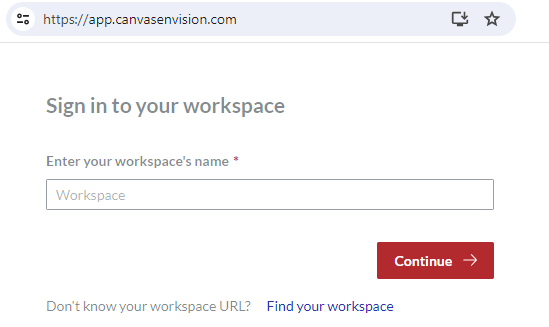
Enter the name of the workspace where you want to work and click Continue.
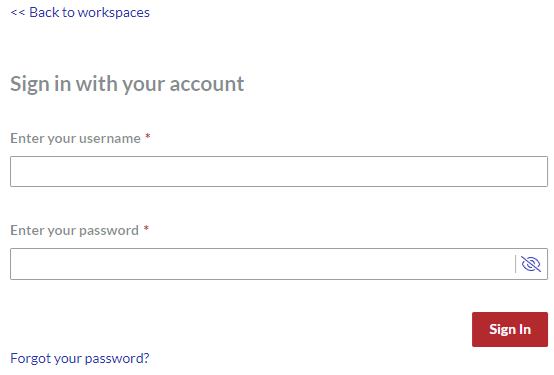
Enter your username and password and click Sign In.
If the two-factor authentication is on for your account:
Generate the one-time code with an authorized authenticator application.
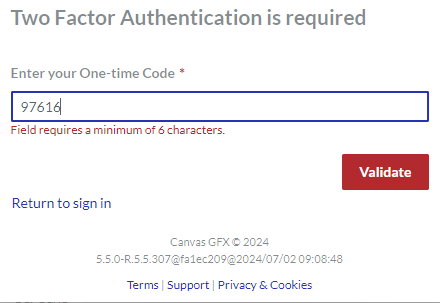
Enter the one-time code and click Validate on the Two Factor Authentication is required portal page.
For details on two-factor authentication, see Managing two-factor authentication.
Finding out your workspaces
If you want to find out which workspaces are available to your email:
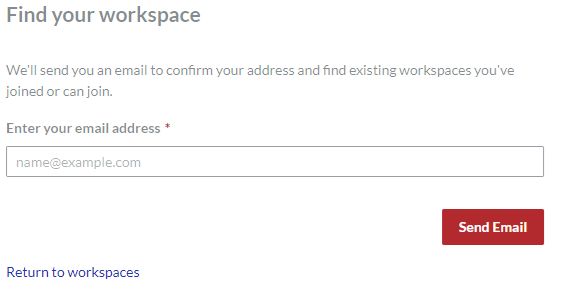
Click the Find your workspace link on the Sign in to your workspace page.
Enter your email and click Send Email.
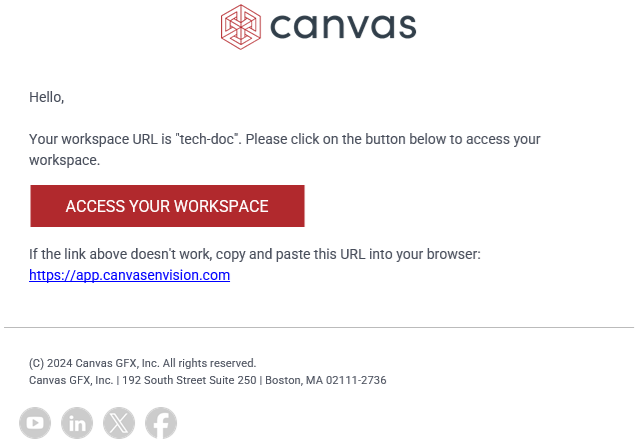
Check your email.
Resetting your password
To reset your password:
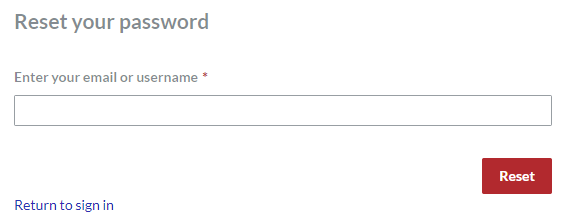
Click the Forgot your password? link on the Sign in with your account page.
Enter your email or username and click Reset.
Check your email for your password reset code.
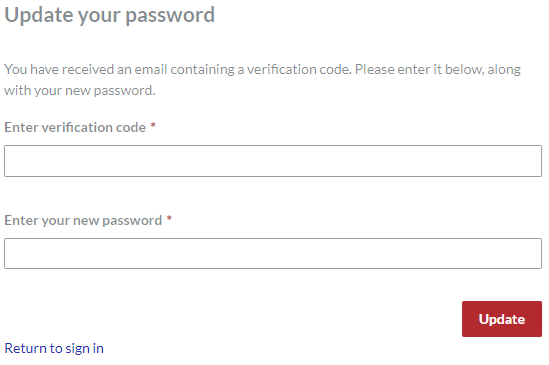
Enter your password reset code from the email, new password, and click Update.