Table of Contents Gadgets
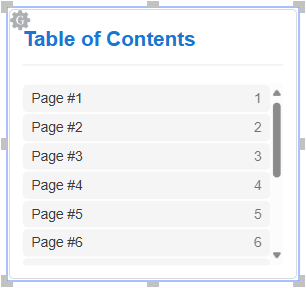
A table of contents (TOC) gadget is an interactive object you can insert into Envision documents to list pages included in a document and provide navigation to them.
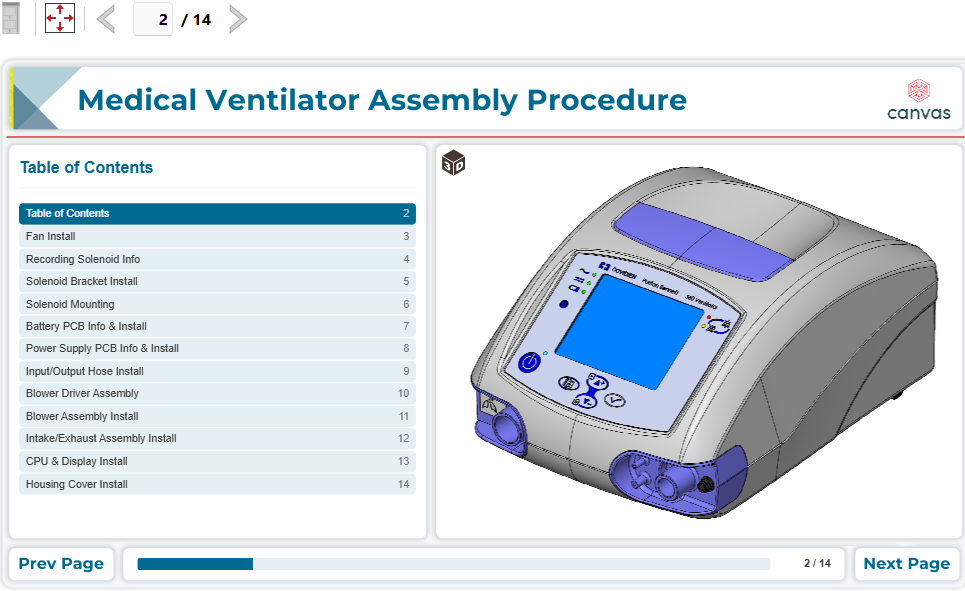
To work with TOC gadgets, you should know:
Table of contents gadget UI and behavior
A TOC gadget consists of the following interactive UI elements:
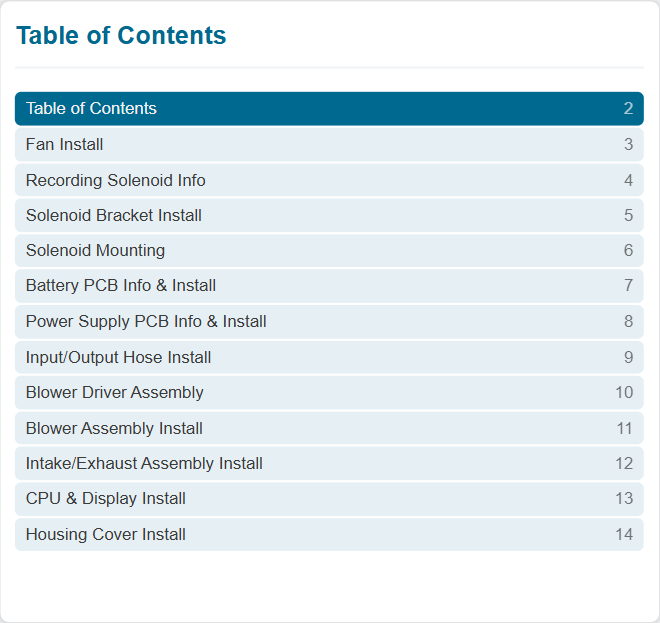
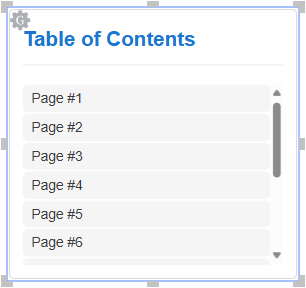
Title: a static label that displays the name of the TOC gadget.
Table: pages included in the document. It consists of rows and columns. A row is a page. A column is a property of the page.
Both elements are always present in the table.
The table of pages includes the following columns:
Page name. It is always present in the table.
Page number. It is optional and included by default.
As the TOC gadget displays page names, you may need to rename the pages.
A document can have one or more TOC gadgets.
Clicking a page row in the TOC gadget navigates a document user to that page.
Configuring table of contents gadgets
As a newly created TOC gadget has the default settings, you should specify the title and other settings with the Table of Contents Configuration pop-up dialog. If multiple TOC gadgets are in the document, you should configure each separately. The dialog is for one TOC gadget only.
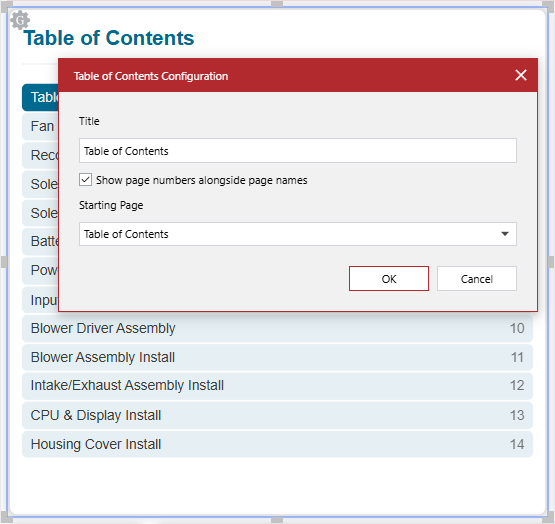
You can configure a TOC gadget as follows:
The Table of Contents Configuration dialog
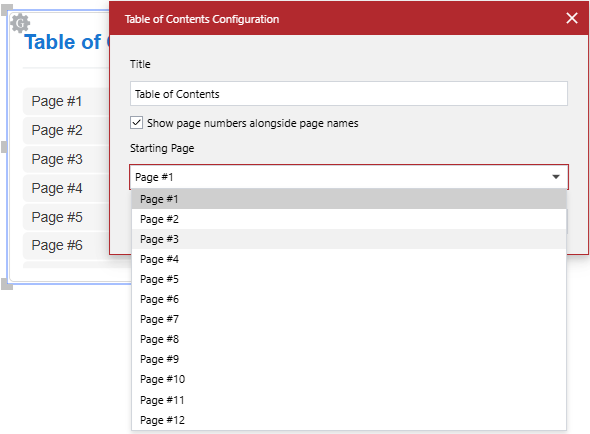
The Table of Contents Configuration pop-up dialog provides the following controls to configure a TOC gadget selected in a document:
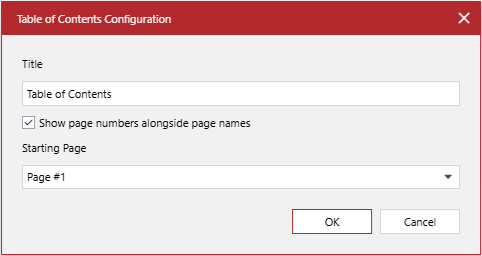
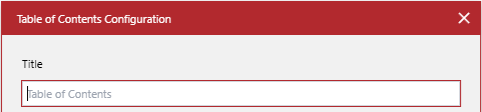
- Title
A string field, the text label that the TOC gadget displays. The default value is Table of Contents. When this field is empty, the default value is shown as the title.
- Show page numbers alongside page names
A checkbox, a switch to toggle the visibility of the page number column in the TOC gadget:
Selected: to show it. This is the default value.
Cleared: to hide it.
- Starting Page
A drop-down list, the name of the page from which the TOC gadget will include pages. The default value is the name of the first page of the document.
Changing the table of contents gadget title
To change the title of a TOC gadget:
Select the TOC gadget.
In the Title field of the Table of Contents Configuration dialog, enter the new title that the TOC gadget will display in the document.
If necessary, continue configuring the TOC gadget as discussed in the following sections.
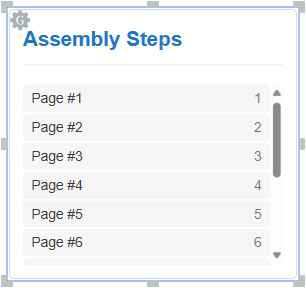
Once done with configuring, click the OK button to save the changes. The dialog disappears, and the TOC gadget has the new title.
Showing or hiding the part number column
To hide or show the part number column inside a TOC gadget:
Select the TOC gadget.
In the Table of Contents Configuration dialog, click the Show page numbers alongside page names checkbox, either:
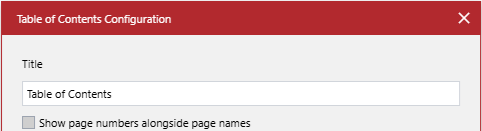
Select the checkbox to show the part number column inside the TOC gadget.
Clear the checkbox to hide the part number column inside the TOC gadget.
If necessary, continue configuring the TOC gadget as discussed in other sections.
Once done with configuring, click the OK button to save the changes. The dialog disappears, and the TOC gadget includes or excludes the page number column according to your settings of the Show page numbers alongside page names checkbox.
Specifying the starting page of a table of contents gadget
To specify the page from which a TOC gadget will list the pages from the document:
Select the TOC gadget.
From the Starting Page drop-down list in the Table of Contents Configuration dialog, select the name of the page from which the TOC gadget will list the pages from the document.
If necessary, continue configuring the TOC gadget as discussed in the following sections.
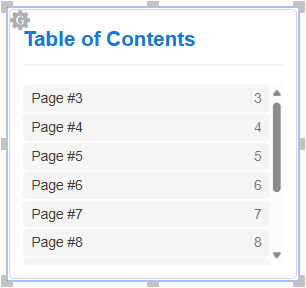
Once done with configuring, click the OK button to save the changes. The dialog disappears, and the TOC gadget includes the pages from the page you have selected from the Starting Page drop-down list.
Testing table of contents gadgets
To verify a TOC gadget as an end-user:
Verify that the TOC gadget title is correct.
Verify that the TOC gadget includes the pages from the correct starting page.
Verify that the visibility of the part number column is correctly set.