Image Gallery Gadgets
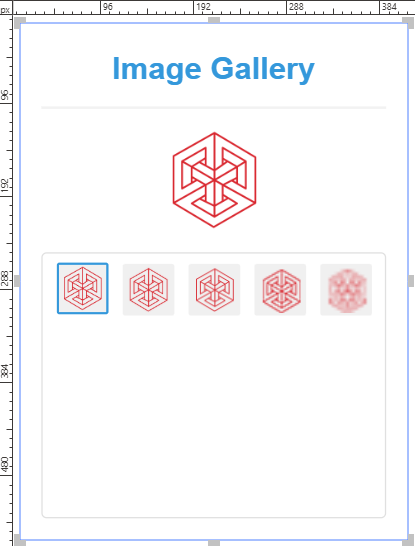
An image gallery gadget is an interactive object you can insert into Envision documents for document users to explore and view a series of images on a single page.
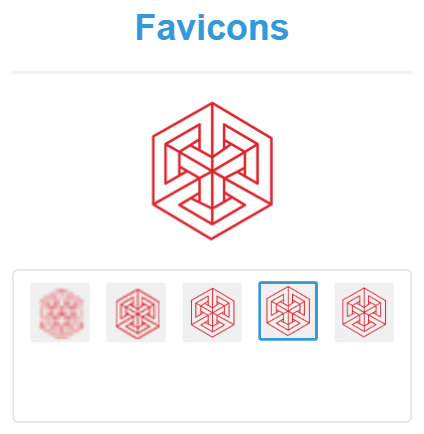
To work with image gallery gadgets, you should know:
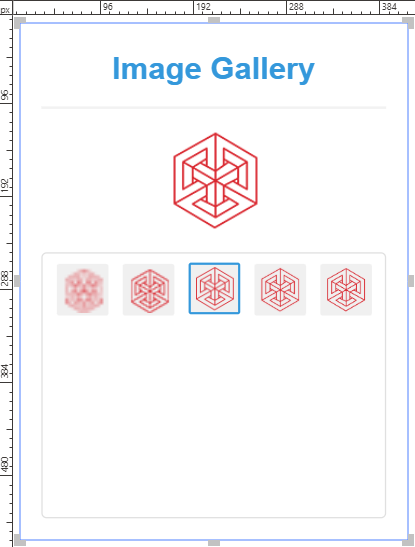
Image gallery gadget UI and behavior
An image gallery gadget consists of the following UI elements:
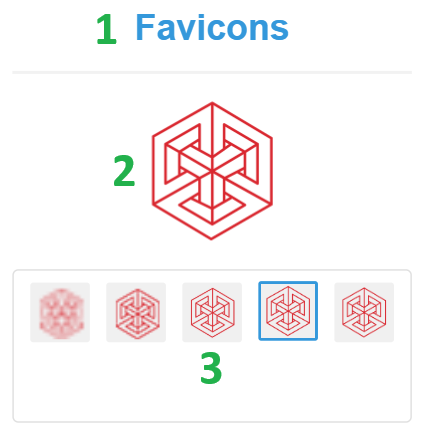
Title: a static label that displays the name of the image gallery gadget.
Viewer: a dynamic image viewer that displays in larger detail the image currently selected from the gallery.
Gallery: a grid or reel that displays the thumbnails of the images included in the gadget
As a document author, you include images in the image gallery gadget and adjust its look. On viewing the page with the gadget in the Canvas Envision Viewer, the gadget gallery displays the thumbnails of the included images, and the gadget viewer displays the image selected by default. Document users should scroll the gallery to explore the images and click a thumbnail to see its image in the viewer.
Supported image types are JPEG and PNG. There are no limitations on image resolution, size, or quantity. To save space and improve efficiency, it is highly recommended to downsize images to fit the viewer size prior to uploading them into the gadget.
Creating image gallery gadgets
To create a new image gallery gadget:
Go to the page where you want to place the new gadget.
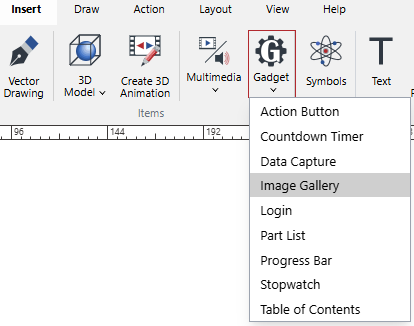
In the Items panel on the Insert ribbon tab, select the Image Gallery command from the Gadget menu.
The system opens the browser dialog for uploading images.
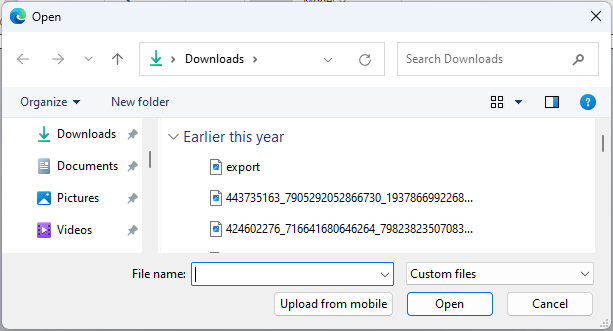
Search for and select the images that should be included in the gadget and click Open. A new image gallery is inserted at the top left page corner. While the system is uploading the selected images into the gadget, it is blank and displays the Loading media message.
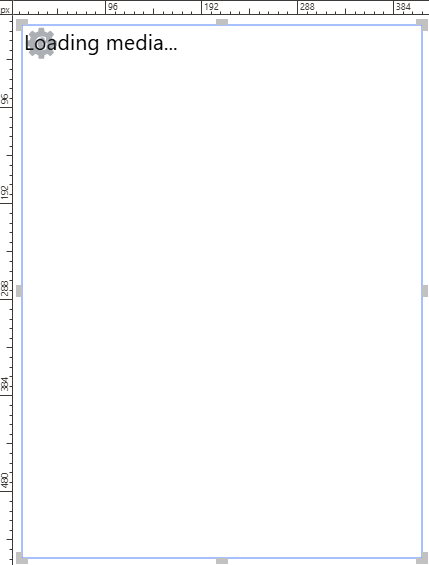
Once the selected images are uploaded, the gadget displays them with the default configuration.
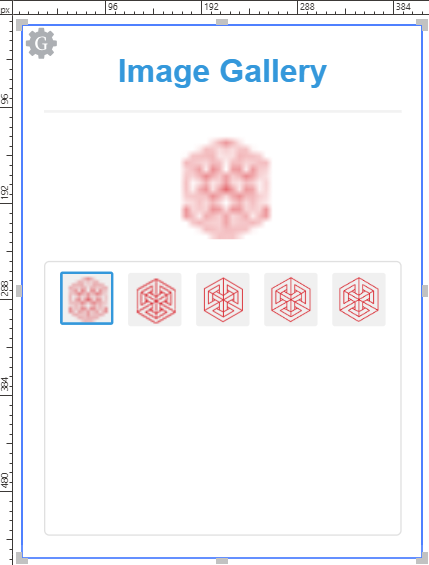
If necessary, configure the new gadget as discussed in the Configuring Gadgets section.
Configuring image gallery gadgets
As a newly created image gallery gadget automatically gets the default configuration, you may need to adjust it with the Image Gallery Configuration pop-up dialog.
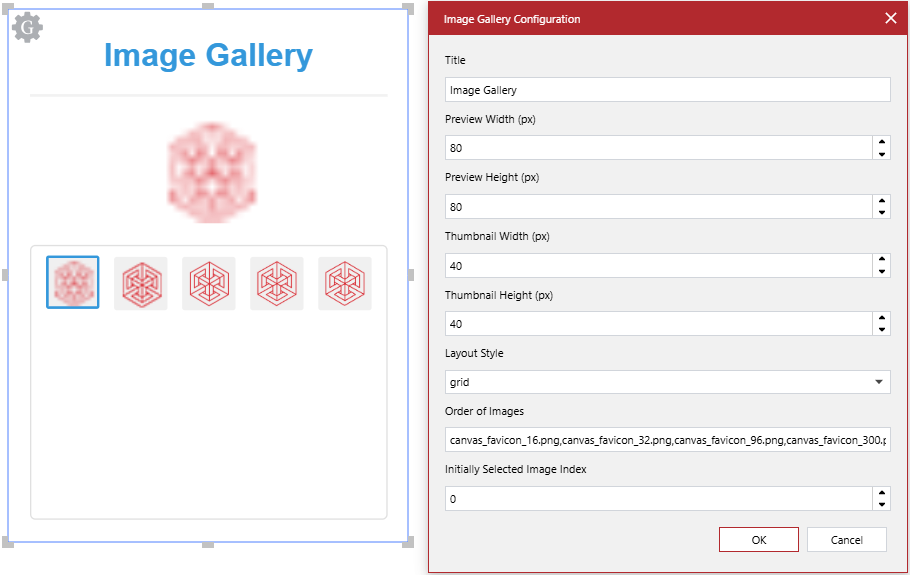
You can configure an image gallery gadget as follows:
The Image Gallery Configuration dialog
The Image Gallery Configuration pop-up dialog provides the following controls to configure an image gallery gadget selected in a document:
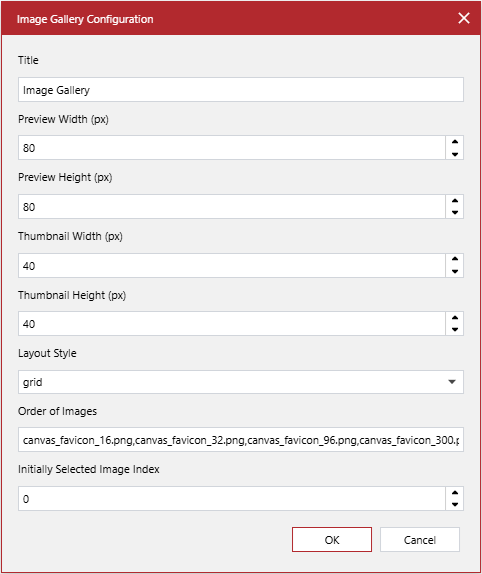
- Title
A string field, the text label that the image gallery gadget displays. The default value is Image Gallery. The title is neither required nor unique. The image gallery gadget can be without a title. Multiple gallery gadgets can have the same title.
- Preview Width (px)
A number field, the width of the image viewer in pixels. The default value is 80. It is required and must be a positive integer.
- Preview Height (px)
A number field, the height of the image viewer in pixels. The default value is 80. It is required and must be a positive integer.
- Thumbnail Width (px)
A number field, the width of the thumbnails in pixels. The default value is 40. It is required and must be a positive integer.
- Thumbnail Height (px)
A number field, the height of the thumbnails in pixels. The default value is 40. It is required and must be a positive integer.
- Layout Style
A drop-down list, the organization of the thumbnails in the gallery, either:
grid: multiple columns and rows. The thumbnails are listed in the row-major order. They are placed on a row from left to right. When the thumbnails reach the gallery width on the row, their flow continues on the next row down. If the gallery cannot display all the thumbnails, it gets a vertical scrollbar for document users to scroll through the rows. This option is the default.
horizontal: one row. The thumbnails are listed in one continuous row from left to right. If the gallery cannot display all the thumbnails, it gets a horizontal scrollbar for document users to scroll the row.
vertical: one column. The thumbnails are listed in one continuous column from top to bottom. If the gallery cannot display all the thumbnails, it gets a vertical scrollbar for document users to scroll the column.
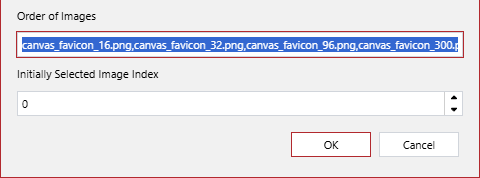
- Order of Images
A string field, a comma-separated list of the filenames of the images included in the gadget. The list defines the order of the thumbnails of the images in the gallery. Initially, the field is automatically prepopulated with the data obtained during gadget creation.
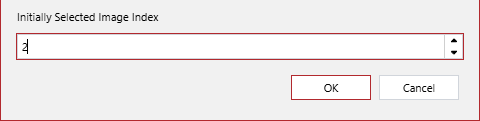
- Initially Selected Image Index
A number field, the index of the image whose thumbnail is selected by default in the gallery and which is displayed in the viewer. The indices begin with 0. The index of the first thumbnail is 0, not 1. The index of the last thumbnail is the number of all the thumbnails minus one. For example, if there are 12 thumbnails, the last one's index is 11, not 12. If the index is beyond the last one, no thumbnail is selected in the gallery, and no image is shown in the viewer by default. The default value is 0. It is required and must be a positive integer.
Changing the image gallery gadget title
To change the title of an image gallery gadget:
Select the image gallery gadget.
In the Title field of the Image Gallery Configuration dialog, enter the new title that the image gallery will display in the document. If you want the gadget to have no title, keep this field blank.
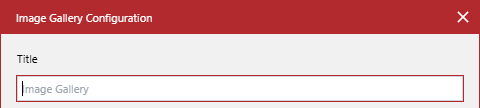
If necessary, continue configuring the image gallery gadget as discussed in the following sections.
Once done with configuring, click the OK button to save the changes. The dialog disappears, and the system starts applying changes to the gadget. While this process is going on, the gadget is blank and displays the Loading media message.
Once the changes are applied, the gadget displays the images and the title you entered in the Title field.
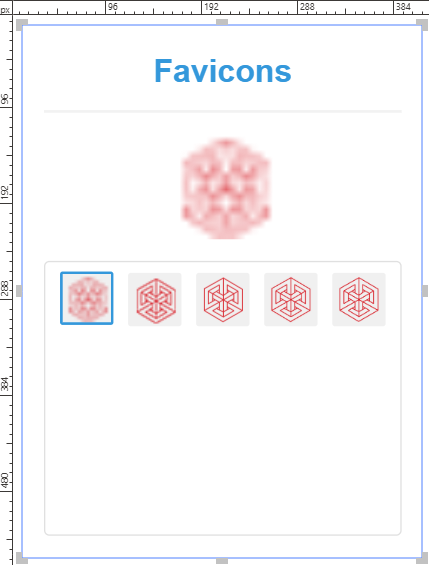
Resizing the image gallery gadget viewer
To change the width and/or height of the image viewer in an image gallery gadget:
Select the image gallery gadget.
If necessary to change the width of the viewer, enter the new width value as a positive integer in pixels in the Preview Width (px) field of the Image Gallery Configuration dialog.
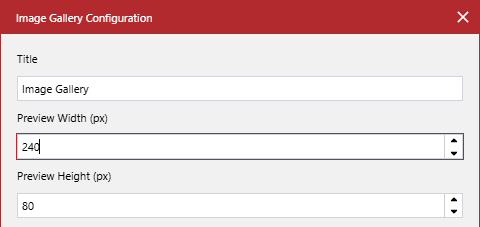
If necessary to change the height of the viewer, enter the new height value as a positive integer in pixels in the Preview Height (px) field of the Image Gallery Configuration dialog.
If necessary, continue configuring the image gallery gadget as discussed in other sections.
Once done with configuring, click the OK button to save the changes. The dialog disappears, and the system starts applying changes to the gadget. While this process is going on, the gadget is blank and displays the Loading media message.
Once the changes are applied, the gadget displays the images, and the viewer gets the width and height you entered in the Preview Width (px) and Preview Height (px) fields.
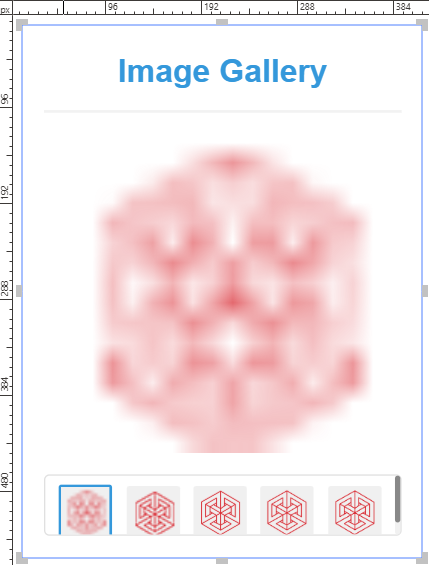
If necessary to fit the new viewer size, resize the bounding box of the gadget.
Resizing the image gallery gadget thumbnails
To change the width and/or height of the thumbnails in an image gallery gadget:
Select the image gallery gadget.
If necessary to change the width of the thumbnails, enter the new width value as a positive integer in pixels in the Thumbnail Width (px) field of the Image Gallery Configuration dialog.
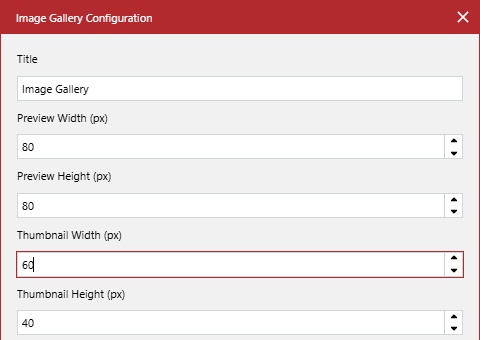
If necessary to change the height of the thumbnails, enter the new height value as a positive integer in pixels in the Thumbnail Height (px) field of the Image Gallery Configuration dialog.
If necessary, continue configuring the image gallery gadget as discussed in other sections.
Once done with configuring, click the OK button to save the changes. The dialog disappears, and the system starts applying changes to the gadget. While this process is going on, the gadget is blank and displays the Loading media message.
Once the changes are applied, the gadget displays the images, and the thumbnails get the width and height you entered in the Thumbnail Width (px) and Thumbnail Height (px) fields.
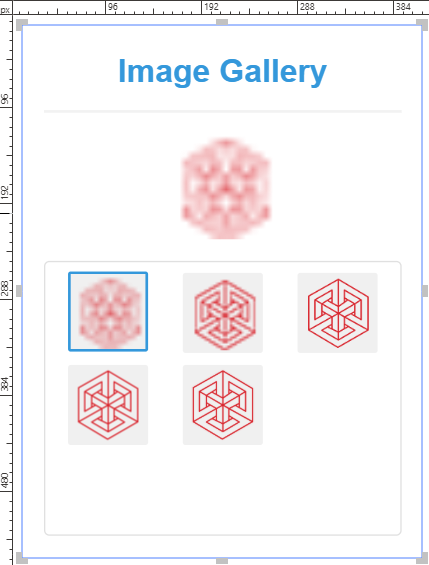
If necessary to fit the new thumbnail size, resize the bounding box of the gadget.
Changing the thumbnails layout in the image gallery gadget
To change the layout of the thumbnails in an image gallery gadget:
Select the image gallery gadget.
From the Layout Style drop-down list in the Image Gallery Configuration dialog, select how the thumbnails will be organized in the gallery.
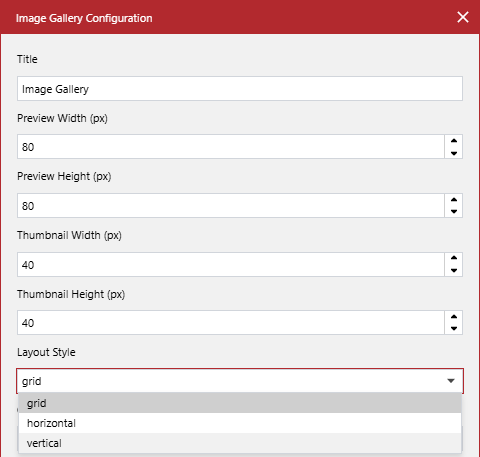
If necessary, continue configuring the image gallery gadget as discussed in other sections.
Once done with configuring, click the OK button to save the changes. The dialog disappears, and the system starts applying changes to the gadget. While this process is going on, the gadget is blank and displays the Loading media message.
Once the changes are applied, the gadget displays the images, and the thumbnails are laid out in the gallery in the way that you specified in the Layout Style drop-down list.
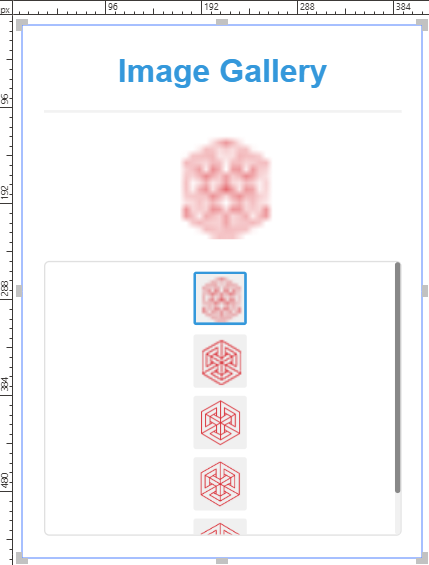
If necessary to fit the thumbnails according to the new layout, resize the bounding box of the gadget.
Reordering the thumbnails in the image gallery gadget
To change the order of the thumbnails in an image gallery gadget:
Select the image gallery gadget.
Copy the comma-separated list of the filenames of the images from the Order of Images field in the Image Gallery Configuration dialog.
Create or open a TXT file in a simple text editor.
Paste the copied list into the TXT file.
Keeping the original list, arrange the filenames in the desired order as a new list in the TXT file, where separate the filenames with commas. Spaces are allowed.
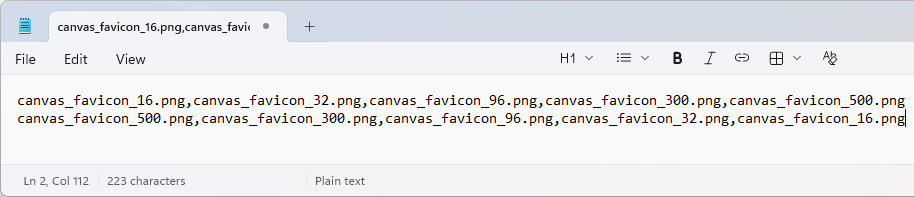
Once the new list is arranged, save the TXT file for debugging and future edits.
Copy the new list from the TXT file.
Paste the new list into the Order of Images field in the Image Gallery Configuration dialog, completely replacing the old list.
If necessary, continue configuring the image gallery gadget as discussed in other sections.
Once done with configuring, click the OK button to save the changes. The dialog disappears, and the system starts applying changes to the gadget. While this process is going on, the gadget is blank and displays the Loading media message.
Once the changes are applied, the gadget displays the images, and the thumbnails are listed in the order that you entered in the Order of Images field.
Adjusting the default image in the image gallery gadget
To change the image that is selected and shown in an image gallery gadget by default:
Select the image gallery gadget.
In the Initially Selected Image Index field of the Image Gallery Configuration dialog, enter the index of the image that will be selected in the gadget by default.
If necessary, continue configuring the image gallery gadget as discussed in the previous sections.
Once done with configuring, click the OK button to save the changes. The dialog disappears, and the system starts applying changes to the gadget. While this process is going on, the gadget is blank and displays the Loading media message.
Once the changes are applied, the gadget displays the images, and the image whose index you entered in the Initially Selected Image Index field is selected in the gallery and shown in the viewer.
Testing image gallery gadgets
To verify an image gallery gadget as an end-user:
Verify that the image gallery title is correct.
Verify that the correct image is selected in the gallery and displayed in the viewer by default when opening the page with the gadget in the Canvas Envision Creator.
Scroll the gallery and verify that the order of the thumbnails is correct.
Click each thumbnail and verify that the size of the viewer and thumbnails is correct and enough to display each image with the expected level of details without truncations.
Verify that the size of the gadget bounding box is enough to accommodate the viewer and thumbnails as desired.
Once done with testing, quit interactive viewing mode for gadgets.