Canvas Envision Viewer in Review Mode
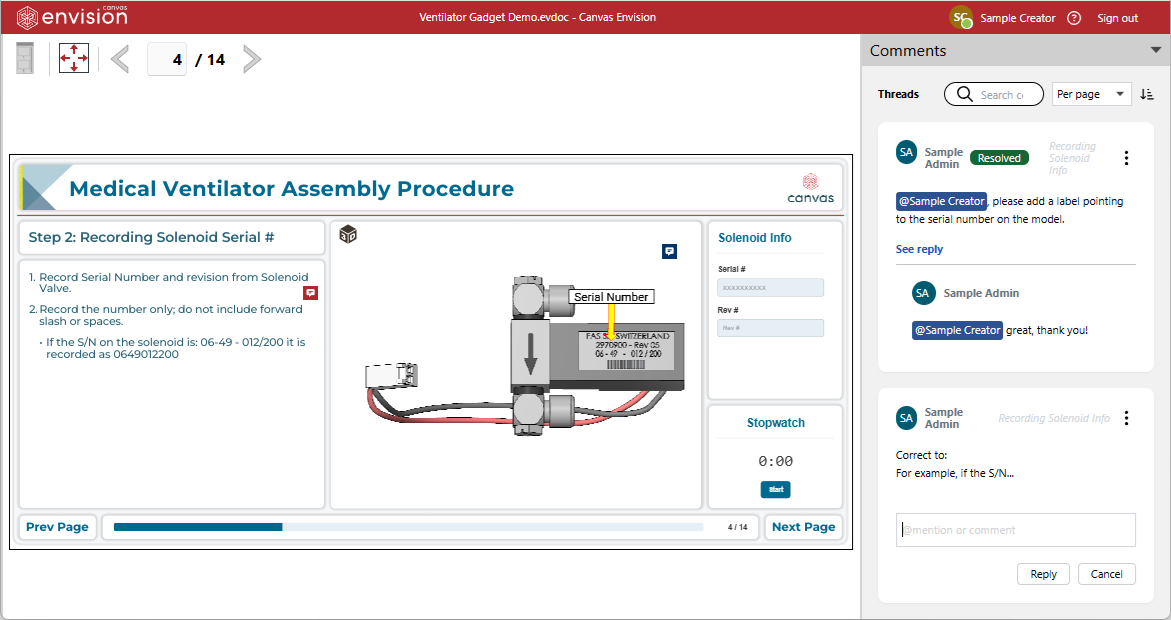
The Canvas Envision Viewer in review mode allows Consumers to participate in an automated document review process. Consumers can open Envision documents with the Review status in the Canvas Envision Viewer in review mode, which is the standard Viewer that reuses the Comments pane from the Canvas Envision Creator. The Comments pane is always visible on the right side of the Viewer in review mode and provides the same set of features in both applications.
Understanding the document review process for Consumers
The Canvas Envision solution streamlines document co-authoring with the automated review process for Envision documents. Multiple people of different roles can collaborate on document content verification and proofreading.
The document author can submit a document for review to Admins, Creators, Consumers, and Teams who have access to the work center with the folder that contains this document. During the review, the Admins and Creators with access to the document can add and remove reviewers from the document.
If you are a Consumer and have been added to a document with the Review status as a reviewer, the Canvas Envision Portal will automatically notify you with a (bell) notification about such an event.
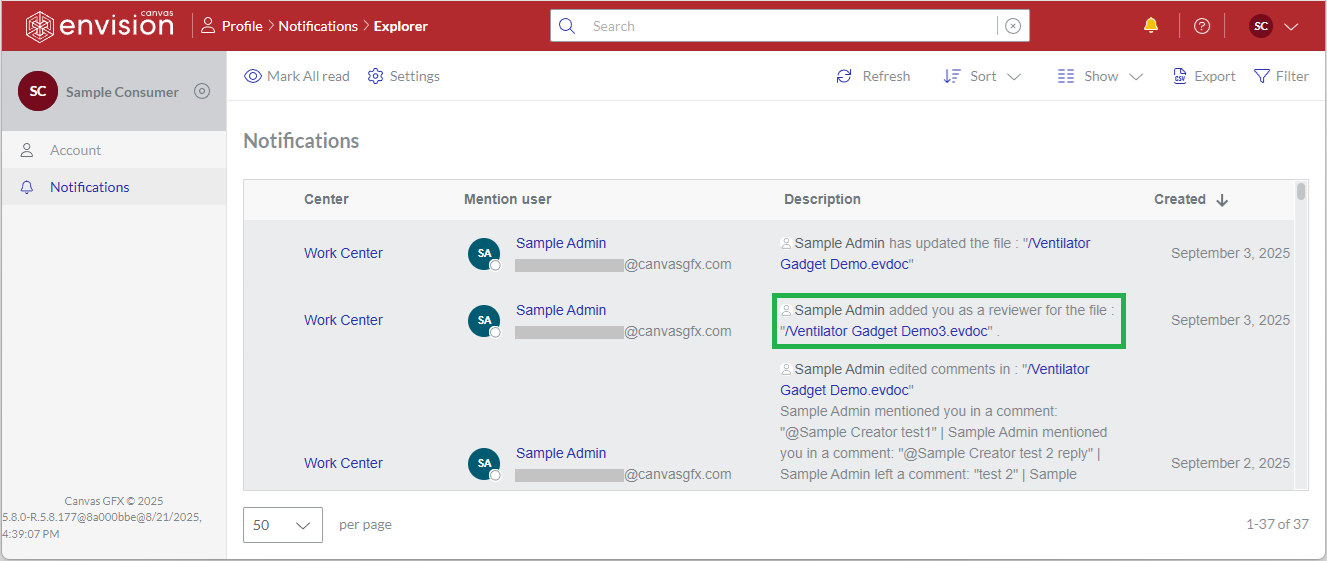
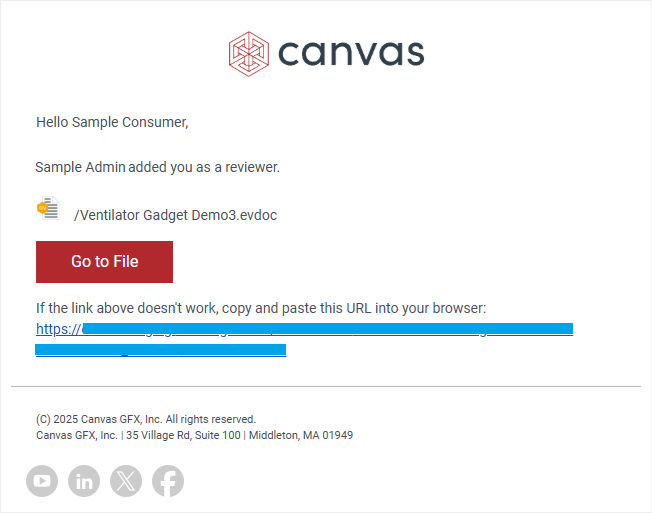
You can also receive an email duplicating the bell notification.
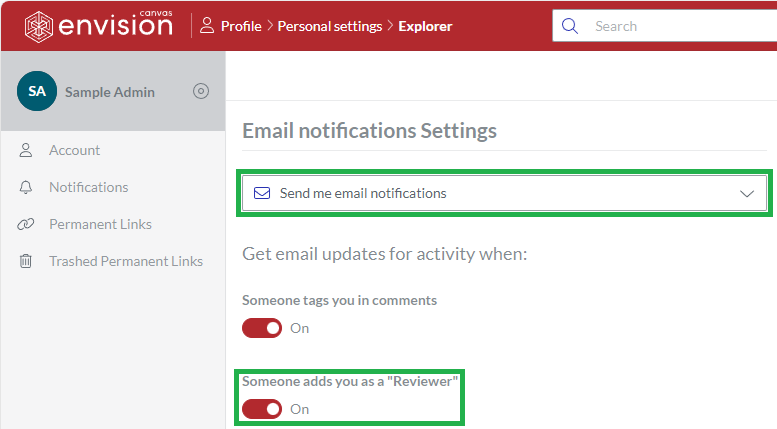
However, you must configure your personal account email notification settings on the Canvas Envision Portal to receive email notifications when someone adds you as a reviewer.
You will also receive a notification when you are removed from the document as a reviewer. In such a case, you will lose access to the document.
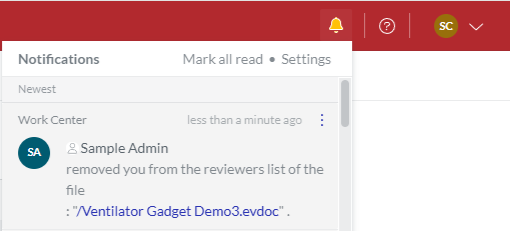
Bell and email notifications provide links to the documents. When you click such a link, the system automatically opens the document in the Canvas Envision Viewer in review mode.
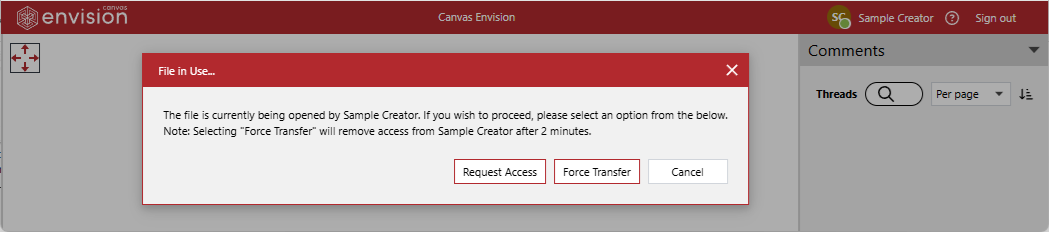
If somebody is currently reviewing the document in the Canvas Envision Creator or Canvas Envision Viewer in review mode, the system will not open the document but will show a File In Use warning. Only one person is allowed to open and review the document with the Review status at the same time. In such a case, you should either:
Wait until that person closes the document.
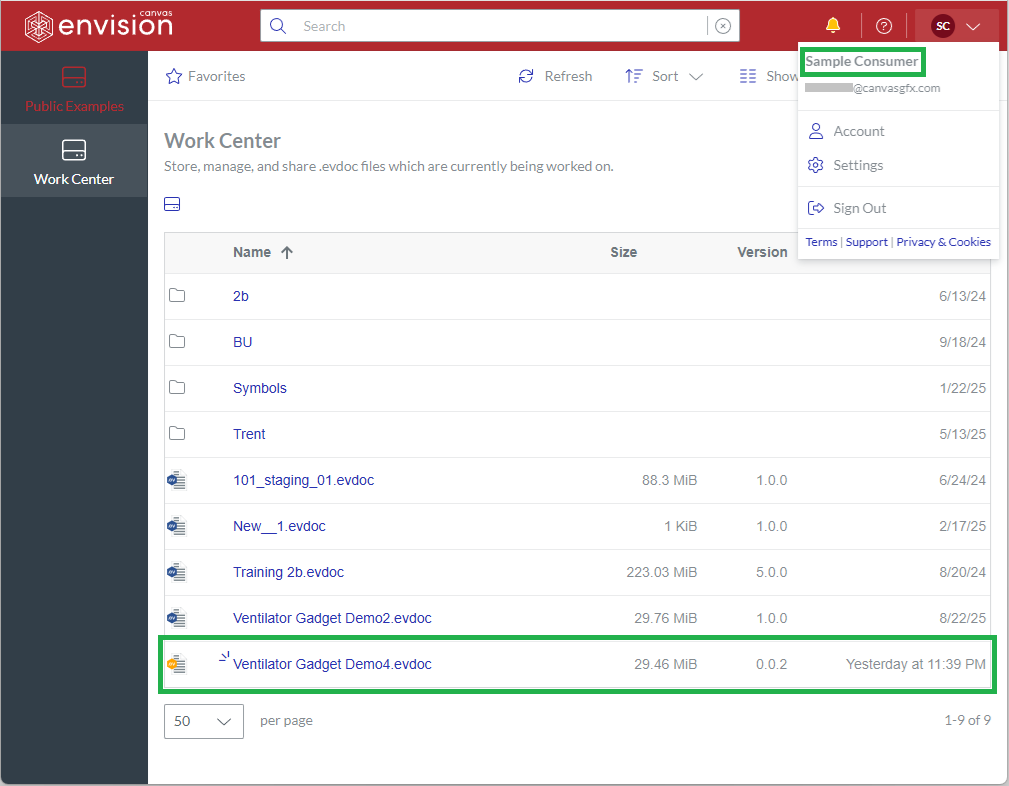
On the Canva Envision Portal, you can see the documents with the Review status where you were added as a reviewer. You can identify such documents by a file icon with a yellow hexagon background. The documents with the Review status where you are not a reviewer are hidden from you.
Clicking the name of a document with the Review status on the Canva Envision Portal opens this document in the Canvas Envision Viewer in review mode in another browser tab.
When reviewing the document in the Canvas Envision Viewer in review mode, you can create, update, delete, and reply to comment threads. The Comments pane is the place where you can view and reply to comment threads. You can also mention the author and other reviewers in comment threads. The system will automatically notify a person about activities and events that happened in the comment threads where you mentioned this person.
The review process is over for the document when the status of this document is changed from Review to another status.
If you are a Consumer added as a reviewer to a document, you can do the following within the review process for this document, as long as its status is Review:
Opening documents from bell notifications on adding you as a reviewer
To open a document with the Review status from a bell notification on the Canvas Envision Portal notifying you that you were added as a reviewer to that document:
Click the link in the bell notification.
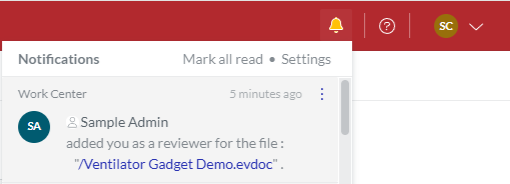
The system will automatically open the document in the Canvas Envision Viewer in review mode with the Comments pane.
Opening documents from emails on adding you as a reviewer
To open a document with the Review status from an email notifying you that you were added as a reviewer to that document:
Open the email message about adding you as a reviewer to the document.
In the email, click either:
The Go to File button.
The link.
The system will automatically open the document in the Canvas Envision Viewer in review mode with the Comments pane.
If the system cannot open the document, copy the link from the email and paste it into the browser address bar.
Open documents where you are a reviewer from the Canvas Envision Portal
To open a document with the Review status on the Canvas Envision Portal:
On the Canvas Envision Portal, go to the document with the Review status you want to open.
Click the document name.
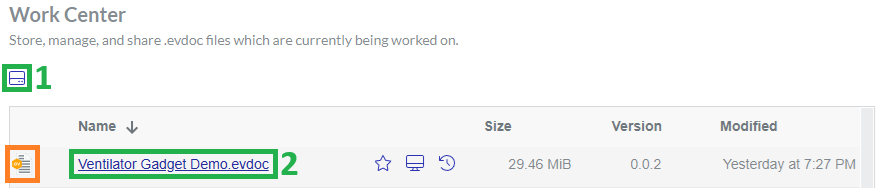
The system will open the document in the Canvas Envision Viewer in review mode with the Comments pane.