Comments
- Comment
A note or discussion attached to a specific part of an Envision document to provide feedback, ask questions, give answers, introduce suggestions, raise issues, leave reminders, etc., to the note author or other team members without altering the main document content.
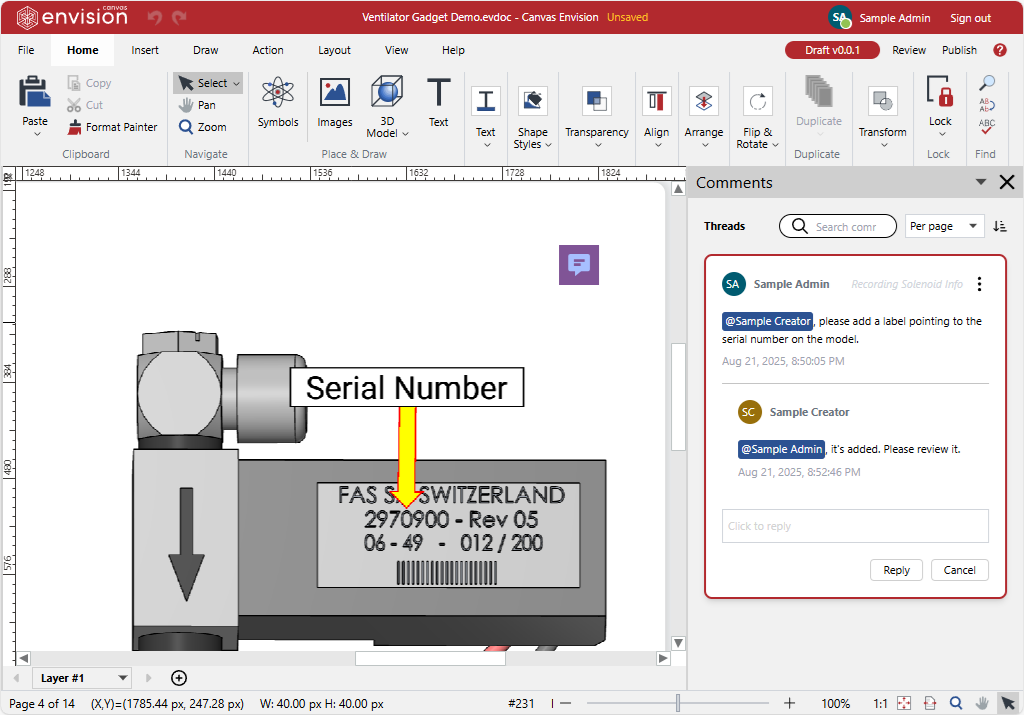
Understanding comments
Comments are a document collaboration feature that empowers you to communicate with your team on content authoring inside a document, without switching between the document and third-party communication tools.
Comments are stored in the document and are available only when the document has the Draft or Review status. The comments given in the original document will be included in new document copies and new document versions. Publishing or archiving the document automatically strips this document of all the comments.
If you are a Creator or Admin and have access to the work center containing the document, you can put comments at any location in the document when working on it in the Canvas Envision Creator.
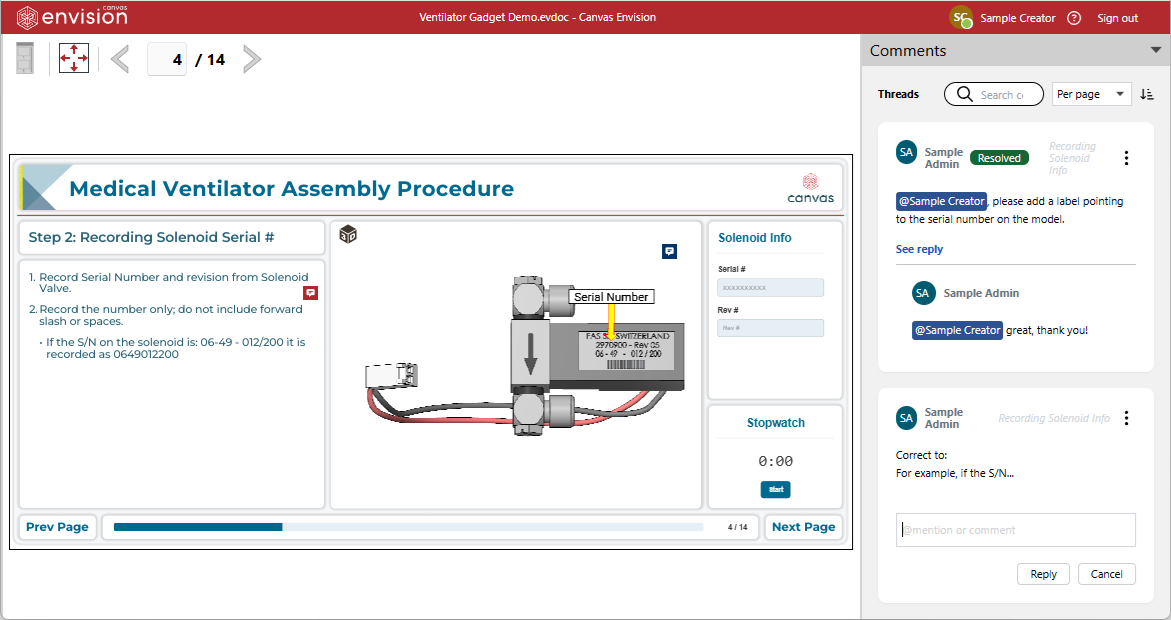
If you are a Consumer and have been added as a reviewer to the document during the review process, you can view, create, update, and manage document comments in the Canvas Envision Viewer in review mode with the Comments pane.
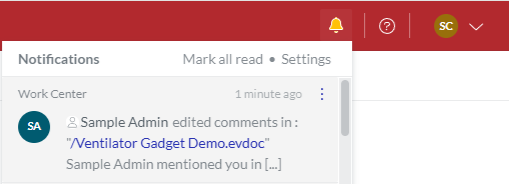
When creating or updating a comment, you can mention one or more specific teammates who have access to the document work center. In such a case, the system will automatically notify each mentioned person with a Canvas Envision Portal (bell) notification when you close the document in the Canvas Envision Creator or the Canvas Envision Viewer in review mode.
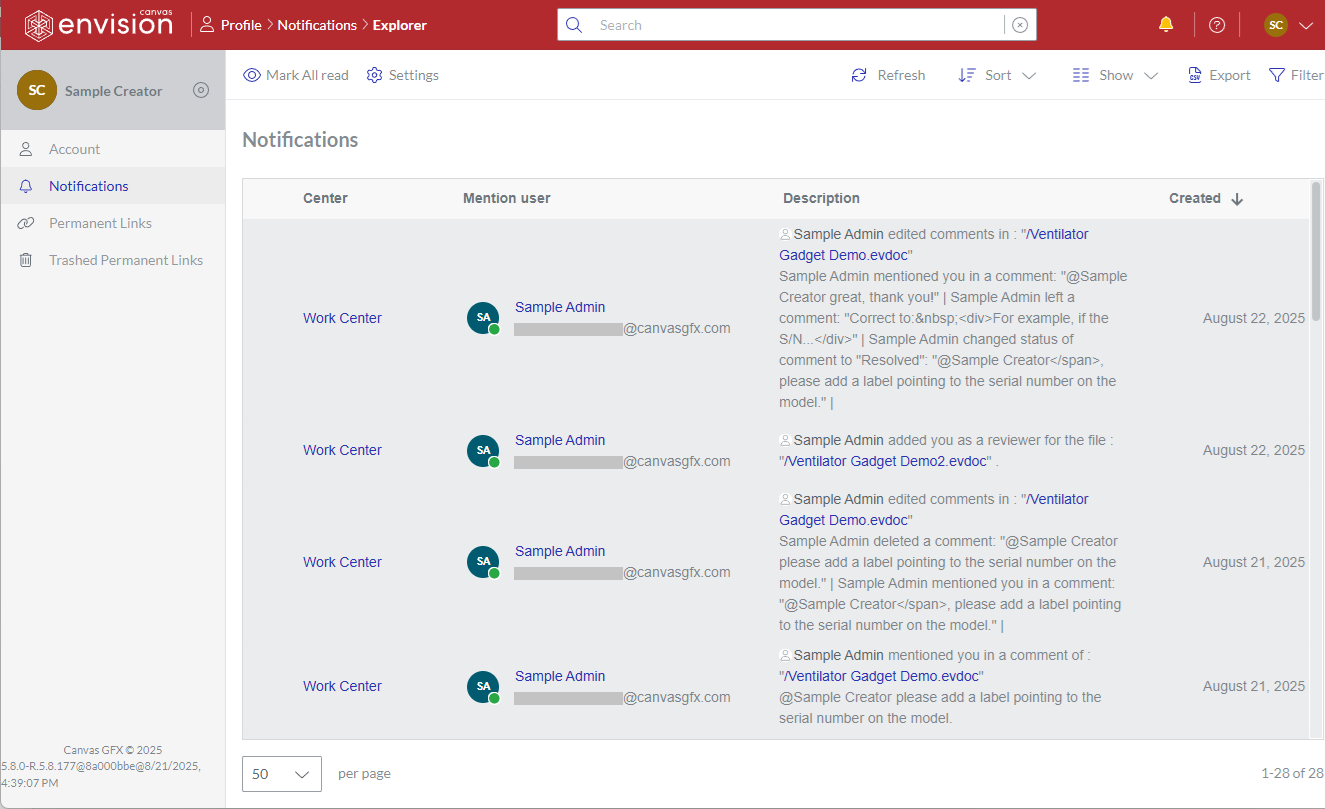
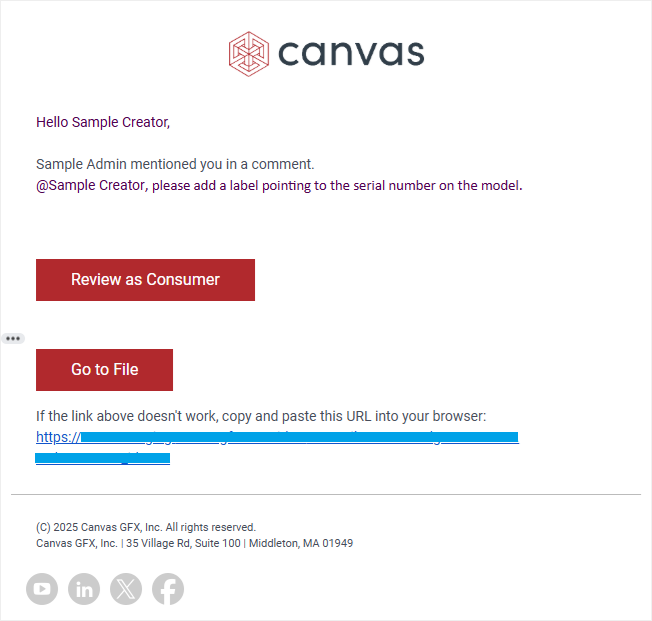
The system will also send an email duplicating the bell notification.
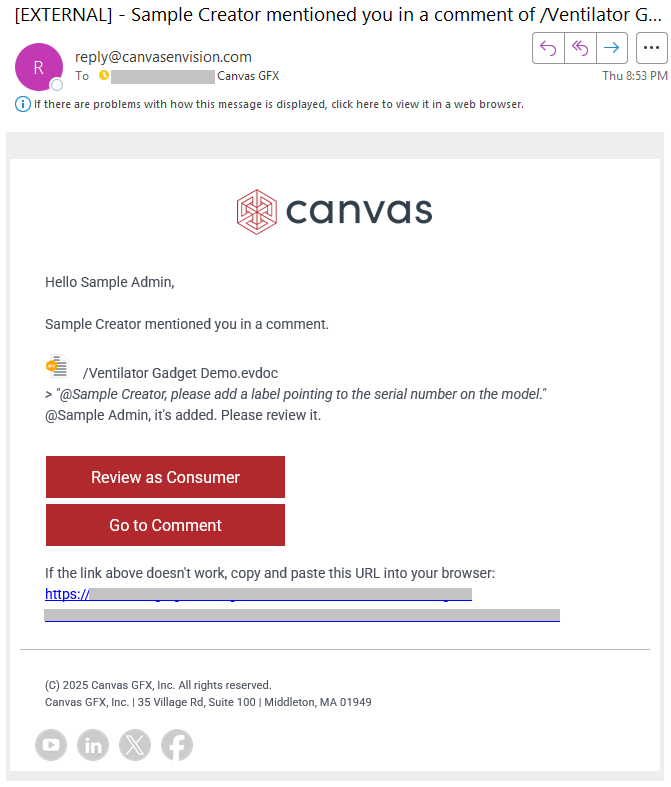
However, the mentioned person must configure their personal account email notification settings on the Canvas Envision Portal to receive email notifications when someone tags them in comments.
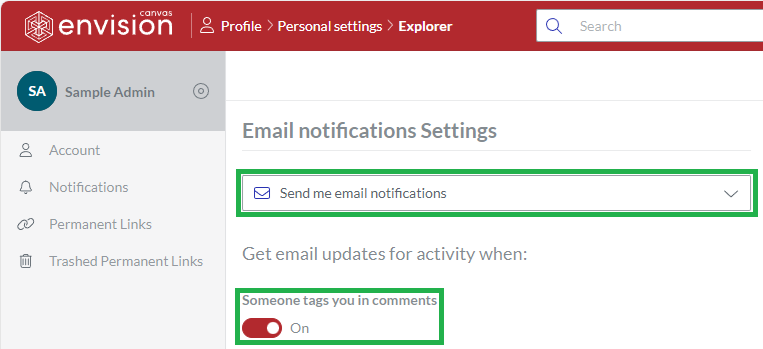
Multiple comment events and activities that occurred during the document session are gathered in one notification. The system does not send a separate notification for a comment event or activity in the series.
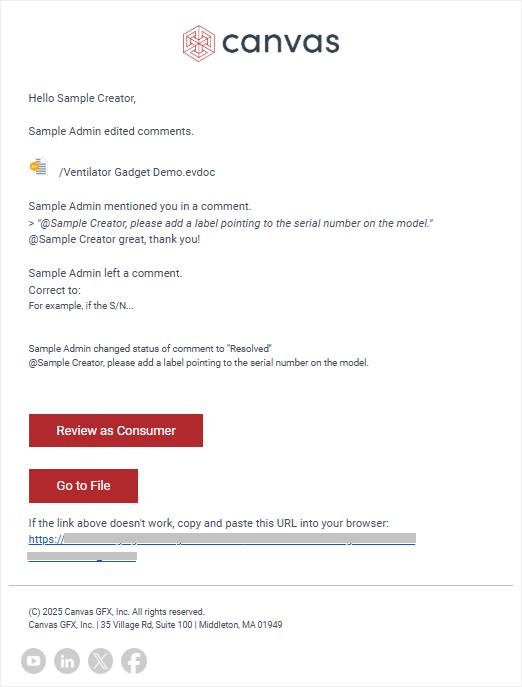
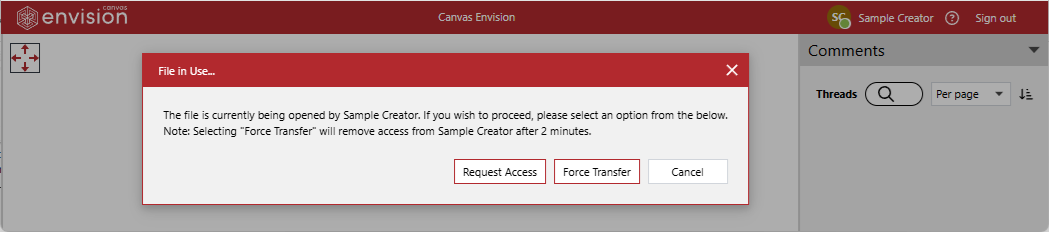
Bell and email notifications provide links to the comments in the document. You can open the document from these notifications in the Canvas Envision Creator or the Canvas Envision Viewer in review mode. However, the system will not open the document but will show a File In Use warning if somebody is currently viewing comments in the document. Only one person is allowed to view and work with comments simultaneously. In such a case, you should either:
Wait until that person closes the document.
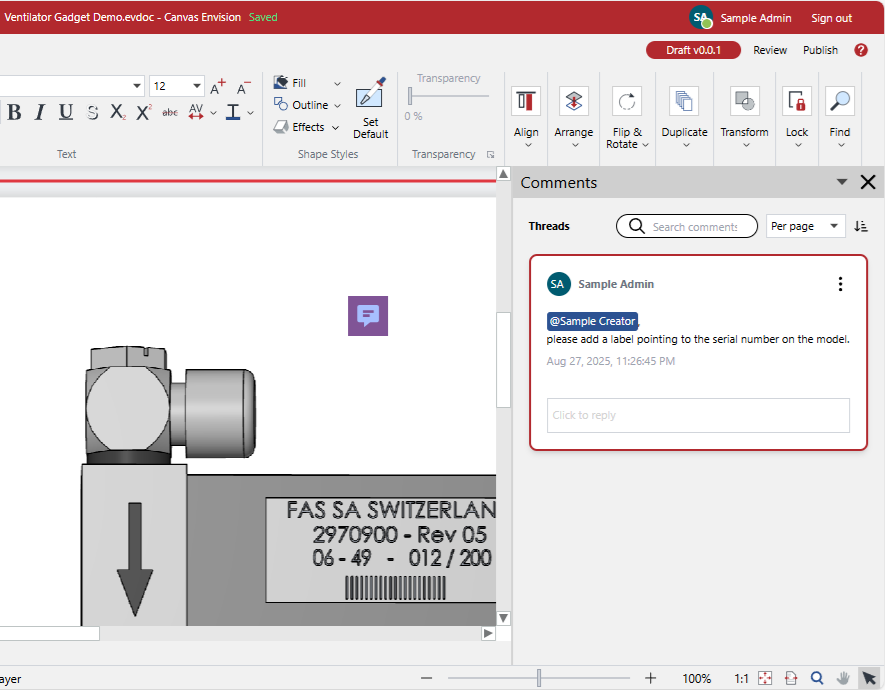
For convenience and traceability, comments are organized in threads within the document. A comment thread on a page is designated with an icon that is a small square box with a white message image. The comment thread status defines the icon background color:
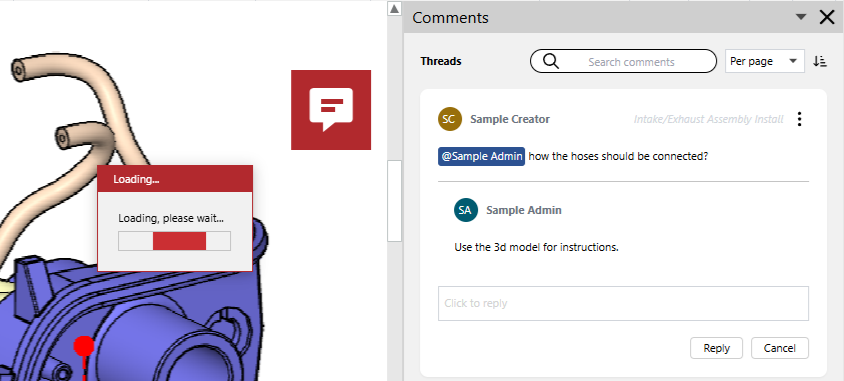
Unresolved: red

Resolved: blue

Clicking the icon opens the comment thread in the Comments pane, which is the single place in the document where you view and manage comment threads.
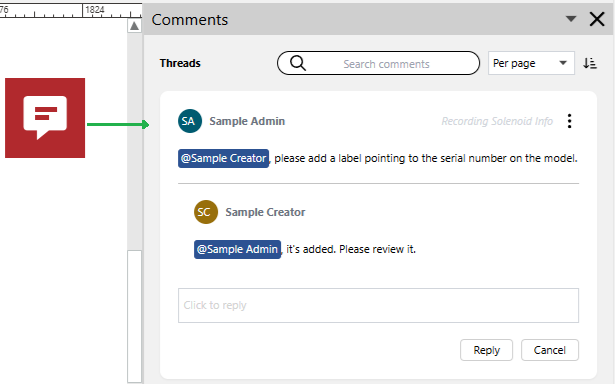
You can work with comments and threads as follows:
Comments pane
You explore, view, update, reply to, and manage comment threads in the Comments pane.
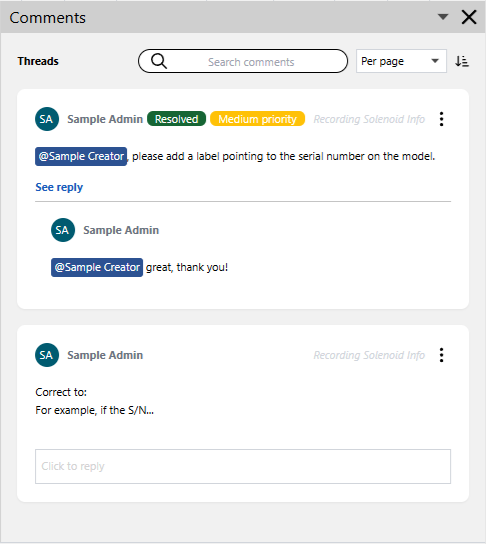
The Comments pane consists of the following:
Comments pane toolbar
The Comments pane toolbar includes the following controls:
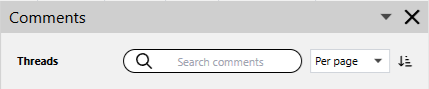
A search field to filter comment threads in the pane against given search criteria.
A drop-down list to specify which comment threads to show in the pane:

Per page: only those that are on the current page.
All pages: all in the document.
A menu of options to sort comment threads in the pane:
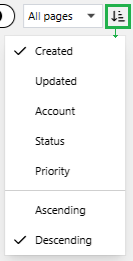
Created: by the dates when the comment threads were added to the document.
Updated: by the dates when the comment threads were last updated.
Account: by the users who created the comment threads.
Status: by the statuses of the comment threads.
Priority: by the priorities of the comment threads.
Ascending: in the ascending order of the given sorting property.
Descending: in the descending order of the given sorting property.
Comment threads in the Comments pane
Comment threads are cards in the Comments pane. Their UI is dynamic—the following factors define which elements a comment thread card shows to you:
Whether you are a thread creator or not.
Thread status.
The number of replies in the thread.
Thread priority.
Depending on these factors, a comment thread card can include the following UI components: 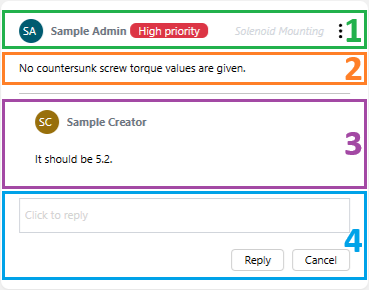
Comment thread card title bar
The title bar is always visible and available on a comment thread card. Depending on the abovementioned factors, it can contain the following UI elements: 
The icon and name of the user who created a comment thread. This information is always visible.
The Resolved label. It is visible only when the comment thread is resolved. Unresolved comment threads have no labels.
The priority label. It is visible only when the comment thread has a priority set. By default, a new comment thread has no priority.
The name of the page where the comment thread is located. It is always visible.
The comment thread menu button. The button is always visible, but the menu content is dynamic. The status of the comment thread and the thread creator's identity define the included commands as follows:
The comment thread is unresolved, and the comment thread creator is you:
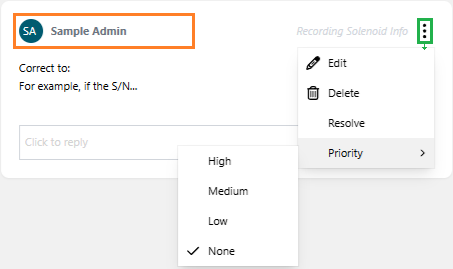
Edit: to start editing the initial message in the comment thread.
Delete: to delete the comment thread from the document.
Resolve: to change the comment thread status to Resolved.
Priority: to reset the priority for the comment thread to either:
High
Medium
Low
None
The comment thread is unresolved, and the comment thread creator is not you:
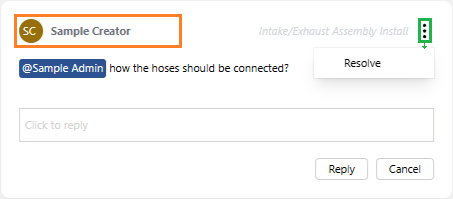
Resolve: to change the comment thread status to Resolved.
The comment thread is resolved:
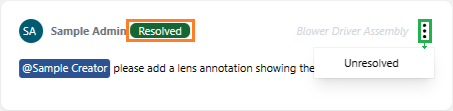
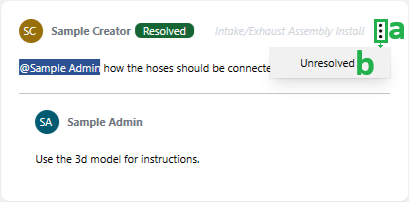
Unresolved: to change the comment thread status to Unresolved.
The initial message in comment threads
The initial message of a comment thread is always visible and cannot be deleted.
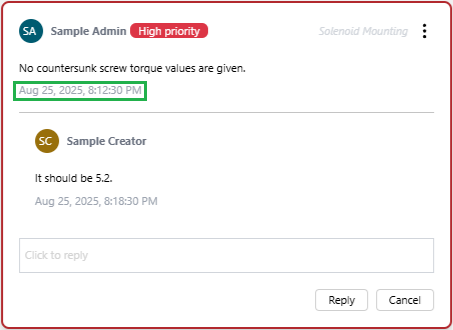
Selecting the message thread displays the date and time when it was created under the initial message.
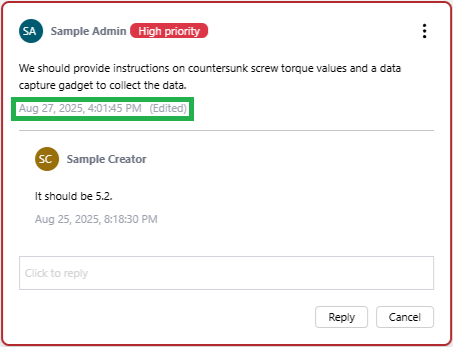
You can edit the initial message in the unresolved threads that you created. In such a case, the timestamp under it displays when it was last updated and is followed by the (Edited) label.
The initial message can include no, one, or more than one mention of teammates. A mention starts with @, includes the name of the mentioned person, and has a dark-blue background.
Replies in comment threads
A comment thread can have no, one, or more than one reply. In the latter case, replies are truncated by default: only the initial message and the last reply are displayed. Also, the See reply label is visible under the initial message.
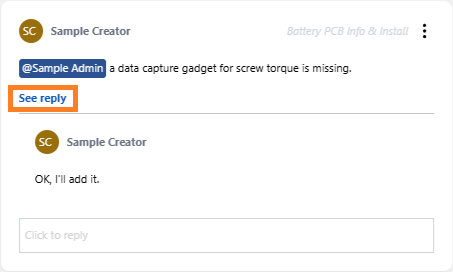
Selecting the comment thread discloses all the replies in it.
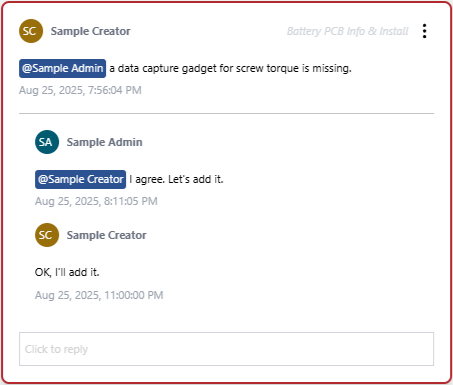
The long comment thread is automatically truncated when you select another comment thread or click outside the Comments pane.
A comment thread reply consists of the following elements: 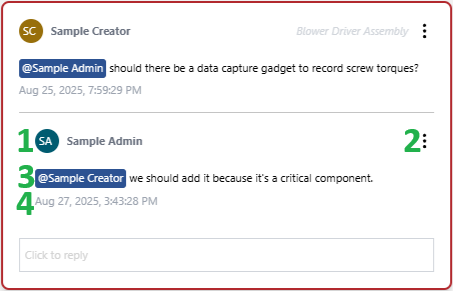
The icon and name of a user who created the reply. This information is always visible.
The reply menu button. The button is hidden by default. If you are the author of a reply in an unresolved comment thread, hovering over the reply will display the reply menu button to you. The reply menu includes the following commands:
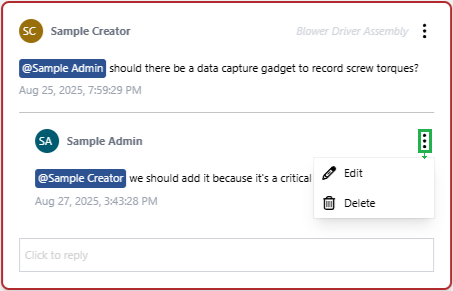
Edit: to start editing the reply.
Delete: to delete the reply from the comment thread.
A text message of the reply. The message can include zero, one, or more than one teammate mention. A mention starts with @, includes the name of the mentioned person, and has a dark-blue background.
The date and time when the reply was created or last updated. In the latter case, the timestamp is followed by the (Edited) label.
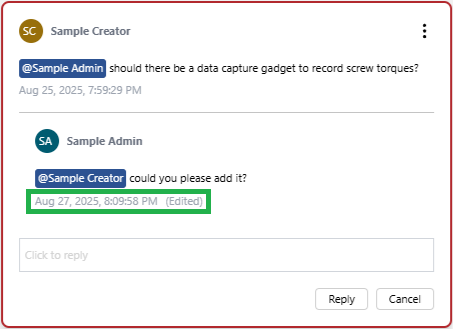
Reply box and buttons in comment threads
A reply box is a text field to enter a new reply in an unresolved comment thread.
Clicking inside the reply box shows the following buttons under it:
Reply: to create a new reply in the comment thread with the message entered in the reply box.
Cancel: to cancel the reply creation and clear the entered message from the reply box.
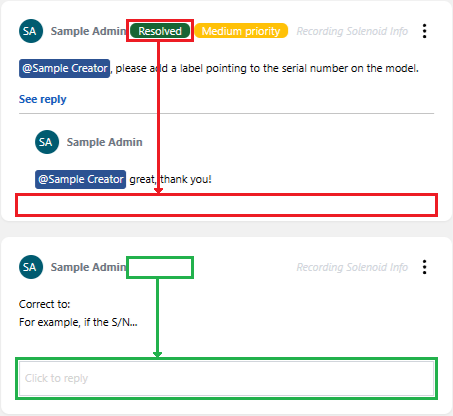
The reply box and buttons are absent from the comment threads with the Resolved status.
Typing @ automatically displays a list of people and teams who have access to the work center that contains the document with the comment thread.
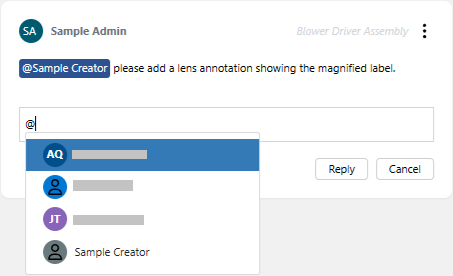
Selecting a person from the list creates a mention. The reply message can include multiple mentions.
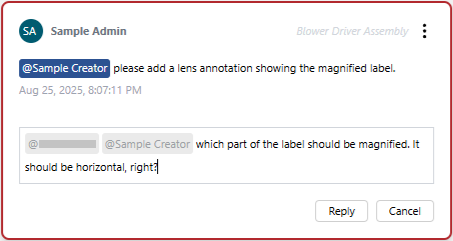
Creating new comment threads
To create a new comment thread in an Envision document with the Draft or Review status:
Open the document with either:
Canvas Envision Viewer in review mode with the Comments pane.
Canvas Envision Creator.
Go to the page where you want to add a new comment thread.
Depending on the tool you use, do the following:
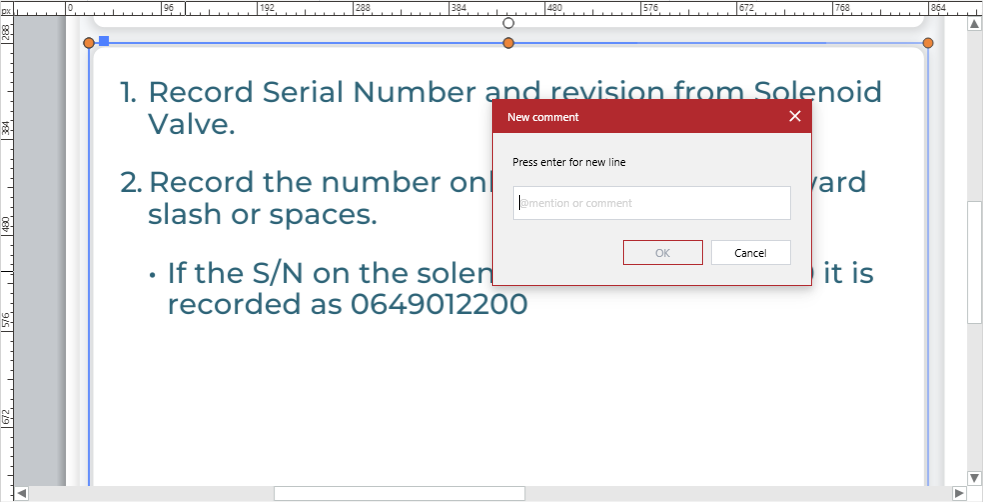
Canvas Envision Viewer in review mode: right-click at a spot on the page where you want to add a new comment.
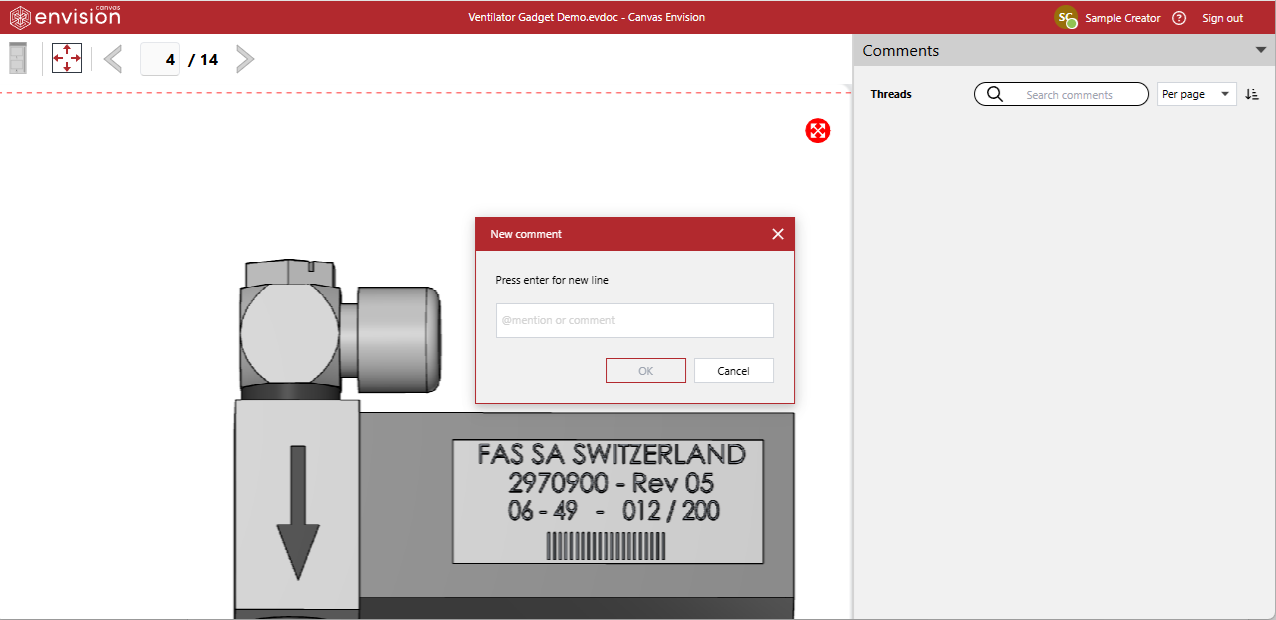
Canvas Envision Creator: right-click at a spot on the page where you want to add a new comment and click New Comment from the context-sensitive menu.
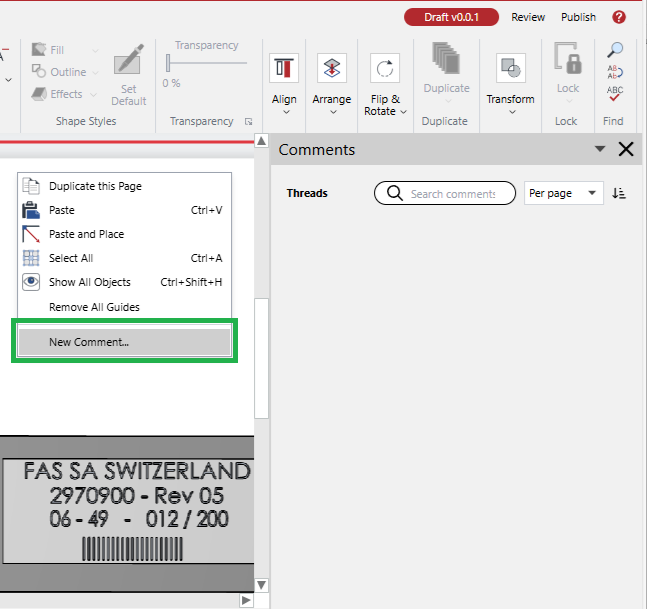
The New Comment dialog pops up.
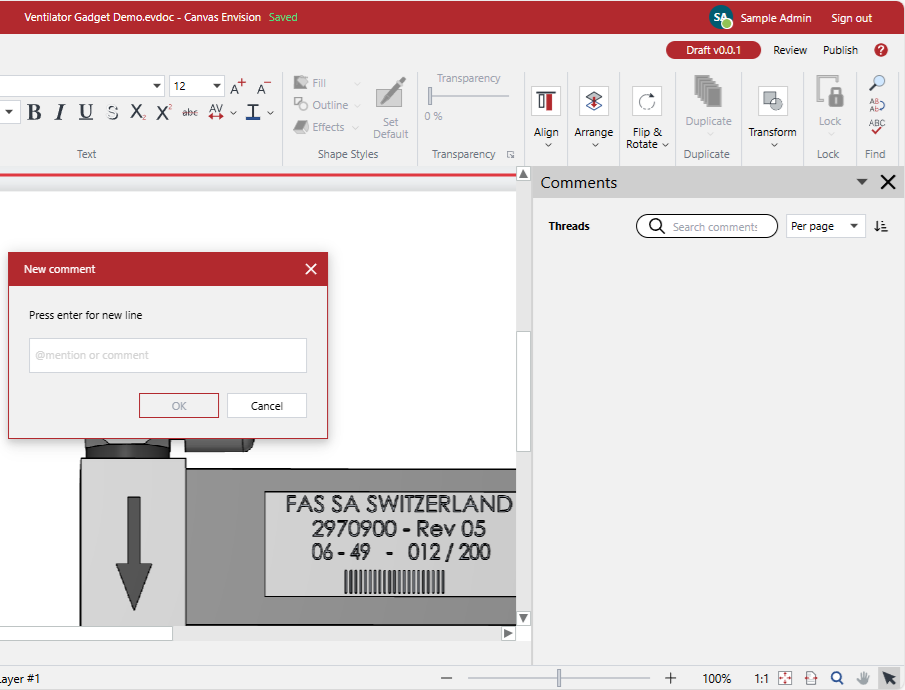
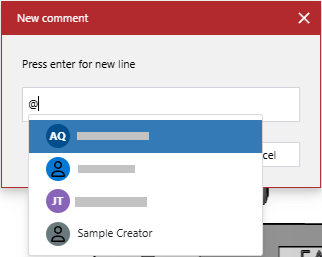
If it is necessary to keep a person notified about the comment thread events and activities, type @ in the dialog field and select this person from the list. You can mention multiple people.
Once done with mentioning, enter the comment text in the dialog field.
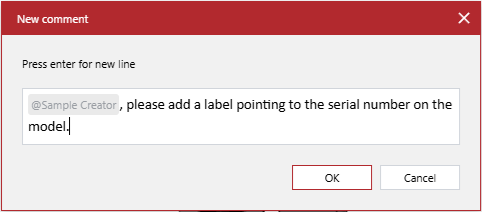
Click the OK button. The system displays the Loading pop-up dialog over the page while creating a new comment thread.
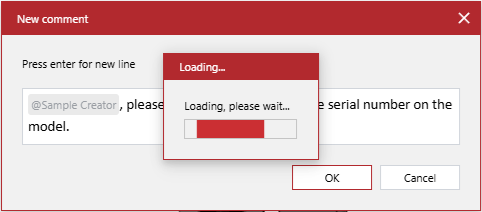
Once the Loading pop-up dialog disappears, the new comment thread is created:
A comment thread icon appears and is selected at the spot where you right-clicked on the page.
The new comment appears and is selected in the Comments pane.
If you need to add more new comment threads to the document, repeat steps 2-6.
If necessary, continue editing the document.
Once done with document review and editing, close the document in the tool you use. If the comments have mentions, the system will automatically notify each mentioned person about all your comment activities during the document session with a bell notification on the Canvas Envision Portal.
If the mentioned person has set their account on the Canvas Envision Portal to allow email notifications, the system will also send an email duplicating the bell notification.
Changing the comment thread priority
To reset the priority of a comment thread that you created in an Envision document:
Open the document with either:
Canvas Envision Viewer in review mode with the Comments pane.
Canvas Envision Creator.
If the Comments pane is not visible, open it.
In the Comments pane, go to your comment thread whose priority you want to change.
Click the comment thread menu button, hover over the Priority command, and select the new priority from the command menu.
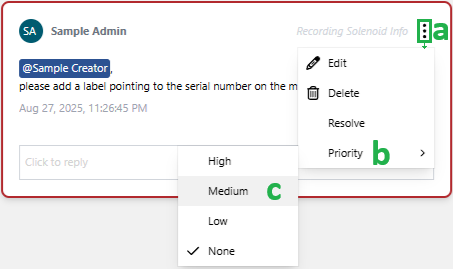
The system displays the Loading pop-up dialog over the page while changing the comment thread priority. Once the Loading pop-up dialog disappears, the comment thread title bar reflects the new priority setting.
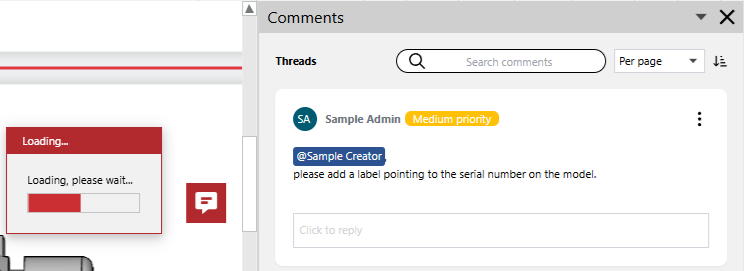
If you need to change the priorities of some of your other comment threads, repeat steps 3-4.
If necessary, continue editing the document.
Once done with document review and editing, close the document in the tool you use. If the comments have mentions, the system will automatically notify each mentioned person about all your comment activities during the document session with a bell notification on the Canvas Envision Portal.
If the mentioned person has set their account on the Canvas Envision Portal to allow email notifications, the system will also send an email duplicating the bell notification.
Updating the initial comment thread message
To update the initial message of a comment thread that you created in an Envision document:
Open the document with either:
Canvas Envision Viewer in review mode with the Comments pane.
Canvas Envision Creator.
If the Comments pane is not visible, open it.
In the Comments pane, go to your comment thread whose initial message you want to update.
Click the comment thread menu button and then Edit.
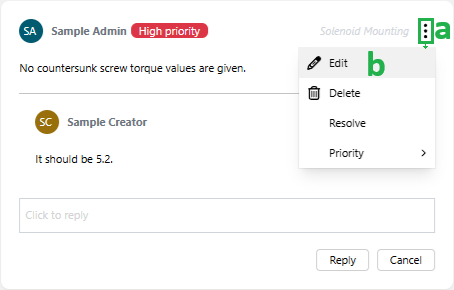
The initial message becomes editable text in an active text field. The Update and Cancel buttons appear under the field.
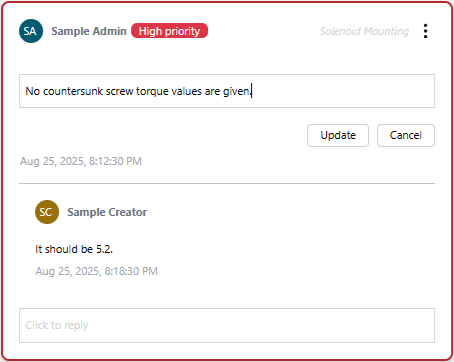
If it is necessary to keep a person notified about the comment thread events and activities, type @ in the text field and select this person from the list. You can mention multiple people.
If it is necessary to stop notifying a person about the reply, delete the mention of this person from the reply.
Once done with mentioning, edit the initial message in the text field as you need.
Click the Update button. The system displays the Loading pop-up dialog over the page while saving the edited initial message.
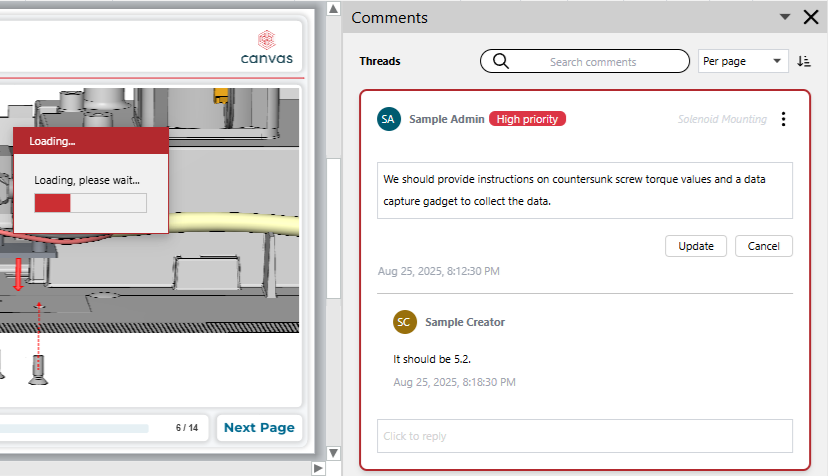
Once the Loading pop-up dialog disappears, the comment thread displays the updated initial message. The timestamp under it gets the (Edited) training label.
If you need to update the initial messages of some of your other comment threads, repeat steps 3-8.
If necessary, continue editing the document.
Once done with document review and editing, close the document in the tool you use. If the comments have mentions, the system will automatically notify each mentioned person about all your comment activities during the document session with a bell notification on the Canvas Envision Portal.
If the mentioned person has set their account on the Canvas Envision Portal to allow email notifications, the system will also send an email duplicating the bell notification.
Opening comment threads from bell notifications
To open a comment thread from a bell notification on the Canvas Envision Portal in an Envision document:
Click the link in the bell notification.
The system will automatically open the document with the comment thread in the Canvas Envision Viewer in review mode with the Comments pane.
Opening comment threads from emails
To open a comment thread from an email in an Envision document:
Open the email message with the notifications on comment events and activities.
In the email, click either:
The Review as Consumer button to open the document containing the comment thread in the Canvas Envision Viewer in review mode with the Comments pane.
The Go to File button to open the document containing the comment thread in the Canvas Envision Creator.
The link to open the document containing the comment thread in the Canvas Envision Creator.
The system should automatically open the document in the dedicated app in the browser.
If the system cannot open the document, copy the link from the email and paste it into the browser address bar.
Exploring and viewing comment threads
To explore and view comment threads existing in an Envision document:
Open the document with either:
Canvas Envision Viewer in review mode with the Comments pane.
Canvas Envision Creator.
If the Comments pane is not visible, open it.
Select All pages from the drop-down list on the Comments pane toolbar. The Comments pane shows all the comment threads that exist in the document.
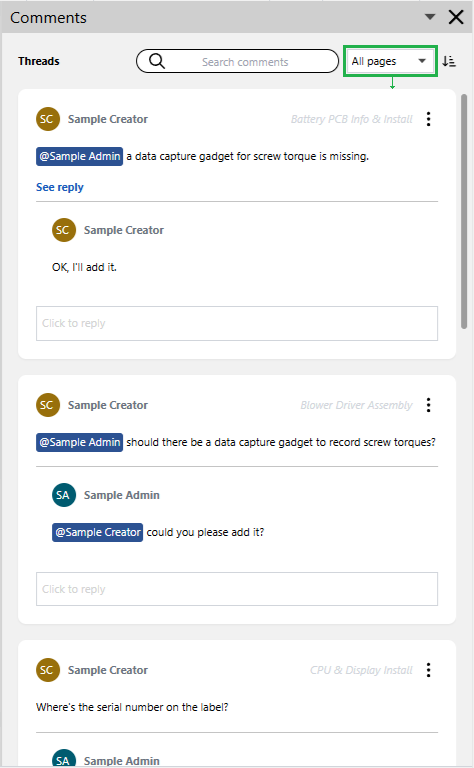
If necessary, filter the comment threads in the pane.
If necessary, sort the comment threads in the pane.
If necessary, scroll the comment thread cards in the pane with the vertical pane scrollbar or wheel mouse button.
To select a comment thread, click it. The application will automatically display the page containing the comment thread.
To view only the comment threads located on the current page, select Per page from the drop-down list on the Comments pane toolbar.
To view all the replies in a comment thread with more than one reply, click it.
The thread will disclose all the replies in it.
Take or repeat any step from 3 to 9 as you need.
Searching and filtering comment threads in the Comments pane
To search and filter comment threads in the Comments pane:
Ensure the drop-down list on the Comments pane toolbar is set as you need because the pane will filter the comment threads visible according to this setting. For example, if it is set to Per page, the pane will display the comment threads found on the current page.
Type a keyword in the search field on the Comments pane toolbar. The pane displays only the comment threads that include the keyword in the initial message or a reply.
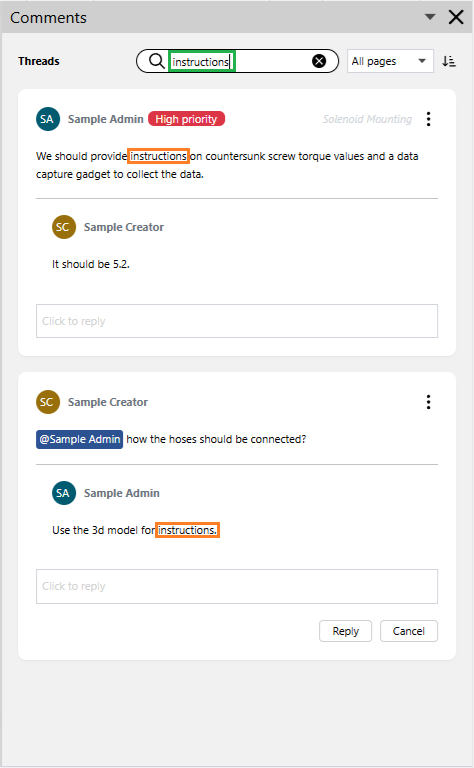
Click the X button inside the search field to clear the keyword from it.
-button-in-pane-toolbar-search-field.png "The Clear (X) button in the pane toolbar search field")
The Comments pane displays the comment threads unfiltered.
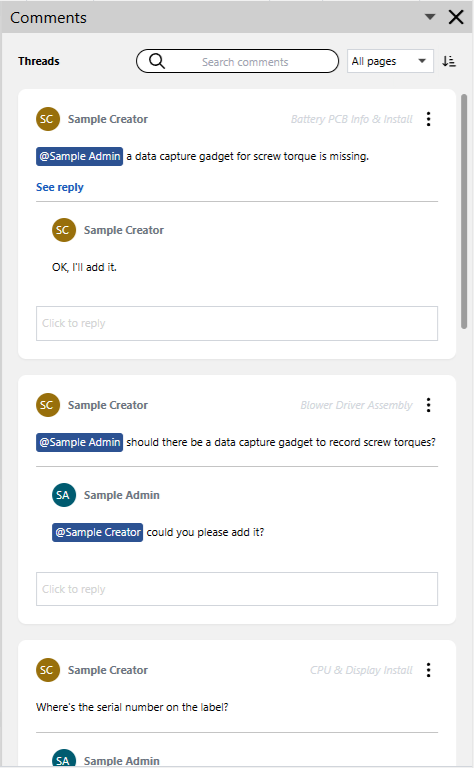
Sorting comment threads in the Comments pane
To sort comment threads displayed in the Comments pane.
From the sort menu on the Comments pane toolbar, select the property against which the comment threads displayed in the pane will be sorted. The pane displays the comment threads sorted according to your selection.
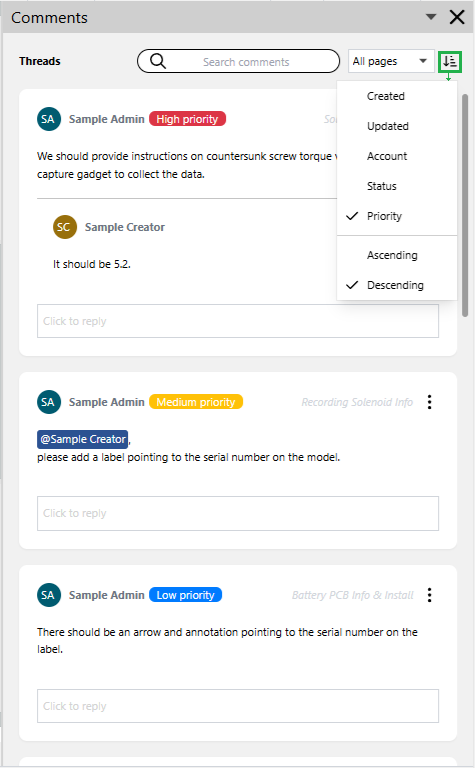
If necessary, select the sorting order from the sort menu.
Creating new replies in unresolved comment threads
To create a new reply in an unresolved comment thread in an Envision Document:
Open the document with either:
Canvas Envision Viewer in review mode with the Comments pane.
Canvas Envision Creator.
If the Comments pane is not visible, open it.
In the Comments pane, go to the unresolved comment thread where you want to reply.
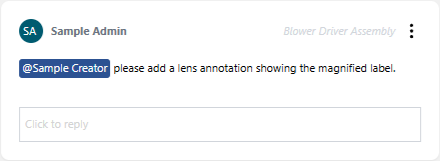
Click inside the reply box. It becomes active. A cursor is blinking in the box. The Reply and Cancel buttons appear under the box.
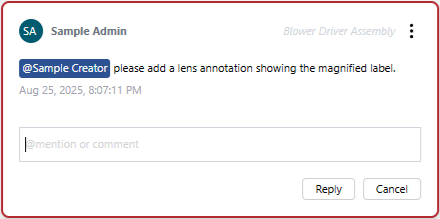
If it is necessary to notify a person about your reply, type @ in the dialog field and select this person from the list. The reply message can include multiple mentions.
Once done with mentioning, enter the comment text in the dialog field.
Click the Reply button. The system displays the Loading pop-up dialog while creating a new reply in the comment thread.
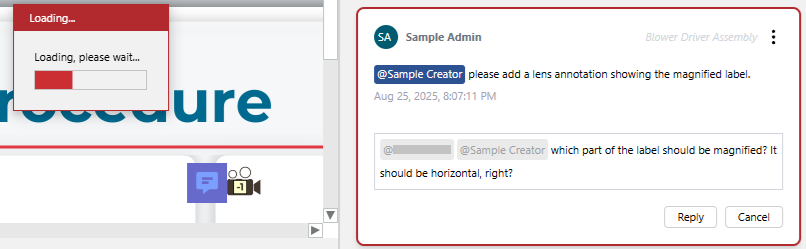
Once the Loading pop-up dialog disappears, the new reply in the comment thread is created.
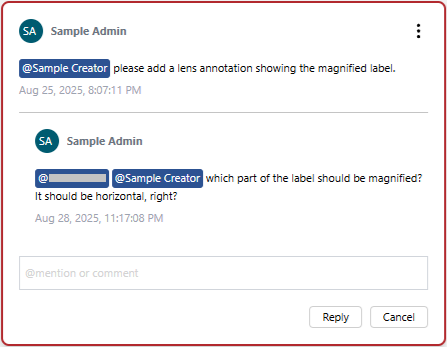
If you need to reply in other comment threads, repeat steps 3-7.
If necessary, continue editing the document.
Once done with document review and editing, close the document in the tool you use. If the comments have mentions, the system will automatically notify each mentioned person about all your comment activities during the document session with a bell notification on the Canvas Envision Portal.
If the mentioned person has set their account on the Canvas Envision Portal to allow email notifications, the system will also send an email duplicating the bell notification.
Editing your replies in unresolved comment threads
To edit your reply existing in an unresolved comment thread in an Envision Document:
Open the document with either:
Canvas Envision Viewer in review mode with the Comments pane.
Canvas Envision Creator.
If the Comments pane is not visible, open it.
In the Comments pane, go to the unresolved comment thread with your reply that you want to update.
Select the comment thread.
Hover over the reply, click the reply menu button, and select Edit.
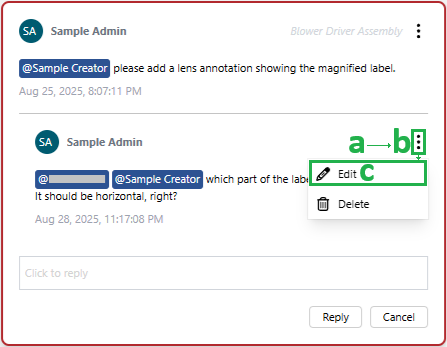
The reply becomes editable text in an active text field. The Update and Cancel buttons appear under the field.
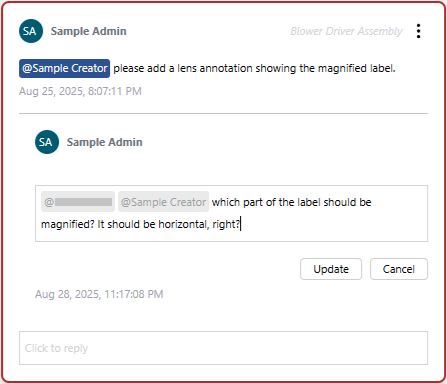
If it is necessary to keep a person notified about the reply, type @ in the text field and select this person from the list. You can mention multiple people.
If it is necessary to stop notifying a person about the reply, delete the mention of this person from the reply.
Once done with mentioning, edit the reply in the text field as you need.
Click the Update button. The system displays the Loading pop-up dialog over the page while saving the edited reply.
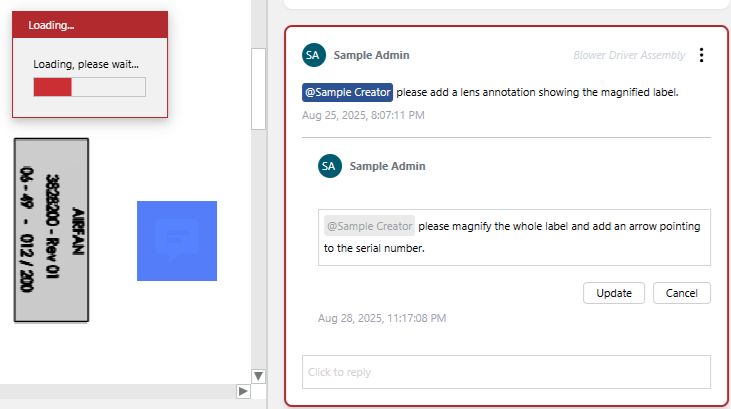
Once the Loading pop-up dialog disappears, the comment thread displays the updated reply. The timestamp under it gets the (Edited) training label.
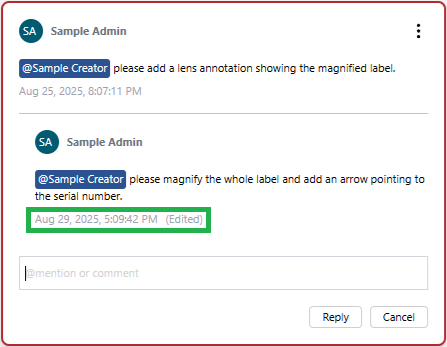
If you need to edit some of your other replies, repeat steps 3-9.
If necessary, continue editing the document.
Once done with document review and editing, close the document in the tool you use. If the comments have mentions, the system will automatically notify each mentioned person about all your comment activities during the document session with a bell notification on the Canvas Envision Portal.
If the mentioned person has set their account on the Canvas Envision Portal to allow email notifications, the system will also send an email duplicating the bell notification.
Deleting your replies from unresolved comment threads
To delete your reply from an unresolved comment thread in an Envision Document:
Open the document with either:
Canvas Envision Viewer in review mode with the Comments pane.
Canvas Envision Creator.
If the Comments pane is not visible, open it.
In the Comments pane, go to the unresolved comment thread with your reply that you want to delete.
Select the comment thread.
Hover over the reply, click the reply menu button, and select Delete.
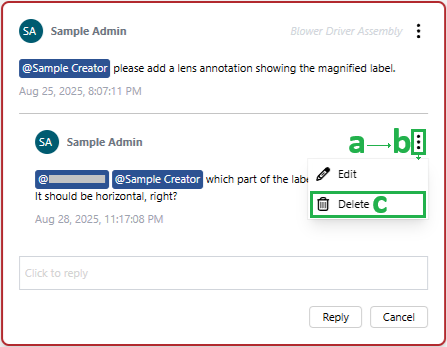
The system displays the Loading pop-up dialog over the page while deleting the reply. Once the Loading pop-up dialog disappears, the comment thread excludes the deleted reply.
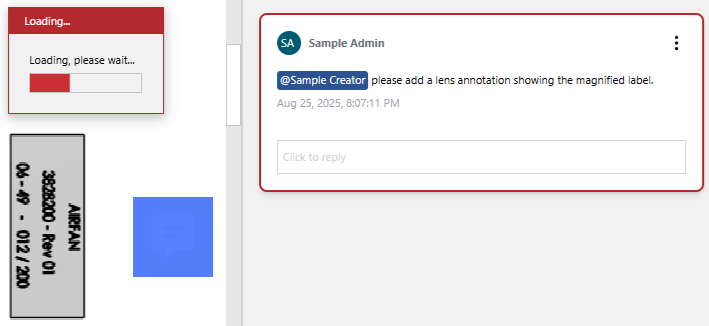
If you need to delete some of your other replies, repeat steps 3-5.
If necessary, continue editing the document.
Once done with document review and editing, close the document in the tool you use. If the comments have mentions, the system will automatically notify each mentioned person about all your comment activities during the document session with a bell notification on the Canvas Envision Portal.
If the mentioned person has set their account on the Canvas Envision Portal to allow email notifications, the system will also send an email duplicating the bell notification.
Deleting unresolved comment threads
To remove permanently an unresolved comment thread that you created from an Envision Document:
Open the document with either:
Canvas Envision Viewer in review mode with the Comments pane.
Canvas Envision Creator.
If the Comments pane is not visible, open it.
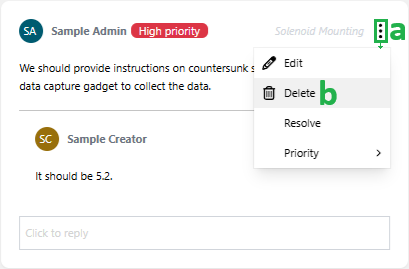
In the Comments pane, go to the unresolved comment thread that you want to remove permanently from the document.
Click the comment thread menu button and select Delete.
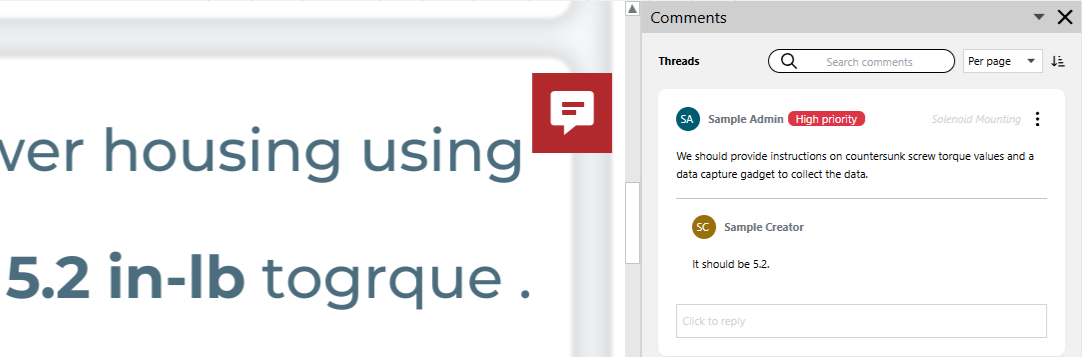
The system displays the Loading pop-up dialog over the page while deleting the comment thread. Once the Loading pop-up dialog disappears, the comment thread is removed permanently from the document:
The comment thread icon disappears from the page.
The comment thread disappears from the Comments pane.
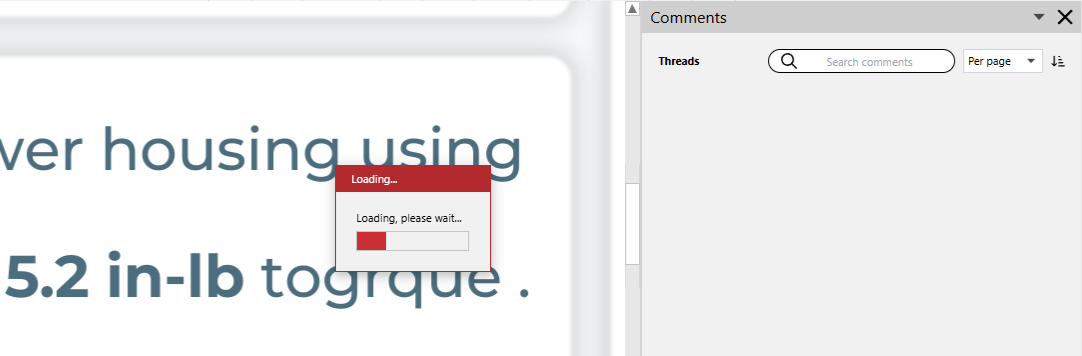
If you need to delete some of your other comment threads, repeat steps 3-4.
If necessary, continue editing the document.
Once done with document review and editing, close the document in the tool you use. If the comments have mentions, the system will automatically notify each mentioned person about all your comment activities during the document session with a bell notification on the Canvas Envision Portal.
If the mentioned person has set their account on the Canvas Envision Portal to allow email notifications, the system will also send an email duplicating the bell notification.
Resolving comment threads
To resolve an unresolved comment thread in an Envision Document:
Open the document with either:
Canvas Envision Viewer in review mode with the Comments pane.
Canvas Envision Creator.
If the Comments pane is not visible, open it.
In the Comments pane, go to the comment thread that you want to resolve.
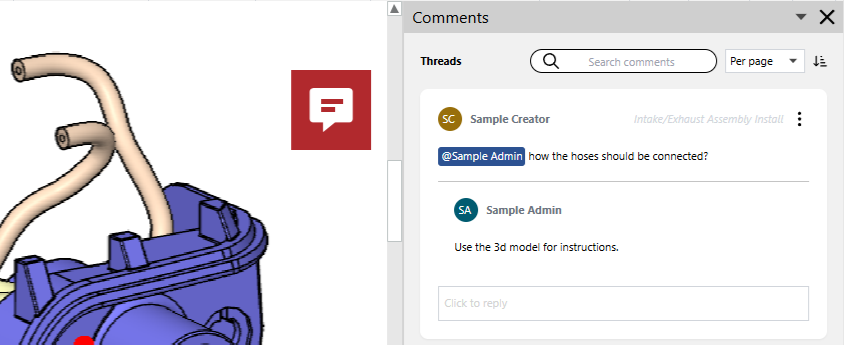
Click the comment thread menu button and select Resolve.
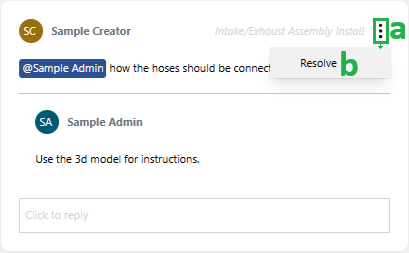
The system displays the Loading pop-up dialog over the page while resolving the comment thread. Once the Loading pop-up dialog disappears, the comment thread is resolved:
The background of the comment thread icon on the page becomes dark blue.
The Resolved label appears on the comment thread title bar.
The reply box disappears from the bottom of the comment thread.
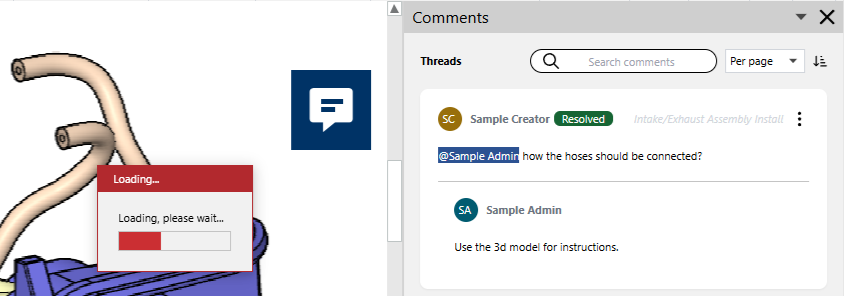
If you need to resolve other comment threads, repeat steps 3-4.
If necessary, continue editing the document.
Once done with document review and editing, close the document in the tool you use. If the comments have mentions, the system will automatically notify each mentioned person about all your comment activities during the document session with a bell notification on the Canvas Envision Portal.
If the mentioned person has set their account on the Canvas Envision Portal to allow email notifications, the system will also send an email duplicating the bell notification.
Reopening resolved comment threads
To reopen a resolved comment thread in an Envision Document:
Open the document with either:
Canvas Envision Viewer in review mode with the Comments pane.
Canvas Envision Creator.
If the Comments pane is not visible, open it.
In the Comments pane, go to the resolved comment thread that you want to reopen.
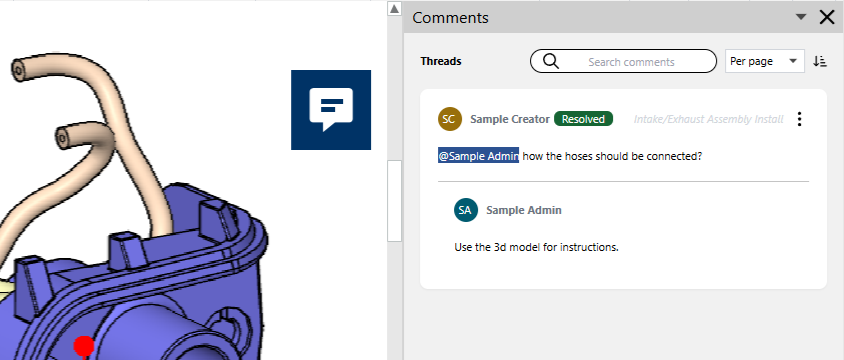
Click the comment thread menu button and select Unresolved.
The system displays the Loading pop-up dialog over the page while reopening the comment thread. Once the Loading pop-up dialog disappears, the comment thread status is Unresolved:
The background of the comment thread icon on the page becomes dark red.
The Resolved label disappears from the comment thread title bar.
The reply box appears at the bottom of the comment thread.
If you need to reopen other resolved comment threads, repeat steps 3-4.
If necessary, continue editing the document.
Once done with document review and editing, close the document in the tool you use. If the comments have mentions, the system will automatically notify each mentioned person about all your comment activities during the document session with a bell notification on the Canvas Envision Portal.
If the mentioned person has set their account on the Canvas Envision Portal to allow email notifications, the system will also send an email duplicating the bell notification.