Review Process
- Review process
An automated workflow that routes an Envision document to teammates for evaluation of its quality, accuracy, standard compliance, and readiness for publication.
Understanding the review process
The Canvas Envision Creator facilitates document review and collaboration with automation of the following jobs:
Document status and version management.
The assignment and notification of reviewers.
Tracking the reviewers' comments in the document.
An Envision document has a status that reflects the current stage of the document in its lifecycle from creation to finalization:
Draft
Review
Published
Archived
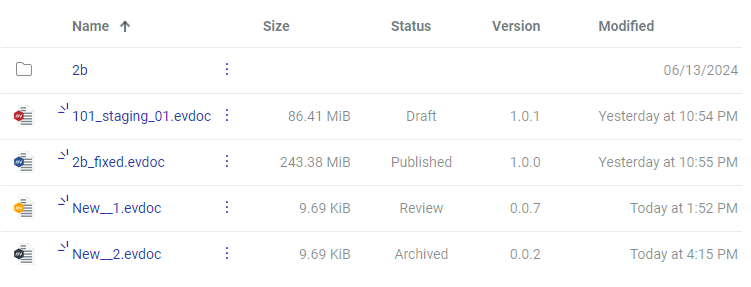
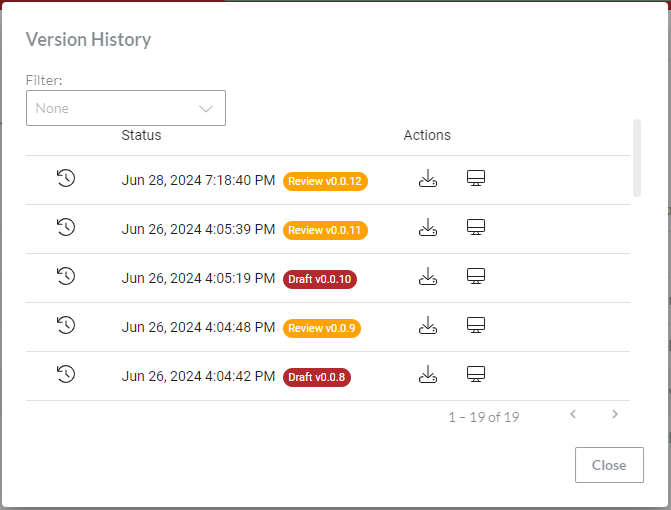
To track status changes within the lifecycle, the document has an automatically managed internal version number that includes three levels: major, medium, and minor; for example, 5.0.3. The Canvas Envision Creator automatically updates the version number when the document status is updated. The minor number can be increased manually.
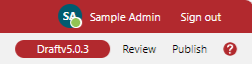
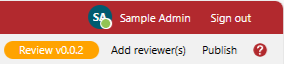
When you create a new document, it has the Draft status and the 0.0.1 version number. When you submit it for review, the system automatically sets its status to Review and increases its minor version number by 1, to 0.0.2.
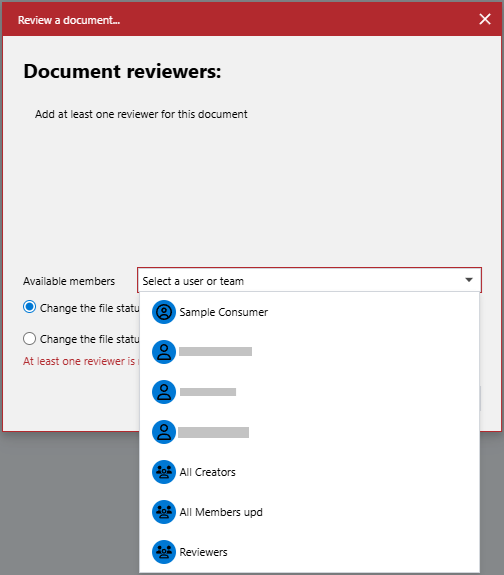
To submit the document draft for review, the Canvas Envision Creator provides you with the Review a document pop-up dialog, where you must specify at least one reviewer from the list of Admins, Creators, Consumers, and Teams who have access to the work center with the folder that contains the document. Members and Teams who cannot access the work center with the document are absent from the list. When you select a Team from the list, the system adds each Member from the Team to the dialog.
When the document has the Review status, you can add and remove document reviewers with the Add reviewers pop-up dialog in the Canvas Envision Creator.
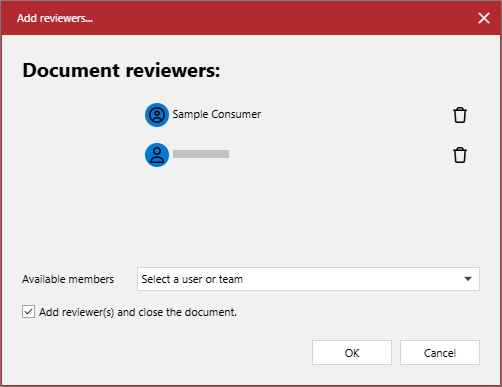
The roster of the reviewers assigned to the document is stored within this document as long as it has the Review status. The reviewers given in the document will be included in new minor document versions with the Review status. The reviewers are automatically cleared from the document when its status is changed from Review to another one.
When copying the document with the Review status, the new copy will automatically have the Draft status, the 0.0.1 version, and all the reviewers removed.
The system will automatically notify each Member that you added or removed as a reviewer to or from the document with a Canvas Envision Portal (bell) notification when you close this document.
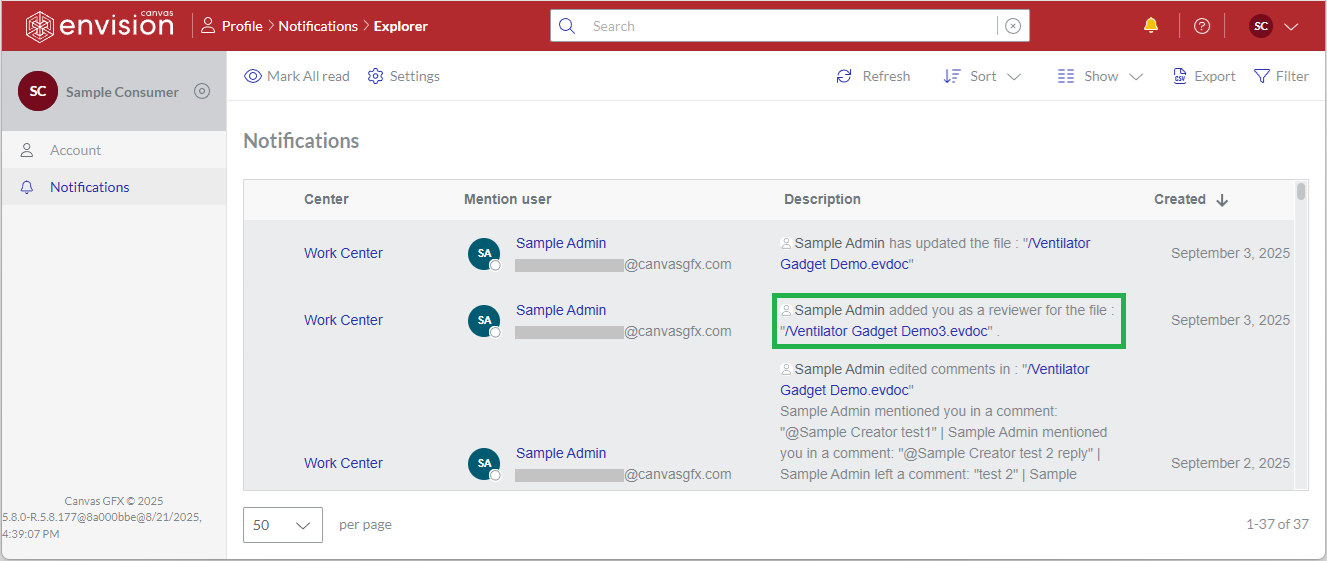
The system will also send the reviewer an email duplicating the bell notification.
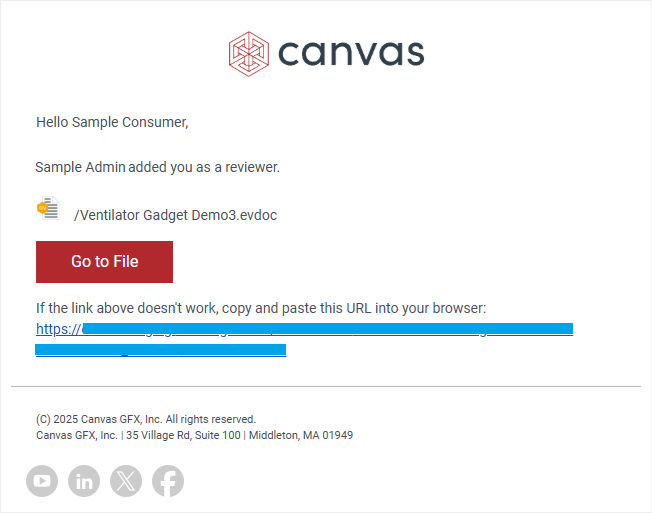
However, the reviewer must configure their personal account email notification settings on the Canvas Envision Portal to receive email notifications when someone adds them as a reviewer.
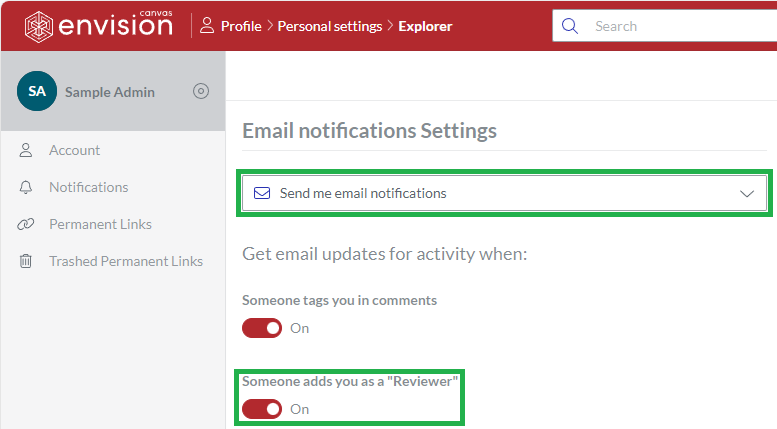
Bell and email notifications provide links to the document. When you click such a link, the system automatically opens the document depending on your Member Type:
Admin or Creator: Canvas Envision Creator.
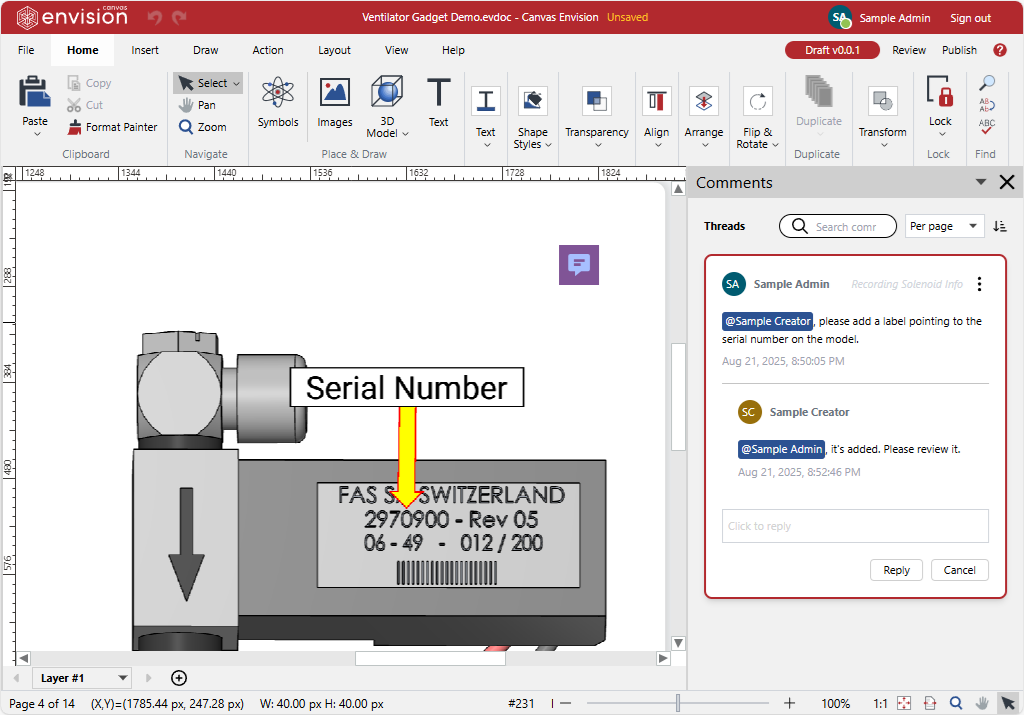
Consumer: Canvas Envision Viewer in review mode with the Comments pane.
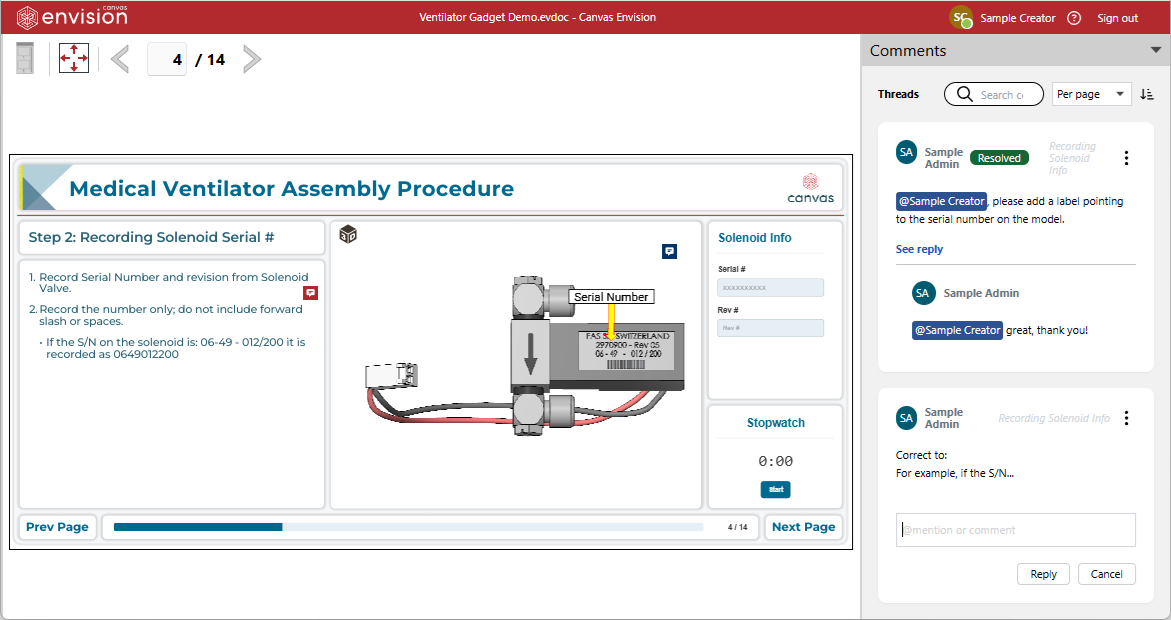
Admins and Creators can also open documents in the Canvas Envision Viewer in review mode if they want.
However, the system will not open the document but will show a File In Use warning if somebody is currently reviewing the document. Only one person is allowed to open and review the document with the Review status. In such a case, you should either:
Wait until that person closes the document.
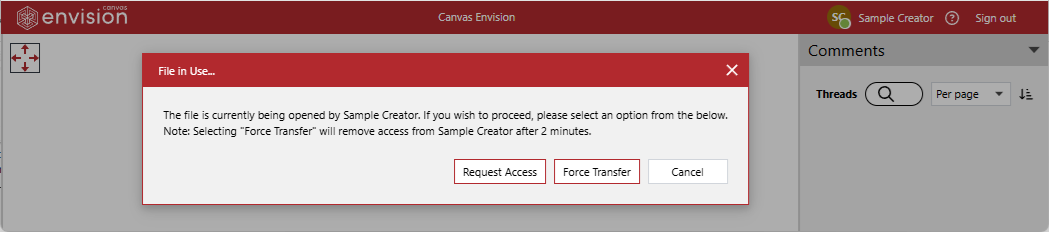
Only one person can review the document at the same time. When multiple people should review the document, a review chain should be established. The current reviewer should let the next reviewer know when they finish their review. Your team can manually update the minor version number to track the review chain.
The document with the Review status is fully editable to Creators and Admins who can access it. Consumers added as reviewers to the document:
Can see this document in the work center on the Canvas Envision Portal
Can open this document in the Canvas Envision Viewer in review mode.
Cannot edit this document in the Canvas Envision Creator.
Consumers cannot see the documents with the Review status where they were not added as reviewers.
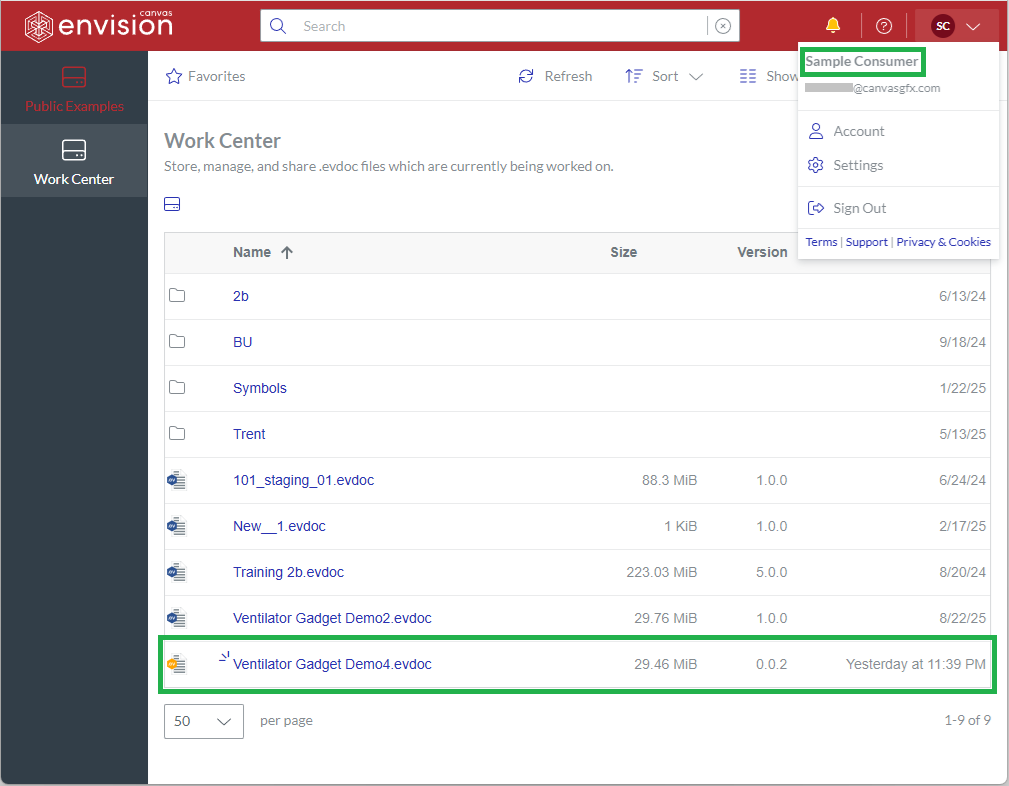
When reviewing the document, the document author and reviewers can create, update, delete, and reply to comment threads. Comment threads and replies support mentioning the author and reviewers. The system will automatically notify a person about activities and events that happened in the comment threads where this person is mentioned.
The document automatically quits the review process when its status is changed from Review to Draft, Published, or Archived. At this event, the system automatically does the following:
Creates a new document version according to the new status.
Removes the reviewers from the new document version.
Clears the comment threads from the new document version if the new status is Published or Archived.
If you are a Creator or Admin, you can do the following within the review process for a document:
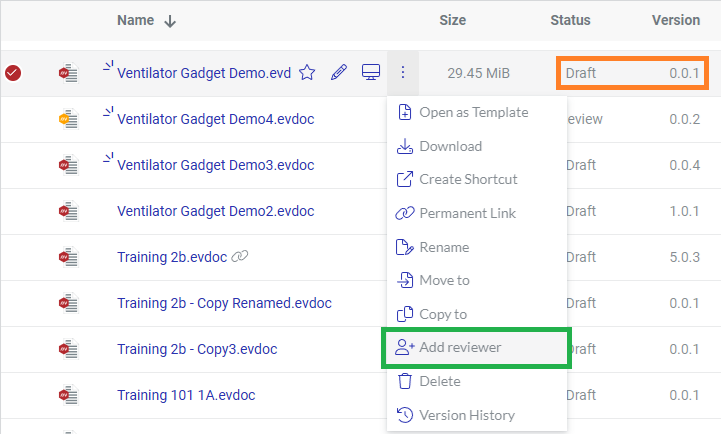
For your convenience, the Canvas Envision Portal duplicates some of the review features. The file action menu of an Envision document whose current status is Draft or Review includes the Add reviewer button to initiate the review process for drafts and manage the reviewers for the documents under review. Thus, you can do these review activities on the Portal without the need to open documents in the Canvas Envision Creator.
Document review dialogs
Depending on the status of a document, the Canvas Envision Creator provides a pop-up dialog for the review process as follows:
Draft: Review a document to submit the document to the given reviewers.
Review: Add reviewers to manage the reviewers given in the document.
Review a document pop-up dialog
You use the Review a document pop-up dialog to submit a document with the Draft status for review to the Members whom you specified in this dialog.
UI of the Review a document pop-up dialog
The Review a document pop-up dialog includes the following UI elements:
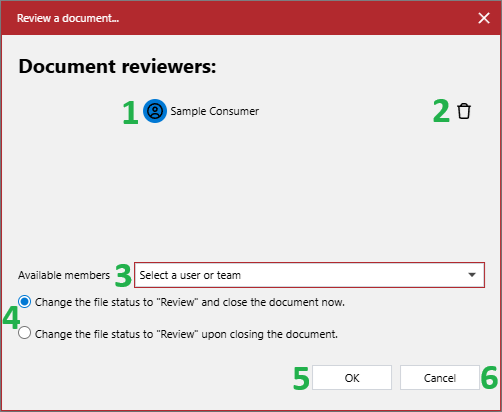
The icon and name of a Member whom you selected from the Available members drop-down list and who will be added as a reviewer to the document. At least one reviewer is required to initiate the review process. By default, the dialog has no reviewers given.
The Remove button to remove the Member from the roster of those who will be added as reviewers. When you remove the Member from the roster, this person is automatically added to the Available members drop-down list.
The Available members drop-down list of the Admins, Creators, Consumers, and Teams who have access to the work center with the folder that contains the document. The Members and Teams who cannot access the work center with the document are absent from the list. When you select a Member from this list, this person is automatically removed from it and added to the roster of the Members who will be added as reviewers. When you select a Team from the list, the system adds each Member from the Team to the roster of the future reviewers.
A set of radio buttons to specify when to submit the document for review to the reviewers whom you specified in the dialog:
Change the file status to "Review" and close the document now: to close the document in the Canvas Envision Creator and submit it for review when you click the OK button in the dialog. This option is the default.
Change the file status to "Review" upon closing the document:
To continue working on the document in the Canvas Envision Creator when you click the OK button in the dialog.
To submit the document for review when you close it in the Canvas Envision Creator.
The OK button to close the dialog and submit the document for review according to your specifications and selections in the dialog. This button is inactive when no reviewer is given.
The Cancel button to close the dialog without submitting the document for review.
Accessing the Review a document pop-up dialog
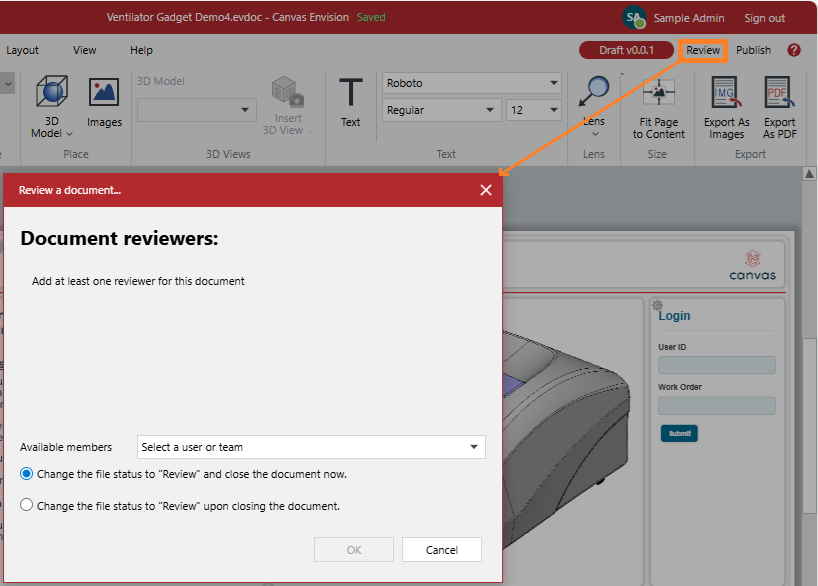
To open the Review a document pop-up dialog for an Envision document with the Draft status:
Click the Review button on the ribbon. The Review a document dialog pops up with the blank roster of the Members to whom the document will be submitted for review.
Add reviewers pop-up dialog
You use the Add reviewers pop-up dialog to add and remove reviewers to and from a document with the Review status.
UI of the Add reviewers pop-up dialog
The Add reviewers pop-up dialog includes the following UI elements:
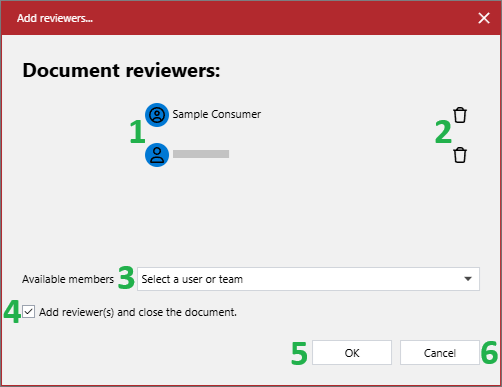
The icon and name of a given reviewer.
The Remove button to remove the given reviewer from the roster of the document reviewers. When you remove the reviewer from the roster, this person is automatically added to the Available members drop-down list.
The Available members drop-down list of the Admins, Creators, Consumers, and Teams who have access to the work center with the folder that contains the document. The Members and Teams who cannot access the work center with the document are absent from the list. When you select a Member from this list, this person is automatically removed from it and added to the roster of the reviewers. When you select a Team from the list, the system adds each Member from the Team to the roster.
The Add reviewer(s) and close the document checkbox to specify when to apply the changes to the roster of the document reviewers that you made in the dialog:
Selected: to close the document in the Canvas Envision Creator and apply the changes when you click the OK button in the dialog. This setting is the default.
Cleared:
To continue working on the document in the Canvas Envision Creator when you click the OK button in the dialog.
To apply the changes when you close the document in the Canvas Envision Creator.
The OK button to close the dialog and apply the changes to the roster of the document reviewers according to your specifications and selections in the dialog. This button is inactive when no reviewer is given.
The Cancel button to close the dialog without applying the changes to the roster of the document reviewers.
Accessing the Add reviewers pop-up dialog
To open the Add reviewers pop-up dialog for an Envision document with the Review status:
Click the Add reviewer(s) button on the ribbon. The Add reviewers dialog pops up and displays the current reviewers of the document.
-button-on-ribbon-shows-Add-reviewers-pop-up-dialog.png "The Add reviewer(s) button on the ribbon shows the Add reviewers pop-up dialog")
Initiating the review process for document drafts
To submit an Envision document with the Draft status for review to one or more Members:
Open the document in the Canvas Envision Creator.
Click the Review button on the ribbon. The Review a document dialog pops up with the blank roster of the Members to whom the document will be submitted for review.
Select one or more Members to whom the document will be submitted for review from the Available members drop-down list.
The selected Members disappear from the drop-down list and appear on the roster of the future document reviewers in the dialog.
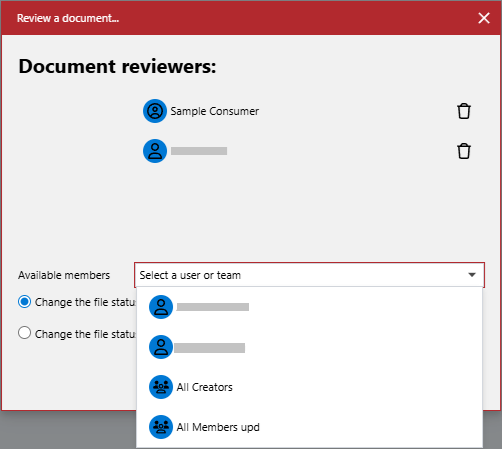
If you want to continue working on the document in the Canvas Envision Creator, select the following radio button option: Change the file status to "Review" upon closing the document.
Click the OK button. The system behaves according to your setting of the radio button:
Change the file status to "Review" and close the document now:
Closes the dialog.
Closes the document in the Canvas Envision Creator.
Redirects you to the folder with the document on the Canvas Envision Portal.
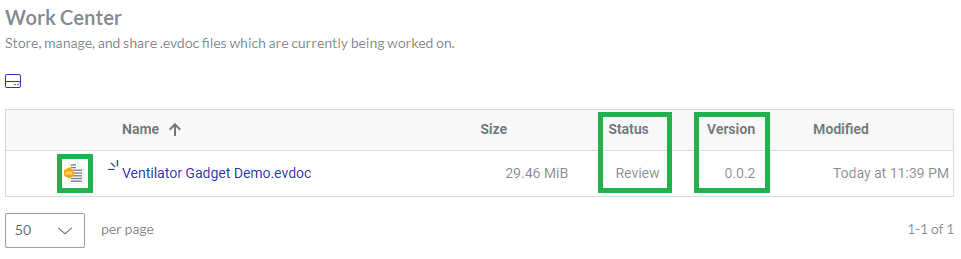
Sets the document status to Review.
Increases the minor document version by 1.
Notifies each reviewer with a bell notification that you added them as a reviewer to the document.
Sends an email duplicating the bell notification if the reviewer has set their account on the Canvas Envision Portal to allow email notifications.
Change the file status to "Review" upon closing the document:
Closes the dialog.
You can work on the document as long as you need. When you close the document in the Canvas Envision Creator, the system does the following:
Sets the document status to Review.
Increases the minor document version by 1.
Notifies each reviewer with a bell notification that you added them as a reviewer to the document.
Sends an email duplicating the bell notification if the reviewer has set their account on the Canvas Envision Portal to allow email notifications.
Opening documents from bell notifications on adding you as a reviewer
To open a document from a bell notification on the Canvas Envision Portal that you were added as a reviewer to that document:
Click the link in the bell notification.
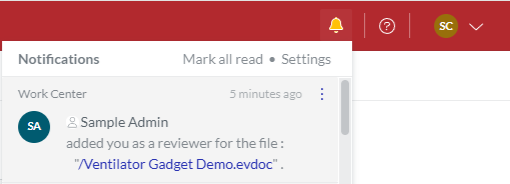
The system will automatically open the document where you were added as a reviewer in the Canvas Envision Viewer in review mode with the Comments pane.
Opening documents from emails on adding you as a reviewer
To open a document from an email notifying you that you were added as a reviewer to that document:
Open the email message about adding you as a reviewer to the document.
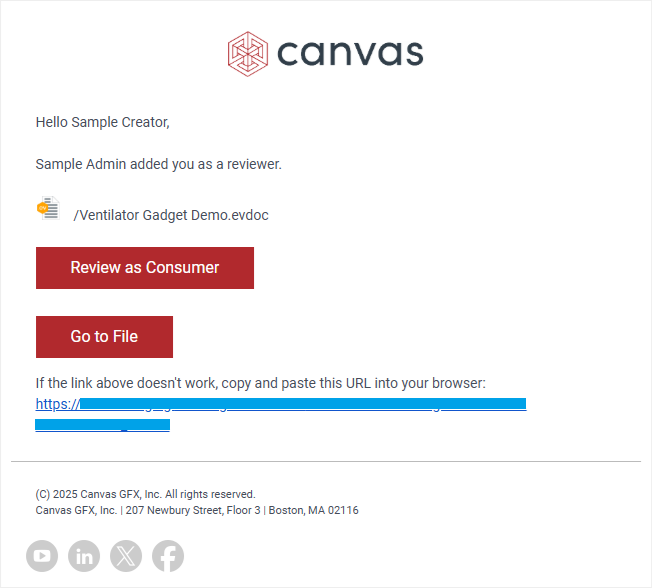
In the email, click either:
The Review as Consumer button to open the document in the Canvas Envision Viewer in review mode with the Comments pane.
The Go to File button to open the document in the Canvas Envision Creator.
The link to open the document in the Canvas Envision Creator.
The system should automatically open the document in the dedicated app in the browser.
If the system cannot open the document, copy the link from the email and paste it into the browser address bar.
Adding new reviewers to reviewed documents
To add one or more new reviewers to an Envision document with the Review status:
Open the document in the Canvas Envision Creator.
Click the Add reviewer(s) button on the ribbon. The Add reviewers dialog pops up and displays the current reviewers of the document.
-button-on-ribbon-shows-Add-reviewers-pop-up-dialog-with-one-reviewer.png "The Add reviewer(s) button on the ribbon shows the Add reviewers pop-up dialog with one reviewer")
Select the Members who will become the new document reviewers from the Available members drop-down list.
-pop-up-dialog.png "The drop-down list of users and teams available for review in the Add reviewer(s) pop-up dialog")
The selected Members disappear from the drop-down list and appear on the roster of the document reviewers in the dialog.
-pop-up-dialog.png "The Members moved from the drop-down list to the reviewers roster in the Add reviewer(s) pop-up dialog")
If you want to continue working on the document in the Canvas Envision Creator, clear the Add reviewer(s) and close the document checkbox.
Click the OK button. The system behaves according to your setting of the Add reviewer(s) and close the document checkbox:
Selected:
Closes the dialog.
Closes the document in the Canvas Envision Creator.
Redirects you to the folder with the document on the Canvas Envision Portal.
Adds the selected Members as new reviewers to the document.
Notifies each new reviewer with a bell notification that you added them as a reviewer to the document.
Sends an email duplicating the bell notification if the new reviewer has set their account on the Canvas Envision Portal to allow email notifications.
Cleared:
Closes the dialog.
You can work on the document as long as you need. When you close the document in the Canvas Envision Creator, the system does the following:
Adds the selected Members as new reviewers to the document.
Notifies each new reviewer with a bell notification that you added them as a reviewer to the document.
Sends an email duplicating the bell notification if the new reviewer has set their account on the Canvas Envision Portal to allow email notifications.
Removing reviewers from reviewed documents
To remove one or more assigned reviewers from an Envision document with the Review status:
Open the document in the Canvas Envision Creator.
Click the Add reviewer(s) button on the ribbon. The Add reviewers dialog pops up and displays the current reviewers of the document.
Click the Remove button for each reviewer who should not review the document any longer.
-pop-up-dialog-for-reviewer-who-should-not-be-document-reviewer.png "The Remove button in the Add reviewer(s) pop-up dialog for a reviewer who should not be a document reviewer")
The removed reviewers disappear from the roster of the document reviewers in the dialog and appear on the Available members drop-down list.
If you want to continue working on the document in the Canvas Envision Creator, clear the Add reviewer(s) and close the document checkbox.
Click the OK button. The system behaves according to your setting of the Add reviewer(s) and close the document checkbox:
Selected:
Closes the dialog.
Closes the document in the Canvas Envision Creator.
Redirects you to the folder with the document on the Canvas Envision Portal.
Removes the selected Members from the document as reviewers.
Notifies each removed reviewer with a bell notification that you removed them from the list of the document reviewers.
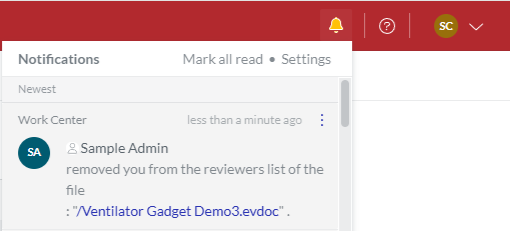
Sends an email duplicating the bell notification if the new reviewer has set their account on the Canvas Envision Portal to allow email notifications.
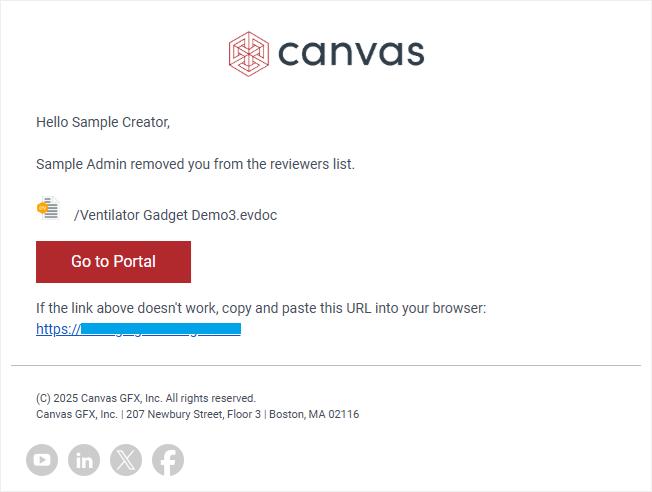
Cleared:
Closes the dialog.
You can work on the document as long as you need. When you close the document in the Canvas Envision Creator, the system does the following:
Removes the selected Members from the document as reviewers.
Notifies each removed reviewer with a bell notification that you removed them from the document reviewers list.
Sends an email duplicating the bell notification if the new reviewer has set their account on the Canvas Envision Portal to allow email notifications.
Terminating the review process for documents
To stop the review process for an Envision document with the Review status:
Change the document status from Review to any other. The system will:
Create a new document version according to the new status.
Remove reviewers from the new document version.
Clear the comment threads from the new document version if the new status is Published or Archived.