Leveraging Evie
There are multiple scenarios of using Evie:
Using Evie
To use Evie in a simple way:
Open the AI Assistant pane.
In the pane prompt box, type a message to Evie with either:
Instructions on what you would like Evie to do for you in the Envision Creator.
A question about how or what you can do to achieve a goal in the Envision Creator.
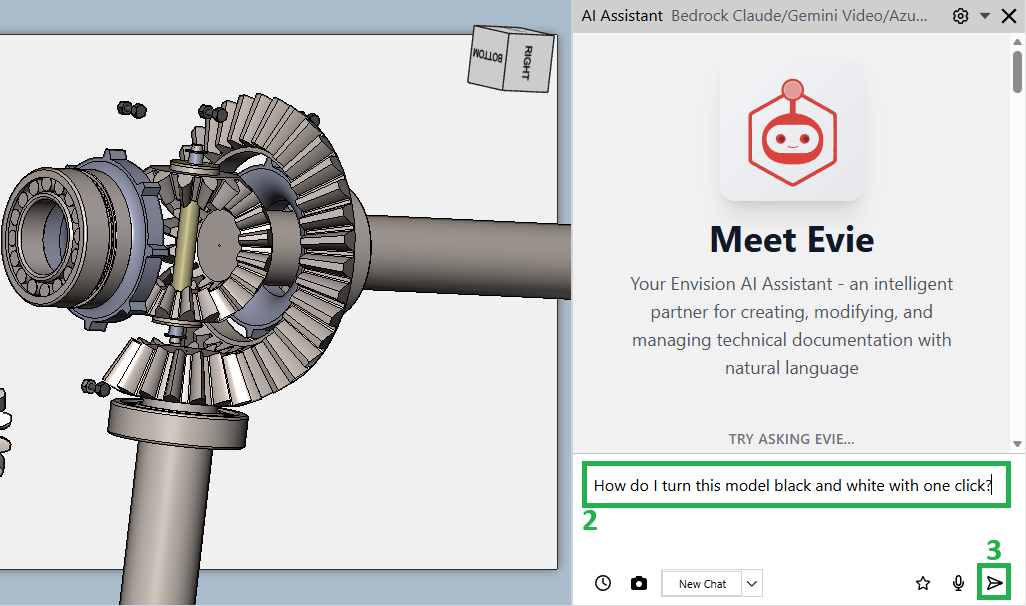
Either:
Press Enter.
Click the Send button on the pane toolbar.
Your prompt appears in the chat thread. And a message is displayed that Evie is processing it.
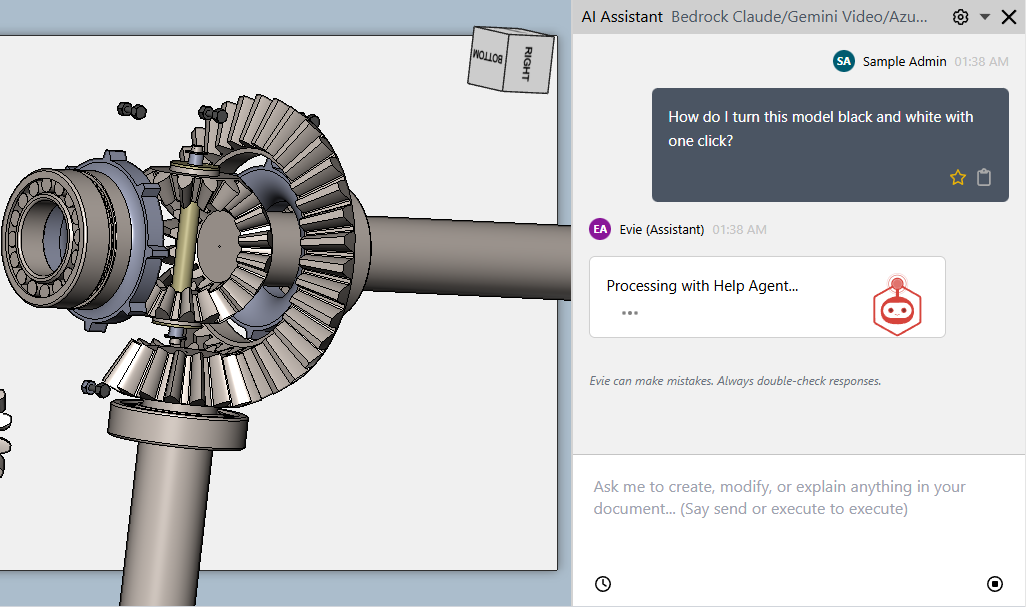
Once the prompt processing is completed, the chat thread displays Evie's reply.
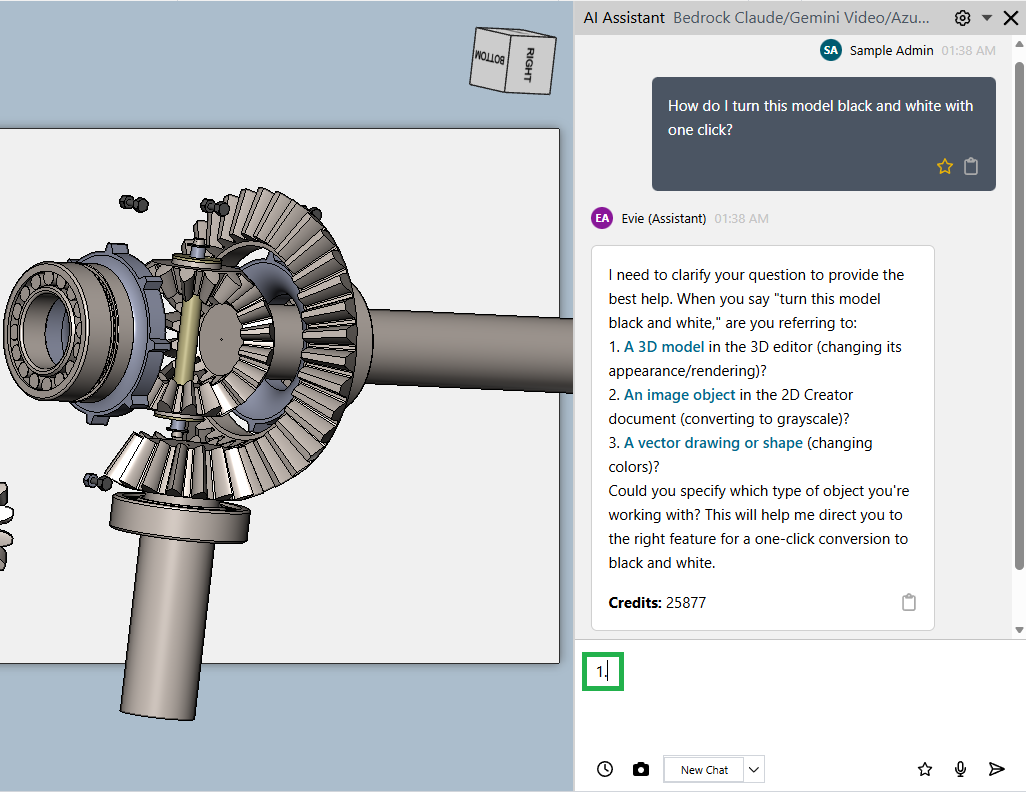
If your prompt is ambiguous to Evie, the reply can include either:
A list of the assumptions or suggested options.
Action buttons.
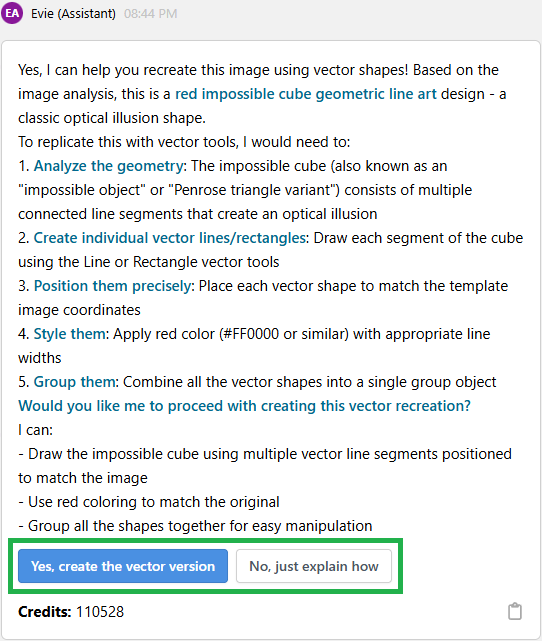
In such a case, either:
Enter the number of the correct assumption or suggested option in the follow-up prompt.
Click the button of the action you want Evie to perform.
If Evie does not require clarification, it performs the actions you asked it to do and reports to you in a reply that appears in the chat thread.
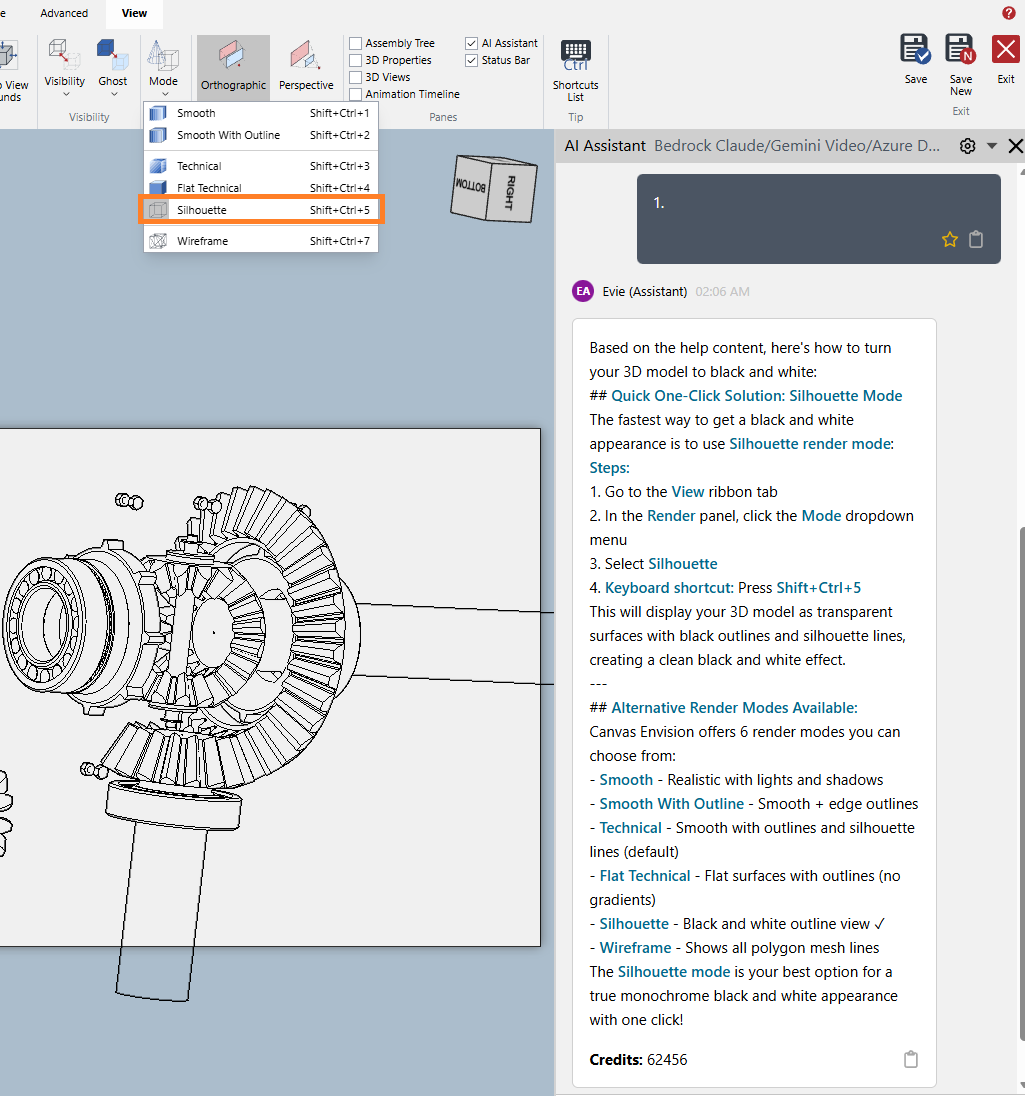
If necessary, adjust Evie's actions with a follow-up prompt.
Entering messages by voice
To enter text in the prompt box of the AI Assistant pane by voice:
Ensure that Canvas Envision Creator has the permission to use the microphone on your machine.
Click the Voice Input button on the pane toolbar. The button starts flashing with a red circle: the voice recording is on.
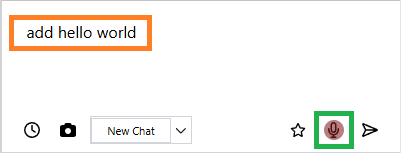
Say the message clearly. The system types the recognized text in the prompt box as you talk.
Once done with saying, click the Voice Input button on the pane toolbar. The button stops flashing: the voice recording is off.
If necessary, correct the text by typing or repeating the recording.
To submit the text, either:
Press Enter.
Click the Send button on the pane toolbar.
Your prompt appears in the chat thread. And a message is displayed that Evie is processing it. Once the prompt processing is completed, the chat thread displays Evie's reply.
Generating work instructions from external files
To generate content from external files:
Open the AI Assistant pane.
Click the Add button on the pane toolbar. The system opens the browser dialog for uploading files.
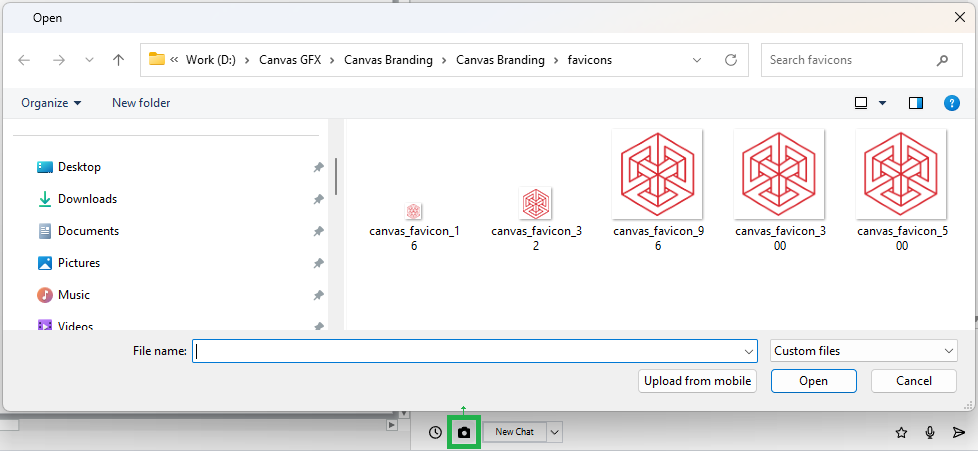
Search for and select one or more supported files and click Open. The selected files are inserted into the prompt box.
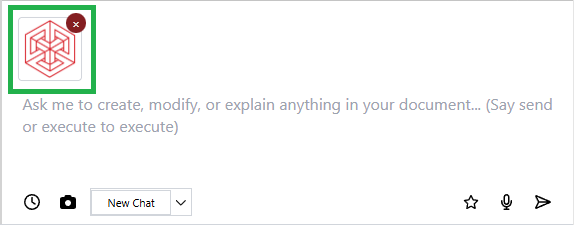
In the prompt box, enter clear instructions on what Evie should do with the attached files.
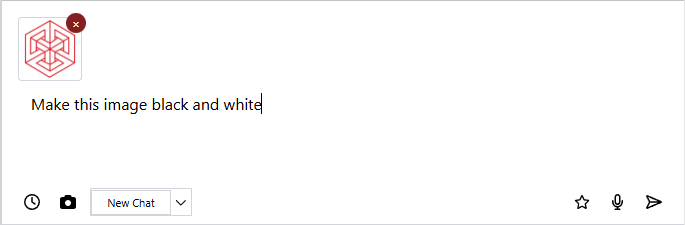
Submit the files and instructions, either:
Press Enter.
Click the Send button on the pane toolbar.
Your prompt appears in the chat thread. If Evie does not require clarification, it processes the attached files and generates new content in the document according to your instructions. Meanwhile, Evie's message box logs Evie's work in the document. Once Evie has completed all the actions, the message box reports on what is done, and the document includes the new content created by Evie.