AI Assistant Side Pane
The AI Assistant side pane provides tools and controls for working with and configuring Evie.
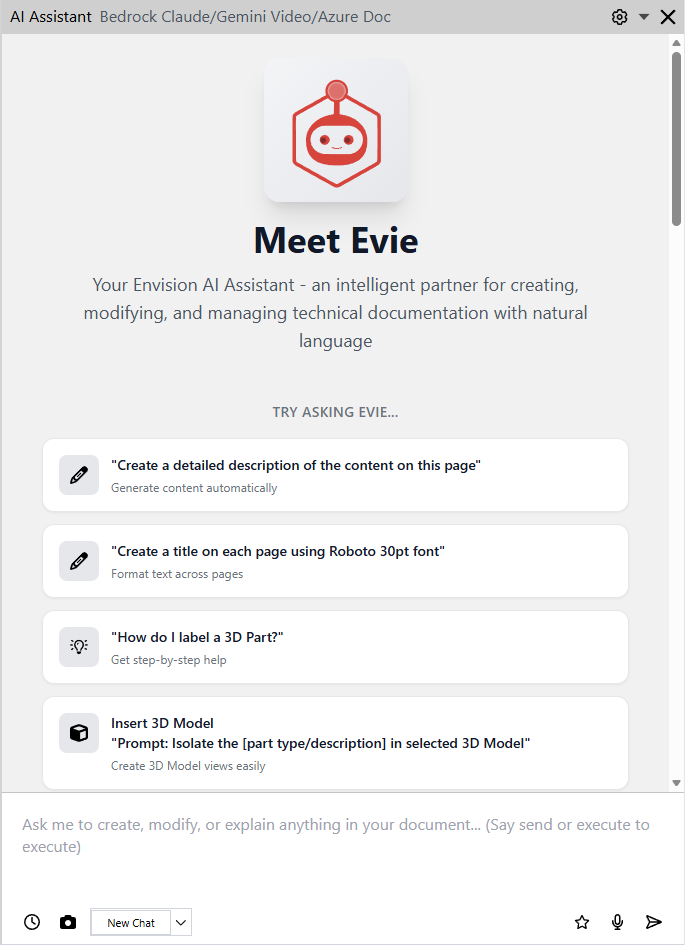
AI Assistant pane visibility
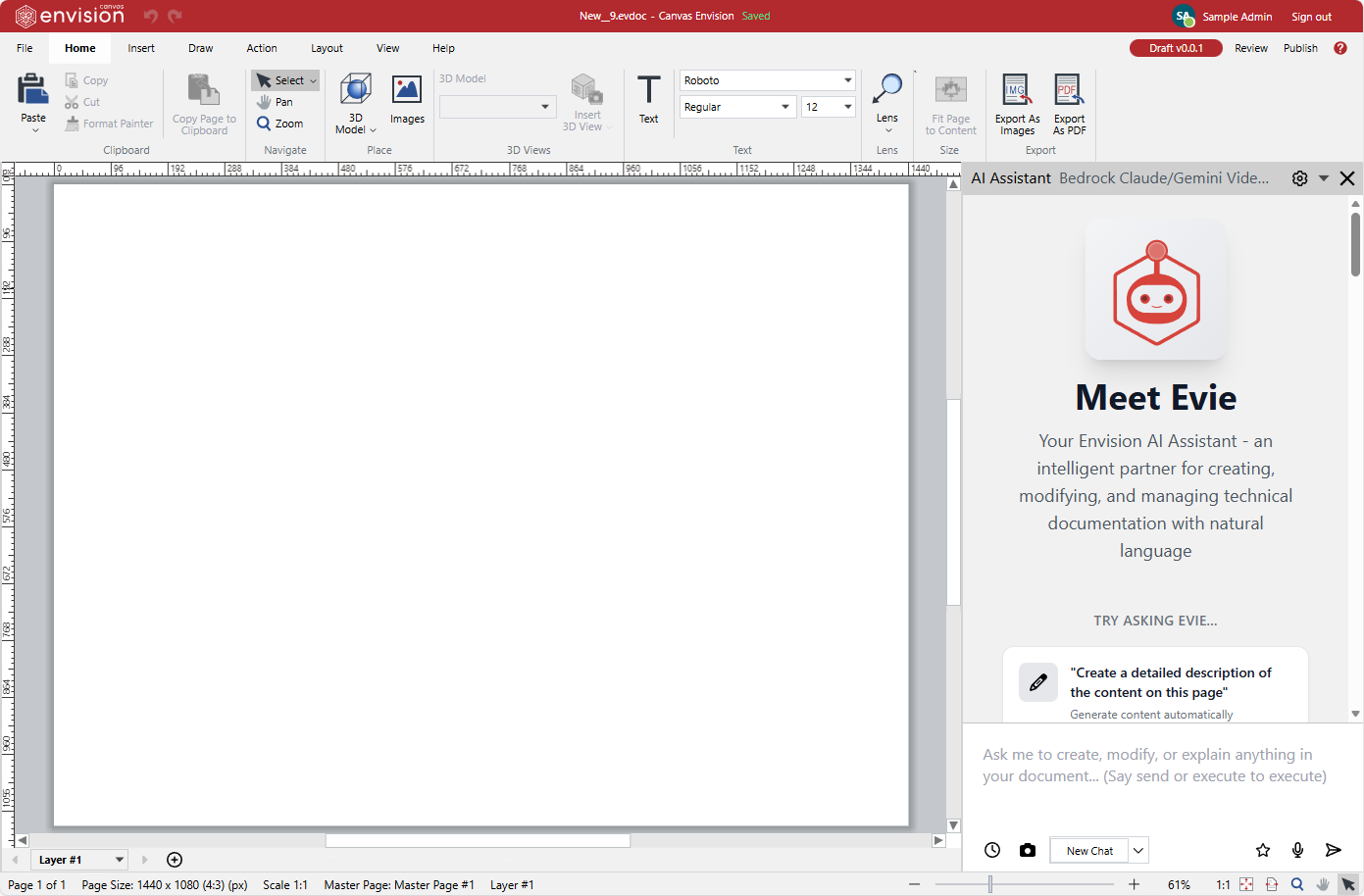
By default, the AI Assistant pane is visible to the right of the main working area when creating or opening an Envision document in the Canvas Envision Creator.
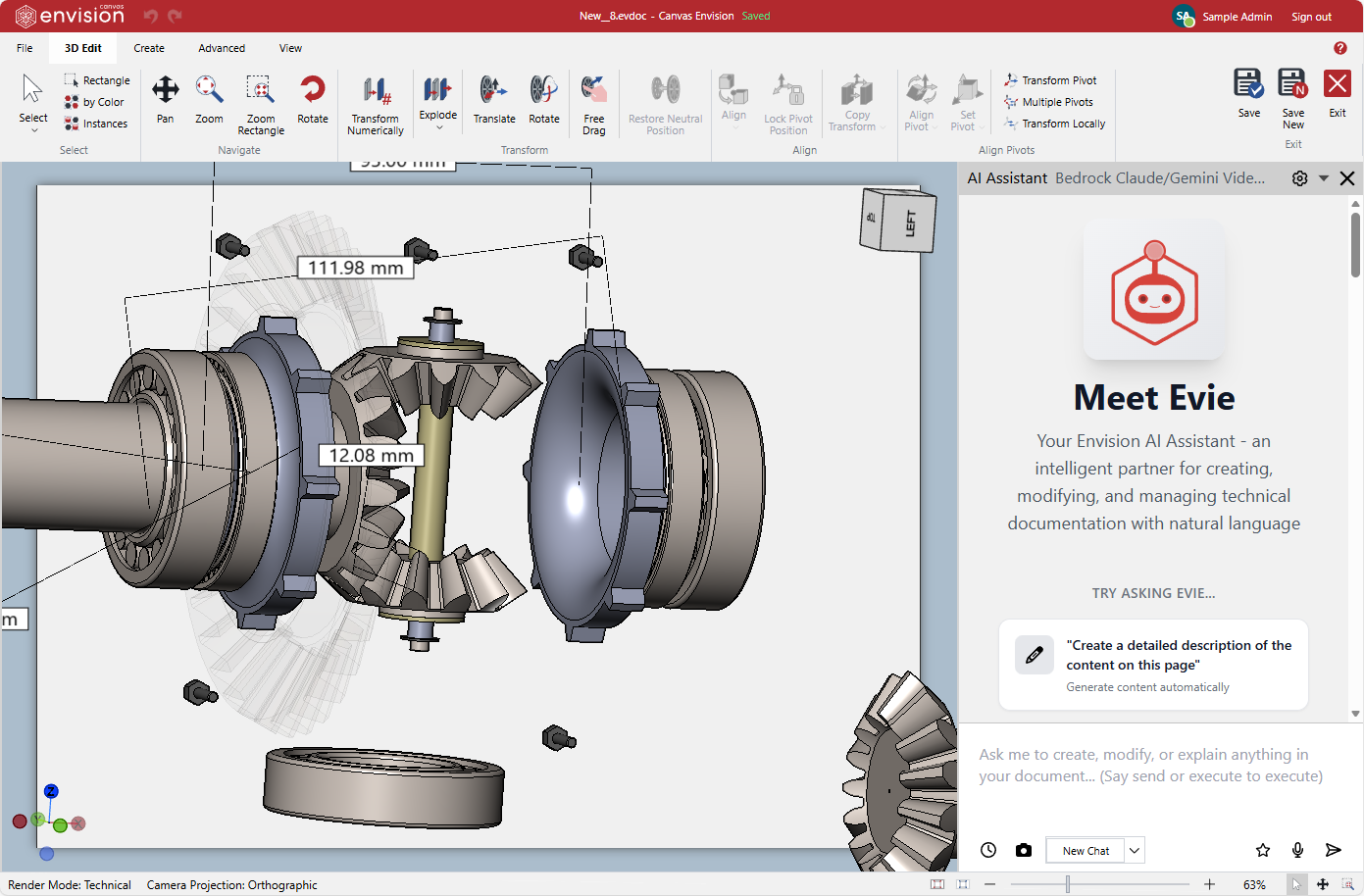
The pane is also visible by default to the right of the viewport when opening a 3D model or animation in the 3D editor.
To hide or show the pane:
Click the AI Assistant checkbox in the Panes panel on the View ribbon tab of either:
Page editor

3D editor

You can resize the pane and move it around the main working area and viewport like other panes.
If you have hidden, resized, or moved the pane, the Canvas Envision Creator will remember your choice in future openings of the document and 3D model.
AI Assistant pane composition
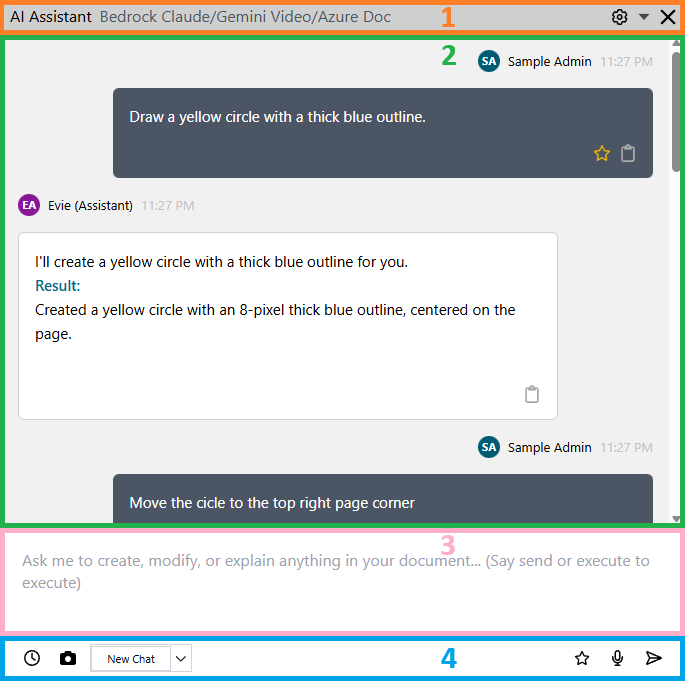
The AI Assistant pane consists of the following:
Title bar of the AI Assistant pane

The AI Assistant pane title bar includes the following:
The AI Assistant pane title.
The name of the LLM used by Evie.
The AI Configuration menu:
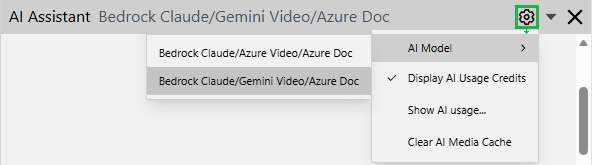
AI Model: a submenu of the LLM models you can select for your Evie usage.
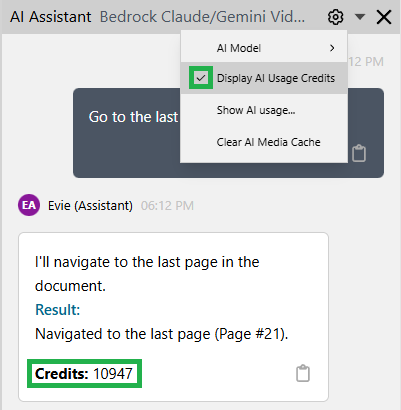
Display AI Usage Credits: a switch to turn on or off showing token consumption for each Evie's response.
Show AI Usage: a command to show a pop-up message with the total token consumption at the screen bottom.

Clear AI Media Cache: a command to clear the AI cache.
The Dock menu of destination options to move the pane around the main working area or viewport.
The X button to close the pane.
Chat thread in the AI Assistant pane
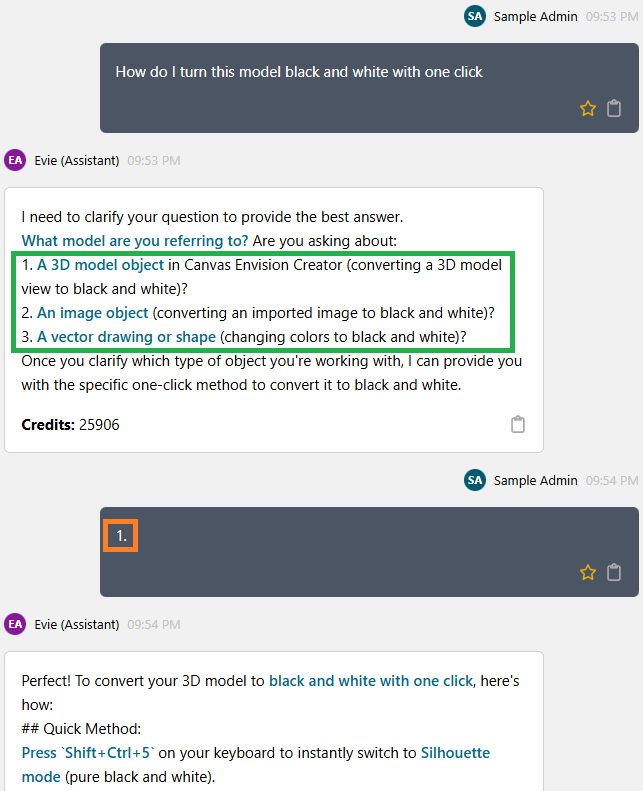
Chat thread is your conversation with Evie, displayed as a vertical chain of your and Evie's message boxes. Once you have submitted your prompt to Evie, it is shown in a box aligned with the right pane side. Evie's reply to your prompt appears in another box aligned with the left pane side below the box with your prompt. Your following prompt is right-aligned below Evie's reply, and so on.
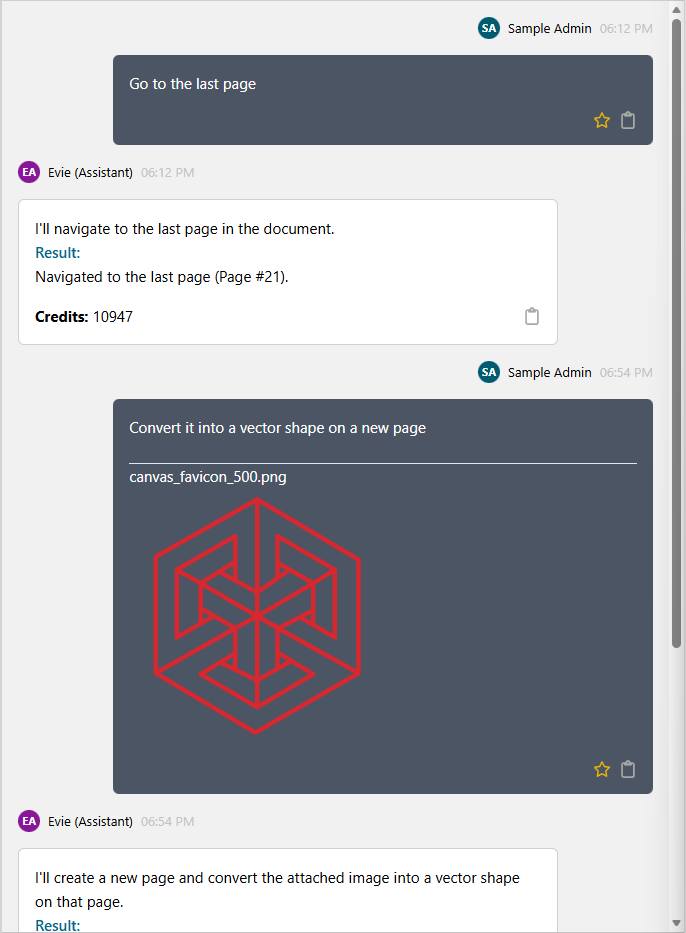
Your message box
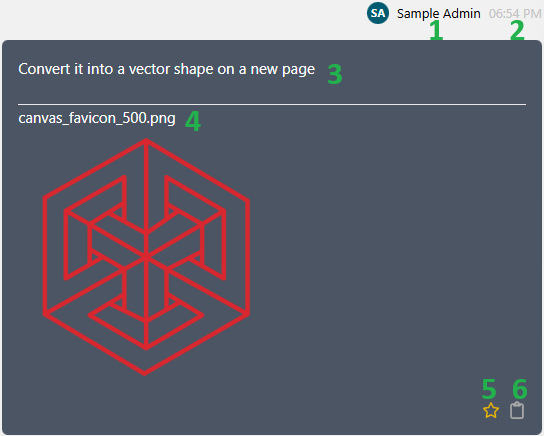
The message box of your prompt includes the following:
Your credentials.
The prompt timestamp.
The prompt text.
The files attached to your prompt, if any.
The Favorites button to add the prompt to the favorite prompts.
The Copy button to copy the prompt text to the clipboard.
Evie's message box
Once you have submitted your prompt, Evie starts processing it. At this time, its message box displays the following text: Evie is thinking.
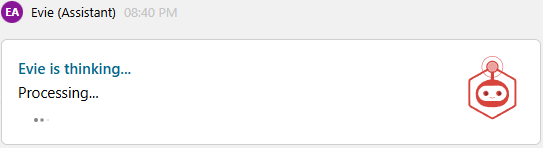
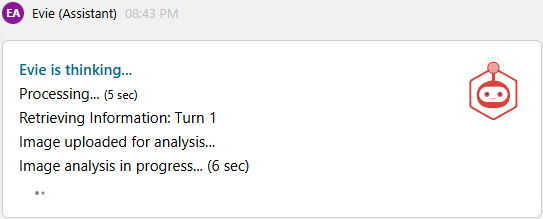
If the task requires some time to work on, Evie's message box logs the process progress and the elapsed time.
Once the reply is ready, the process log disappears from Evie's message box that includes the following:
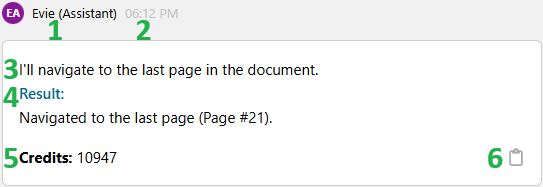
Evie's credentials.
The reply timestamp.
Evie's statement on what it will do for you against your prompt. It is shown only for simple tasks.
The result of Evie's work: the text of its reply and description of its actions.
The number of tokens generated for the reply. It is visible only when the Display AI Usage Credits switch is on.
The Copy button to copy the statement and result text to the clipboard.
If Evie is not sure which action to take to complete the task, the message box includes buttons for possible actions. In this case, you should click such a button to let Evie continue with the task.
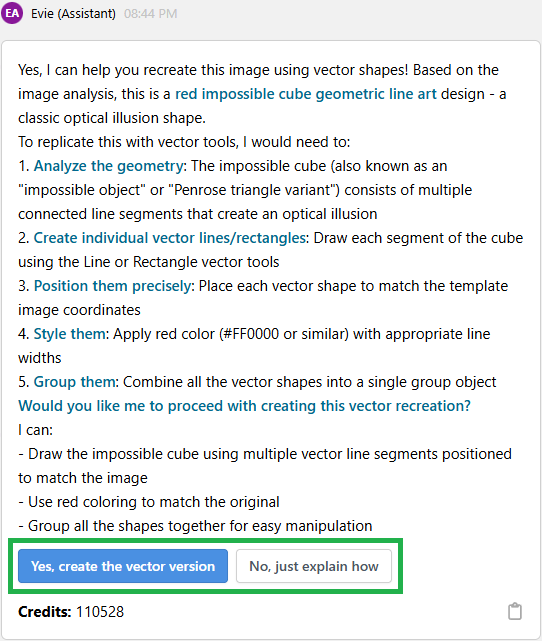
If Evie wants you to clarify your prompt against multiple assumptions or options, the message box includes a numbered list of the assumptions or suggested options. In this case, you should enter such a bullet number in the following prompt to let Evie know what exactly to do.
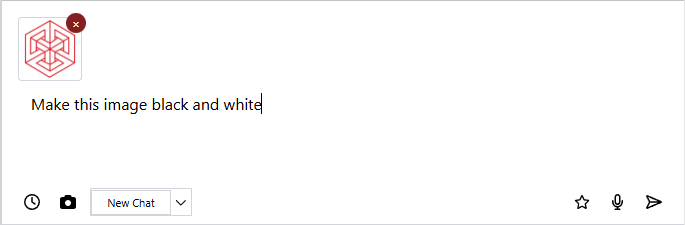
Prompt box in the AI Assistant pane
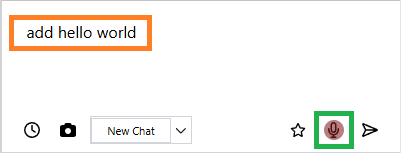
The prompt box is an active text field, where you should enter a prompt message to Evie. You can type, copy-paste, or dictate it. There is no limit on the text size. If you have attached files to the prompt, their icons are displayed above the message in the prompt box.
Toolbar of the AI Assistant pane

The AI Assistant pane toolbar includes the following:
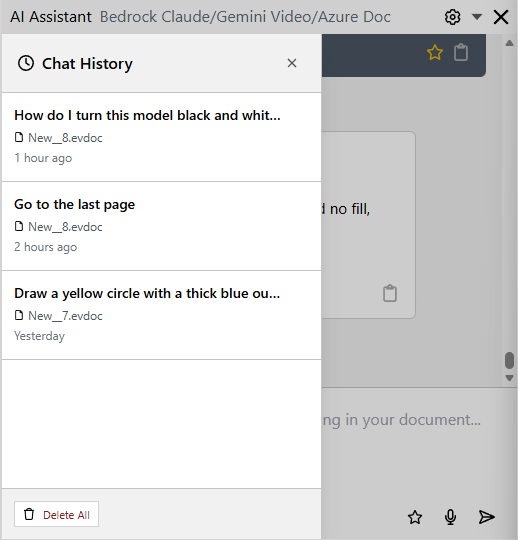
The Chat History button to show the Chat History slide-in panel (drawer).
The Add button to attach files to the prompt.
The New Chat button to start a new blank chat.
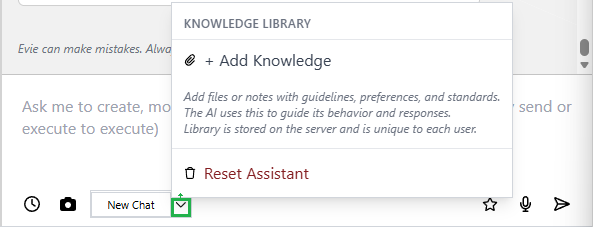
The Knowledge Library menu button.
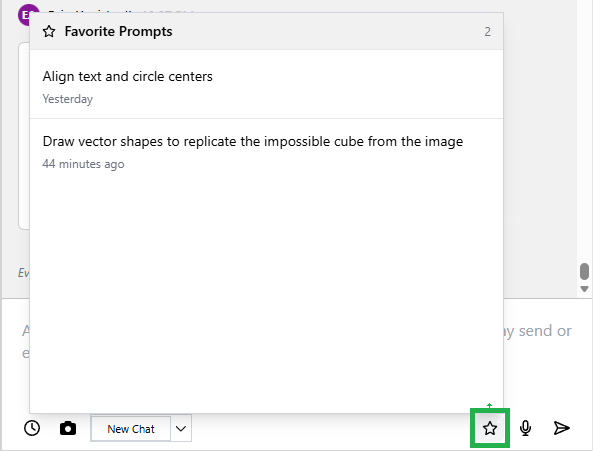
The Favorite Prompts menu button.
The Voice Input button to start or stop entering the prompt message by voice.
The Send button to submit the prompt to Evie.