Action Button Gadgets in Envision Viewer
- Action button gadget
A button in an Envision document that redirects you to another page in the document, raises a confirmation dialog for you to confirm your job-related activities, or does both of these actions.
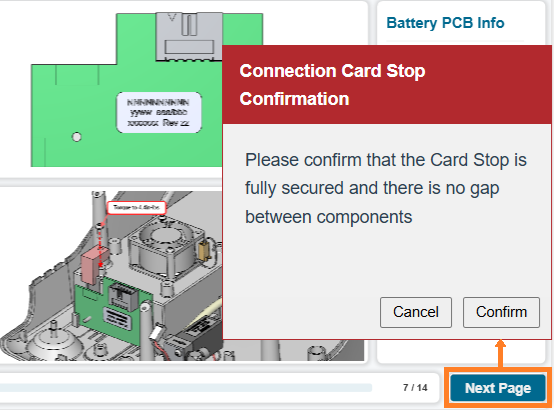
To interact with action button gadgets when viewing Envision documents, you should know the following about them:
Action button gadget UI and behavior
An action button gadget is a button with a custom title and action set by a document author. When you click it, the system performs this action, either:
Redirects you to another page.
Raises a pop-up dialog prompting you to confirm your job-related actions.
The pop-up confirmation dialog raised by the action button gadget includes the following UI elements:
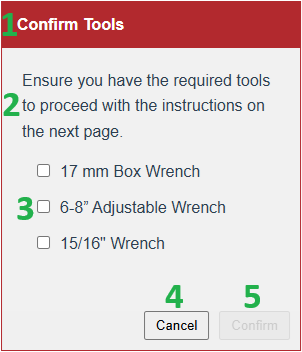
Title: a brief description of the dialog or message.
Message: a question, statement, or call to action you are asked to acknowledge, confirm, or do.
Checklist: An optional list of one or more items you are asked to acknowledge, confirm, or do. You must select every checkbox to complete the confirmation process: the Confirm button is disabled until you select all the checkboxes. The checklist is optional and may not appear in the dialog.
Cancel: a button to:
Cancel the confirmation process.
Close the confirmation dialog.
Confirm: a button to:
Confirm that you have completed the required actions described in the message and, if present, the checklist.
Close the confirmation dialog.
Go to another page after confirmation if the button is configured to redirect you.
The document author writes the title, message, and checklist and configures the Confirm button behavior.
Action button gadget interaction workflow
To interact with an action button gadget in the Canvas Envision Viewer:
Click the action button gadget.

The system either:
Redirects you to another page.
Raises the confirmation pop-up dialog.
If the confirmation dialog pops up, follow the instructions provided in its message.
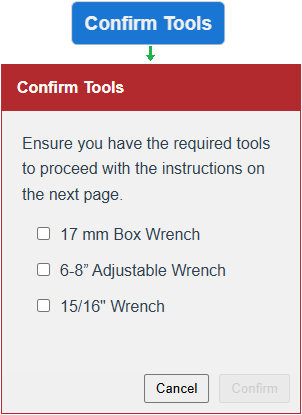
If the confirmation dialog includes the checklist:
Complete the actions or verify the conditions listed for each item.
Select the checkbox next to each item once completed.
The Confirm button will remain disabled until all the checkboxes are selected.
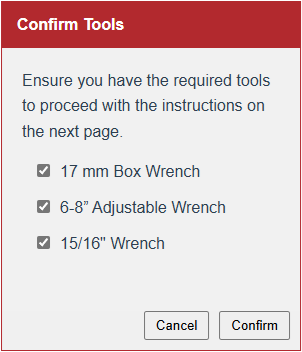
Click either:
Cancel: to cancel the confirmation process. The dialog disappears, and you remain on the same page.
Confirm: to confirm that you have completed the required actions described in the message and, if present, the checklist. The dialog disappears, and you are redirected to the designated page or remain on the same page, depending on the button configuration.