Changing Pivot Position
In general, the pivot position is the center of part’s bounding box. You may not be able to transform them as you want under such conditions. However, you can change pivot position in various ways.
To Change Pivot Position
-
Select a part or parts of which you want to change pivot position.
-
Select one of the following.
-
Translate
-
Rotate
-
Linear Explode
-
Spherical Explode
-
Cylindrical Explode
-
-
When you select multiple parts, select Multiple as needed.
-
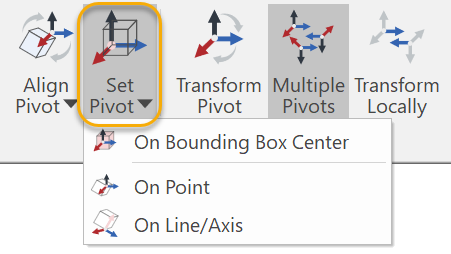
Click Set Pivot from the Align Pivots panel.
-
Do one of the following:
-
Select On Bounding Box Center to revert to the original position.
-
When you select On Point, move the mouse point to any given point in the Viewport and click.
-
When you select On Line/Axis, mouse over an edge which is of the desired pivot position and click.
-
The pivot position of the selected parts will change to the new position that you specify.
Example
|
|
|
|
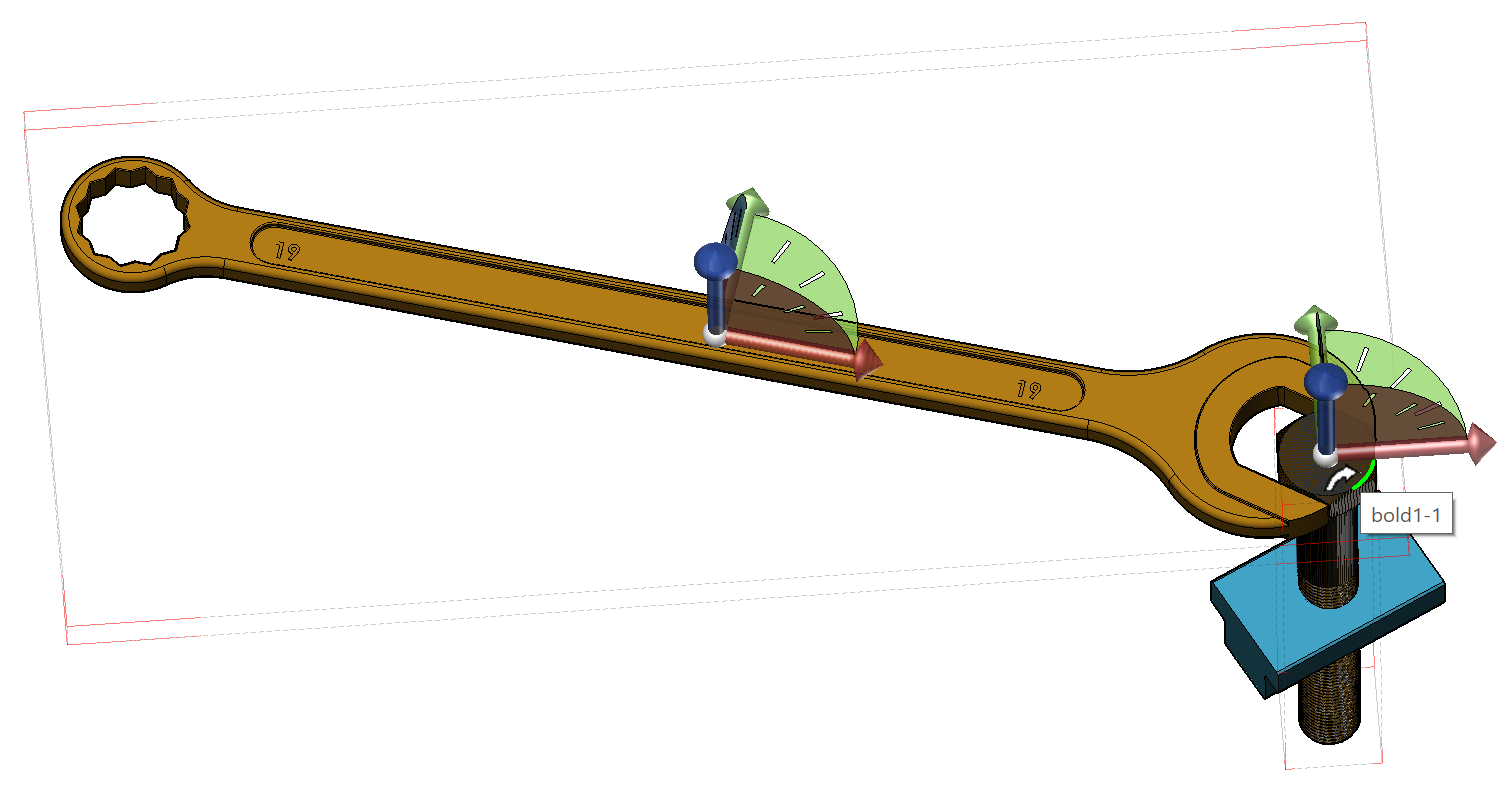
The selected part has the pivot at the center of its bounding box. |
When On Line/Axis is selected, mouse over the edge which has the desired pivot position. It will highlight the edge in green. |
|
|
|
|
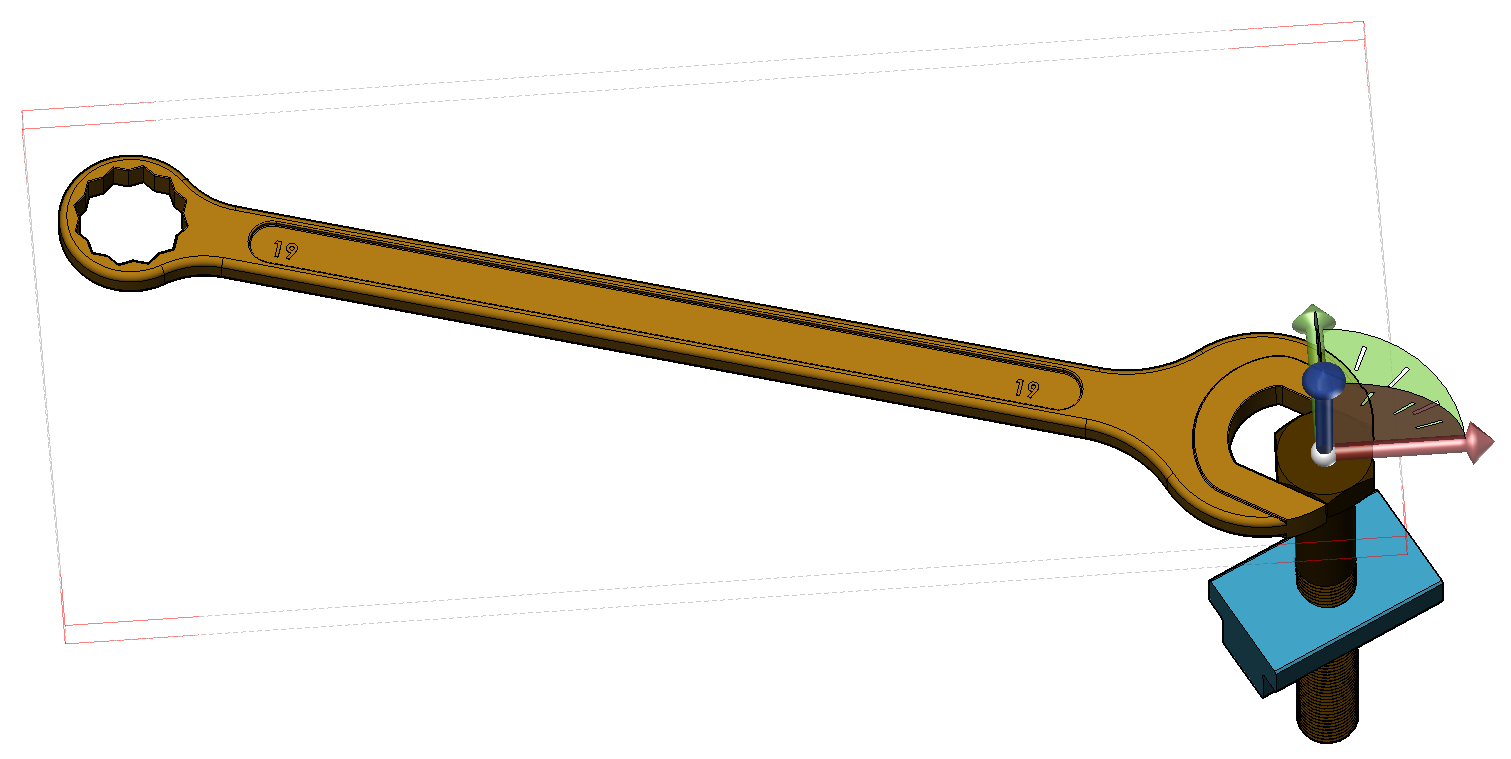
Click will move the pivot to the new location. |
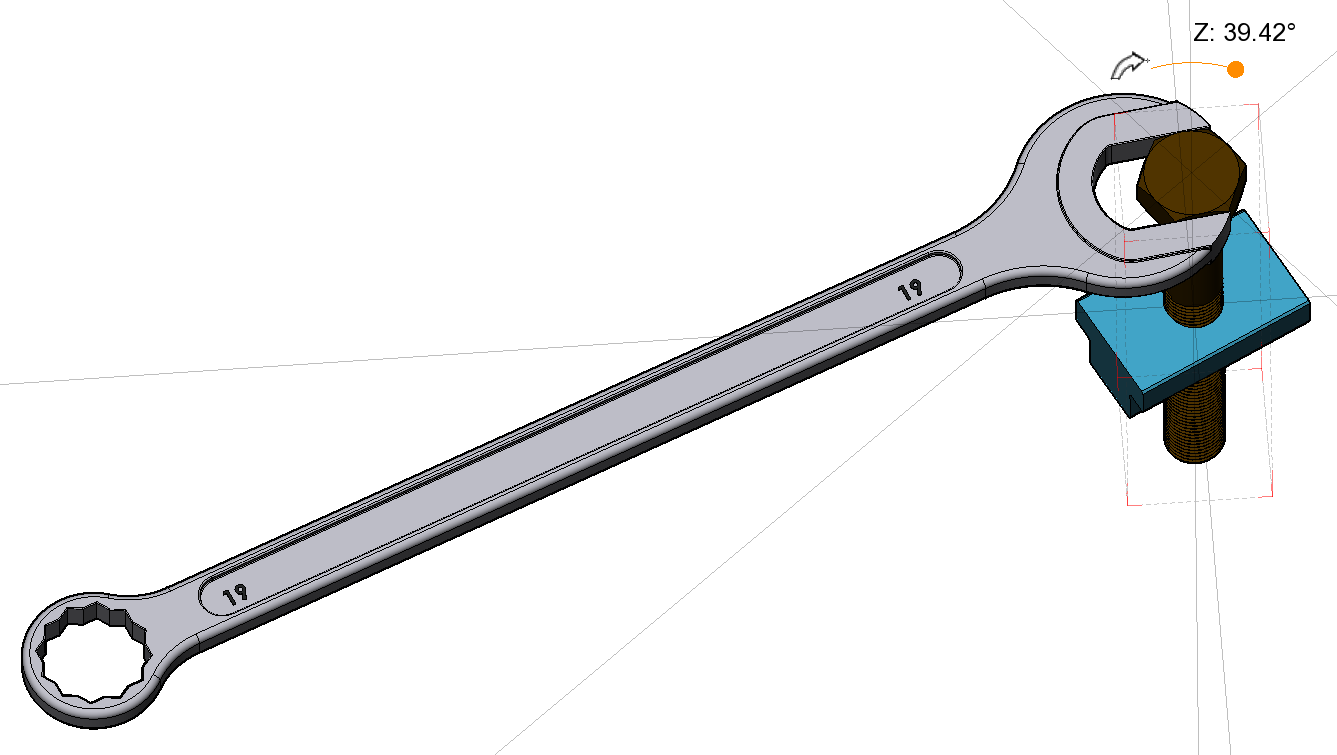
Now, you can rotate the spanner at the new axis of rotation, for instance. |