Text Variables
- Text Variable
A named piece of textual data sourced from one place and referenced at multiple locations in an Envision document.
Understanding text variables
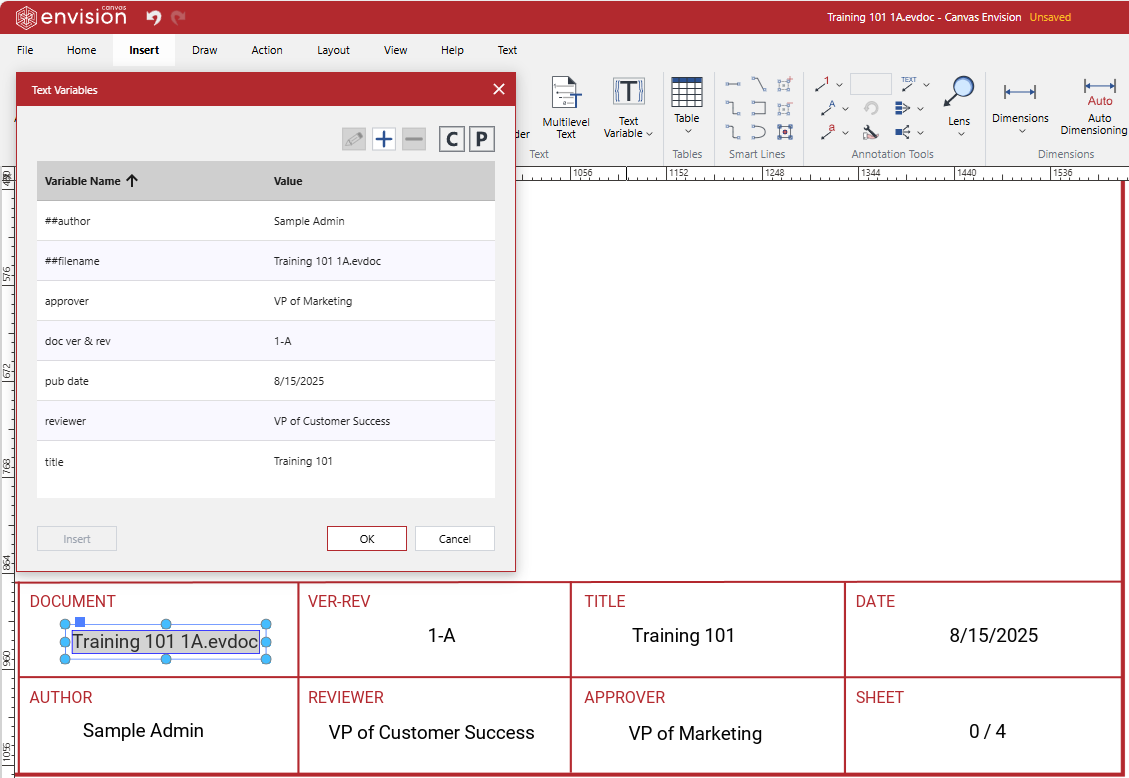
Text variables provide you with single-source capabilities to insert the same piece of textual data at multiple places in an Envision document and manage it from a single place.
A text variable consists of a definition and references in a document. The text variable definition determines the variable name and value displayed in the document. A text variable reference denotes a place inside a text object in the document where the system displays the text variable value. When you update the text variable value in the definition, all the text variable references automatically display the new value.
There are two types of text variables:
System: the system controls such variables. They are included out of the box when creating new documents.
Custom: you create and control such variables. There are no custom text variables shipped.
You can access the controls for text variables with either:
The Text Variables pop-up dialog is the single source place where you manage all the custom text variables in the document.
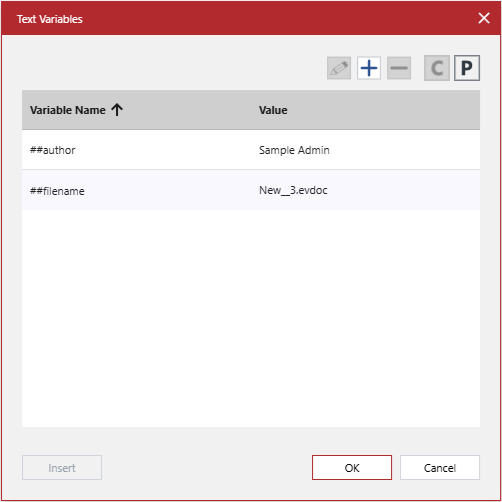
You can manage text variables as follows:
System text variables
By default, a new Envision document has the following system text variables:
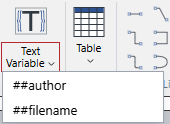
##author: the name of the user who created the document.
##filename: the name of the document file with the .evdoc type extension.
As the system automatically populates the system text variables, they cannot be deleted or manually updated. The ##filename text variable references automatically display a new file name.
Text variable references in text objects
A text variable reference displays the text variable value that looks like regular text when viewing or selecting a text object with it.

When editing the text object, the text variable reference is enclosed in a box with dark-blue borders.

Clicking the text variable reference in the edited text object selects it as a single whole item inside the text.

You can apply text formatting and styles to the text variable value displayed in the text object, the same way as to the regular text. By default, it inherits the formatting and style from the text where it is inserted.

Hovering over the text variable value displayed in any state of the text object shows a tooltip with the text variable name.

Text Variable ribbon split button
The Text Variable split button is the primary access point to the controls for the text variables in the document.
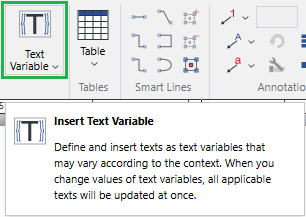
You can find the Text Variable split button at the following locations on the Ribbon:
The Text pane of the Insert ribbon tab.

The Insert pane of the Text contextual ribbon tab.

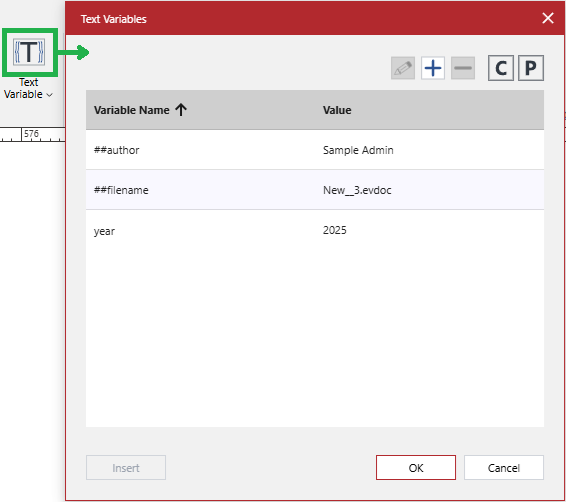
The top part of the Text Variable split button is a button, clicking which launches the Text Variables pop-up dialog.
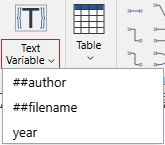
The bottom part of the Text Variable split button is a menu, clicking which displays a list of existing text variables available for insertion.
Depending on whether you are currently editing a text object or not, clicking a text variable from the Text Variable split button menu inserts a reference to this text variable as follows:
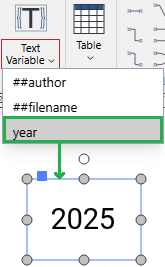
No text object is in edit mode: onto the current page, wrapped in a new text object with the default text formatting and style.
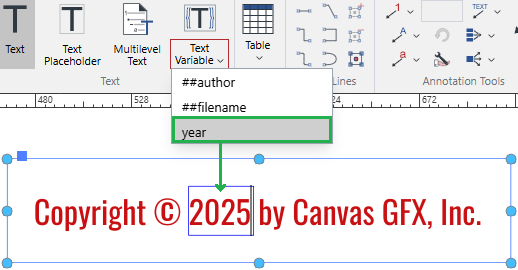
A text object is in edit mode: at the cursor position with the text formatting and style of the edited text.
Text Variables text-editing context-sensitive menu command
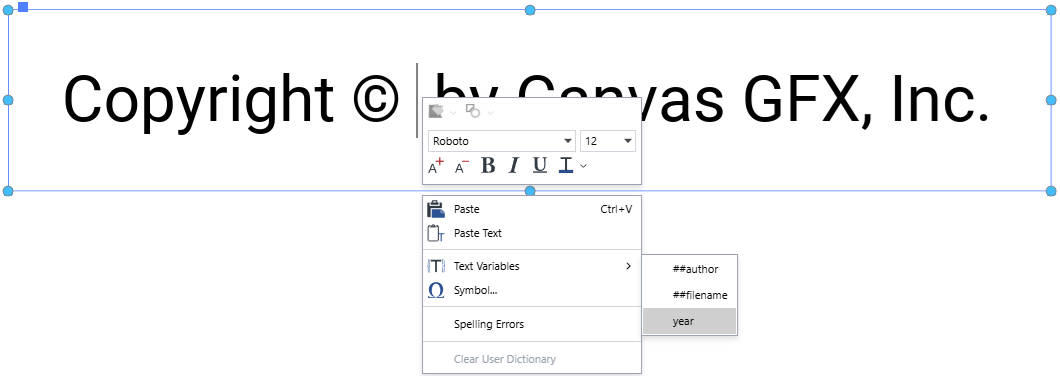
When you are editing a text object, the context-sensitive menu for this object includes the Text Variables command, hovering over which discloses a submenu with the text variables existing in the document.
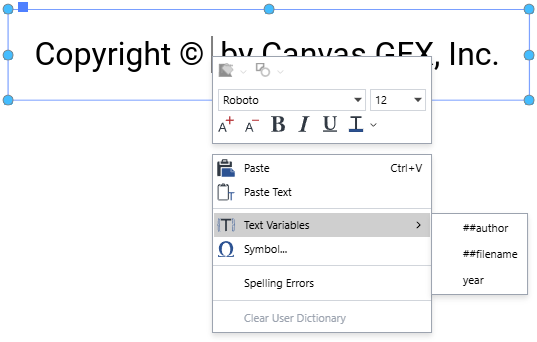
Clicking a text variable from the menu inserts a reference to it at the cursor position with the formatting and style of the neighboring text.
The Text Variables command is absent from other context-sensitive menus.
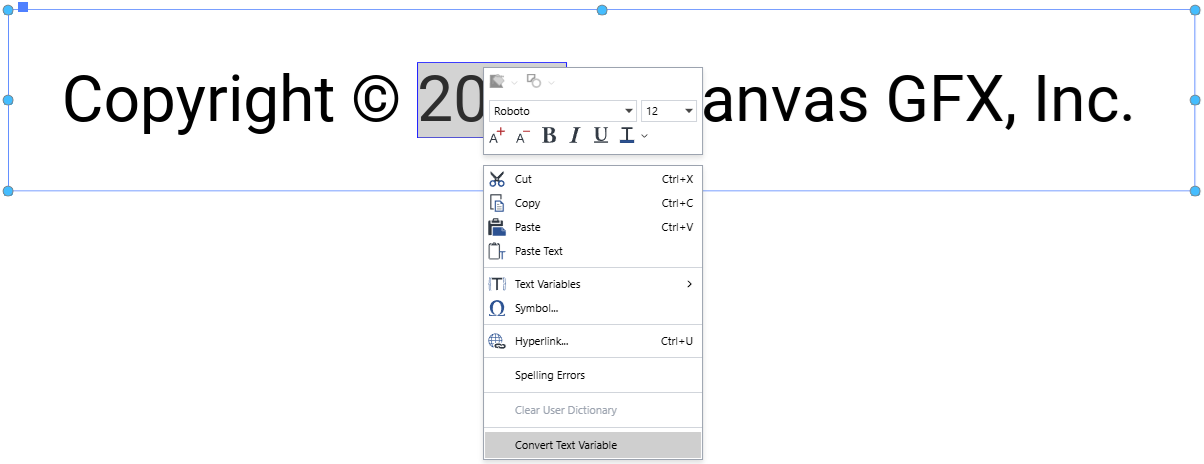
If you right-click the text variable reference in the edited text object, the context-sensitive menu for this object additionally includes the Convert Text Variable command at the bottom to convert the text variable reference into text.
Text Variables pop-up dialog
You create, update, and delete custom text variables with the Text Variables pop-up dialog box. You can also use it to insert references to existing text variables into text objects and pages.
Accessing the Text Variables pop-up dialog
To show the Text Variables pop-up dialog box when working on an Envision document in the Canvas Envision Creator web app:
Go to either:
The Text pane of the Insert ribbon tab.
The Insert pane of the Text contextual ribbon tab.
Click the top part of the Text Variable split button. The Text Variables dialog pops up.
UI of the Text Variables pop-up dialog
The UI elements of the Text Variables pop-up dialog are grouped as follows:

The grid with the text variables existing in the document.
The toolbar to manage the text variables in the grid.
The dialog buttons.
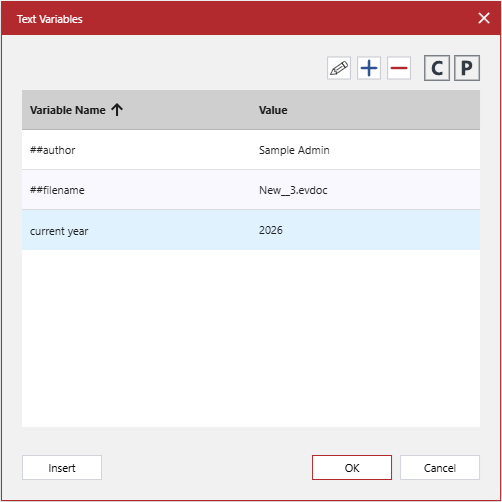
The grid in the Text Variables pop-up dialog displays all the text variables that exist in the document as grid rows. By default, the grid is prepopulated with the ##author and ##filename system variables for new documents. The grid columns are the following text variable properties:
Variable Name: the name of a text variable. The text variable name should be unique within the document. It can include spaces and special characters.
Value: the value of a text variable. The saved text variable value is automatically displayed in all the text objects where the text variable is referenced. It can include spaces and special characters.
The toolbar in the Text Variables pop-up dialog includes the following buttons:
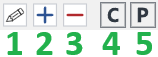
Edit Text Variable: to start editing the properties of a text variable selected in the grid. This button is inactive when no text variable is selected or a system text variable is selected.
Add Text Variable: to create a new text variable in the document. This button is inactive when you are editing a text variable in the grid.
Delete Text Variable: to delete a text variable from the document. This button is inactive when no text variable is selected or a system text variable is selected.
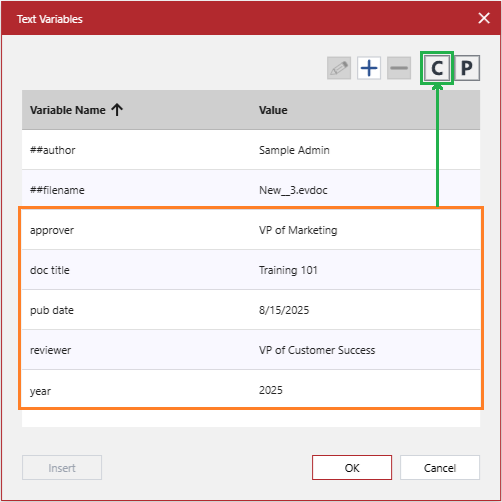
Copy Text Variables: to export all the text variables from the document to the system clipboard as an object in the CSV format. This button is inactive when you are editing a text variable in the grid or have deleted a text variable from the grid.
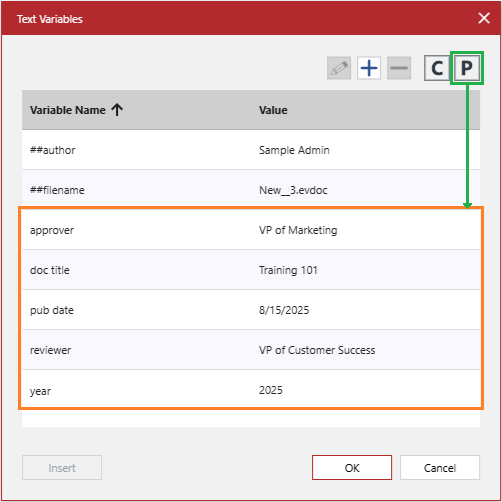
Paste Text Variables: to import text variables copied to the system clipboard as an object in the CSV format into the document. This button is inactive when you are editing a text variable in the grid.
The Text Variables pop-up dialog buttons are the following:
Insert: to insert a reference to a text variable selected in the grid, either:
At the cursor position, with the text formatting and style of the edited text, if you are editing a text object.
Onto the current page in a new text object with the default text formatting and style if you are not editing a text object.
This button is inactive when no text variable is selected or when you are editing a text variable in the grid.
OK: to close the dialog and save the changes made during the current dialog session.
Cancel: to close the dialog without saving the changes made during the current dialog session.
Creating new custom text variables in documents
To create one or more new custom text variables in a document:
Open the Text Variables pop-up dialog.
In the Text Variables pop-up dialog, click the Add Text Variable toolbar button. A new row with blank active cells appears at the grid top. The buttons in the dialog become inactive, except Delete Text Variable and Cancel.
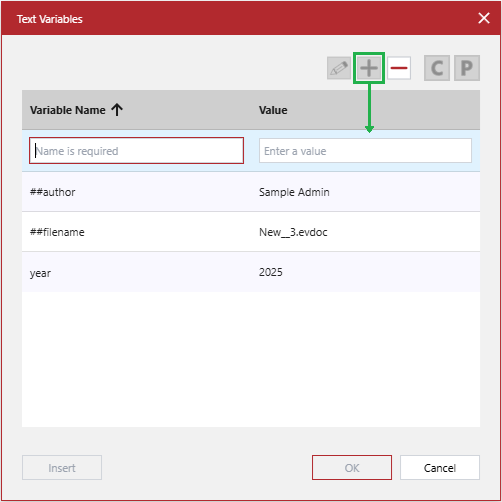
In the Variable Name column, enter the name of the new text variable.
In the Value column, enter the value that the references to the new text variable will show in text objects within the document.
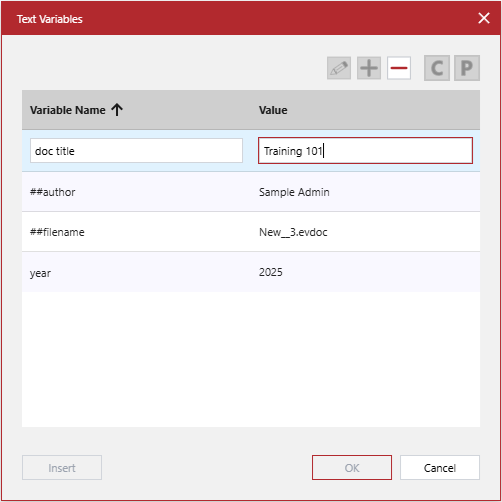
Press Enter. The new text variable row is inserted into the grid and sorted according to the current setting.
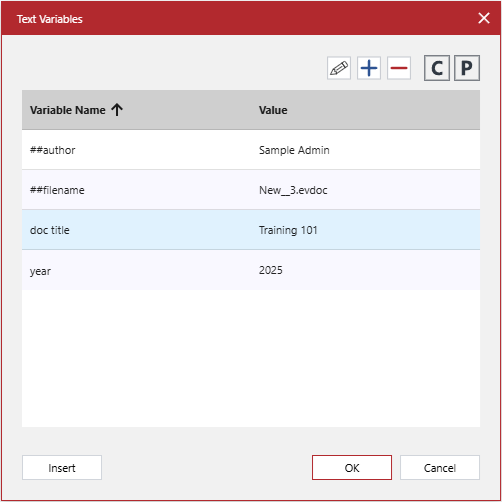
If you need to create more new text variables, repeat steps 2-5.
Once you are done adding new text variables to the grid, click the OK button. The Text Variables pop-up dialog disappears. The newly created text variables are saved to the document and available for insertion. The menus of the Text Variable split button and Text Variables command include the names of the newly created text variables.
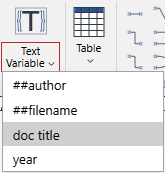
Inserting text objects with text variable references onto document pages
To insert a reference to a text variable wrapped in a text object onto a page in a document:
Go to the page where you want to insert a text object with the text variable reference.
Go to the Text pane of the Insert ribbon tab.
Click the bottom part of the Text Variable split button and select the text variable. The system inserts a new text object with a reference to the text variable onto the page with the default text formatting and style.
If necessary, edit the text object and apply another text formatting and style to the text variable reference.
Inserting text variable references into text objects
To insert a reference to a text variable into a text object:
Go to the text object.
Start editing the text object and move the cursor to the position in the text where you want to insert the text variable reference.
Insert a reference to the text variable with either:
The text-editing context-sensitive menu:
Right-click inside the text object. The text-editing context-sensitive menu appears.
Hover over the Text Variables command. The submenu with text variables appears on the right side of the menu.
Select the text variable you want to insert from the submenu.
The ribbon:
Go to the Insert pane of the Text ribbon tab.
Click the bottom part of the Text Variable split button. The menu of text variables appears below the split button.
Select the text variable you want to insert from the menu.
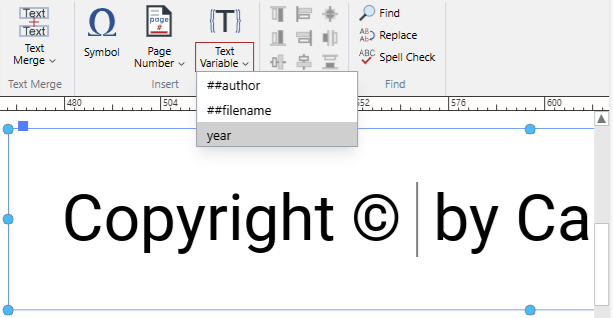
The system inserts a new reference to the text variable at the cursor position in the text object with the formatting and style of the edited text.
If necessary, apply another text formatting and style to the text variable reference.
Quit editing the text object.
Converting text variable references into text
To convert a text variable value displayed by a text variable reference in a text object into text:
Go to the text object with the text variable reference.
Right-click the text variable reference. The text-editing context-sensitive menu appears.
Click the Convert Text Variable command from the text-editing context-sensitive menu. The displayed text variable value is converted into a piece of text.

If necessary, edit the converted text and apply another text formatting and style to it.
Quit editing the text object.
Removing text objects with text variable references from document pages
To remove a text variable reference wrapped in a text object from the document page:
Delete the text object with the text variable reference.
Removing text variable references from text objects
To remove a text variable reference from a text object:
Go to the text object with the text variable reference.
Start editing the text object.
Click the text variable reference inside the text object.
Press the Delete key. The text variable reference is removed from the text object.

If necessary, delete extra spaces and punctuation marks left after deleting the text variable reference.
Quit editing the text object.
Updating the properties of existing custom text variables
To update the properties of one or more existing custom text variables:
Open the Text Variables pop-up dialog.
In the Text Variables pop-up dialog grid, select the row of the custom text variable you want to update. The cells on the custom text variable row are inactive. The Edit Text Variable, Delete Text Variable, and Insert buttons become active.
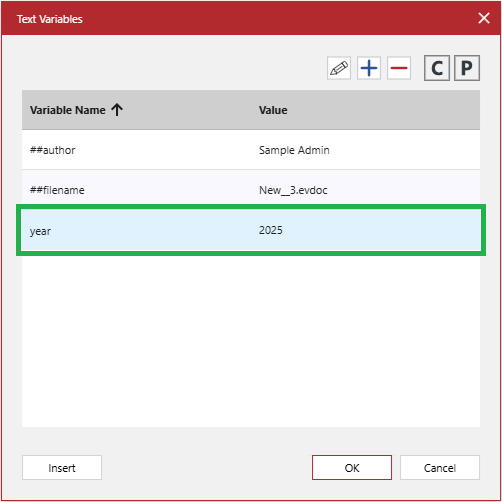
Click the Edit Text Variable button. The cells on the custom text variable row become active. The buttons in the dialog become inactive, except Delete Text Variable and Cancel.
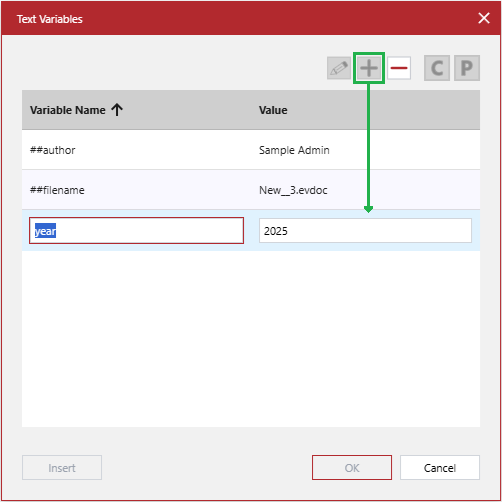
If you need to change the name of the text variable, enter the new name in the Variable Name cell.
If you need to change the value that the references to the text variable show in text objects within the document, enter the new value in the Value cell.
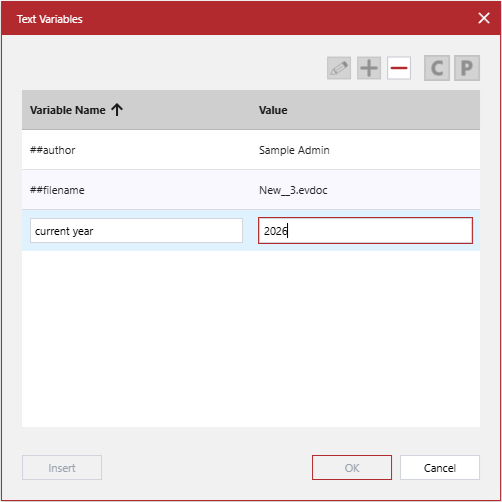
Press Enter. The cells on the text variable row display the new values and become inactive. All the buttons become active.
If you need to update more new text variables, repeat steps 2-6.
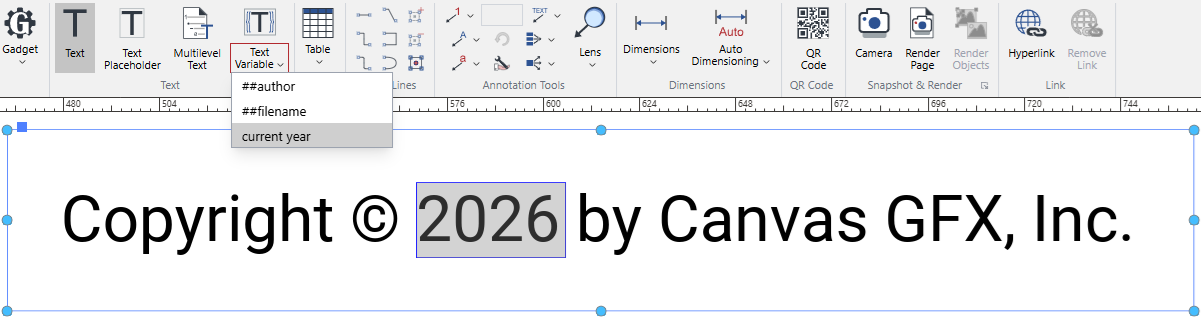
Once you are done with updating text variables, click the OK button. The Text Variables pop-up dialog disappears. The new values of the text variables are saved to the document:
If the text variable has a new name, the menus of the Text Variable split button and Text Variables command display the new name.
If the text variable has a new value, all the references to this text variable display the new value.
Deleting existing custom text variables from documents
To delete one or more existing custom text variables from the document:
Open the Text Variables pop-up dialog.
In the Text Variables pop-up dialog grid, select the row of the custom text variable you want to delete. The Edit Text Variable, Delete Text Variable, and Insert buttons become active.
Click the Delete Text Variable button. The selected text variable row disappears from the dialog grid. The Edit Text Variable, Delete Text Variable, Copy Text Variables, and Insert buttons become inactive.
If you need to delete more new text variables, repeat steps 2-3.
Once you are done with deleting text variables from the dialog grid, click the OK button. A notification dialog pops up, informing you that the values of the deleted text variables displayed in text objects will be automatically converted into pieces of text.
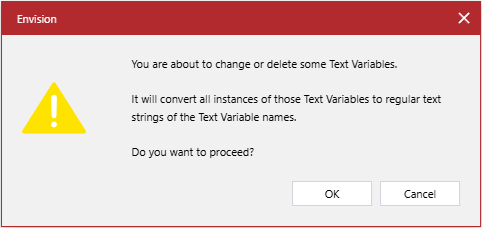
In the notification pop-up dialog, click the OK button. The dialog disappears. The text variables are deleted from the document:
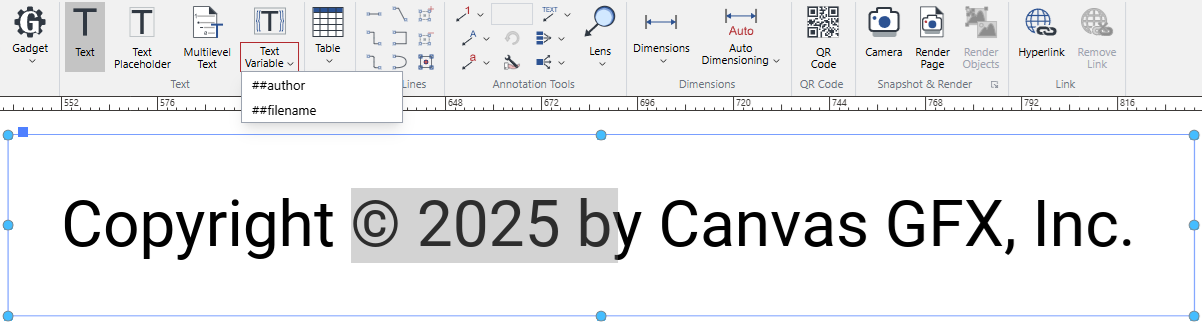
The menus of the Text Variable split button and Text Variables command do not include the names of the deleted text variables.
The values of the deleted text variables are converted into text where these text variables were referenced in text objects.
Exporting existing custom text variables from documents
To export existing custom text variables from a document as a piece of data in the CSV format:
Open the Text Variables pop-up dialog.
Click the Copy Text Variables button. All the custom text variables are copied to the system clipboard as an object in the CSV format.
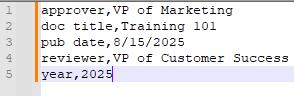
Paste the copied custom text variables where you need them; for example, you can import them into another document, a simple text file, or a spreadsheet.
Importing custom text variables into documents
To import custom text variables as a piece of data in the CSV format into a document:
Copy custom text variables that you want to import from a source document, simple text file, or spreadsheet to the system clipboard as an object in the CSV format.
Go to the document where you want to import the copied custom text variables.
Open the Text Variables pop-up dialog.
Click the Paste Text Variables button. The exported custom text variables are pasted from the system clipboard into the document.
Click the OK button. All the pasted custom text variables are saved to the document.
Understanding CSV objects with custom text variables
An object in the Comma-Separated Values (CSV) format contains custom text variables according to the following template:
For example:
In this format, text variables are given as name-value pairs. A comma without spaces separates the name from the value in a pair. Instead of a comma, a separator between the name and value can be a tab or colon (:). Each pair starts on a new line.
You can prepare text variables in the CSV format with a simple text or spreadsheet editor to export them into multiple Envision documents.