Navigating Pages
You can navigate the pages in a document with either:
The main working area.
The Page Navigator pane.
Navigating pages with the main working area
To navigate pages in the document:
Hover the cursor over the main working area and rotate the wheel mouse button.
Navigating pages with the Page Navigator pane
To navigate pages in the document:
Open or go to the Page Navigator pane.
In the Page Navigator pane, click the Pages tab.
In the Page Navigator pane, either:
Hover the cursor over the pages and rotate the wheel mouse button.
Drag the slider thumb or click on the scroll bar of the pane.
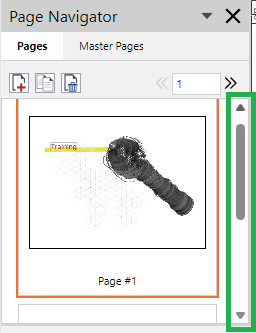
Click the arrow buttons on the scroll bar of the pane.
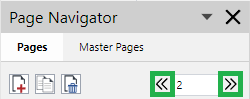
Click the Previous Page and Next Page buttons on the toolbar of the pane.
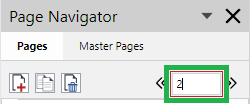
Enter the page number in the Page Number field on the toolbar of the pane and press the Enter key.
01 October 2024